🌳 Automating Folder Structure Creation in Linux with tree Command and GPT Template 🚀
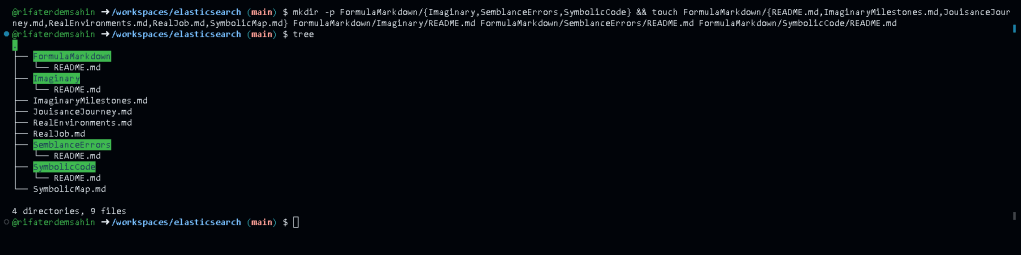
Have you ever wanted to automate the creation of a folder structure and visualize it at a glance using the tree command in Linux? If so, you're in the right place! In this blog post, I’ll show you how to efficiently use the tree command to create directory structures and combine it with GPT to generate a template for managing files and folders. 🌟
🔍 What is the tree Command?
The tree command is a powerful utility in Linux that displays the structure of directories and subdirectories in a tree-like format. It’s perfect for visualizing how your project directories are laid out, helping you stay organized.
Example usage of tree
tree /path/to/your/project
💡 Why Automate with GPT?
While the tree command gives you a visual structure, leveraging GPT allows you to create predefined templates that automate directory creation based on specific needs. For instance, if you're setting up a project with directories for src, tests, and docs, GPT can generate this structure and automatically create it using Linux commands.
🚀 How to Achieve It:
-
Set Up Your Directory Structure: First, define the structure you want for your project.
-
Automate Folder Creation: Use a shell script to create the folder structure.
-
Visualize Using
tree: After creating the folders, usetreeto visualize your directory structure.
Here’s a simple example:
!/bin/bash
Automate folder creation
mkdir -p MyProject/{src,tests,docs}
Run tree command to see the structure
tree MyProject
This creates a folder structure with three directories: src, tests, and docs. Running the tree command afterward shows you the structure in a clean, easy-to-understand format. 🛠️
📝 Creating a GPT Template for Automation
With GPT, you can generate scripts or templates based on the structure of your projects. For example, use this prompt to create a template for a typical project:
Create a directory structure for a Python project with the following folders: src, tests, docs, and include an optional README file.
GPT will return something like this:
mkdir -p PythonProject/{src,tests,docs}
touch PythonProject/README.md
tree PythonProject
💡 Tip: You can further customize the GPT template to include specific files or folder structures based on your workflow.
🚀 Taking It a Step Further
You can add scripts to your .bashrc or .zshrc file for even more automation. For instance, create a function that you can call anytime you want to set up a project structure.
Add this to your .bashrc or .zshrc
function create_project() {
mkdir -p "$1"/{src,tests,docs}
touch "$1"/README.md
tree "$1"
}
Then, just run:
create_project MyNewProject
And voilà, the directory is automatically set up with a README file included! 🎉
🚀 Screenshot Pause 🎥
Imagine watching the terminal execute your commands step-by-step! Here’s a screenshot of the result after running the script:
Now you’ve got the tools to automate your folder creation process and visualize it in style! Keep your projects organized and save time by combining the power of Linux and GPT. 🚀💻
🔗 Connect with me:
-
💼 LinkedIn: https://www.linkedin.com/in/rifaterdemsahin/
-
🐦 Twitter: https://x.com/rifaterdemsahin
-
🎥 YouTube: https://www.youtube.com/@RifatErdemSahin
-
💻 GitHub: https://github.com/rifaterdemsahin
Imported from rifaterdemsahin.com · 2026