🚀 Supercharging Local LLM with AI: A Quick Setup Guide
Are you ready to give your coding workflow a futuristic boost? ✨ AI Assistant feature is here to help! Whether you’re tinkering with LM Studio or hooking up to Ollama, it’s time to level up your editor with some AI-powered smarts. Let’s dive in! 🤿
1. Opening the AI Assistant Settings
-
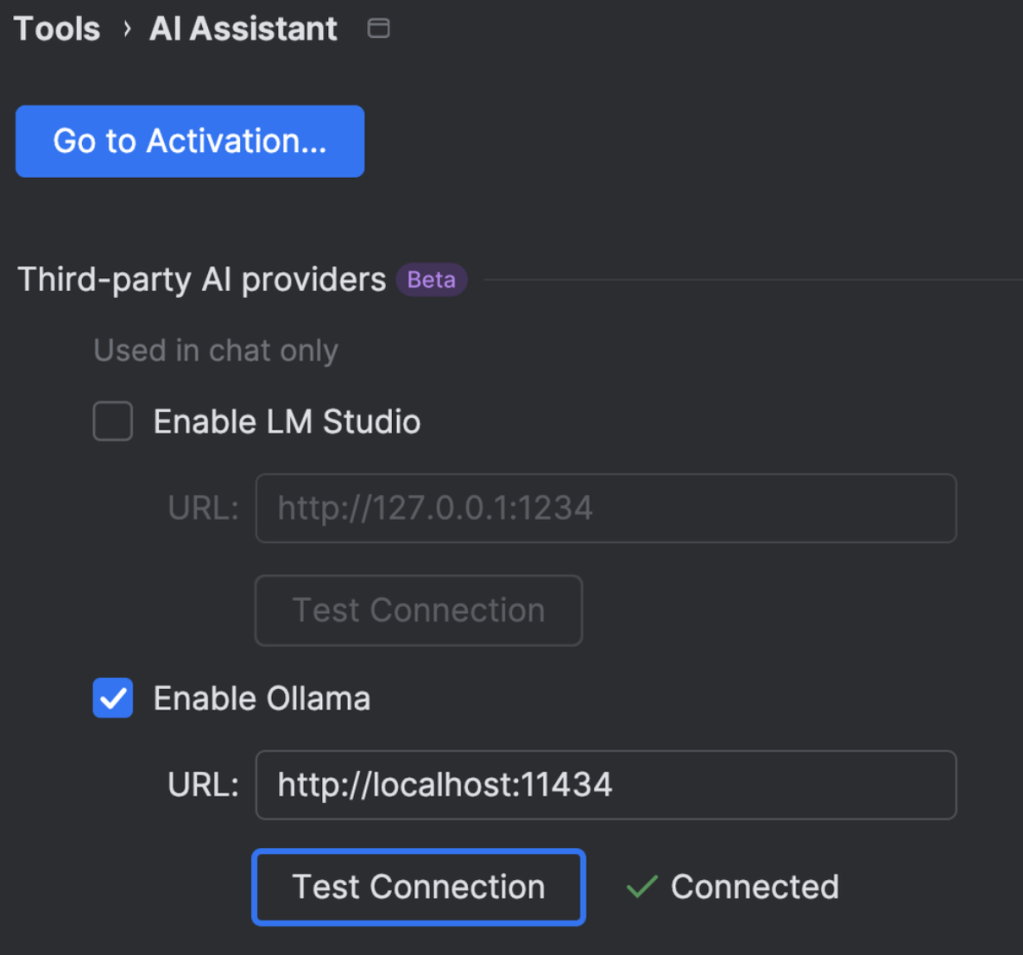
In Jetbrains(or other similar IDE's) , head to Tools in the menu bar.
-
Select AI Assistant.
-
Click Go to Activation… (if you haven’t activated the AI Assistant yet).
Once activated, you’ll see the AI Assistant panel with third-party AI provider options. 👀
2. Connecting to LM Studio
-
Enable LM Studio by checking the box.
-
Enter the URL where LM Studio is running (usually something like
http://127.0.0.1:1234). -
Click Test Connection. If everything’s set up correctly, you’ll see a success message! 🎉
Tip: Make sure LM Studio is running locally. If you’re not sure how to do that, open LM Studio, start your model, and note the port it’s using. Then match that in Nova’s settings.
3. Connecting to Ollama
-
Enable Ollama by checking the box.
-
Enter the URL where Ollama is running (
http://localhost:11434is the default). -
Click Test Connection to confirm everything’s green. ✅
Note: Ollama is another local large language model runner. If you prefer it over LM Studio, or want to experiment, you can toggle these options as you like.
4. Chatting with Your AI Assistant
With your AI Assistant set up, you can:
-
Ask for code suggestions: “How do I write a function in Swift that calculates factorials?” 🧮
-
Get explanations: “What does this regular expression do?” 🤔
-
Generate code snippets: “Give me a basic RESTful API example in Node.js.” 🔧
Just open the AI Assistant panel and start chatting. It’s that simple! 🗨️
5. Troubleshooting Tips
-
If your connection test fails, double-check that the local service (LM Studio or Ollama) is running and that you’ve copied the correct URL and port. 🔌
-
Make sure you have the latest versions of Nova and the AI tools. Keeping everything up to date helps avoid compatibility issues. ⏫
6. Why Local LLMs Rock
Running your own local large language model means:
-
Privacy: Your data and queries stay on your machine. 🛡️
-
Speed: Low-latency responses, depending on your hardware. ⚡
-
Flexibility: Tweak models or switch them out as you like. 🧩
7. Ready to Code Like a Pro? 🎉
With Nova’s AI Assistant wired up to LM Studio or Ollama, you’ll have an AI companion right inside your editor—perfect for brainstorming, debugging, and learning on the fly. Give it a spin and see how it transforms your workflow! ✨
Have fun coding (and chatting) with your new AI sidekick! If you run into any hiccups, feel free to drop a comment or explore the Nova documentation for more detailed instructions.
Happy coding! 🎉🧑💻
Imported from rifaterdemsahin.com · 2026