📸 Why Using "Active Window" in TechSmith Snagit is a Game-Changer
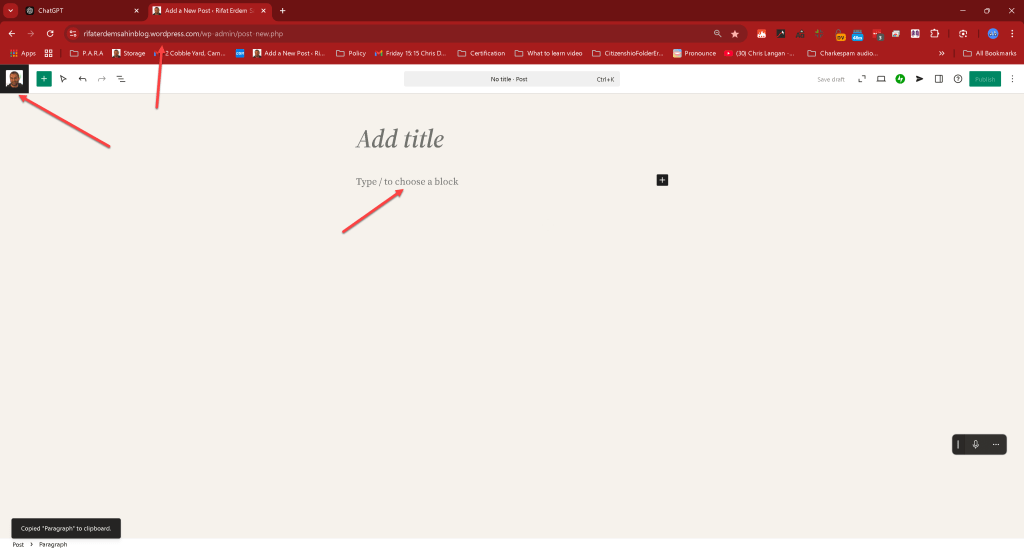
When it comes to capturing screenshots, Snagit is one of the most versatile tools out there. While it offers a plethora of options for capturing images, one of the best features for productivity and clarity is the "Active Window" option. Here’s why this setting is such a valuable tool for anyone looking to create clean, professional captures.
💡 What Is the Active Window Capture in Snagit?
The Active Window capture option in Snagit allows you to take a screenshot of only the window that is currently active on your screen. It doesn’t include your desktop, background apps, or anything else that might clutter your image. With a simple hotkey or click, Snagit captures only the main content you want to highlight.
🚀 5 Reasons to Use "Active Window" for Screenshot Pauses
1. 🧼 Keeps It Clean
Capturing only the active window reduces the visual noise in your screenshots. This makes it easier for your audience to focus on the content you’re explaining without distractions from other apps or desktop icons.
2. ✂️ Saves Editing Time
By capturing just the active window, you skip the need to crop out unwanted areas later. This not only makes your workflow faster but also ensures that all your screenshots have a consistent look.
3. 🔄 Increases Flexibility for Tutorials
When you’re creating tutorials or guides, the active window capture feature allows you to seamlessly move from one app to another. Each screenshot is perfectly framed, maintaining focus on the current step and creating a natural flow for the reader.
4. 👀 Prevents Privacy Leaks
Screenshots that capture the entire screen may inadvertently reveal personal information or confidential data in the background. Active Window helps you avoid this risk by focusing solely on the relevant content.
5. 🚀 Boosts Productivity
With a clean, focused screenshot every time, you’ll find that your content creation process speeds up. Instead of adjusting each image, you can move on to the next step of your project more quickly, whether that’s annotating, sharing, or uploading the images.
📝 Pro Tip: Add Pauses for a Smooth Workflow!
When you’re using Snagit to capture a series of screenshots for a tutorial, try adding short pauses between captures. This not only gives you time to prepare the next window but also helps organize your workflow. These pauses are especially helpful for sequential tasks, like recording step-by-step processes, where every moment counts.
🔧 How to Set Up Active Window Capture in Snagit
-
Open Snagit and navigate to the capture settings.
-
Select the Active Window option.
-
Set a hotkey for quick access if you capture frequently.
-
Hit capture and watch Snagit do the magic!
By focusing on just the active window, you’ll find that your screenshots are clearer, more professional, and take less time to edit. Give it a try in your next project, and see the difference for yourself!
🔗 Connect with me:
-
💼 LinkedIn: https://www.linkedin.com/in/rifaterdemsahin/
-
🐦 Twitter: https://x.com/rifaterdemsahin
-
🎥 YouTube: https://www.youtube.com/@RifatErdemSahin
-
💻 GitHub: https://github.com/rifaterdemsahin
Imported from rifaterdemsahin.com · 2025