Check List for a Google Meets Call
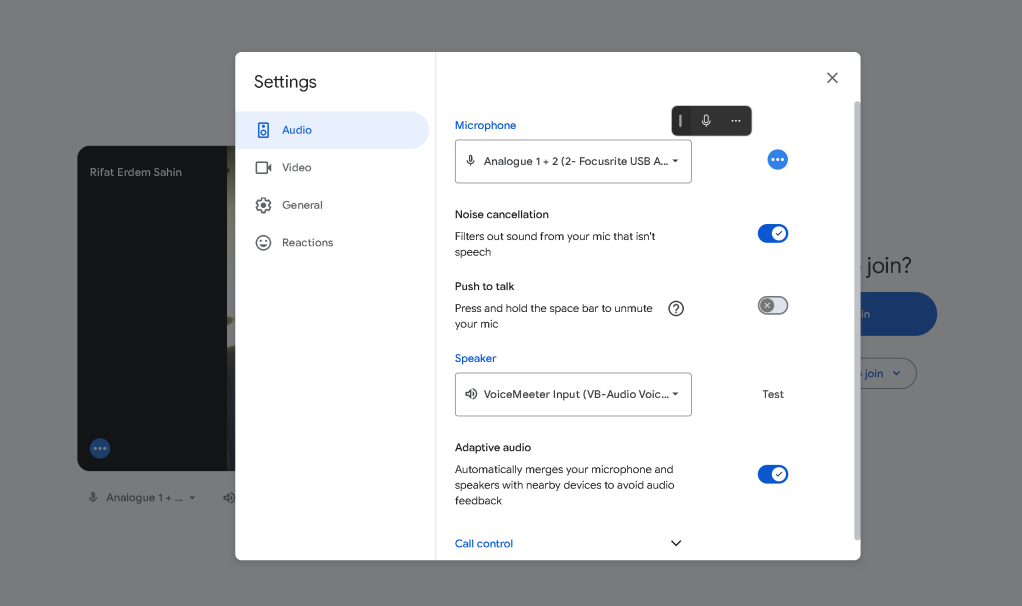
Mic Check > XLR
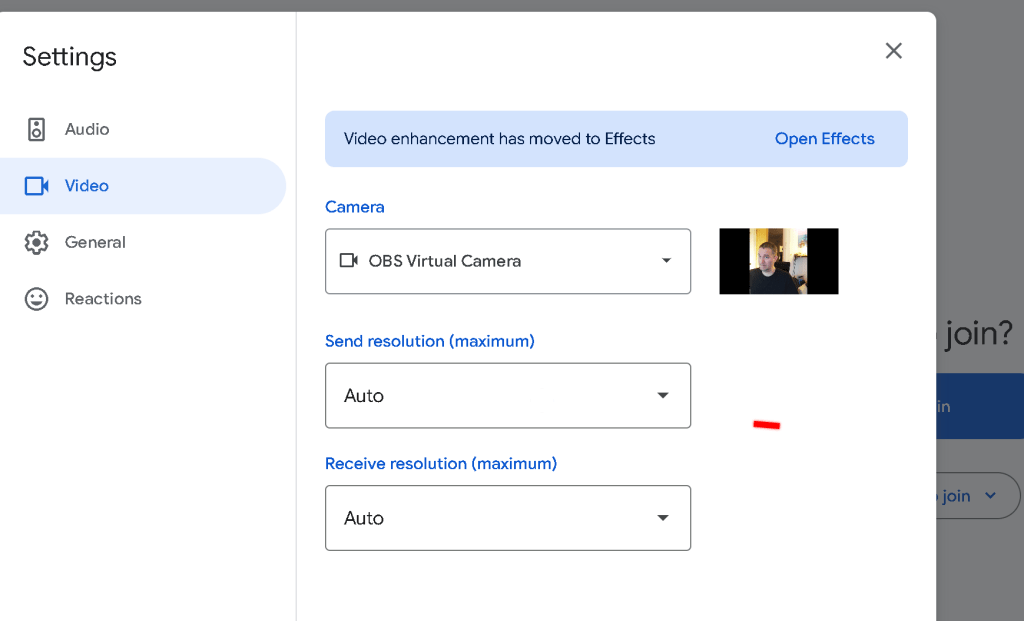
Camera Check
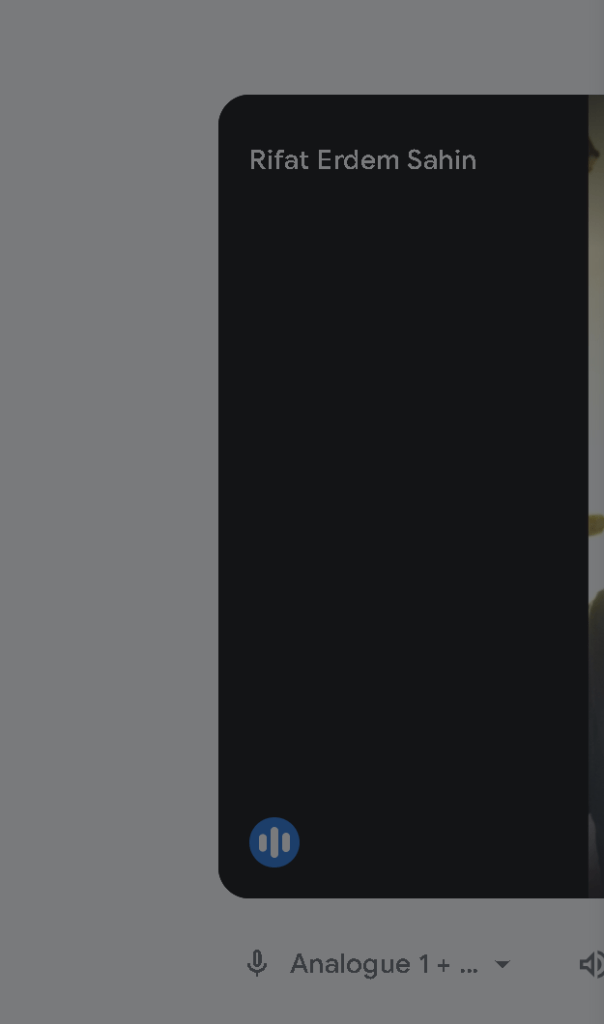
test buttons

Mic Move up and Down
Raw Record Check
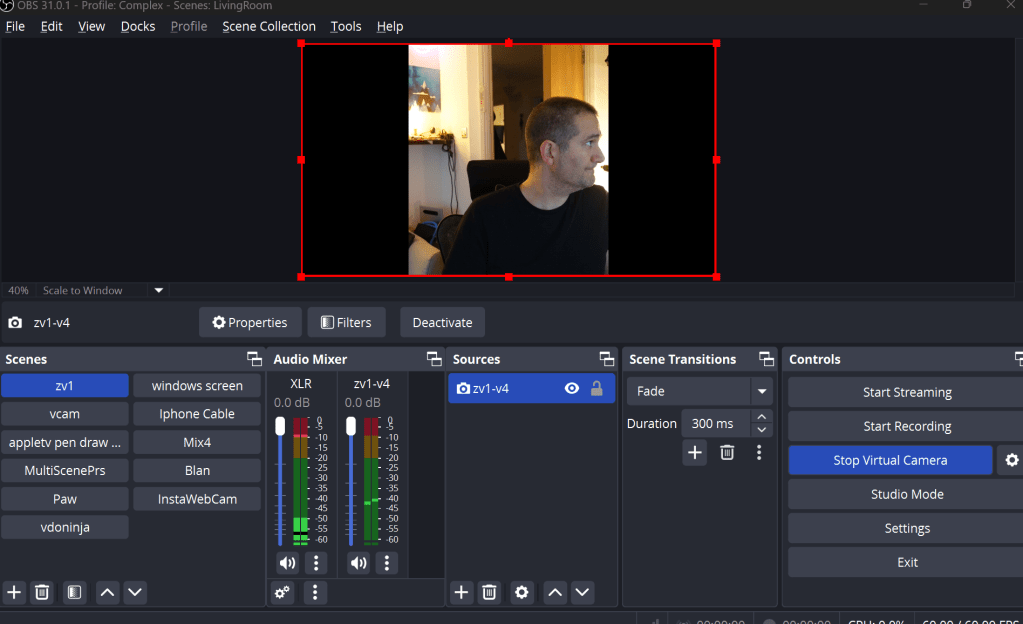
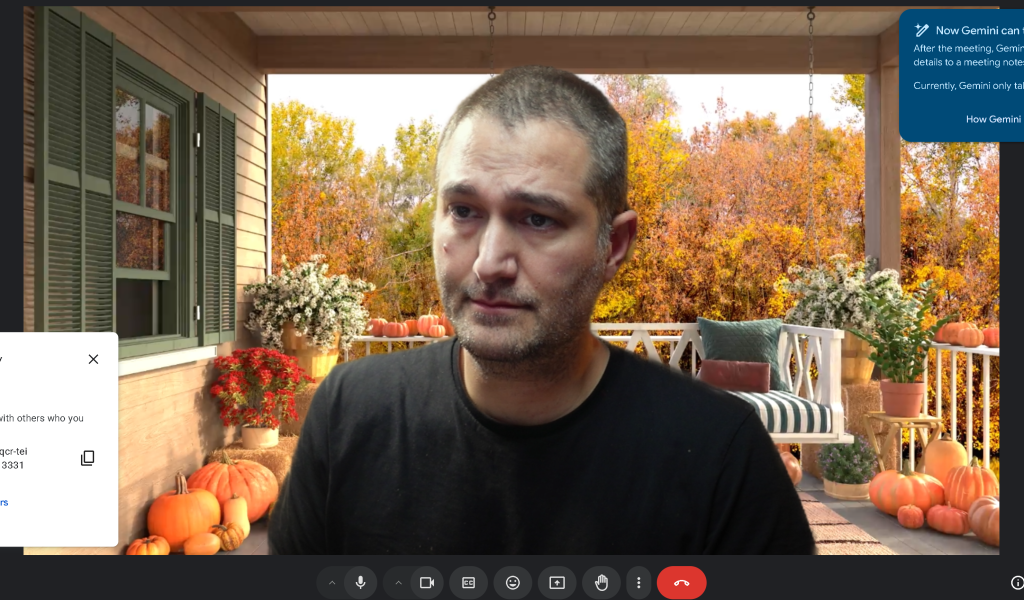
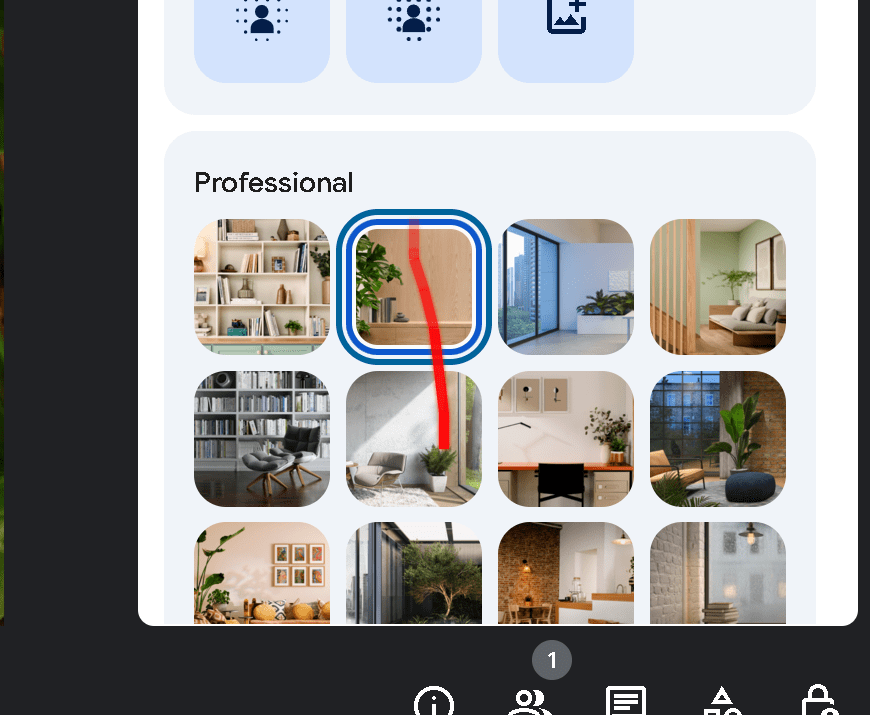
Set Back ground
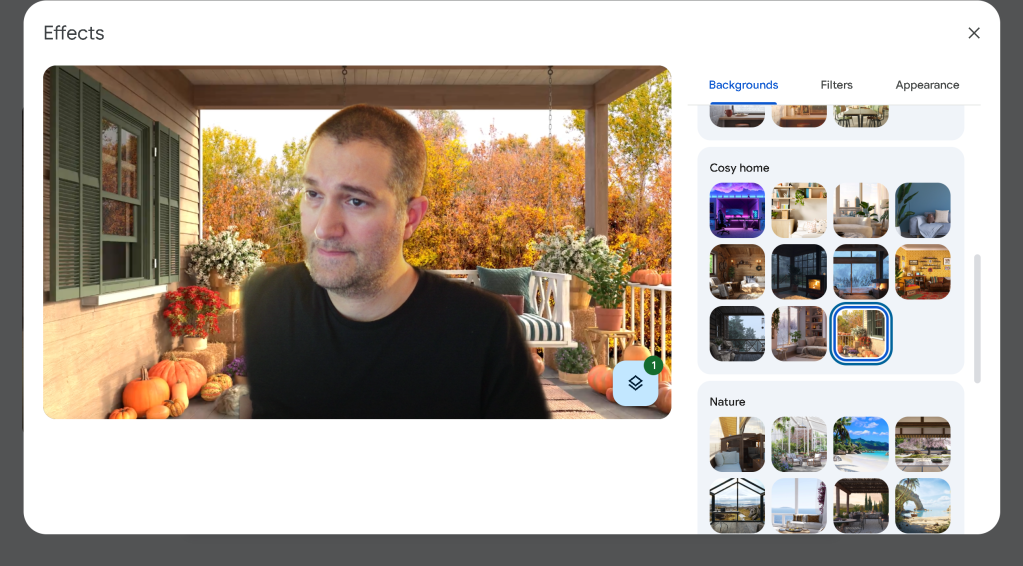
Turn the light on
Set headligh and reconnect
Recording two different scenes simultaneously in OBS Studio isn't directly supported within a single instance of the application. However, you can achieve this using the following methods:
1. Running Multiple Instances of OBS:
-
Open Multiple OBS Windows: Launch OBS Studio, then open it again to run a second instance.
-
Configure Each Instance:
In the first OBS window, select the scene you wish to record.
-
In the second OBS window, choose the other scene you want to capture.
-
Set Unique Recording Paths:
In each OBS instance, navigate to Settings > Output > Recording and specify different file paths or filenames to prevent conflicts.
- Start Recording:
Begin recording in both OBS instances.
Be aware that running multiple instances of OBS can be resource-intensive and may impact system performance. citeturn0search2
2. Using the Source Record Plugin:
The Source Record plugin allows you to record individual sources separately within a single OBS instance.
- Install the Plugin:
Download the Source Record plugin from the OBS forums.
-
Follow the installation instructions provided.
-
Apply the Filter:
In OBS Studio, right-click on the source you want to record separately.
-
Select Filters.
-
Click the "+" button under Effect Filters and choose Source Record.
-
Configure the recording settings as desired.
This method allows for isolated recordings of specific sources without the need for multiple OBS instances. citeturn0search6
3. Combining Sources in a Single Scene:
Alternatively, you can create a single scene that includes both sources arranged side by side:
- Set Up Canvas Resolution:
Adjust the canvas size to accommodate both sources. For example, if each source is 1920x1080, set the canvas to 3840x1080.
- Add and Arrange Sources:
Add both sources to the scene.
-
Position them accordingly within the canvas.
-
Record the Scene:
Start recording.
In post-production, you can split the recorded video into separate files as needed. citeturn0search7
Choose the method that best aligns with your requirements and system capabilities.
https://obsproject.com/forum/threads/source-record.143697/page-44#post-671836
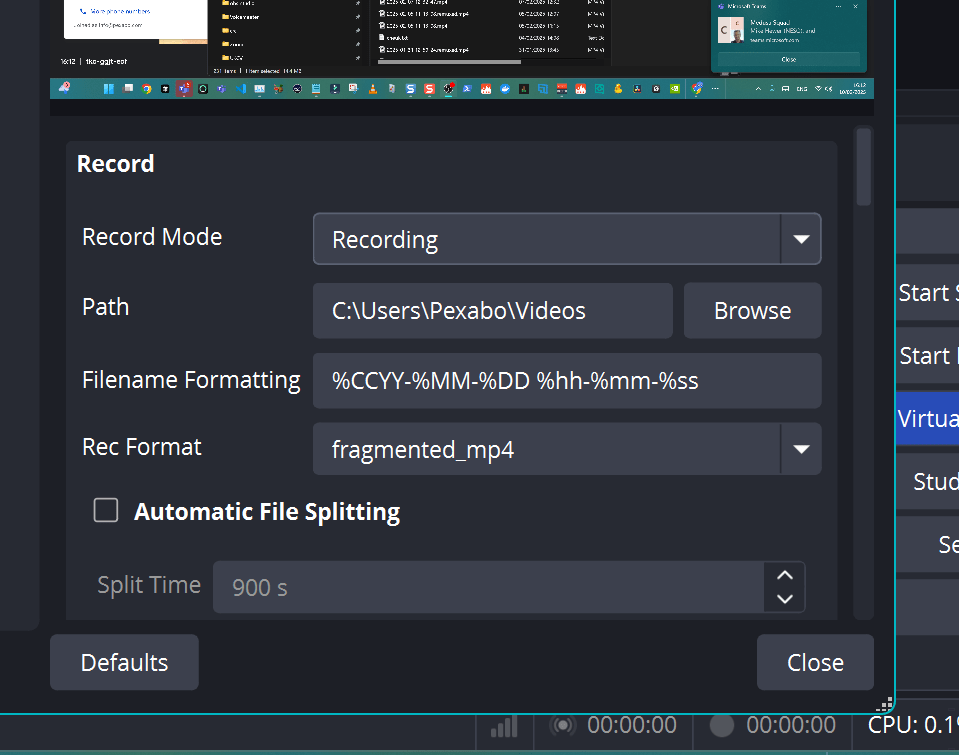
Record source
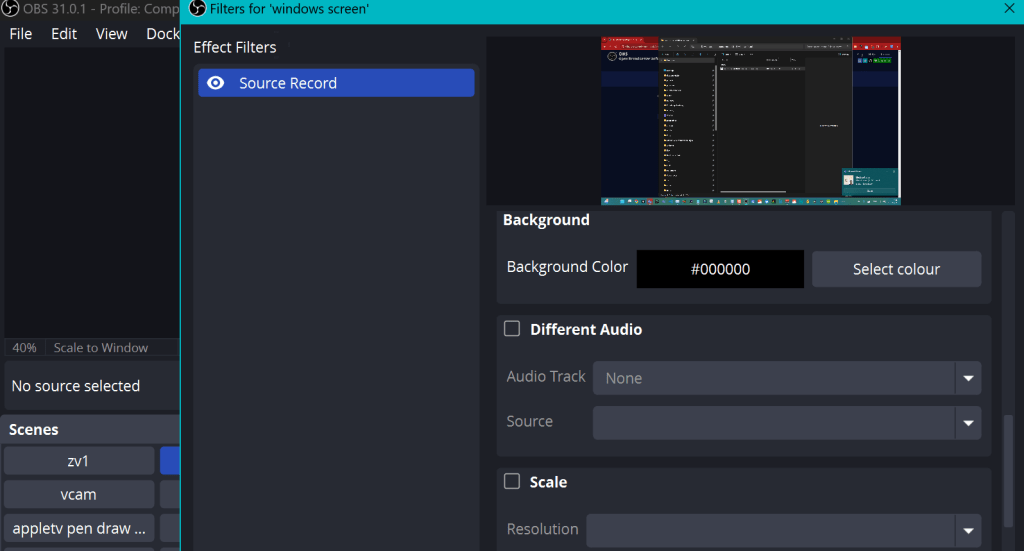
set on recording to make it work
~Home bookshelf setup for the backfround
Check both files coming in > broken file reset it
avoid collisons different formats use them
Imported from rifaterdemsahin.com · 2025