Popup Helper On Text Blaze
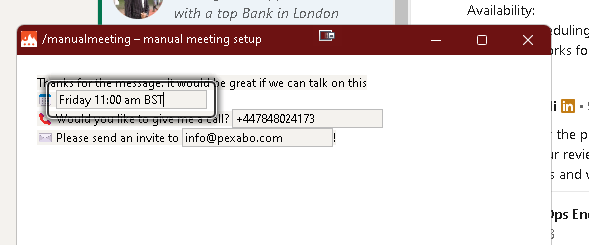
Thanks for the message. It would be great if we can talk on this
                📅 {formtext: name=Meeting Date; default=Friday 11:00 am BST}
                📞 Would you like to give me a call? {formtext: name=Phone Number; default=+447848024173}
                ✉️ Please send an invite to {formtext: name=Email; [email protected]}!
📝 How to Achieve Dynamic Placeholders Using Text Blaze in LinkedIn Updates
🚀 Ever wondered how to create dynamic placeholders in your LinkedIn updates to automate and personalize posts? Text Blaze is your answer! Whether you're updating your audience with the latest insights or sharing achievements, dynamic placeholders allow you to customize each post with ease, saving you time and effort.
In this blog, I’ll walk you through how I use Text Blaze formulas to automate my LinkedIn updates.
Step-by-Step Guide:
-
Install Text Blaze Extension:
First, add the Text Blaze extension to your browser. It’s available for both Chrome and Edge, and once installed, you’ll be ready to start using dynamic formulas. -
Set Up a New Snippet:
-
Open Text Blaze and create a new snippet.
-
Define your template with placeholders using curly braces. For example:
“Hi {name}, I wanted to share with you an update on {topic} that might interest you.” -
Use Formula-Based Placeholders:
-
You can use formulas to automatically populate variables such as dates or names. For example, you could have
{form: date}to dynamically insert the current date in your LinkedIn post. -
Leverage Conditional Logic:
-
Text Blaze supports conditional logic! Use it to show different messages depending on the context. For instance:
if({connections} > 500, "Congrats on reaching a major milestone!", "Let’s grow your network!")
🚀 Screenshot Pauses:
Here’s a handy tip: When you want to capture the perfect moment for a screenshot in your posts or tutorials, use the screenshot pause feature within Text Blaze to time your image perfectly. Pausing allows you to capture precise content that fits your needs.
💡 Why Use Text Blaze for LinkedIn?
-
Efficiency: Save time by reusing templates and dynamically updating your content.
-
Consistency: Ensure that your updates have the same structure without needing to retype everything.
-
Personalization: Automatically update placeholders with specific details, making each message feel unique.
🔗 Connect with me:
-
💼 LinkedIn: https://www.linkedin.com/in/rifaterdemsahin/
-
🐦 Twitter: https://x.com/rifaterdemsahin
-
🎥 YouTube: https://www.youtube.com/@RifatErdemSahin
-
💻 GitHub: https://github.com/rifaterdemsahin
✨ Try these tips to automate your LinkedIn updates and stand out effortlessly!
Imported from rifaterdemsahin.com · 2025