How to Clean Up Microsoft To Do
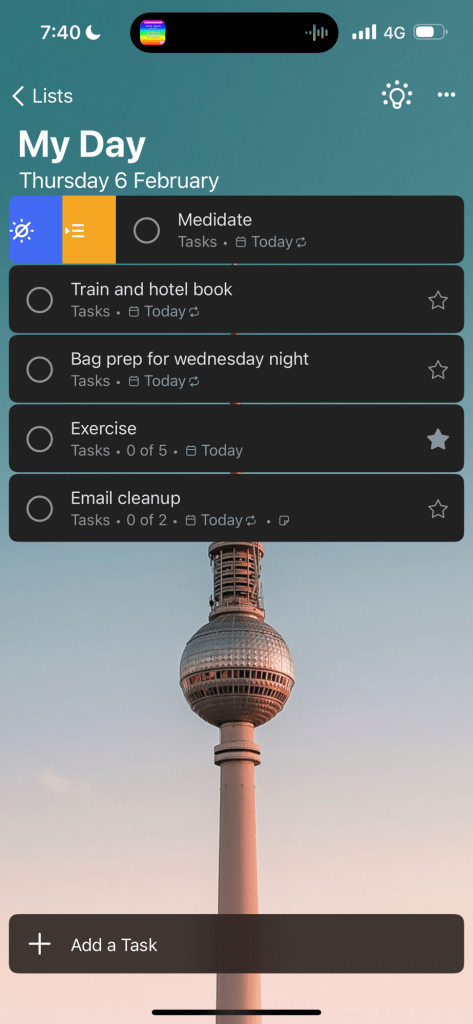
Using Right-Click and Swipe Gestures:
-
Right-Click on Desktop/Web:
-
Open Microsoft To Do on your desktop or web browser.
-
Right-click on a task to reveal options like Delete, Mark as Completed, or Add to My Day.
-
Use Delete to remove unnecessary tasks or Mark as Completed to clear finished ones.
-
Swipe Gestures on Mobile:
-
On the Microsoft To Do mobile app, swipe left on a task to reveal options.
-
Swipe lightly to Mark as Completed or swipe further to Delete the task.
-
Use these gestures to quickly clean up your list while on the go.
-
Organize Tasks:
-
Group similar tasks into lists (e.g., Work, Personal, Shopping).
-
Use the Move option (right-click or long-press) to relocate tasks to the appropriate list.
-
Review and Prioritize:
-
Regularly review your lists and remove outdated or irrelevant tasks.
-
Use the Star feature to highlight high-priority tasks.
Blog Post: Clean Up Your Microsoft To Do List Like a Pro! 🚀
Title: "✨ Tidy Up Your Microsoft To Do List with These Quick Tips! ✨"
Are you drowning in a sea of tasks? 🌊 Don’t worry—cleaning up your Microsoft To Do list is easier than you think! Here’s how to declutter and get back on track:
-
Swipe Away the Chaos! 📱
On the mobile app, swipe left to mark tasks as completed or delete them entirely. It’s like magic—your list gets cleaner in seconds! 🪄 -
Right-Click to the Rescue! 🖱️
On desktop, right-click tasks to delete, mark as completed, or move them to a different list. A few clicks, and voilà—your list is organized! 🗂️ -
Group and Conquer! 🗃️
Create separate lists for work, personal, and other categories. Move tasks around to keep everything in its rightful place. 🏠 -
Star Your Priorities! ⭐
Highlight important tasks with the star feature. This way, you’ll never lose sight of what truly matters. 🌟 -
Review Regularly! 🔄
Set aside time each week to review your lists. Delete outdated tasks and celebrate your completed ones! 🎉
Pro Tip: Use emojis in your task names to make your list more fun and visually appealing! 🎨 For example:
-
🛒 Grocery Shopping
-
💼 Finish Work Report
-
🏋️ Hit the Gym
By following these simple steps, you’ll transform your Microsoft To Do list from chaotic to crystal clear! 🌈 Ready to take control? Start cleaning up today! 🧹
Let me know if you'd like more tips or a customized version of the blog post! 😊
Imported from rifaterdemsahin.com · 2025