How to Check Your Windows Version Using PowerShell 🖥️💡
Keeping track of your Windows version can be important for troubleshooting, software compatibility, or just staying up-to-date with your system. Luckily, PowerShell offers a quick and easy way to check your Windows version. 🚀
Here’s a step-by-step guide to help you find out your current Windows version using PowerShell.
💻 Step-by-Step Instructions:
-
Open PowerShell
-
Press
Windows + Xon your keyboard and select Windows PowerShell (Admin) or just PowerShell if you don't need administrative privileges. -
Type the Command
In the PowerShell window, type the following command and pressEnter:
Get-ComputerInfo | Select-Object WindowsVersion, OsBuild
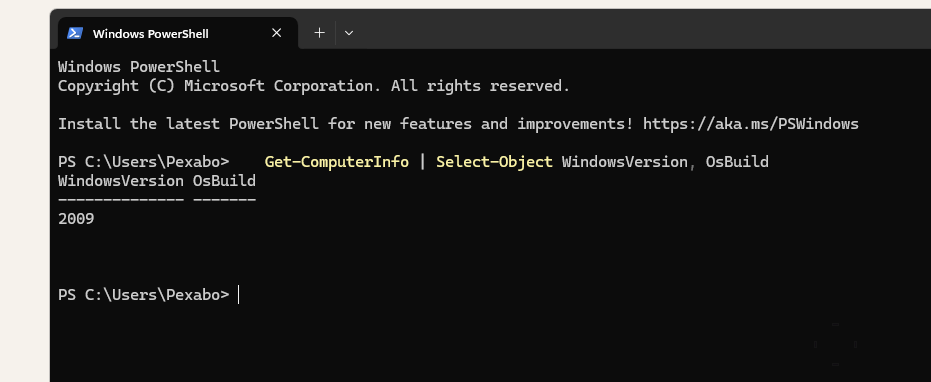
- See Your Windows Version
After running the command, PowerShell will return your Windows Version and the OS Build. (Example of output with version and build details)
🚀 Why You Should Know Your Windows Version
-
Compatibility: Ensure your software is compatible with your current OS.
-
Security: Stay updated with the latest Windows security patches.
-
Support: When troubleshooting, it's helpful to know what version of Windows you're working with.
🌟 Pro Tip:
For a quick version check without additional details, you can also use:
winver
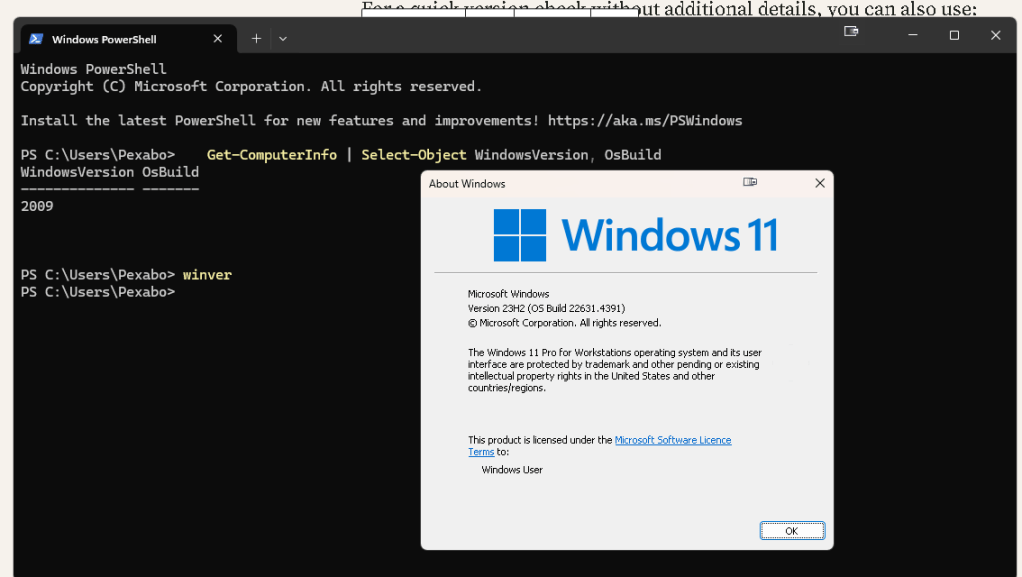
Just type it into Run (Windows + R), and it will show you a window with your Windows version info.
💬 Conclusion:
Now you know how to check your Windows version using PowerShell. It’s simple, quick, and can come in handy anytime you need to verify your system details!
🔗 Connect with me:
-
💼 LinkedIn: Rifat Erdem Sahin
-
🐦 Twitter: @rifaterdemsahin
-
🎥 YouTube: Rifat Erdem Sahin
-
💻 GitHub: rifaterdemsahin
Happy PowerShell-ing! 😊
Imported from rifaterdemsahin.com · 2025