🚀 Enhancing Writing with DeepL: A Chrome Extension Journey
🌟 Why DeepL as a Chrome Extension?
As a content creator, I constantly strive to improve my writing. Whether it's blog posts, emails, or technical documentation, having a reliable writing assistant is crucial. DeepL, known for its powerful AI-driven translations and grammar suggestions, has been a game-changer. But what if we could integrate it directly into the Chrome browser? That’s exactly what I wanted to achieve!
🛠 Setting Up DeepL as a Chrome Extension
1️⃣ Finding the Right Tools
To make DeepL seamlessly assist with writing, I explored various approaches: ✅ Using the official DeepL browser extension (if available)
✅ Developing a custom Chrome extension that interacts with DeepL’s API
✅ Using third-party tools that integrate DeepL with text editors
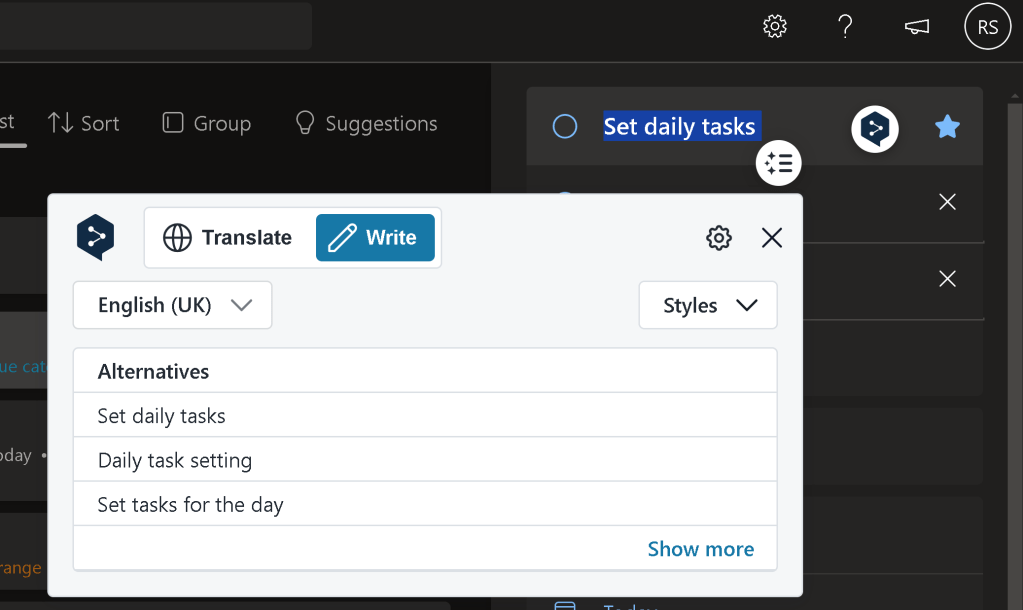
2️⃣ Installing and Testing
Once I found a suitable extension, I installed it and tested how well it worked within different web environments like: 🔹 Google Docs
🔹 Gmail
🔹 WordPress
🔹 Social media platforms
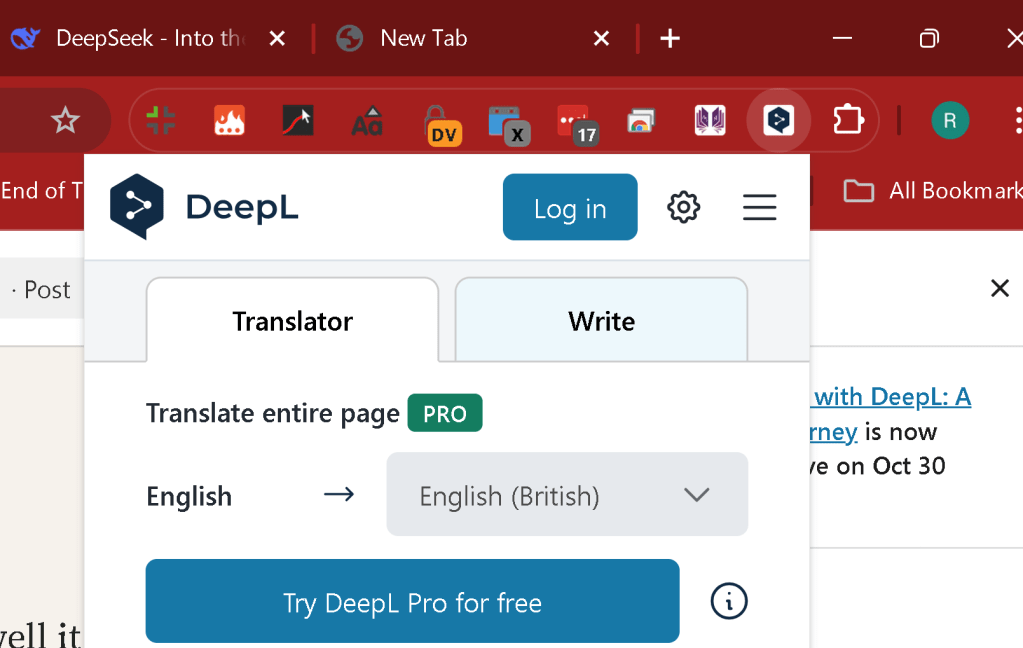
3️⃣ Customising for Better Workflow
I tweaked the settings to fit my needs, such as: ✨ Enabling automatic suggestions
✨ Configuring shortcut keys for quick translation
✨ Adjusting language preferences
(📸 Screenshot: DeepL settings panel)
🚀 Key Takeaways
✔ DeepL significantly improves writing clarity and tone.
✔ A Chrome extension makes it super convenient to use.
✔ Customisation allows for a smoother workflow.
💡 Want to try it yourself? Download the DeepL extension and see how it transforms your writing! Let me know your thoughts in the comments. 🚀
🔗 Connect with me:
💼 LinkedIn
🐦 Twitter
🎥 YouTube
💻 GitHub
DeepL #ChromeExtension #Writing #AI #Productivity
Imported from rifaterdemsahin.com · 2025