🛠️ How to Convert WEBM to MP4 with HandBrake on Mac 🚀
Converting videos from one format to another can be tricky, but with HandBrake, it's a breeze. Whether you're preparing content for social media, presentations, or just compatibility purposes, this guide will walk you through converting WEBM to MP4 on a Mac. Let's dive in! 💻✨
🎯 Why Use HandBrake?
HandBrake is:
-
🌟 Free and open-source.
-
🛡️ Reliable and lightweight.
-
📂 Supports a wide range of formats.
-
📱 Perfect for creating device-friendly MP4 files.
🛑 Before You Start
👉 Download and install HandBrake if you haven’t already. You can grab it from their official site: handbrake.fr.
🔄 Step-by-Step Guide
1️⃣ Launch HandBrake
Open the app, and you'll see the Source Selection screen. Drag your WEBM file into the window. 🖼️
💡 Screenshot: HandBrake's opening screen.
2️⃣ Select a Preset
HandBrake comes with a range of presets. For most cases:
-
Go to the Presets dropdown in the top bar.
-
Choose Fast 1080p30 or General > Very Fast 720p30, depending on your desired quality. ⚙️🎞️
💡 Screenshot: Choosing a preset in HandBrake.
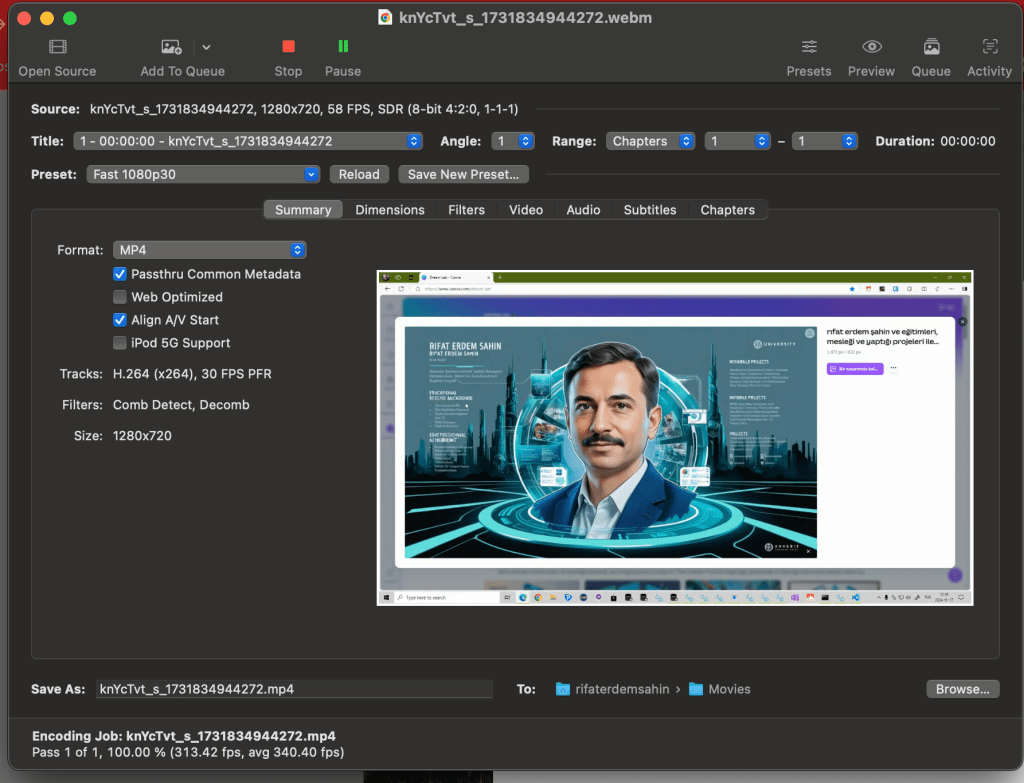
3️⃣ Set the Output Format
In the Summary tab:
-
Ensure the Format is set to MP4 File.
-
For additional compatibility, toggle the Web Optimized option.
💡 Screenshot: Configuring MP4 settings.
4️⃣ Adjust Encoding Settings (Optional)
For a more customized result:
-
Navigate to the Video tab.
-
Set the Video Codec to H.264 (x264) for universal compatibility.
-
Choose a bitrate or leave it on Constant Quality for simplicity.
5️⃣ Choose Destination
Under the Save As section:
-
Click Browse to select where your converted file will be saved.
-
Name your output file with a
.mp4extension. 🗂️
6️⃣ Start the Conversion
Hit the Start Encode button (green play icon) in the top bar. 🎬
HandBrake will display the progress in the bottom status bar. Grab a coffee ☕ while it works its magic!
🎉 That’s It!
Once the encoding is complete, navigate to your chosen folder, and you'll find your freshly converted MP4 file ready to use! 🚀
🌟 Why MP4?
-
🏆 Universally compatible with most devices.
-
📲 Optimized for streaming platforms.
-
🗜️ Offers excellent quality at smaller file sizes.
🔗 Connect with Me:
If this guide was helpful or you have any questions, feel free to reach out! Let's keep learning together. 🚀
Keep creating and converting, friends! 🎥✨
Imported from rifaterdemsahin.com · 2025