Ask better Questions With Emojis
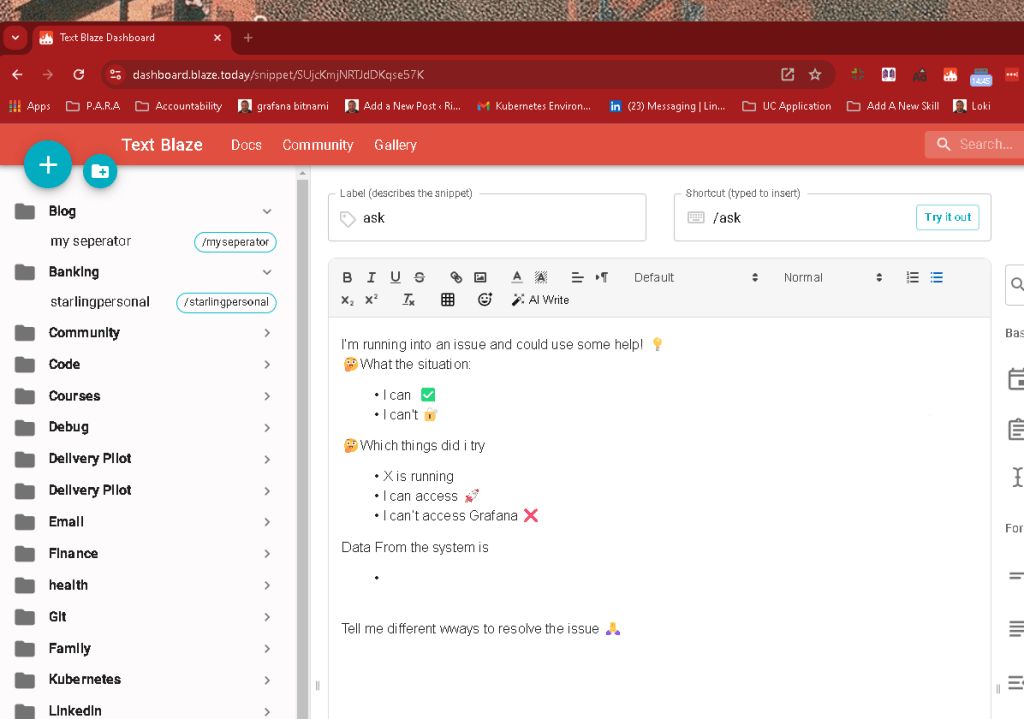
Sample Question Asked
`I’m running into an issue and could use some help! 💡
🤔What the situation:
* I can do ssh to a vm ware machine i created with bitnami install✅
* I can't can not access the web page https:192.168.3.180:3000🔐
🤔Which things did i try
* Grafana is running in the vmware
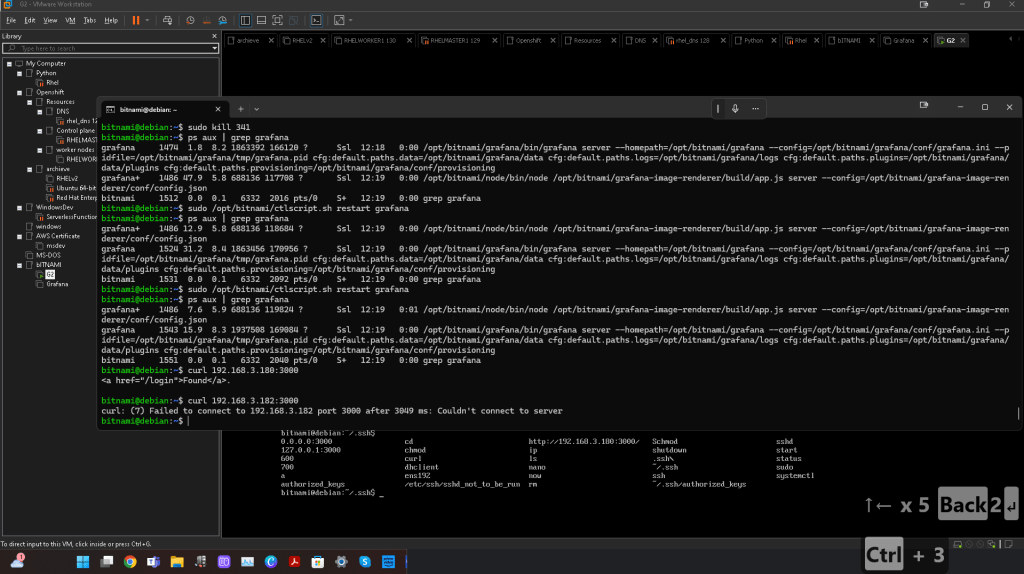
* I can access using crul 🚀
* I can’t access Grafana from my machine ❌ Grafana ini file > bitnami@debian:~$ cat /opt/bitnami/grafana/conf/grafana.ini
#################### Grafana Configuration Example
Everything has defaults so you only need to uncomment things you want to
change
possible values : production, development
; app_mode = production
instance name, defaults to HOSTNAME environment variable value or hostname if HOSTNAME var is empty
; instance_name = ${HOSTNAME}
################################### Paths ##########################`
==================================================================
*** OUTPUT ***
==================================================================
It seems you're having issues accessing Grafana from your host machine, despite being able to access it using curl on the VMware machine. Here are a few different approaches to troubleshoot and resolve this issue:
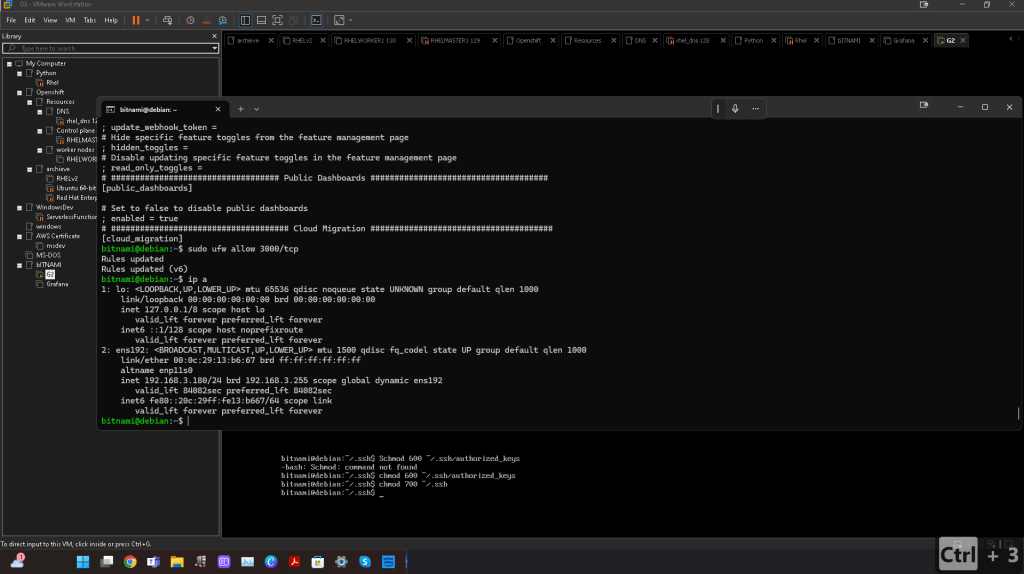
1. Firewall/Security Group Configuration
- Ensure that the firewall on your VMware machine allows incoming traffic on port
3000. On Debian-based systems, you can check the status ofiptablesorufwto see if the port is open:
bash sudo ufw status
If the port is not open, allow traffic for port3000:
bash w
Or, usingiptables:
bash sudo iptables -A INPUT -p tcp --dport 3000 -j ACCEPT
2. VM Network Configuration
-
Make sure the network interface on the VMware machine is correctly configured. If you're using NAT or Bridged networking, ensure that the host machine has the right routing and IP settings to access the VM. If it's NAT, switching to "Bridged" might allow direct access to the VM's IP address.
-
Check if you can
pingthe VMware machine from your local machine to verify connectivity.
3. Grafana Configuration (grafana.ini)
- In your
grafana.inifile, thedomain=127.0.0.1under[server]might be restricting external access to the Grafana UI. Change this line todomain=192.168.3.180or0.0.0.0to bind to all available network interfaces:
ini domain = 192.168.3.180
Or:
ini domain = 0.0.0.0
This will allow Grafana to be accessible from other machines on the network.
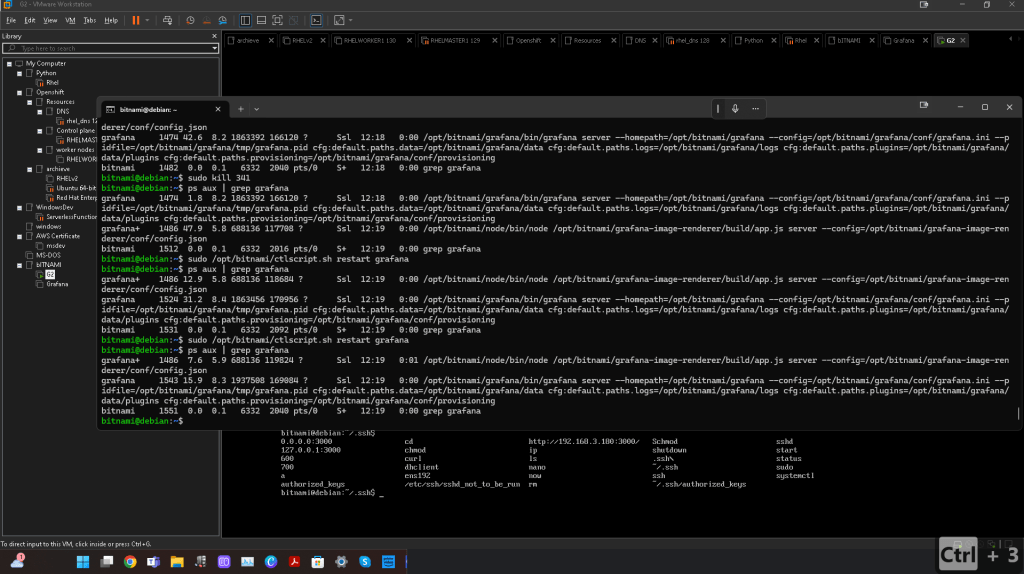
4. Check if Grafana is Running
- Ensure Grafana is running by checking its status:
bash sudo systemctl status grafana-server
If it's not running, start or restart it:
bash sudo systemctl start grafana-server sudo systemctl restart grafana-server
5. Port Forwarding in VMware (if using NAT)
- If you're using NAT networking, configure port forwarding in VMware to forward port
3000from the VM to your host machine:
Go to VMware > Edit > Virtual Network Editor.
- Select your NAT network, click on
NAT Settings, and add a new port forwarding rule for port3000.
6. Browser and HTTPS
- Since you're trying to access
https://192.168.3.180:3000, make sure you’re using the correct protocol. If Grafana is configured forhttp, then usehttp://192.168.3.180:3000. If you want to enablehttps, you’ll need to set up SSL certificates in Grafana’s configuration.
7. VMware NAT Configuration
- Check if the VMware machine is behind a NAT and doesn't have direct access from your host machine. In that case, switching to Bridged Networking might be necessary.
Try one or more of these steps and let me know if the issue persists!
Imported from rifaterdemsahin.com · 2025