Number of updates in 24 hours
🌐 Blog Post: Keeping Your Windows 11 Workstation Updated
Keeping your workstation updated is crucial for ensuring security, performance, and access to the latest features. Here's a step-by-step guide to updating your Windows 11 workstation, along with a behind-the-scenes look at using Chocolatey for efficient package management.
💡 Step 1: Updating Windows 11
Windows Update is the easiest way to ensure your operating system is up-to-date:
-
Open Settings > Windows Update.
-
Click Check for updates to see if new updates are available.
-
Install updates and restart when prompted.
💡 Tip: Don't skip cumulative and security updates—they're essential for stability and protection!
💻 Step 2: Managing Applications with Chocolatey
Chocolatey simplifies software updates for developers and IT pros:
-
Command:
choco upgrade allupdates all packages at once. -
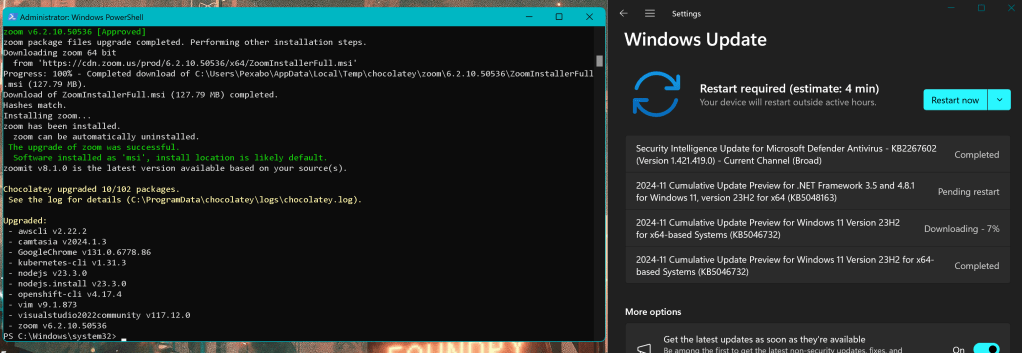
Example: In my recent upgrade, I updated tools like Zoom, Node.js, Visual Studio, and more with a single command.
Screenshot of the process below shows Chocolatey's seamless execution.
🚀 Tools Updated in My Recent Session
Here’s what I updated for better productivity:
-
Zoom: Stay connected for virtual meetings.
-
Google Chrome: Fast and secure browsing.
-
AWS CLI & Kubernetes CLI: Manage cloud environments like a pro.
-
Node.js: For backend development.
Why Update Regularly?
-
Security: Protect against vulnerabilities.
-
Performance: Keep your apps running smoothly.
-
New Features: Leverage the latest enhancements.
🎉 I love using a mix of Chocolatey for app updates and the built-in Windows Update tool for system upgrades to keep my setup polished.
🔗 Connect with Me:
💼 LinkedIn
🐦 Twitter
🎥 YouTube
💻 GitHub
Happy updating! 🚀
Imported from rifaterdemsahin.com · 2025