No Machine Install With Choco
install NoMachine using Chocolatey, follow these steps:
- Install Chocolatey (if not already installed):
Open PowerShell as Administrator:
Right-click the Start button and select "Windows PowerShell (Admin)".
- Set Execution Policy:
un: Get-ExecutionPolicy - f it returns Restricted, execute: - Set-ExecutionPolicy AllSigned- r - Set-ExecutionPolicy Bypass -Scope Process
- Install Chocolatey:
xecute: - Set-ExecutionPolicy Bypass -Scope Process -Force; [System.Net.ServicePointManager]::SecurityProtocol = [System.Net.ServicePointManager]::SecurityProtocol -bor 3072; iex ((New-Object System.Net.WebClient).DownloadString('https://community.chocolatey.org/install.ps1'))` citeturn0search1
- Install NoMachine:
Open PowerShell as Administrator.
- Run the Installation Command:
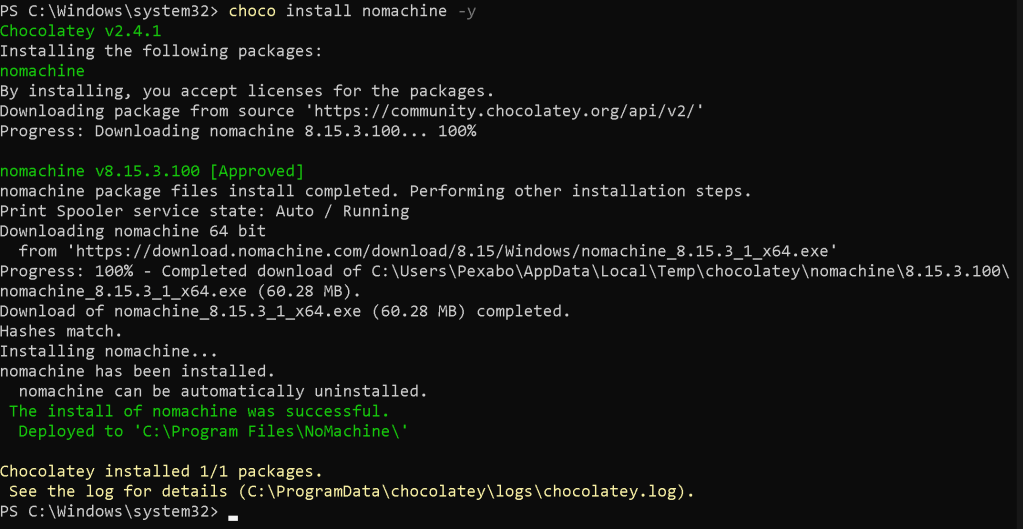
Execute: choco install nomachine citeturn0search0
this will download and install the latest version of NoMachine on your system.
Imported from rifaterdemsahin.com · 2025