🚀 Switching from Windows to macOS for Prometheus Remote Write Deployment 🌍
If you're like me, you've probably found yourself needing to switch environments to macOS from Windows in order to deploy containers for processes like Prometheus and RemoteWrite. Here's why it matters and how it can make your development process smoother.
💡 Why Environment Matters
Different operating systems handle containers and development setups in varied ways. Switching to macOS provides more flexibility, especially if you're deploying to platforms like OpenShift or using Docker.
👉 Bonus Tip: macOS is Unix-based, which makes working with Docker containers, Kubernetes, and OpenShift much more seamless compared to Windows.
🔗 Step-by-Step Deployment 🚀
1️⃣ Clone Your GitHub Repo
First, start by cloning the project repository that contains your code.
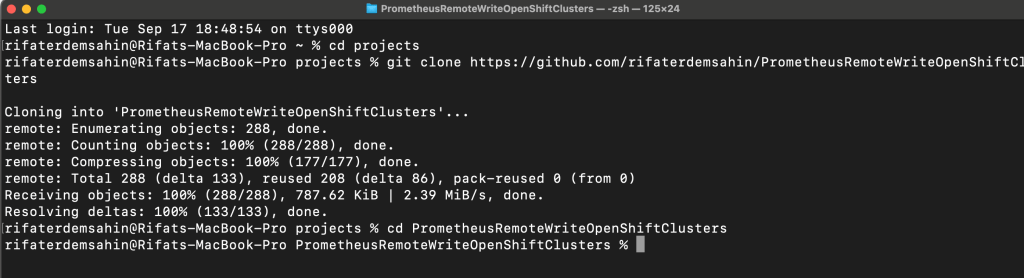
Screenshot: Cloning the repository to your local environment.
2️⃣ Build and Run the Code in macOS 🖥️
With macOS, once you've got the code, it's time to build and run the containerized application using Docker. Since the code is already on GitHub, you can focus on building the container.
docker build -t mycontainer/prometheusremote .
docker run -p 8080:80 mycontainer/prometheusremote
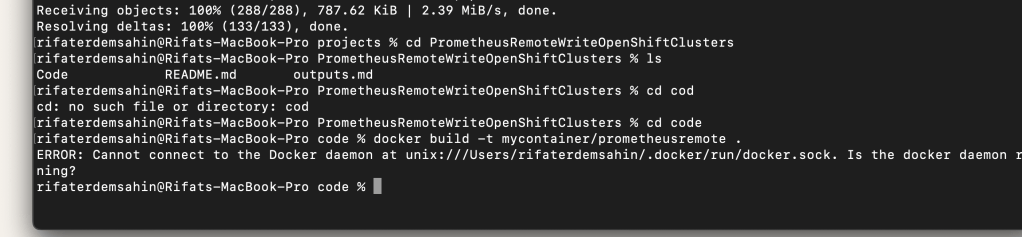
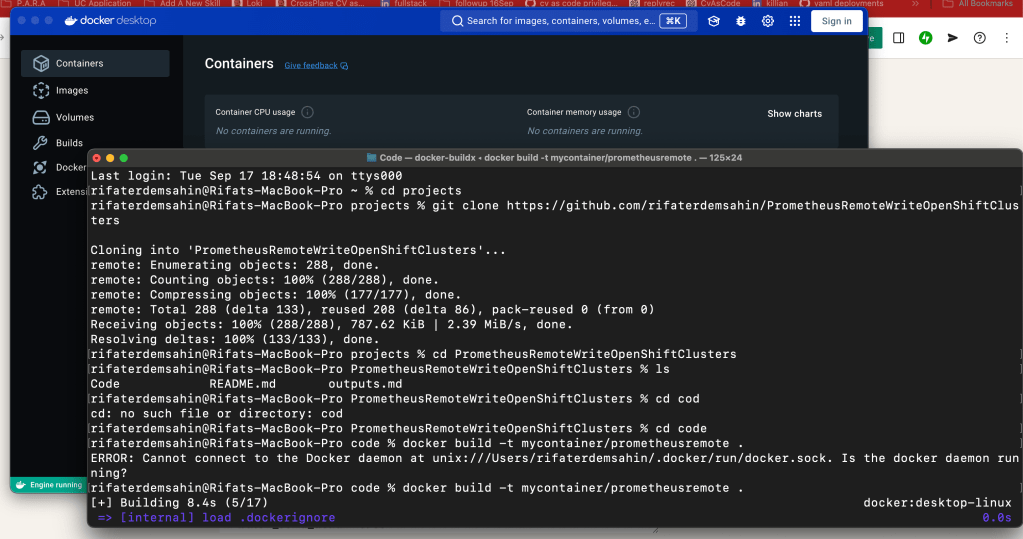
After the docker desktop manual start!
unused and there
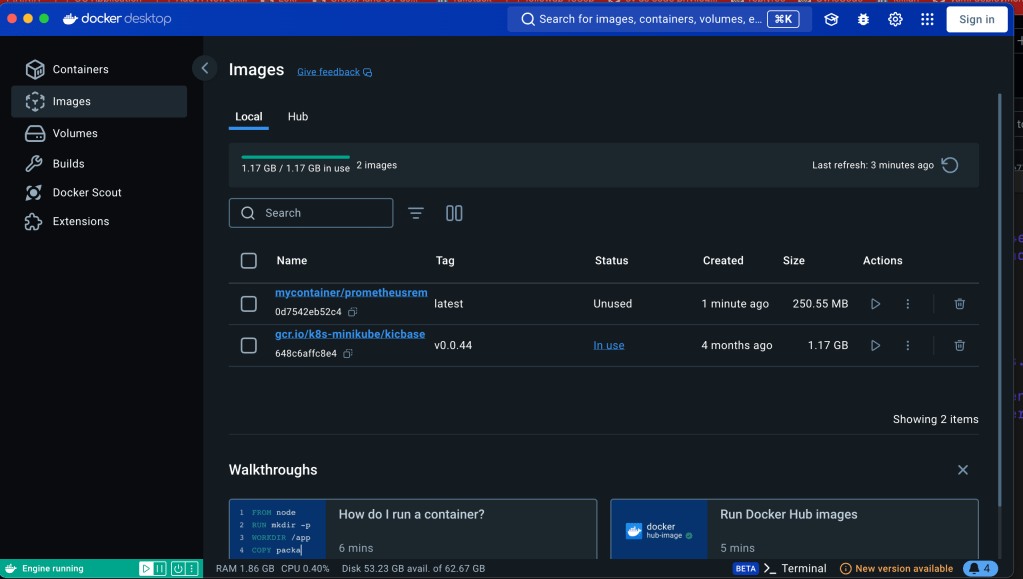
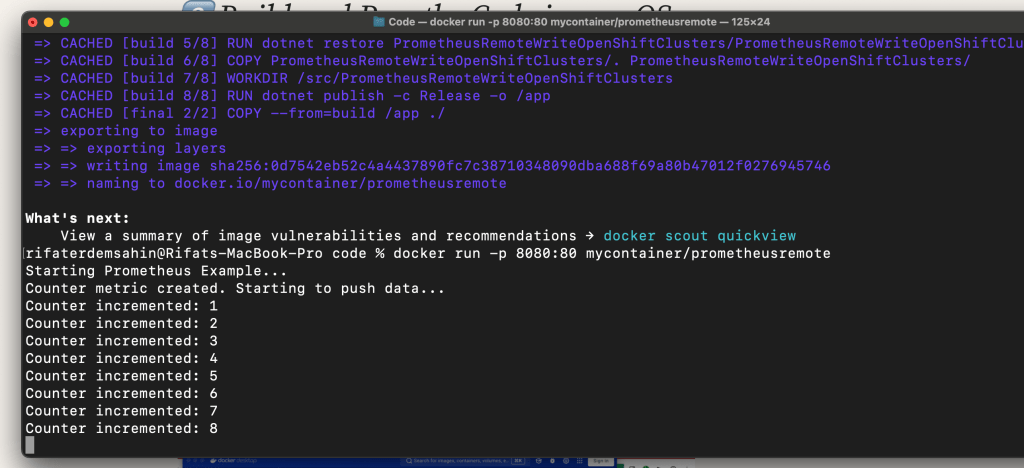
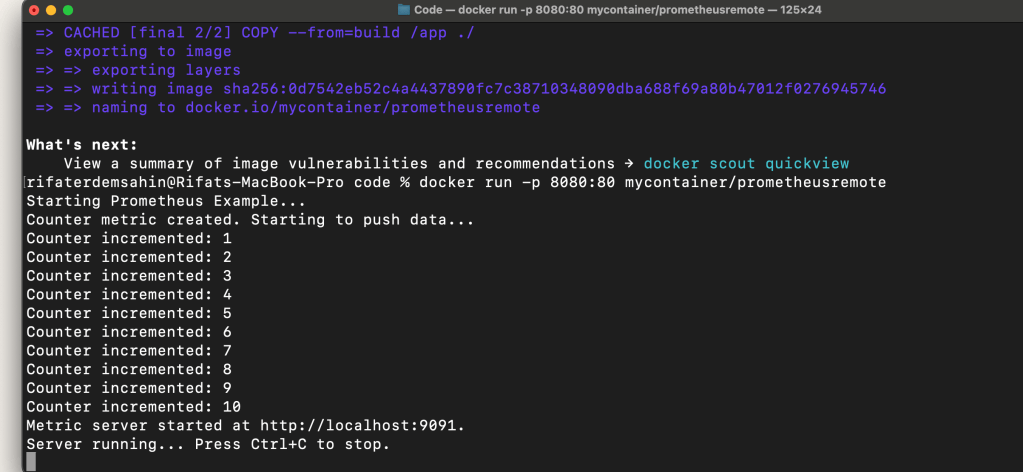
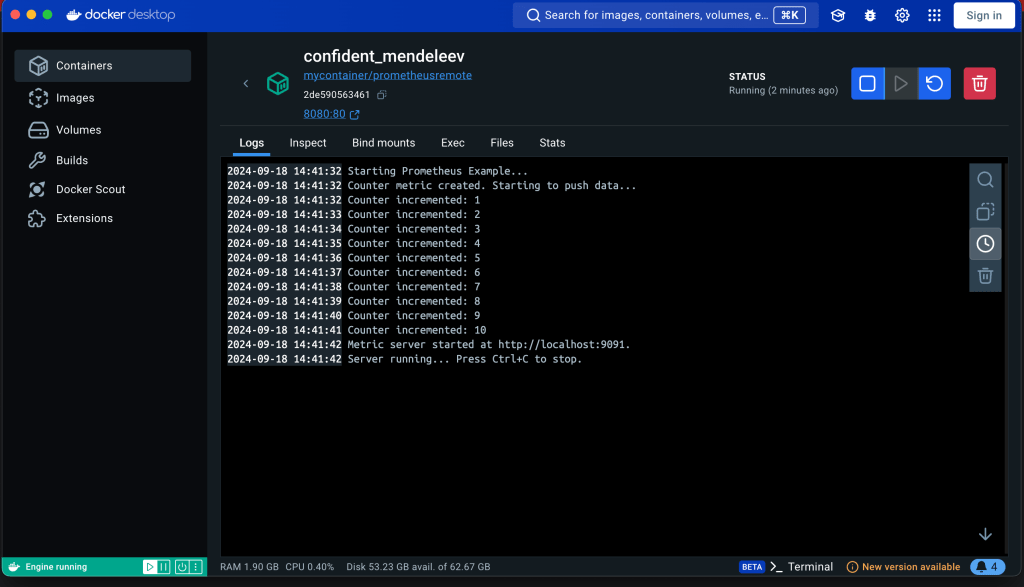
running another one on 81
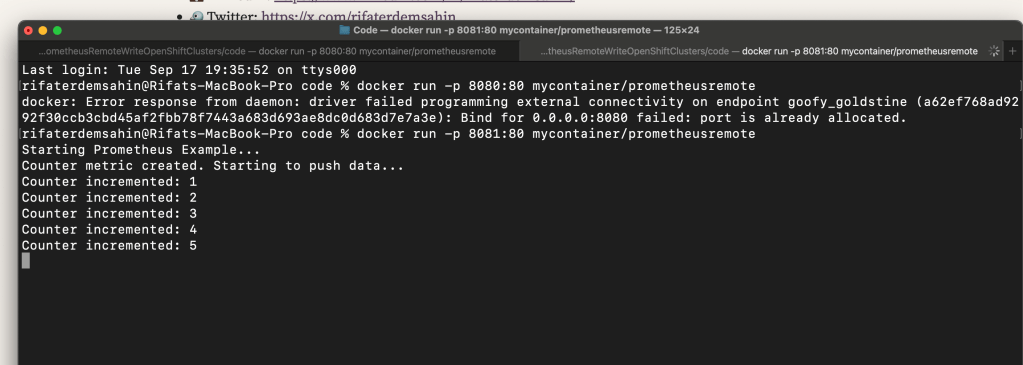
just putting 81 did not work > lol >>> registers it but fails inside
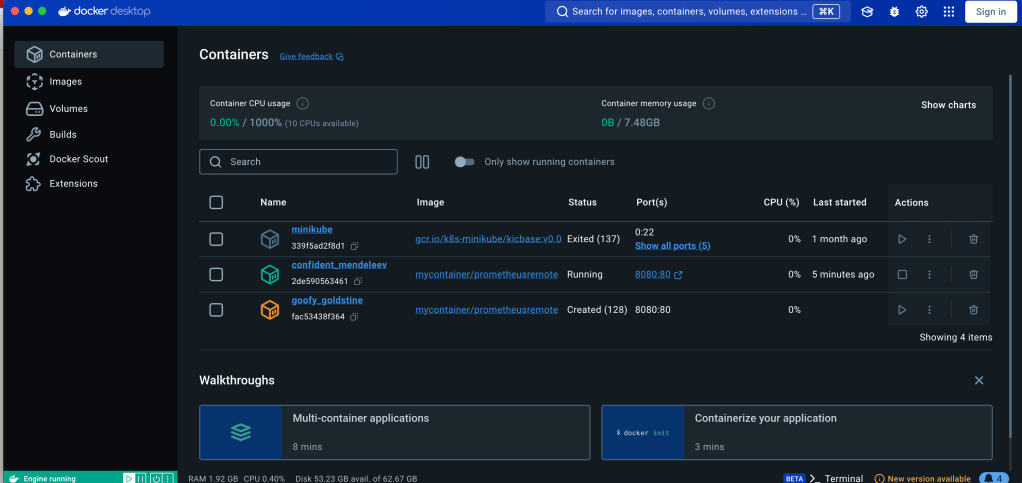
3️⃣ Configure Prometheus 🛠️
Don't forget to adjust your Prometheus configuration, especially the prometheus.yml file to enable Remote Write and send your data between clusters.
remote_write:
- url: "http://
queue_config:
max_samples_per_send: 100
batch_send_deadline: 5s
This helps you set up metrics for multi-cluster federation.
📸 Pauses and Screenshots for Debugging
If you’re capturing screenshots for a blog post or want to debug the process in steps, use this small code snippet to pause the application:
await Task.Delay(10000); // Pausing for 10 seconds between pushes
Adding this delay ensures you have time to review the process and take screenshots where necessary.
🚀 Next Steps
With the container running successfully on macOS, you can deploy to OpenShift and scale your monitoring infrastructure across different clusters!
Pro Tip: macOS is often preferred for its compatibility with Docker and Kubernetes, which makes deployment more fluid compared to a Windows setup.
🔗 Connect with me:
-
💼 LinkedIn: https://www.linkedin.com/in/rifaterdemsahin/
-
🐦 Twitter: https://x.com/rifaterdemsahin
-
🎥 YouTube: https://www.youtube.com/@RifatErdemSahin
-
💻 GitHub: https://github.com/rifaterdemsahin
Thanks for reading! Let’s continue building awesome tools. 🚀
This post integrates both the technical process and the explanation of switching environments, with screenshots for clarity. Let me know if you'd like to refine anything further!
Imported from rifaterdemsahin.com · 2025