Transcribe audio in OBS Studio
To transcribe audio in OBS Studio while recording and save the transcription to a text file, you can use the LocalVocal plugin. This plugin transcribes audio to text in real time and allows you to save the captions to a .txt file. Here's how to set it up:
- Install the LocalVocal Plugin:
Visit the LocalVocal plugin page and download the latest version.
-
Follow the installation instructions provided on the page to integrate the plugin into OBS Studio.
-
Configure the Plugin:
Open OBS Studio and navigate to the 'Filters' section of your audio source (e.g., microphone).
-
Add the 'LocalVocal' filter to your audio source.
-
In the filter settings, select your desired language and configure other options as needed.
-
Set Up Caption Output:
Within the LocalVocal filter settings, specify the path and filename for the .txt file where you want to save the transcriptions.
-
Ensure that the 'Save to File' option is enabled.
-
Start Recording:
Begin recording in OBS Studio.
- The plugin will transcribe the audio in real time and save the text to the specified
.txtfile.
For a visual guide on setting up the LocalVocal plugin in OBS Studio, you can refer to the following video:
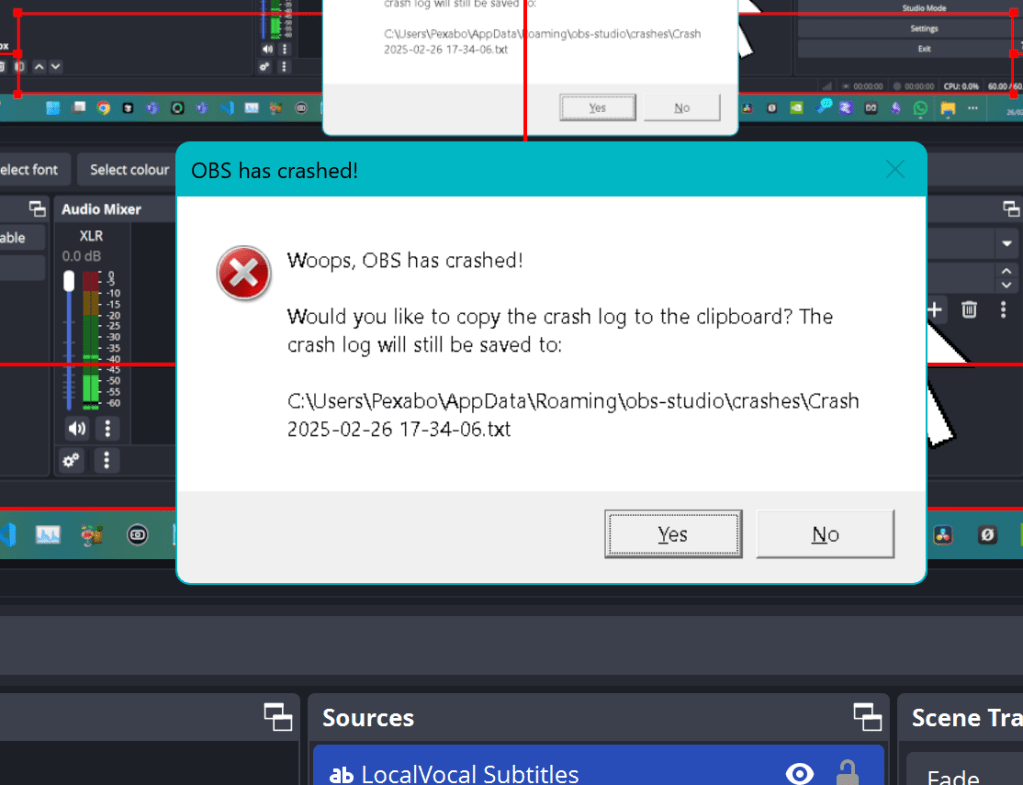
Crashes
Imported from rifaterdemsahin.com · 2025