Setting Up n8n with Local Docker
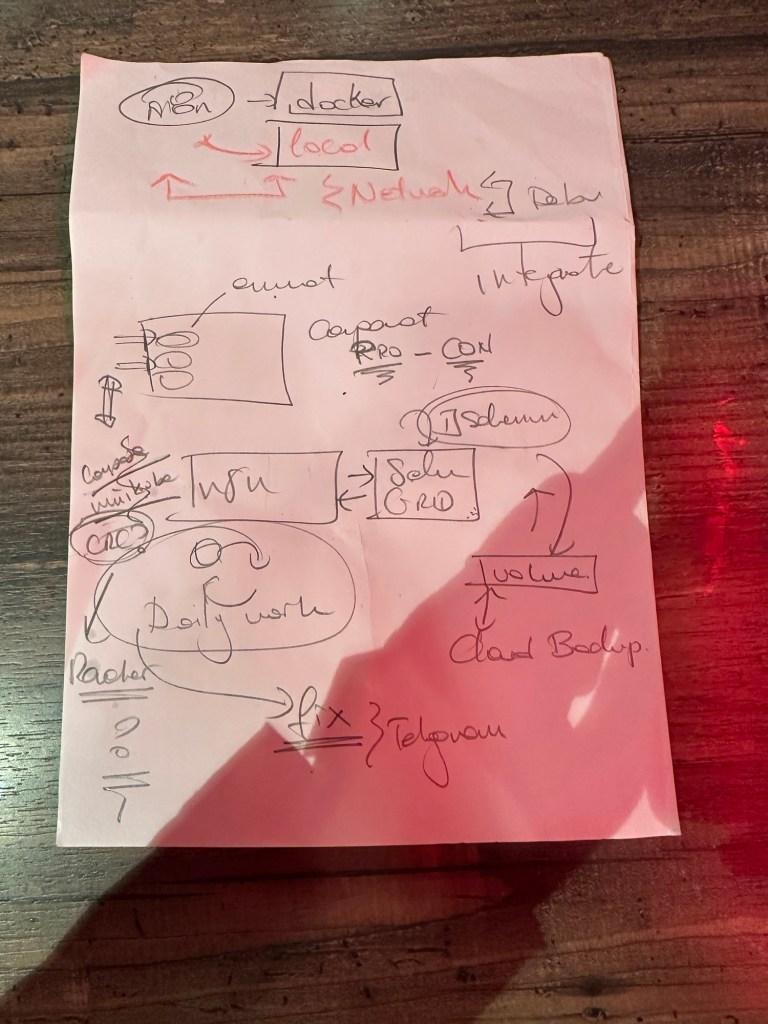
Introduction
n8n is a powerful workflow automation tool that enables seamless integration between different services. Running n8n in a local Docker environment ensures a controlled, isolated, and flexible setup, perfect for development and testing before deploying to production.
Prerequisites
Before setting up n8n with Docker, ensure you have:
-
Docker installed (Download here)
-
Basic knowledge of Docker and command-line interface (CLI)
Step-by-Step Guide
1. Pull the n8n Docker Image
Open your terminal and run the following command to pull the latest n8n image:docker pull n8nio/n8n
2. Create a Docker Network (Optional)
If you want to manage multiple containers and their communication, create a dedicated Docker network:docker network create n8n-network
3. Run n8n in a Docker Container
To start n8n locally, execute:docker run -it --rm \ -p 5678:5678 \ --name n8n \ --network n8n-network \ -v ~/.n8n:/home/node/.n8n \ n8nio/n8n
Explanation:
-
-p 5678:5678– Exposes the service on port 5678. -
--network n8n-network– Connects n8n to the created network. -
-v ~/.n8n:/home/node/.n8n– Ensures persistent data storage. -
--rm– Automatically removes the container upon stopping.
4. Access n8n
Once the container is running, open http://localhost:5678 in your browser. You should see the n8n interface.
Integrating with Other Services
Connecting to External APIs
n8n supports API integrations via HTTP nodes. Configure API credentials within the workflow editor and create automation with services like Telegram or Slack.
Using Persistent Data Volumes
To prevent losing data when the container stops, mount a volume:docker run -it --rm \ -p 5678:5678 \ -v n8n_data:/home/node/.n8n \ --name n8n \ n8nio/n8n
This ensures that workflows, credentials, and execution history persist across sessions.
Backup and Recovery
Cloud Backup
To enable cloud backups, use a volume and sync it with a cloud storage solution like AWS S3 or Google Drive:docker volume create n8n_data rclone sync /var/lib/docker/volumes/n8n_data/_data remote:n8n_backup
Fixing Common Issues
Port Conflicts
If another service is using port 5678, change it:docker run -it --rm -p 8080:5678 n8nio/n8n
Then access n8n at http://localhost:8080.
Permission Issues
Ensure your user has permission to access mounted volumes:sudo chown -R $USER:$USER ~/.n8n
Conclusion
Running n8n locally with Docker provides a secure and efficient workflow automation setup. With network configurations, persistent volumes, and cloud backups, you can create a reliable automation environment tailored to your needs.
Do you have experience running n8n locally? Share your thoughts in the comments!
Imported from rifaterdemsahin.com · 2025