🔐 Generate Random Passwords with TextBlaze 🚀
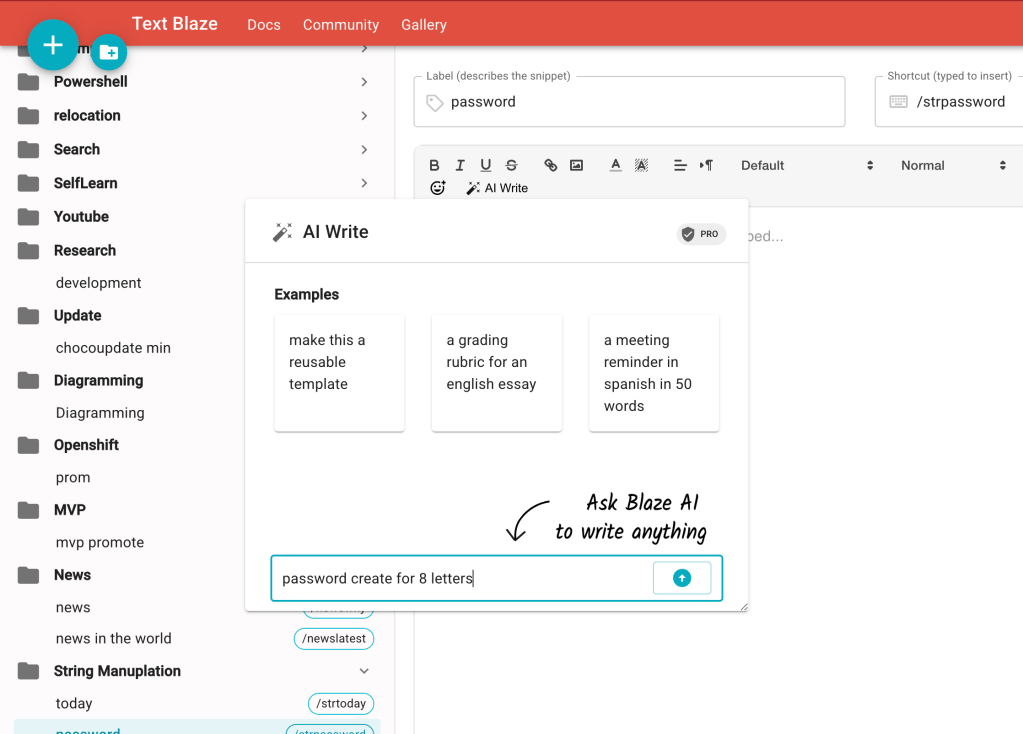
Hi there, productivity enthusiasts! ✨ Ever needed to create strong, random passwords quickly? Today, I'll show you how to use TextBlaze to generate secure passwords in seconds ⏱️—without ever leaving your browser. Let’s dive in! 🏊♂️
💡 Why TextBlaze for Passwords?
TextBlaze is a powerful Chrome extension for snippets and automation. Although it’s often used for text expansion, we can unleash its potential to generate random passwords 🔑 by adding a dash of creativity.
🔨 How to Create a Random Password Generator in TextBlaze
Step 1️⃣: Install TextBlaze
If you haven’t installed TextBlaze yet, head over to the Chrome Web Store and install it. Here’s the link to TextBlaze.
Step 2️⃣: Create a New Snippet
-
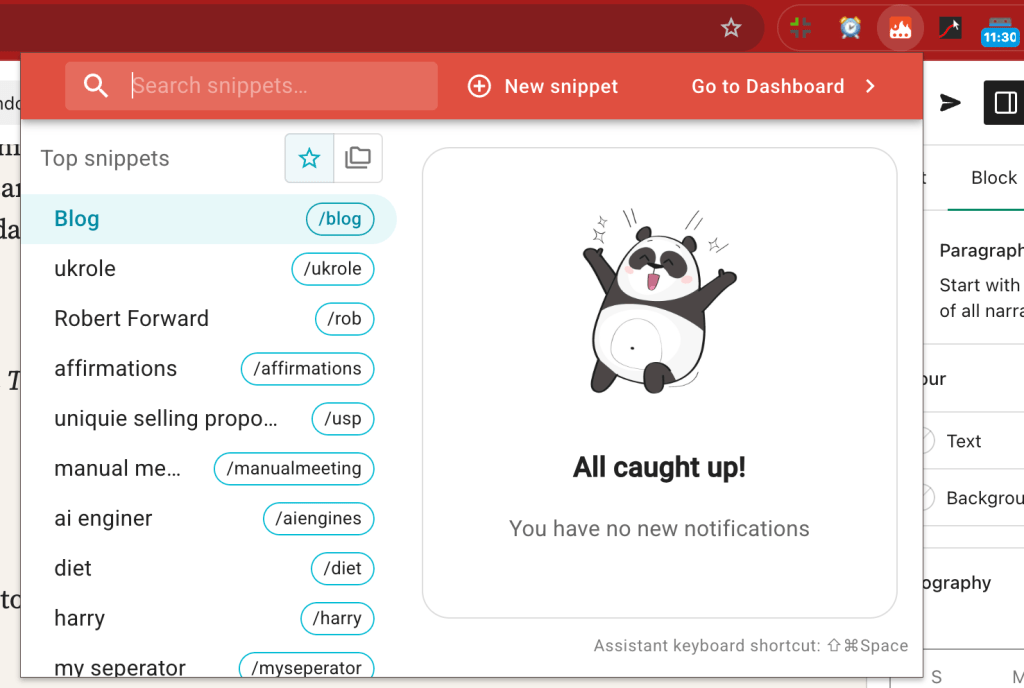
Click on the TextBlaze extension icon.
-
Hit New Snippet.
-
Give it a name like
:genpass(short and easy to remember).
Step 3️⃣: Add the Random Password Logic
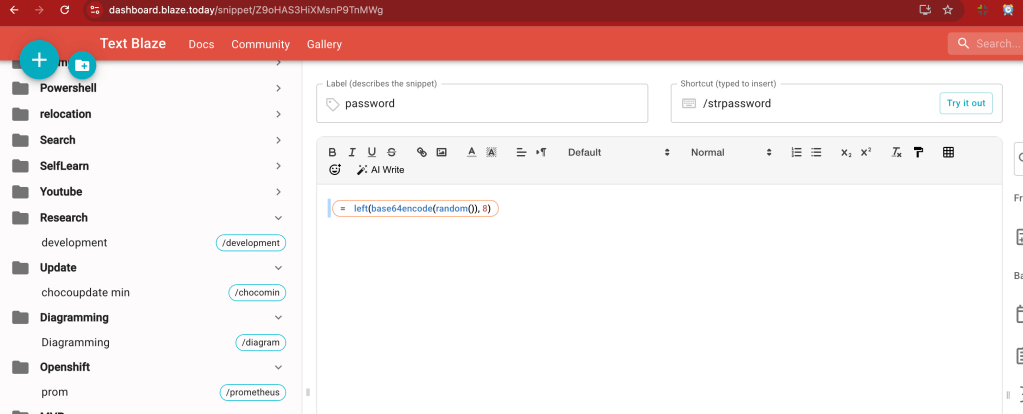
In the snippet editor, use the {random} command to generate a mix of letters, numbers, and symbols. Here’s an example:
{random: abcdefghijklmnopqrstuvwxyzABCDEFGHIJKLMNOPQRSTUVWXYZ1234567890!@#$%^&*()-_=+;:<>,.?}
{repeat: 12}
🔑 This snippet will generate a 12-character random password every time you type :genpass.
📸 Screenshot Pause: Show the snippet code inside TextBlaze.
🚀 Try It Out!
Now, open any text field and type :genpass. Boom! 🎇 A unique password will appear instantly. No more weak passwords like “password123.” 😉
🔒 Stay Secure!
Always use a password manager to store your generated passwords safely and enable two-factor authentication (2FA) for extra security. 🛡️
💬 Conclusion
With TextBlaze, you can turn your Chrome browser into a powerful password generator. Automate tasks and stay secure at the same time!
Have questions? Drop them in the comments! ⬇️
🔗 Connect with me:
Want me to add or tweak anything? 😊
Imported from rifaterdemsahin.com · 2025