🚀 Mastering OBS Studio: Using the Projector Feature for Live Events 🎥
Are you looking to elevate your live events or presentations? OBS Studio’s Projector feature is a game-changer! It allows you to display your scenes or individual sources on external displays, such as additional monitors or projectors, without the need to stream or record. This is perfect for live events where you want to show content to an in-person audience while managing your broadcast separately. Let’s dive into how you can use this feature like a pro! 💡
🖥️ How to Use the Projector Feature in OBS Studio
Here’s a step-by-step guide to get you started:
1. Connect the External Display
Ensure your projector or additional monitor is connected to your computer. This is the first and most crucial step! 🔌
2. Access the Projector Option
OBS Studio allows you to project either a specific scene or the entire program output. Here’s how:
- For a Specific Scene:
Right-click on the scene in the "Scenes" list.
-
Select "Fullscreen Projector (Scene)" and choose the desired display.
-
For the Preview or Program Output:
Right-click on the Preview window.
- Choose "Fullscreen Projector (Preview)" and select the target display.
This setup sends the selected scene or program output to the connected external display, making it ideal for live presentations or events. 🎬
🎥 Enhancing Your Setup with the Elgato Cam Link Pro
If you’re looking to take your setup to the next level, consider integrating the Elgato Cam Link Pro. This internal PCIe capture card offers four HDMI inputs, allowing you to connect multiple cameras or other HDMI sources simultaneously. It supports streaming and recording at 1080p60 or 4K30 resolutions, making it perfect for video conferencing, teaching, streaming, and broadcasting. 🚀
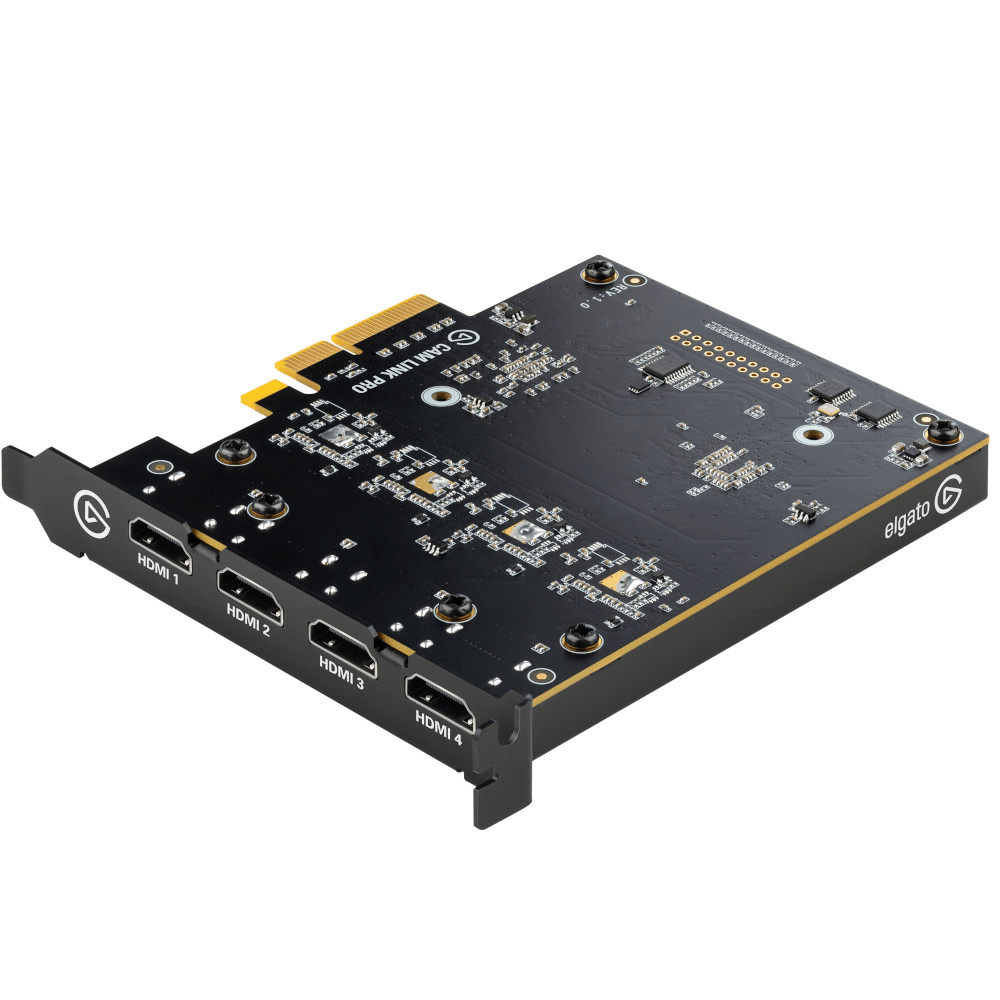
By combining the Elgato Cam Link Pro with OBS Studio, you can:
-
Manage multiple input sources efficiently.
-
Display selected content on external screens using the Projector feature.
-
Tailor your output for both live audiences and online viewers.
For a visual demonstration of setting up the Elgato Cam Link Pro, check out this video:
Elgato Cam Link Pro Install and First Impressions - 4 HDMI Input 4K Capture Card
📸 Screenshot: OBS Studio Projector Feature in Action
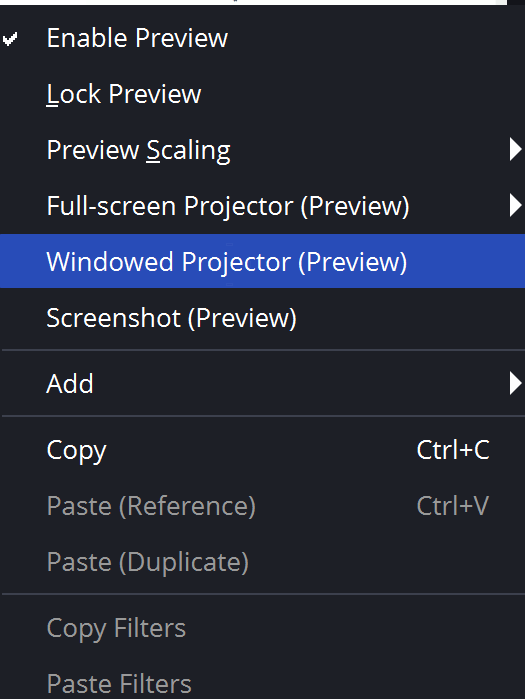
Caption: Using the Projector feature to display a scene on an external monitor.
🔗 Connect with Me
Let’s stay connected! Feel free to reach out or follow me on these platforms:
-
💼 LinkedIn: Rifat Erdem Sahin
-
🐦 Twitter: @rifaterdemsahin
-
🎥 YouTube: Rifat Erdem Sahin
-
💻 GitHub: rifaterdemsahin
With these tips and tools, you’re ready to take your live events to the next level. Whether you’re presenting to a live audience or streaming online, OBS Studio and the Elgato Cam Link Pro have got you covered. Happy streaming! 🎉
Imported from rifaterdemsahin.com · 2025