How to Manage Gemini Service Settings in Google Admin Console
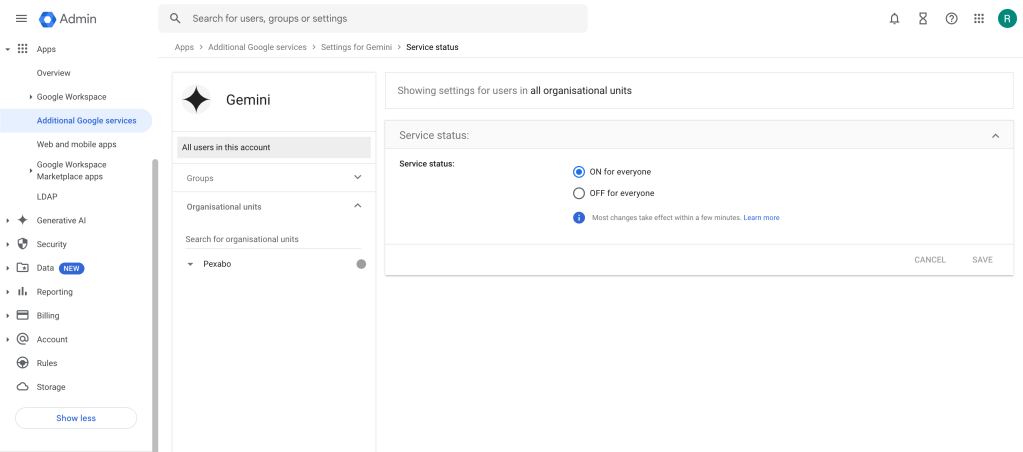
To create a blog post based on the screenshot you've uploaded, I'll outline a draft that describes the process of managing service settings for Gemini in the Google Admin console. Here's a suggested blog post:
As an administrator, you have the power to control the availability of various services within your organization's Google Workspace account. One such service is Gemini, a feature that you may want to enable or disable for your users depending on your organization's needs. This guide will walk you through the steps to manage the service settings for Gemini in the Google Admin console.
Step-by-Step Guide to Configure Gemini Settings
-
Log in to the Google Admin Console:
-
Visit the Google Admin Console and sign in using your admin credentials.
-
Navigate to Additional Google Services:
-
From the Admin console Home page, go to Apps > Additional Google services. This section includes various services that can be managed for your users.
-
Find and Select Gemini:
-
Scroll through the list of services until you find Gemini. Click on it to access its settings.
-
Choose the Organizational Unit:
-
On the left panel, you will see options to manage settings for different organizational units (OUs). Select the OU for which you want to modify the Gemini service settings. You can choose a specific OU or apply settings to the entire organization.
-
Set the Service Status:
-
In the Service status section, you have two options:
ON for everyone: This will enable the Gemini service for all users in the selected organizational unit.
-
OFF for everyone: This will disable the service, preventing all users in the OU from accessing Gemini.
-
Save Your Changes:
-
After selecting your preferred service status, click Save. A notification will inform you that most changes take effect within a few minutes.
-
Confirm Changes:
-
Once saved, the settings will be updated, and Gemini will be either enabled or disabled for your users based on your selection.
Additional Tips:
-
Review User Access: Periodically check which users or groups have access to ensure that the service settings align with your organization's policy.
-
Inform Your Users: If you're enabling or disabling Gemini, consider notifying your users about the change and how it might affect their workflows.
-
Utilize Support Resources: For more detailed information, use the “Learn more” link found next to the service status options to access Google's support resources.
By following these steps, you can effectively manage the availability of the Gemini service within your organization, ensuring that your settings meet your organization's needs.
Feel free to customize this draft further to match your blog's style or add additional context and information!
Imported from rifaterdemsahin.com · 2025