0Storage Management
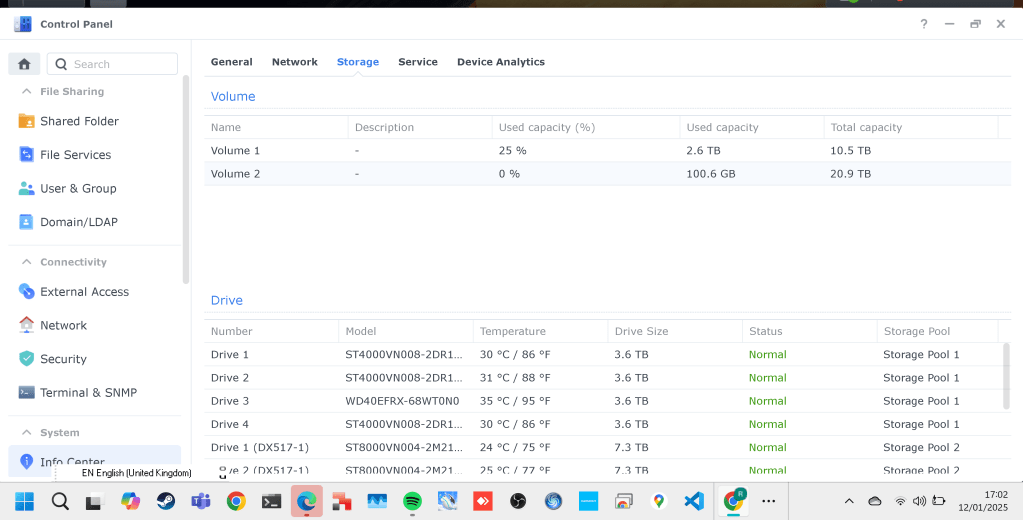
Managing 36TB of NAS storage, while syncing only 5TB with Google and handling an additional 10TB on Apple, requires a clear and structured approach. Here's a step-by-step plan tailored to your needs:
1. Analyze and Categorize Your Data
- Categorize Data by Type:
Media (movies, TV shows, music)
-
Documents
-
Photos
-
Backups
-
Miscellaneous files
-
Identify Storage Priorities:
Decide which files need frequent access (sync with Google or Apple) versus those that can remain on the NAS for archival purposes.
2. Optimize NAS Storage
-
Delete Redundant Files: Use tools like Synology’s Storage Analyzer to find and remove duplicate files or unused data.
-
Compress Files: Archive infrequently used files with compression tools.
-
Tier Storage: Keep high-priority or frequently accessed files on faster NAS drives, and archival files on slower drives.
3. Plan Google Sync (5TB Limit)
- Selective Sync Strategy:
Use Synology Drive or Google Drive to sync only essential files.
-
Prioritize syncing work documents, critical backups, and personal photos.
-
Not all is usefull to sync
-
Exclude Media Files:
Avoid syncing large media files like movies and TV shows with Google; keep them on the NAS for Plex.
-
Google Workspace Alternative: Upgrade to a Google Workspace plan with increased storage if needed.
-
Increase storage can it be an option i am at 5 tb
4. Organize Apple Storage (10TB Limit)
- Sync Specific Content:
Use Apple’s storage for photo libraries, family backups, and key documents.
-
Offload Media: Avoid syncing large Plex libraries or low-priority content.
-
Enable Optimize Storage on Apple Devices:
Use Apple’s built-in storage optimization to free up space automatically.
5. Manage Plex Media Library
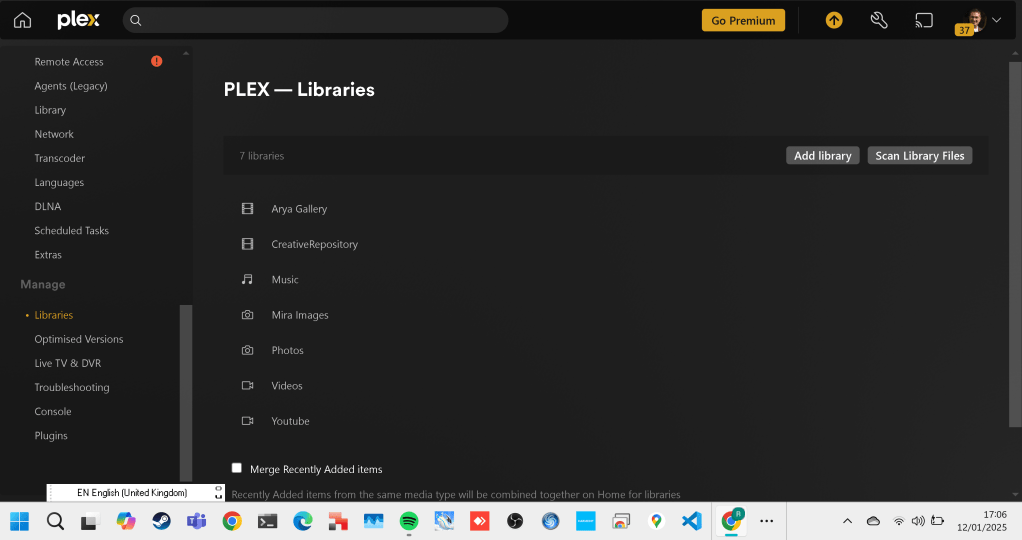
- Storage Strategy for Plex:
Store all media files (movies, TV shows, music) exclusively on the NAS.
- Use Plex’s Optimize Feature to create lower-resolution versions of media for faster streaming and reduced storage usage.
- Regular Cleanup:
Remove old, unwatched media or use Plex’s “Watched” status to identify files that can be archived or deleted.
6. Set Up Backups
- Primary NAS Backup:
Use another Synology NAS, external drives, or cloud storage for incremental backups of critical data.
- Cloud Backup Priorities:
Ensure backups of essential documents and irreplaceable data (photos, personal files) to Google or Apple.
- Archive Non-Essential Data:
Archive older, less important files to cold storage (e.g., external drives or offline HDDs).
7. Monitor and Maintain
- Use Synology Tools:
Regularly monitor storage usage with Storage Manager and set up alerts for low space.
- Implement Quotas:
Set user quotas or folder-level quotas to prevent uncontrolled growth in storage usage.
- Automated Cleanup:
Schedule regular deletion or archiving of logs, temp files, and old data.
8. Plan for Growth
- Expand NAS Storage:
If you foresee continued storage needs, consider expanding your NAS with larger drives or adding a second unit.
- Third-Party Cloud Storage:
Explore other cloud options (e.g., Dropbox, Amazon S3, Backblaze) for affordable storage expansion.
This approach ensures efficient use of your 36TB NAS, while managing the 5TB Google and 10TB Apple limits. Let me know if you'd like help implementing specific steps or choosing tools!
Google blocks all the action
Lastpass Email does not come in
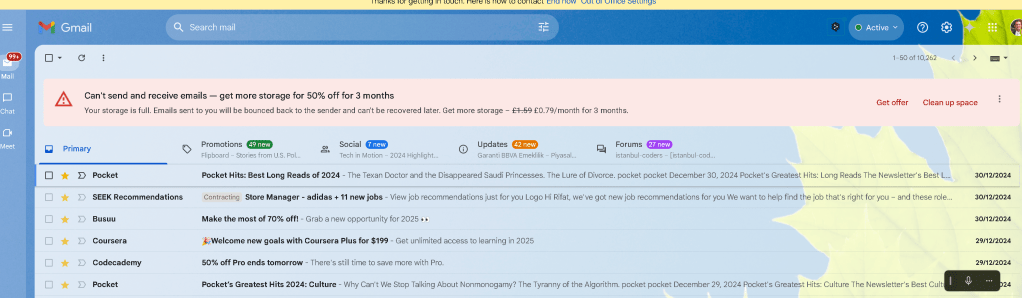
Google Drive is the case
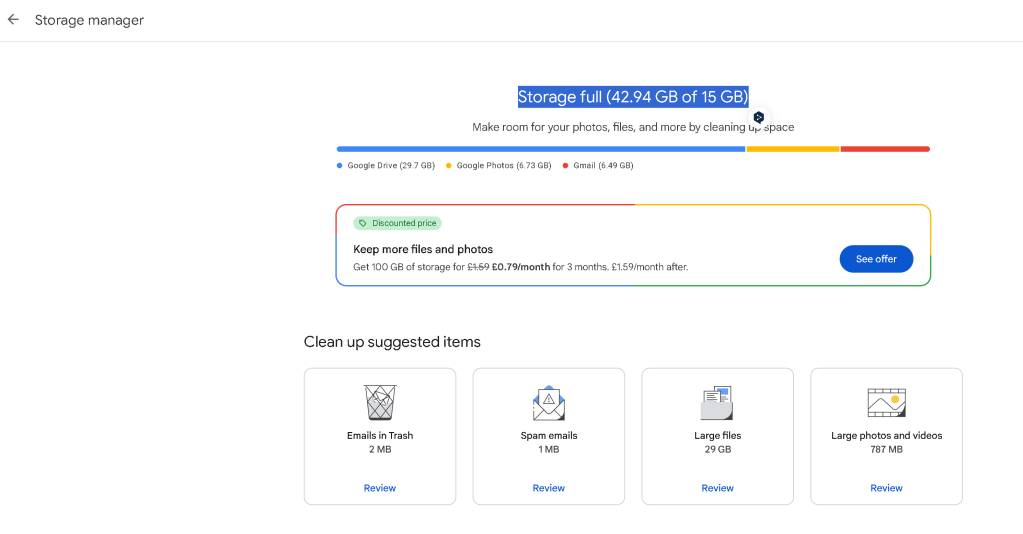
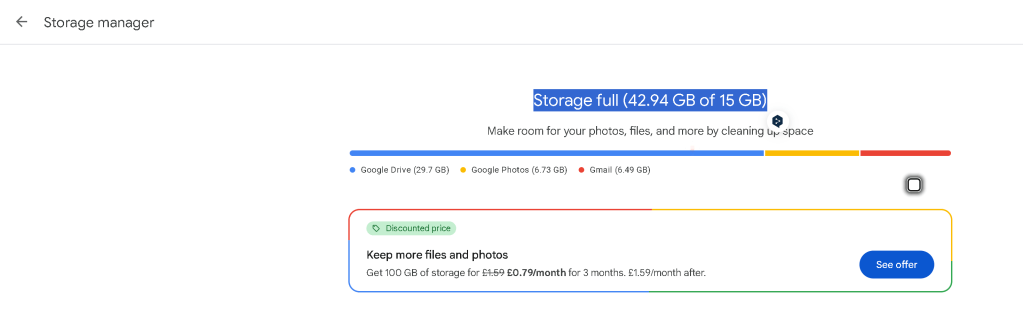
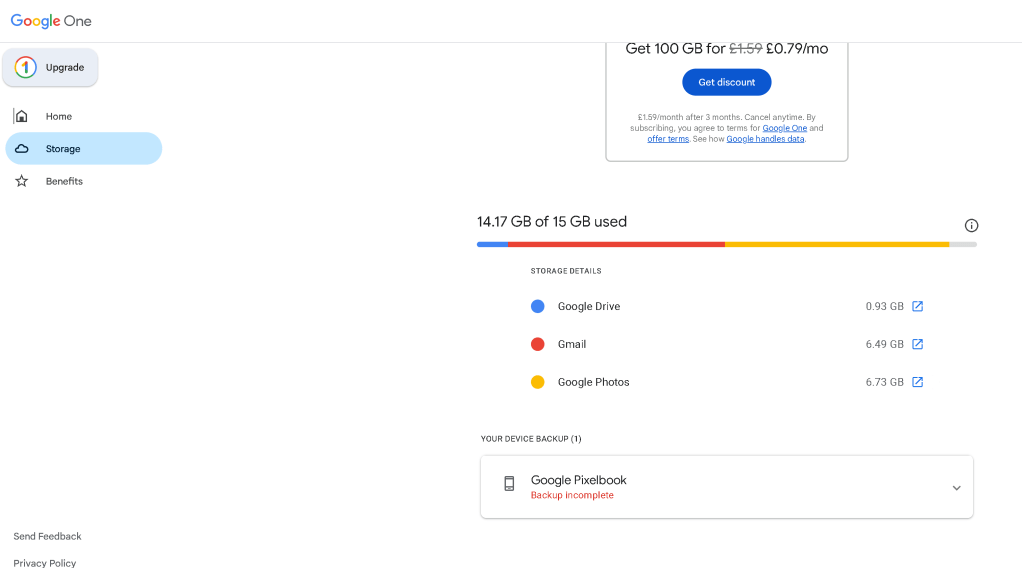
Google Drive :57 GB
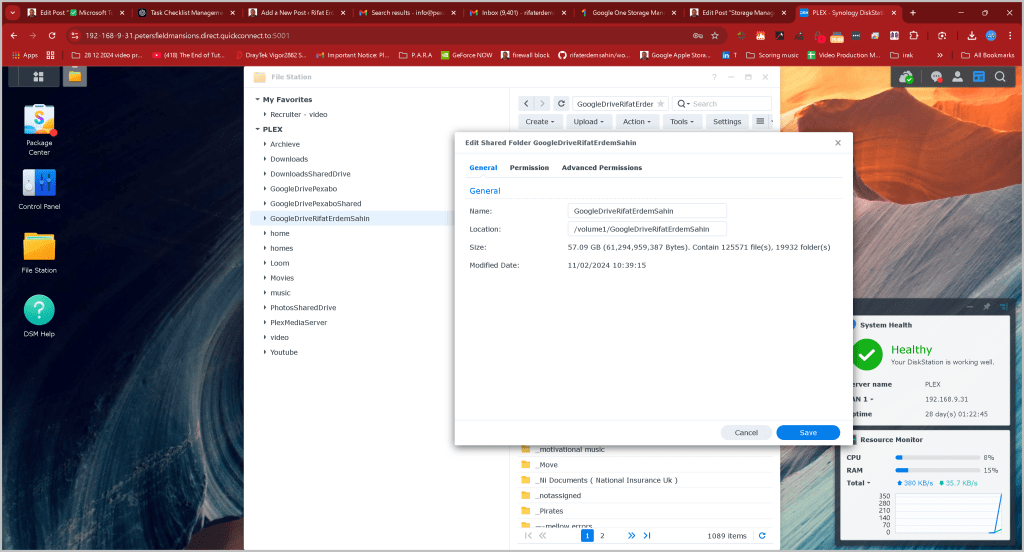
Over use and files can be seen
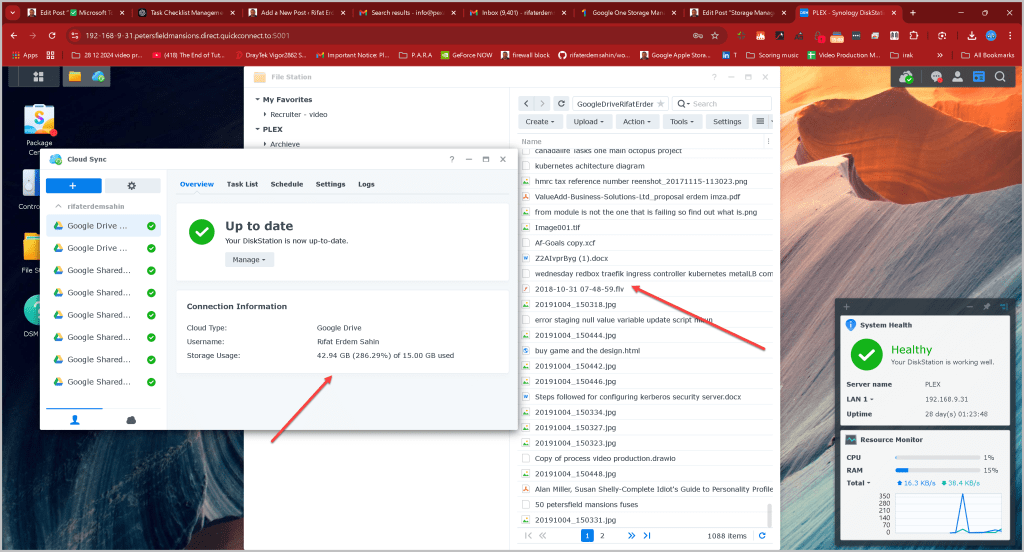
Pause Sync before the Google Drive Deletion ?
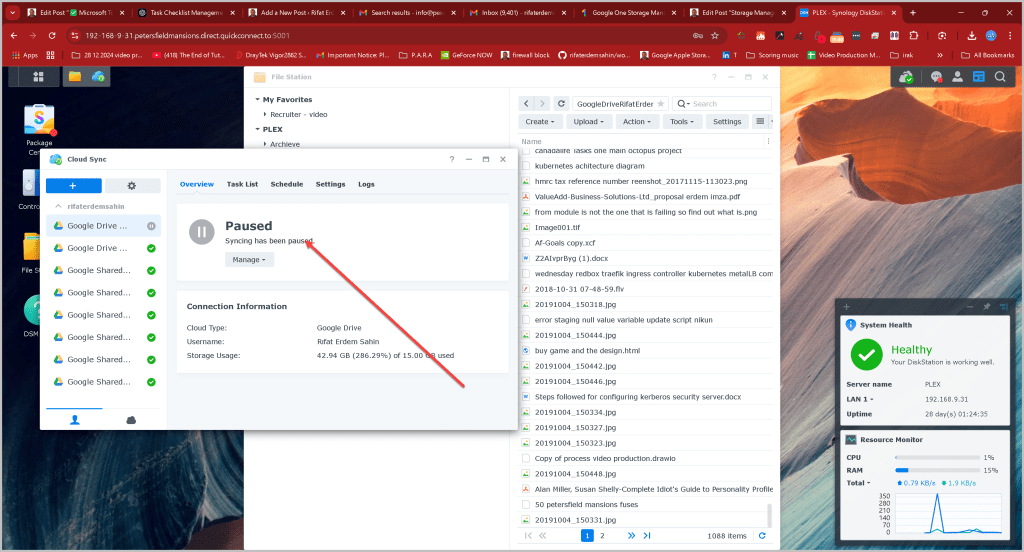
Sync Would Get ReOpened
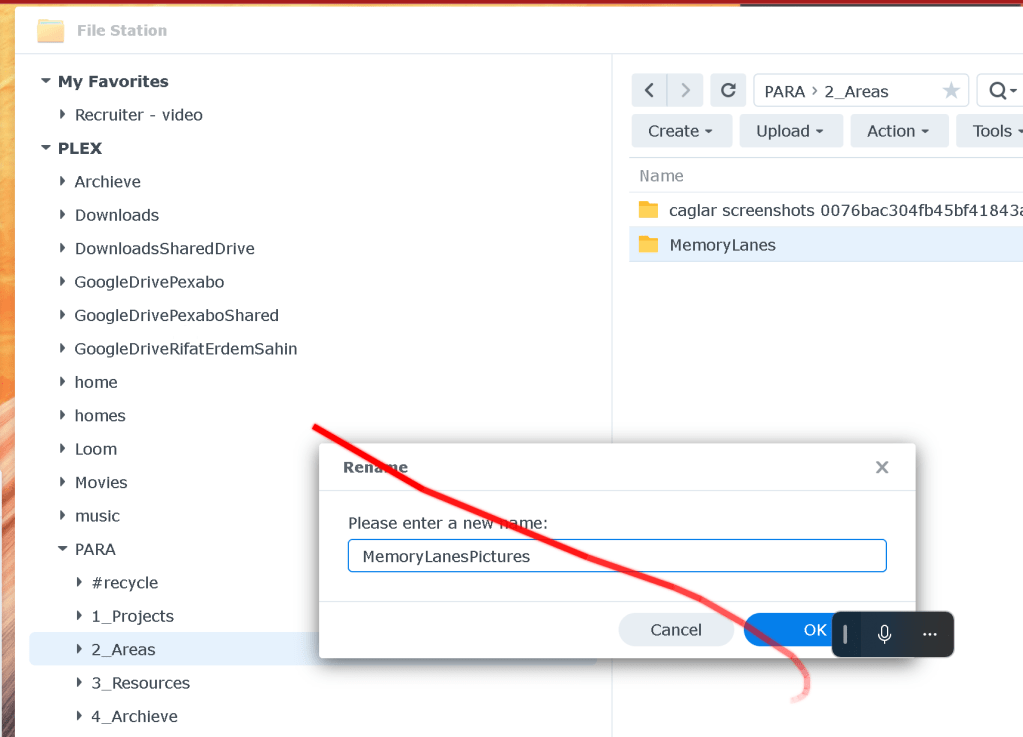
Why not Recategorise with PARA again
-
Project
-
Areas
-
Resources
-
Archieve
Start with 20 TB
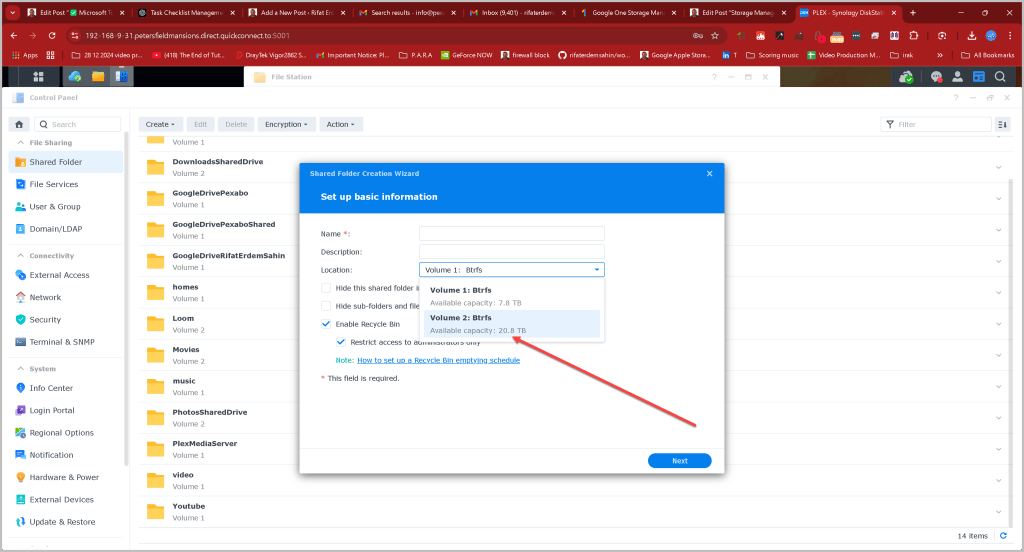
Go Down to 15 GB and open up
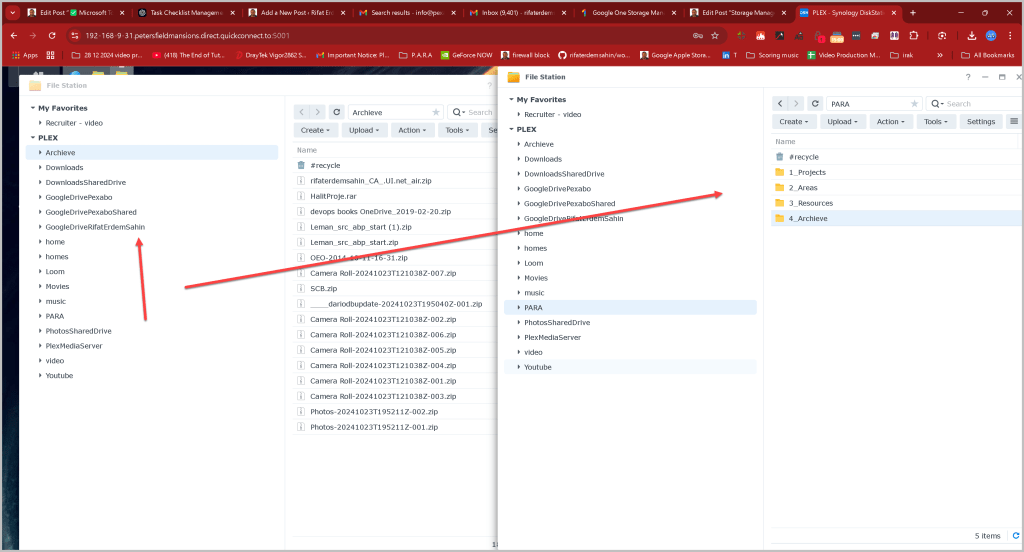
Moved one file lets see if it does the sync
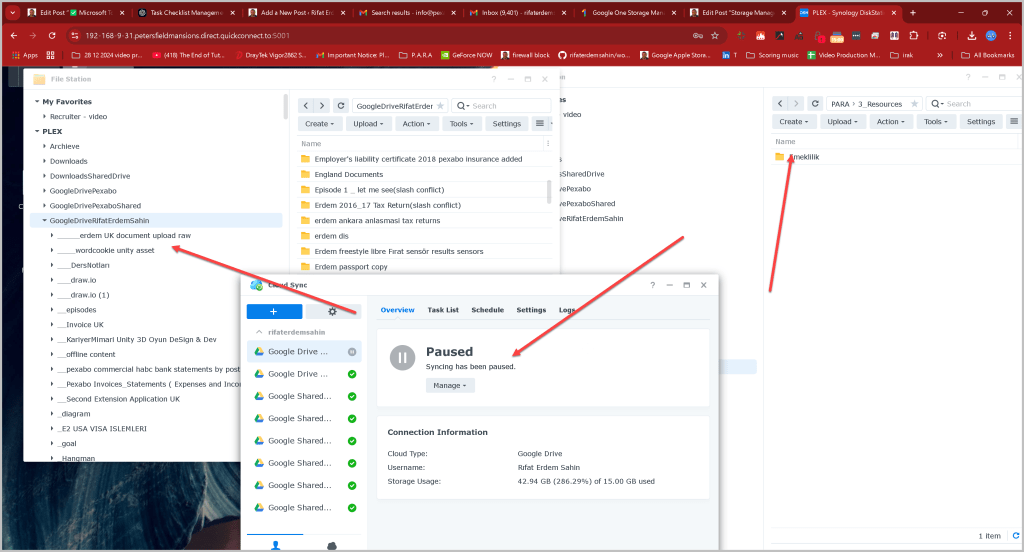
it did sync the deleted file so well played by google > deletion is accesible
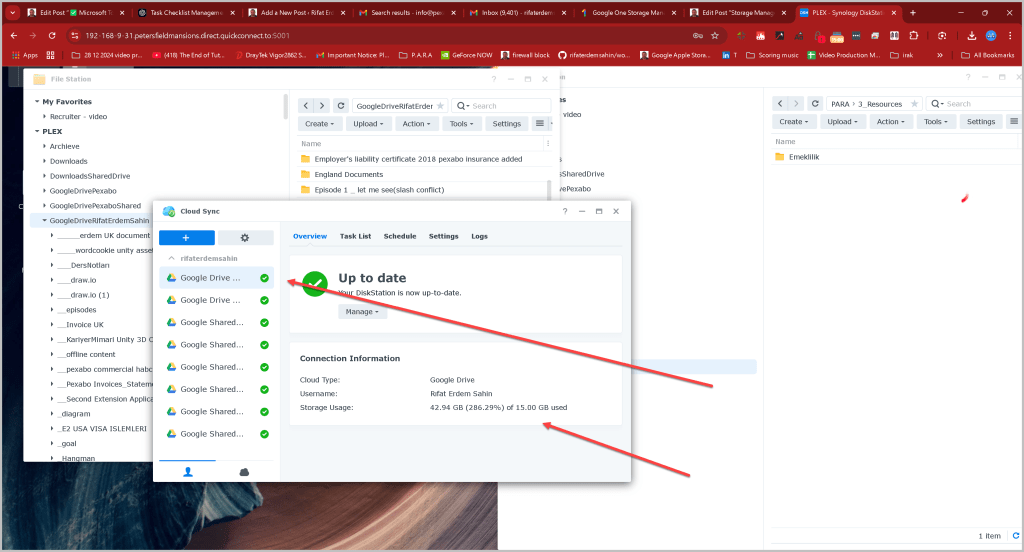
Promising >>> Took Time but that is allright
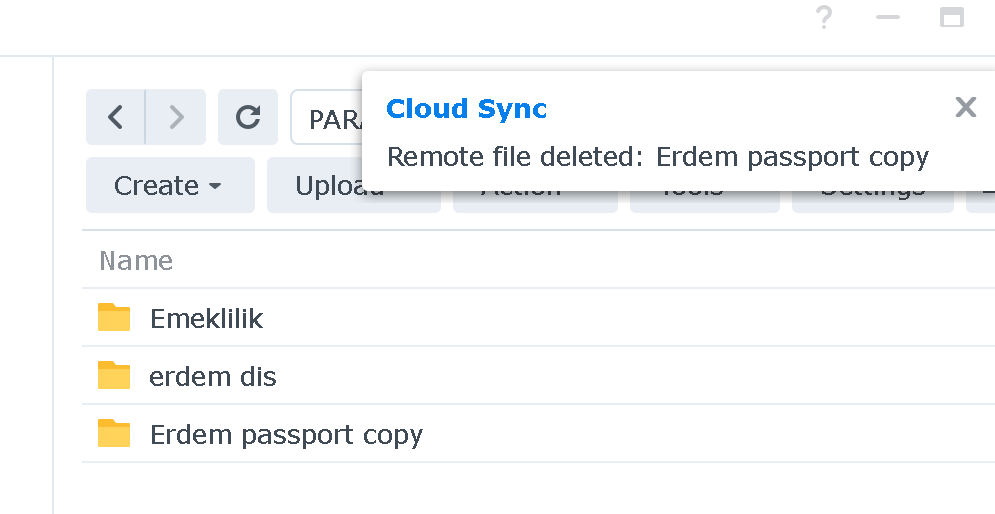
Todo : Find ways to backup to another media or to the cloud again!
Not much to become a resource so if i would not touch them likely they are landing there

Project is time bound.
Areas is recurring work on items.
Bulk moves are also ok
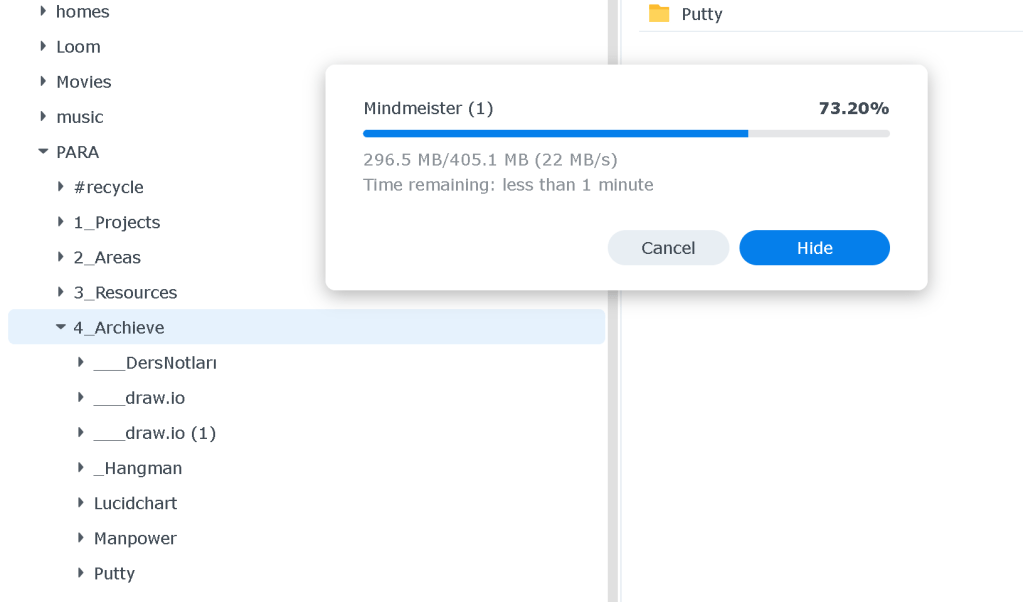
Check storage manager > do only what is needed
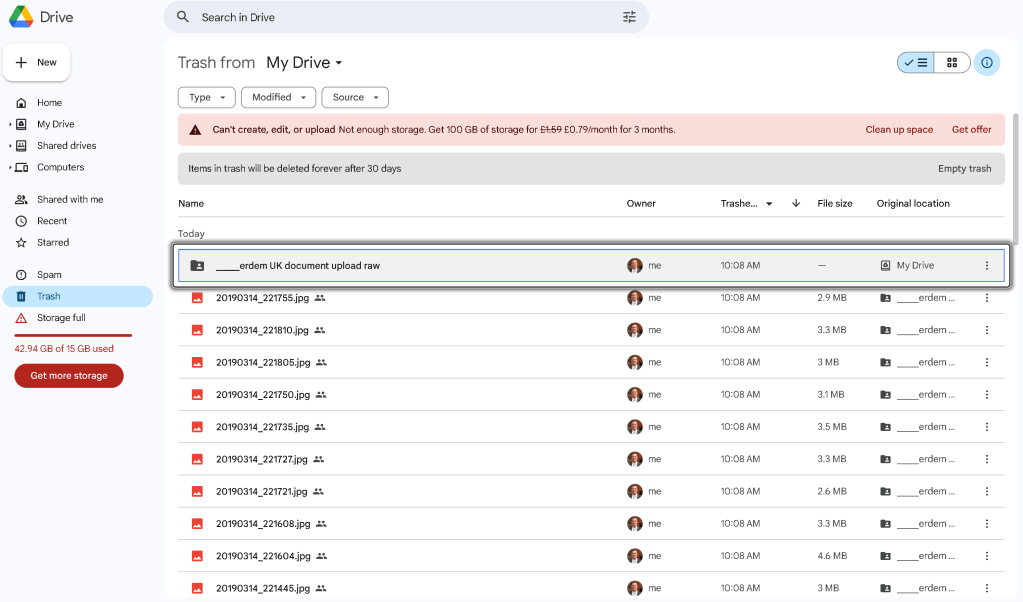
Recycle might need to be cleaned!
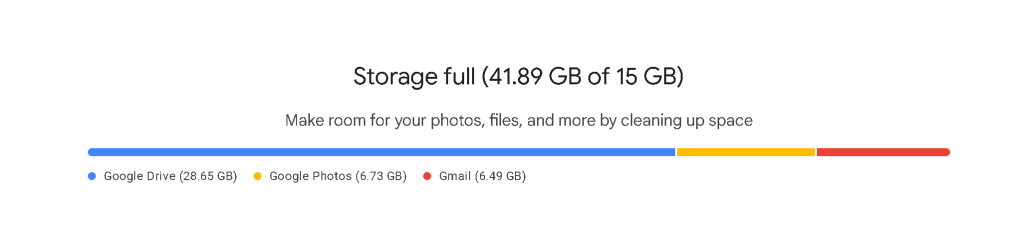
Cleanup Storage Cleans it up
Good part of para like moving out of the studio rethink on what you are doing !
Cost to storage offsite >
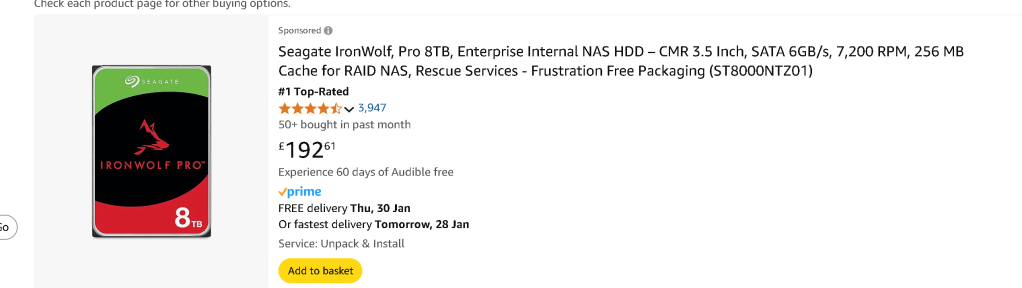
Easy backup and the storage gets x2 cheaper by every year so i would be able to have it stored onsite in the storage unit with a m
some not clear if an area or a resource
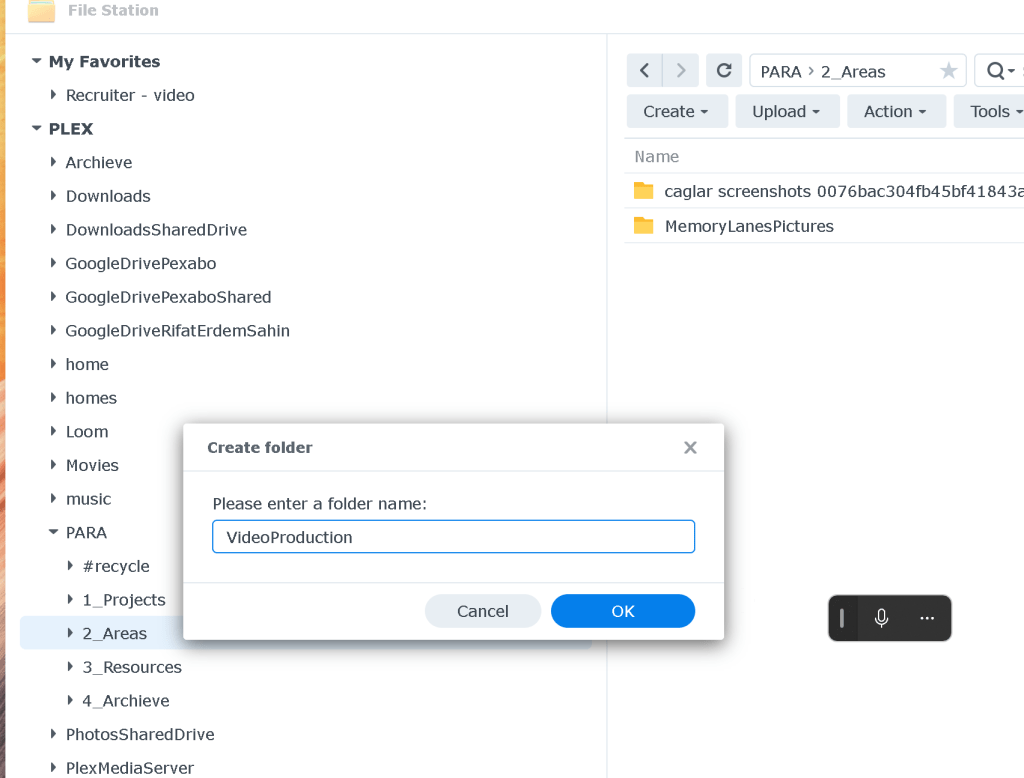
Video Production into the area makes more sense
Test a downloaded item from time to time to understand
Merge as one works
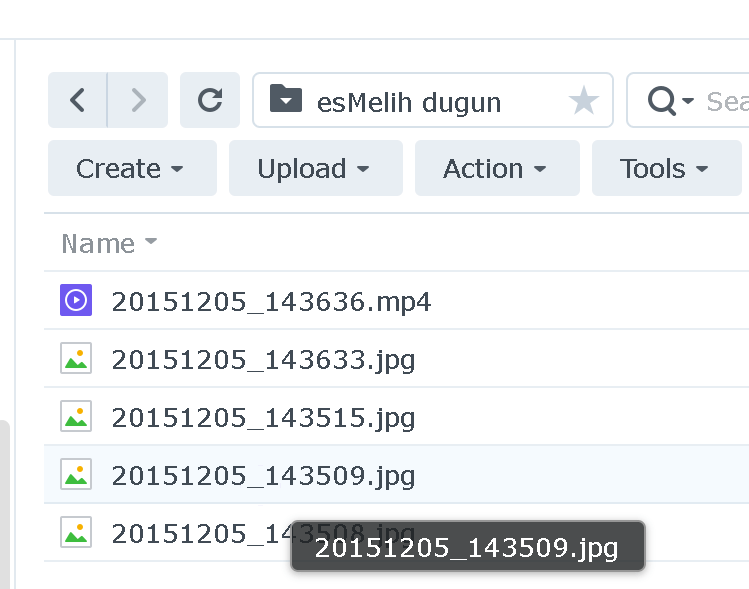
Some folders are empty in google drive >>> so not much ther e
And dont worry that much Synology nas is the backup at the end of the day
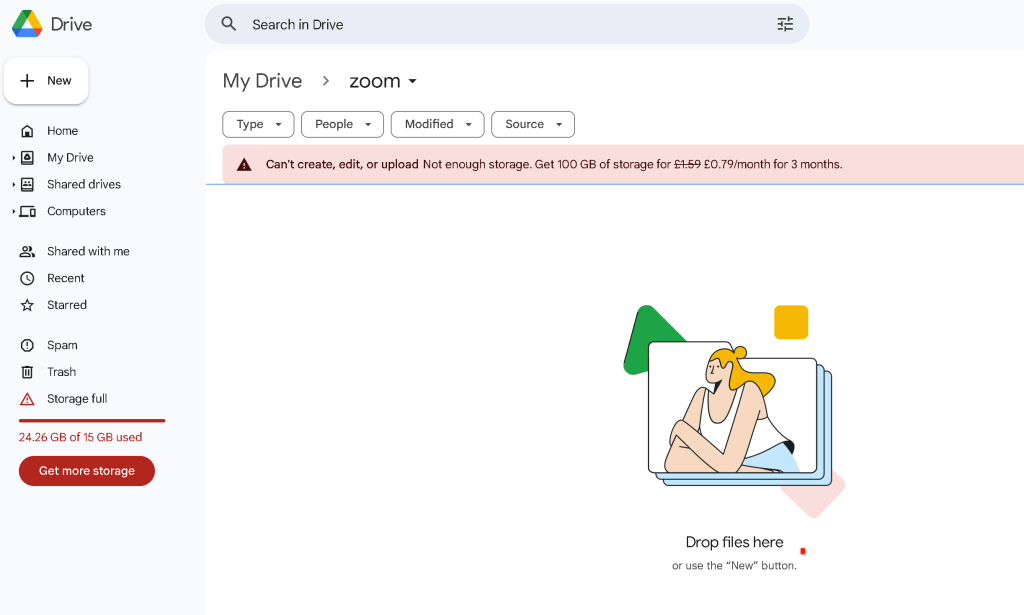
Emptied the google drive to receive emails
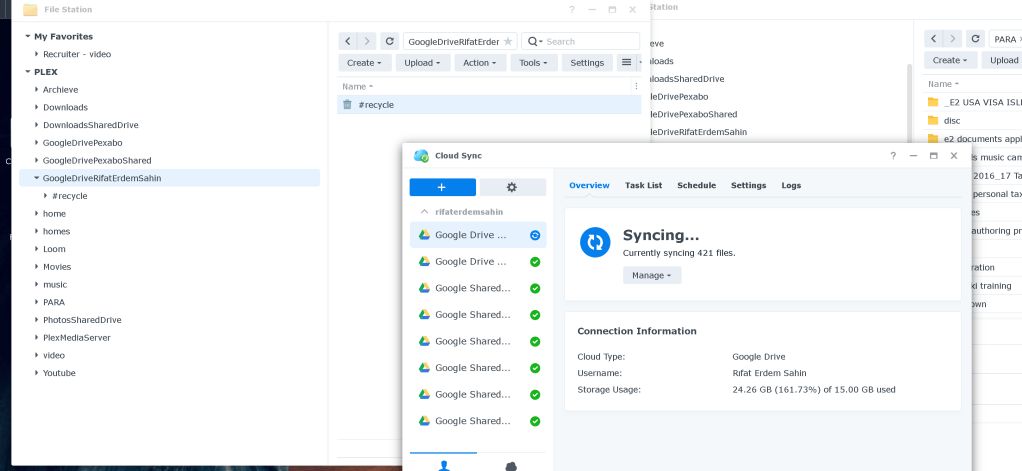
after sync check it
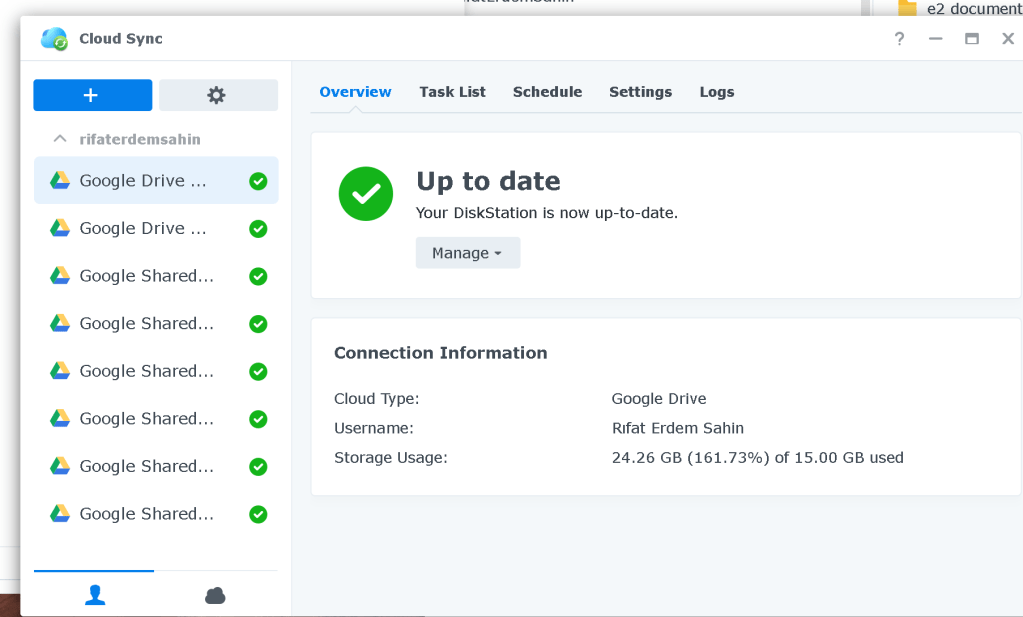
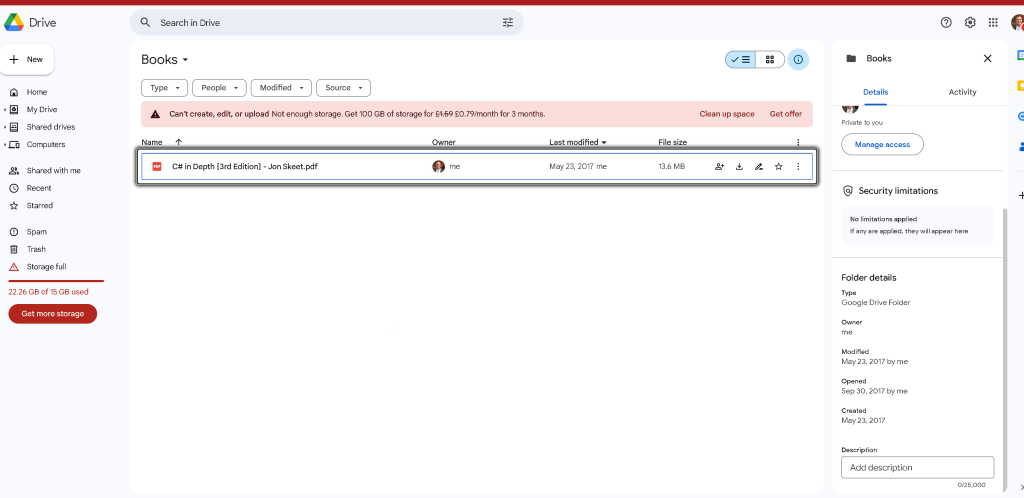
multiple times empty trash is needed
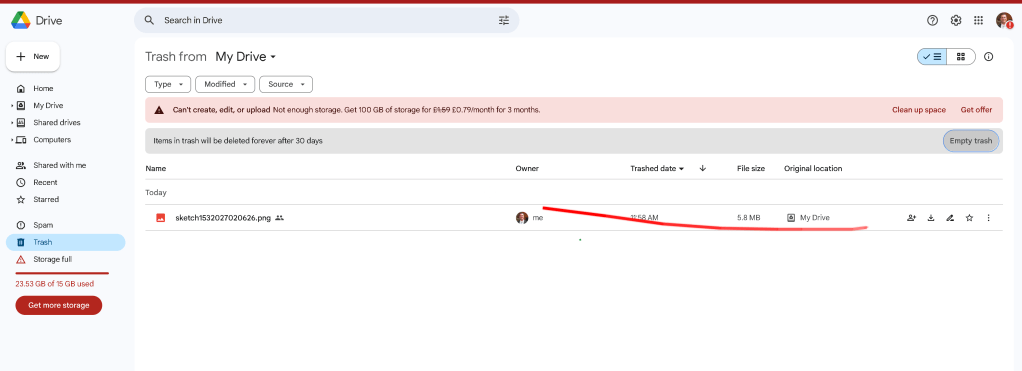
Docs from drive did not land there directly
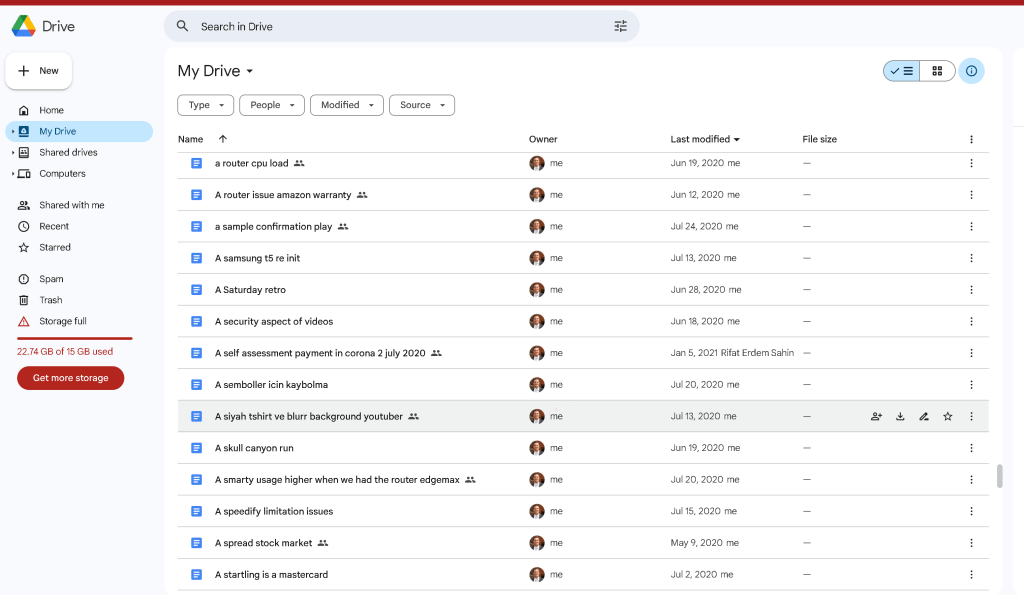
Deletion looks like it is still taking time
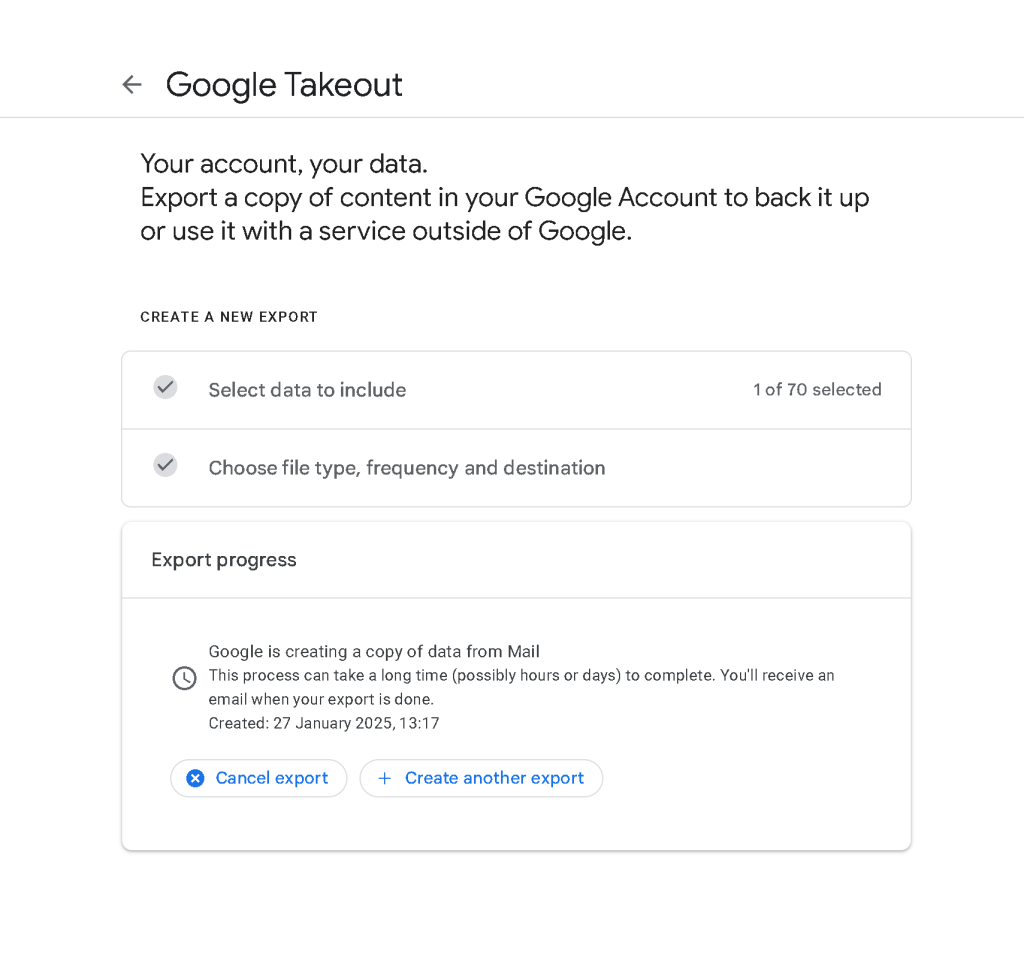
Not used email > Make the email backup to the takeout and add it to the backup
Solve this problem
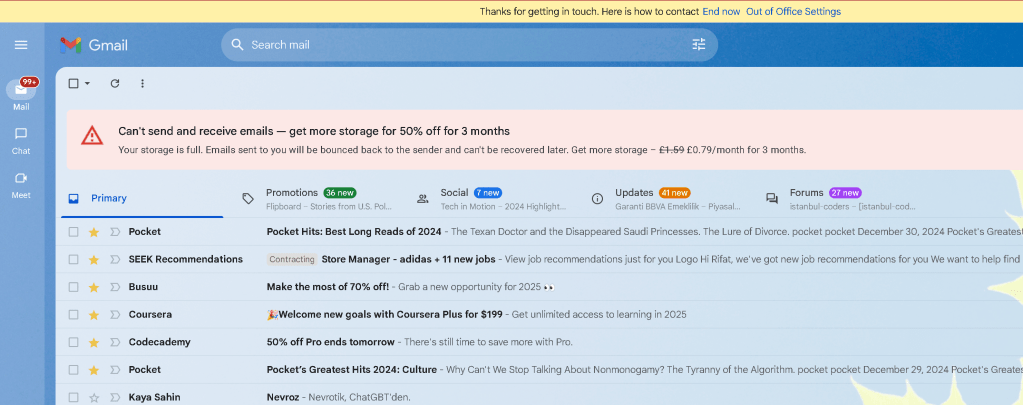
Mail takes time > it is a best practice to clean up cloud and pull it to local
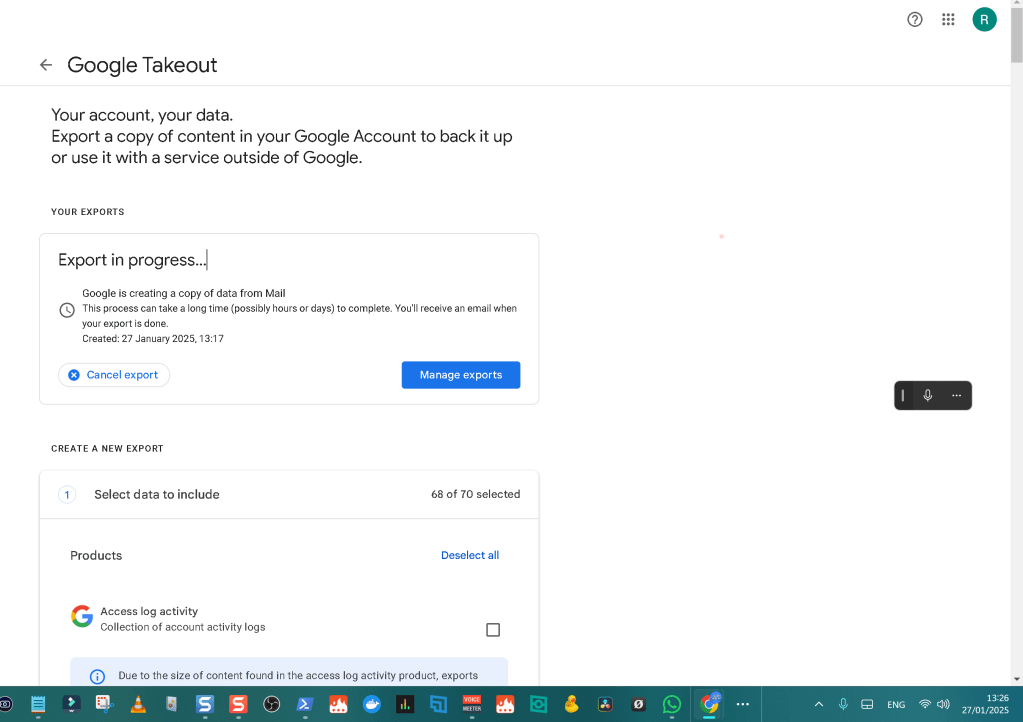
use the takeout >>> https://takeout.google.com/?pli=1
after the local download is complete one harddrive to be used to archieve the data
Cost of Terabyte Storage

                    table {
                        width: 100%;
                        border-collapse: collapse;
                        margin: 20px 0;
                    }
                    th, td {
                        border: 1px solid #ddd;
                        padding: 8px;
                        text-align: centre;
                    }
                    th {
                        background-color: #f2f2f2;
                    }
Cost of Terabyte Storage Over Time
            Year
                            Estimated Cost per Terabyte (USD)
                            Projected Cost of 100 TB Storage (USD)


                            2015
                            $30
                            $3,000


                            2016
                            $25
                            $2,500


                            2017
                            $20
                            $2,000


                            2018
                            $18
                            $1,800


                            2019
                            $15
                            $1,500


                            2020
                            $12
                            $1,200


                            2021
                            $10
                            $1,000


                            2022
                            $8
                            $800


                            2023
                            $6
                            $600


                            2024
                            $5
                            $500


                            2025
                            $20 for 1 TB
                            $200 for 10 TB


                            2030
                            $3
                            $300


                            2035
                            $1
                            $100
Based on current trends, storage >100 TB may be available for $100 around 2035, assuming a continued steady decline in cost due to technological advancements and mass adoption.
Happiness > while cleanup
Imported from rifaterdemsahin.com · 2025