🚀 How to Fix OBS Lockups When Stopping a Recording 🛑
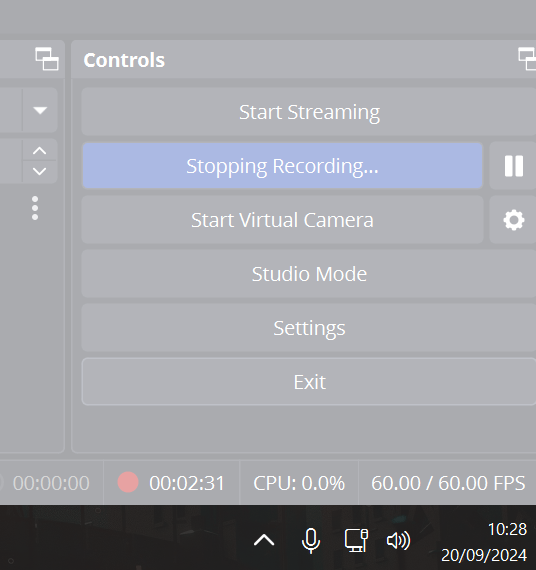
Has OBS ever locked up on you just as you hit "Stop Recording"? 🤯 It’s a common issue many users face, where everything freezes for a few seconds, or even longer! But don’t worry, I’ve got you covered with some steps to help avoid this.
💡 Why Does This Happen?
OBS (Open Broadcaster Software) is a powerful tool, but sometimes it can get stuck when finalizing your video file, especially when using high-resolution settings or if your system is low on resources. Here's a breakdown of the common causes:
-
High bitrates 📈: Recording with a high bitrate can cause longer processing times.
-
Large file sizes 📂: Bigger files need more time to finalize, leading to delays.
-
CPU overload 🖥️: If your CPU is overworked, OBS may struggle to process the video fast enough.
🛠️ How to Fix OBS Lockups
1. Lower Your Bitrate 📉
Reducing the bitrate can ease the strain on your system, especially when recording high-quality video. Go to:
-
Settings > Output > Recording Bitrate
-
Try lowering it slightly and test again.
2. Use Hardware Encoding ⚙️
Switch from software (CPU) encoding to hardware (GPU) encoding if your graphics card supports it:
-
Settings > Output > Encoder
-
Select NVENC (for NVIDIA) or AMD if you have the corresponding GPU.
3. Change Output Format 📑
Using a different recording format like MKV instead of MP4 can help avoid lockups because MKV files are more fault-tolerant:
-
Settings > Output > Recording Format
-
Choose MKV to reduce issues when stopping the recording.
4. Upgrade Your Hardware 💻
Sometimes, upgrading your hardware can make a big difference, particularly if you're working with 4K recordings or resource-heavy video streams. Consider upgrading:
-
CPU: A higher-end processor can handle more data faster.
-
RAM: More RAM can help with handling large files in real time.
5. Close Background Apps 🗑️
Free up your CPU by closing unnecessary applications that might be running in the background. The more apps open, the more your system has to manage.
6. Record to a Faster Drive 🚀
If you’re recording to an older hard drive, consider upgrading to an SSD. Faster write speeds can help OBS finalize recordings quicker.
7. Keep OBS Updated 🔄
Always make sure you’re using the latest version of OBS. Updates often include performance improvements and bug fixes.
🔥 Bonus Tip: Pausing Instead of Stopping 🛑➡️⏸️
Sometimes, simply pausing the recording instead of stopping it completely can prevent lockups. OBS allows you to pause and resume recording with minimal delay. Just hit the pause button when you need a break and then resume when you're ready.
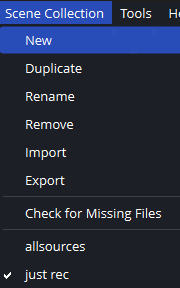
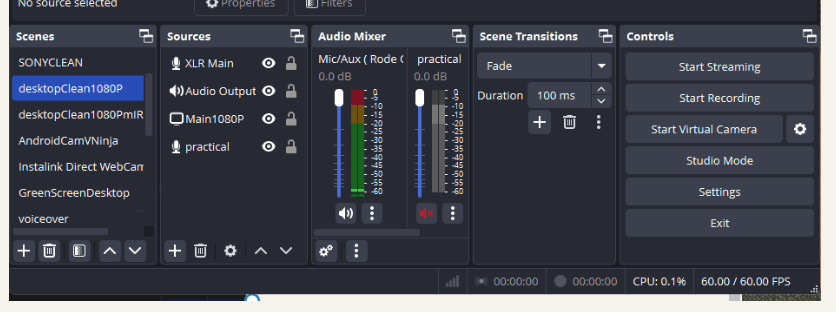
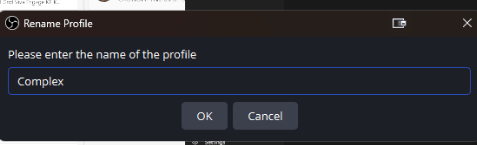
8. Use less Scenes and a simpler profile and scenes!
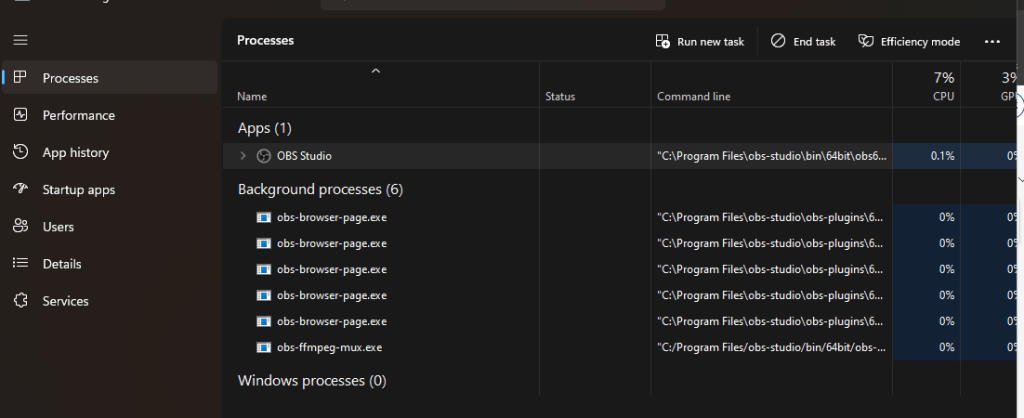
release irq and handles
🔗 Connect with me:
-
💼 LinkedIn: https://www.linkedin.com/in/rifaterdemsahin/
-
🐦 Twitter: https://x.com/rifaterdemsahin
-
🎥 YouTube: https://www.youtube.com/@RifatErdemSahin
-
💻 GitHub: https://github.com/rifaterdemsahin
By following these steps, you should be able to avoid OBS lockups and keep your recordings smooth and stress-free! 😊
Imported from rifaterdemsahin.com · 2025