How to Create a Restore Point in Windows 11: A Lifesaver After Troubleshooting Blue Screen Errors
How to Create a Restore Point in Windows 11: A Lifesaver After Troubleshooting Blue Screen Errors
We've all been there: you're working on something important, and then boom – the dreaded Blue Screen of Death (BSOD) appears. After spending time troubleshooting, fixing errors, and getting your system back to a stable state, it’s time to protect your hard work by creating a restore point in Windows 11. Think of it like saving your progress in a video game – you wouldn’t want to go through all those tough levels again, would you?
What is a Restore Point?
A restore point is a snapshot of your system’s current state. If something goes wrong later (like encountering another BSOD or installing a buggy program), you can "reload" this snapshot, much like loading a saved game in a video game. You’ll be able to revert your system back to a time when everything was running smoothly, avoiding the hassle of having to troubleshoot from scratch.
Why Create a Restore Point After Fixing BSOD?
After successfully fixing errors that caused a BSOD, it's important to "save" this moment of stability. This gives you peace of mind knowing that if something goes wrong again, you can easily roll back to this point without losing all your troubleshooting progress.
Now, let's go through the steps to create a restore point in Windows 11.
Steps to Create a Restore Point in Windows 11
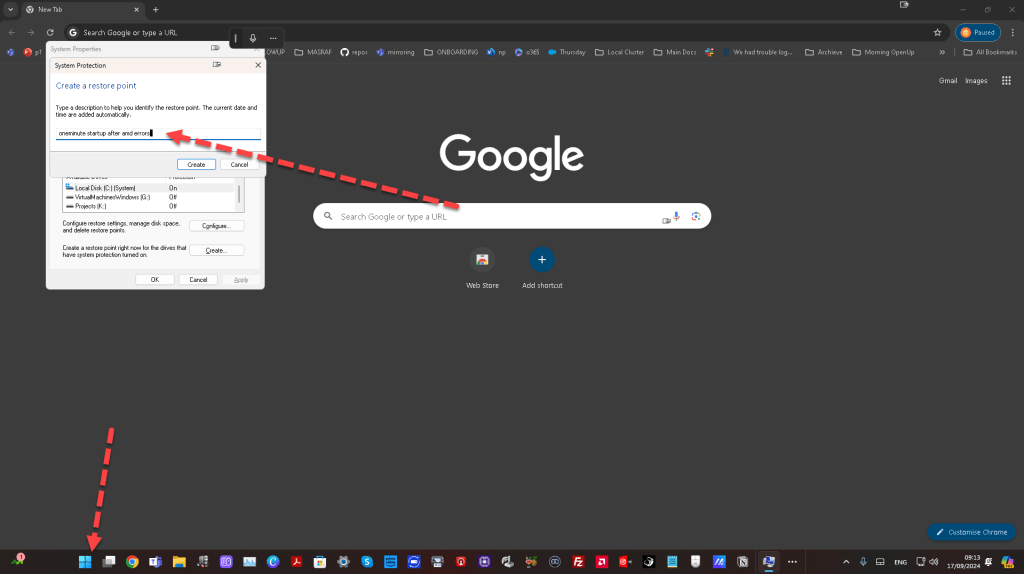
1. Open System Properties
-
Press the Windows key and type
Create a restore point. -
Click the first result, which will open the System Properties window under the System Protection tab.
2. Enable Protection
-
Select the drive you want to protect (usually
C:). -
Click on Configure, then choose Turn on system protection.
-
Adjust the Disk Space Usage slider to allocate storage for restore points. A good rule of thumb is to reserve 5-10% of your disk space.
3. Create the Restore Point
-
After enabling protection, click Create.
-
You’ll be prompted to name the restore point. For easy reference, use something like "After BSOD Fix" or "Stable System".
-
Click Create. Windows will now create a restore point of your current system state.
4. Wait for the Process to Complete
- The process takes a few minutes. Once done, you’ll receive a message confirming that the restore point has been created.
Using the Restore Point: Reloading Your Saved Game
If your system runs into trouble again, restoring your computer to a previous state is just as easy as creating the restore point.
How to Restore Your System:
-
Open System Properties again by typing
Create a restore point. -
Click on System Restore, then select the restore point you created earlier (e.g., "After BSOD Fix").
-
Follow the on-screen prompts to complete the restoration.
Final Thoughts
Just like in a video game, where saving after clearing a tough level prevents you from starting over, creating a restore point after fixing system issues ensures you won’t have to go through the troubleshooting process again. Consider it your safe haven in Windows 11, giving you a reliable "checkpoint" to revert to whenever things go wrong.
So, next time you fix a BSOD or any other major issue, don’t forget to hit "save"!
🔗 Connect with me:
-
💼 LinkedIn: https://www.linkedin.com/in/rifaterdemsahin/
-
🐦 Twitter: https://x.com/rifaterdemsahin
-
🎥 YouTube: https://www.youtube.com/@RifatErdemSahin
-
💻 GitHub: https://github.com/rifaterdemsahin
Imported from rifaterdemsahin.com · 2024