Keeping Your System Up-to-Date: A Guide to Using Chocolatey and Windows Update
Keeping Your System Up-to-Date: A Guide to Using Chocolatey and Windows Update
In today's digital age, keeping your operating system and installed applications updated is crucial for security, performance, and compatibility. Outdated software can expose your computer to vulnerabilities, making it a target for malware and cyber-attacks. Regular updates ensure that you have the latest features and security patches. In this blog post, we'll explore how you can easily update both your Windows operating system and all your installed software using Chocolatey, a popular package manager for Windows.
What is Chocolatey?
Chocolatey is a package manager for Windows, similar to apt for Ubuntu or brew for macOS. It allows you to install, update, and manage software packages through the command line, making software management quick and efficient. Whether you're a developer, IT professional, or casual user, Chocolatey can simplify the process of keeping your applications up-to-date.
Why Regular Updates Are Important
Regular updates are essential for several reasons:
-
Security: Many updates include patches for security vulnerabilities. Keeping your software updated protects your computer from known threats.
-
Performance: Updates often come with performance improvements that can make your system run more smoothly and efficiently.
-
Compatibility: As software evolves, updates ensure compatibility with new technologies, hardware, and other software.
How to Automate Updates with Chocolatey and Windows Update
Updating your operating system and software manually can be time-consuming. Fortunately, you can automate this process using PowerShell scripts. Below, we'll guide you through creating a script to update both your Windows OS and Chocolatey packages.
Step 1: Install Chocolatey
If you haven’t already installed Chocolatey, follow these steps:
-
Open Command Prompt or PowerShell as an administrator.
-
Run the following command to install Chocolatey:
@"%SystemRoot%\System32\WindowsPowerShell\v1.0\powershell.exe" -NoProfile -InputFormat None -ExecutionPolicy Bypass -Command "iex ((New-Object System.Net.WebClient).DownloadString('https://chocolatey.org/install.ps1'))" && SET "PATH=%PATH%;%ALLUSERSPROFILE%\chocolatey\bin"
Step 2: Install the Windows Update Module
To automate Windows updates, you'll need the PSWindowsUpdate module:
-
Open PowerShell as an administrator.
-
Run the following command:
Install-Module -Name PSWindowsUpdate -Force -AllowClobber
Step 3: Create the Update Script
Now that you have Chocolatey and the Windows Update module installed, you can create a PowerShell script to update both the operating system and your Chocolatey packages.
Open your favorite text editor and copy the following script:
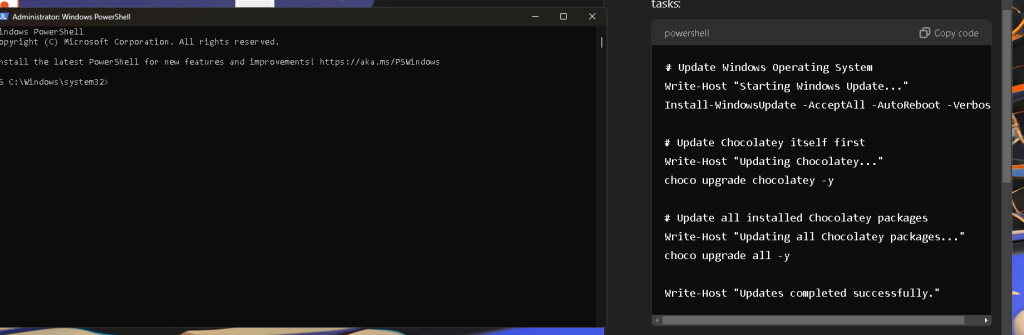
Update Windows Operating System
Write-Host "Starting Windows Update..."
Install-WindowsUpdate -AcceptAll -AutoReboot -Verbose
Update Chocolatey itself first
Write-Host "Updating Chocolatey..."
choco upgrade chocolatey -y
Update all installed Chocolatey packages
Write-Host "Updating all Chocolatey packages..."
choco upgrade all -y
Write-Host "Updates completed successfully."
Save this file with a .ps1 extension, such as Update-System.ps1.
Step 4: Run the Script
To execute the script:
-
Open PowerShell as an administrator.
-
Navigate to the directory where you saved
Update-System.ps1. -
Run the script by typing:
.\Update-System.ps1
Benefits of Using This Script
-
Automation: Automatically update your system and applications without manual intervention.
-
Efficiency: Save time by updating all software packages and the OS in one go.
-
Security: Ensure all your software is running the latest versions with security patches.
Conclusion
Keeping your computer's operating system and software up-to-date is essential for maintaining a secure and efficient environment. With Chocolatey and PowerShell, you can automate this process, saving time and ensuring that you’re always running the latest software versions. By following the steps outlined in this post, you'll be able to create a streamlined update process that keeps your system in top shape.
Make sure to run these scripts regularly and check for any updates to the tools themselves to maintain an optimal workflow. Happy updating!
Feel free to share this guide with anyone looking to simplify their update process, and let us know in the comments if you have any questions or additional tips!
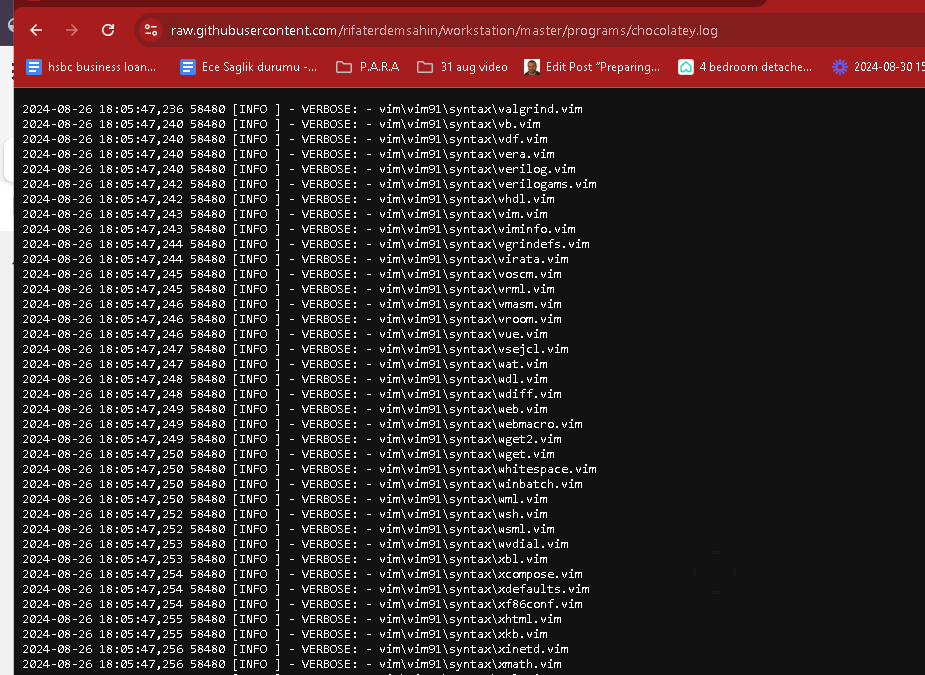
Logs
Imported from rifaterdemsahin.com · 2024