🛠️ Fixing Voicemeeter's Red Icon Error
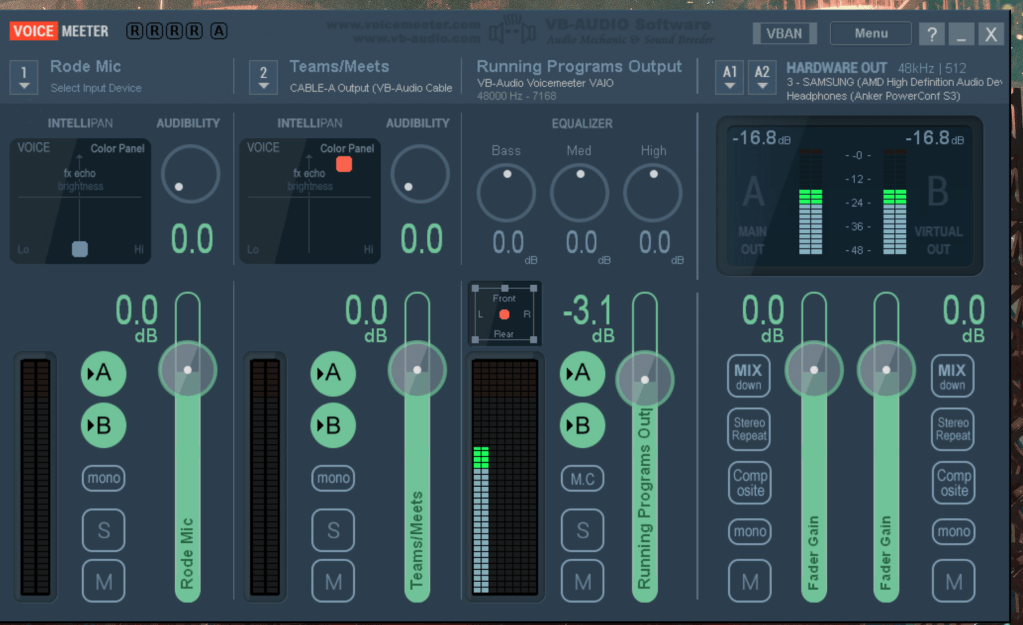
The red icon in Voicemeeter indicating an error typically means there's a problem with your audio settings, driver conflicts, or the system configuration. Here's how to resolve it step by step:
🛠️ Fixing Voicemeeter's Red Icon Error
1️⃣ Restart Audio Engine
Sometimes the error is temporary and can be fixed by restarting Voicemeeter’s audio engine:
-
Open Voicemeeter.
-
Click the "Menu" button at the top right.
-
Select "Restart Audio Engine".
🚀 This refreshes the audio driver links without closing the app.
2️⃣ Ensure Correct Audio Device Selection
-
Open Voicemeeter.
-
Under Hardware Out, select the correct output device (e.g., speakers or headphones).
-
Use WDM for lower latency, or try MME if WDM causes issues.
-
Under Hardware Input, ensure the microphone or input device is correctly selected.
💡 Pro Tip: Check your device names in the Windows sound settings to avoid confusion.
3️⃣ Check for Device Conflicts
-
Disable unused devices:
-
Right-click the sound icon in your system tray.
-
Go to Sound Settings > Manage Sound Devices.
-
Disable any devices you’re not actively using to prevent conflicts.
-
Avoid exclusive mode conflicts:
-
In Windows, go to Sound Settings > Device Properties > Additional Device Properties.
-
Under the Advanced tab, uncheck "Allow applications to take exclusive control of this device."
4️⃣ Reinstall or Update Audio Drivers
The issue may stem from outdated or corrupted drivers.
-
Update drivers:
-
Open Device Manager (Windows + X > Device Manager).
-
Expand Sound, video, and game controllers.
-
Right-click your audio device and choose Update Driver.
-
Reinstall drivers:
-
Uninstall the driver (right-click and choose Uninstall Device).
-
Restart your computer, and Windows will automatically reinstall the driver.
5️⃣ Reset Voicemeeter Settings
-
Open Voicemeeter.
-
Go to Menu > Load Settings.
-
Choose the default settings profile or reset manually.
🚀 This clears any misconfigured audio routing.
6️⃣ Run as Administrator
Ensure that Voicemeeter has sufficient permissions:
- Right-click the Voicemeeter shortcut and select "Run as Administrator."
7️⃣ Reinstall Voicemeeter
If all else fails, reinstalling can fix deeper configuration issues:
-
Uninstall Voicemeeter:
-
Go to Control Panel > Programs > Uninstall a Program.
-
Remove Voicemeeter and all associated components.
-
Download the latest version from Voicemeeter's official website.
-
Install and restart your computer.
8️⃣ Check Windows Audio Settings
Ensure that Windows is routing sound properly:
-
Open Settings > System > Sound.
-
Under Advanced sound options, set Voicemeeter as the default input/output device.
Let me know how it goes! If the red icon persists, additional logs or details about your setup (e.g., connected devices or audio routing) can help identify the issue. 😊
Imported from rifaterdemsahin.com · 2024