🎧 Troubleshooting Razer Headphones and Mic with OBS
Headphones are not connected > Razer
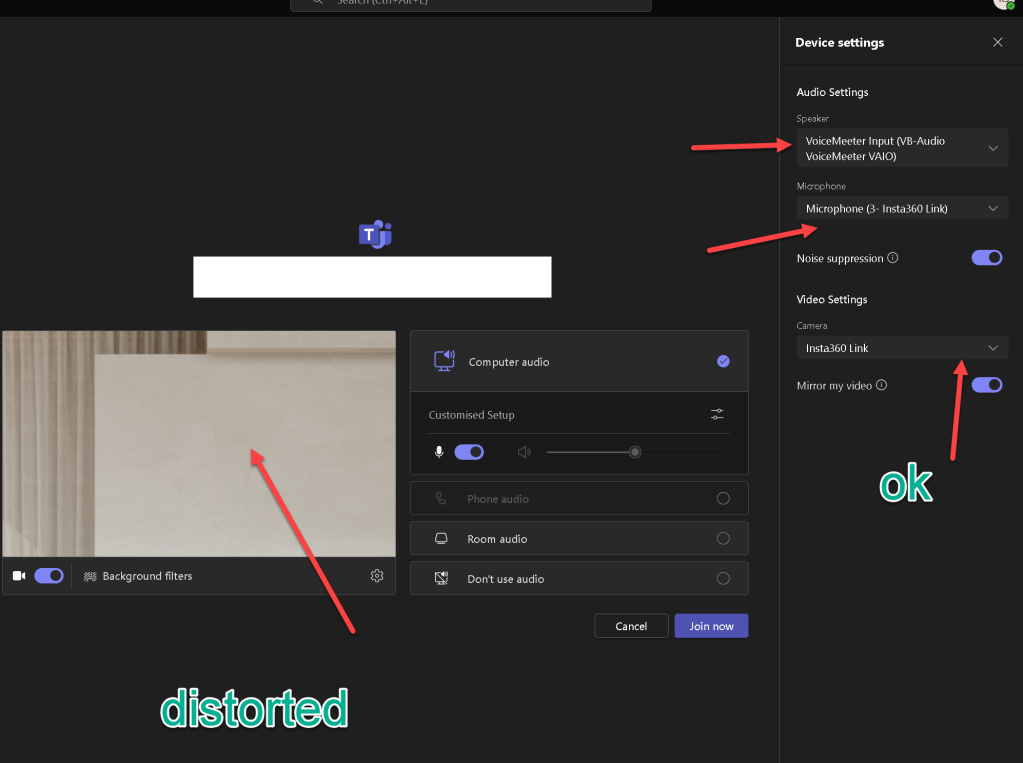
mic > has to be razer
obs on
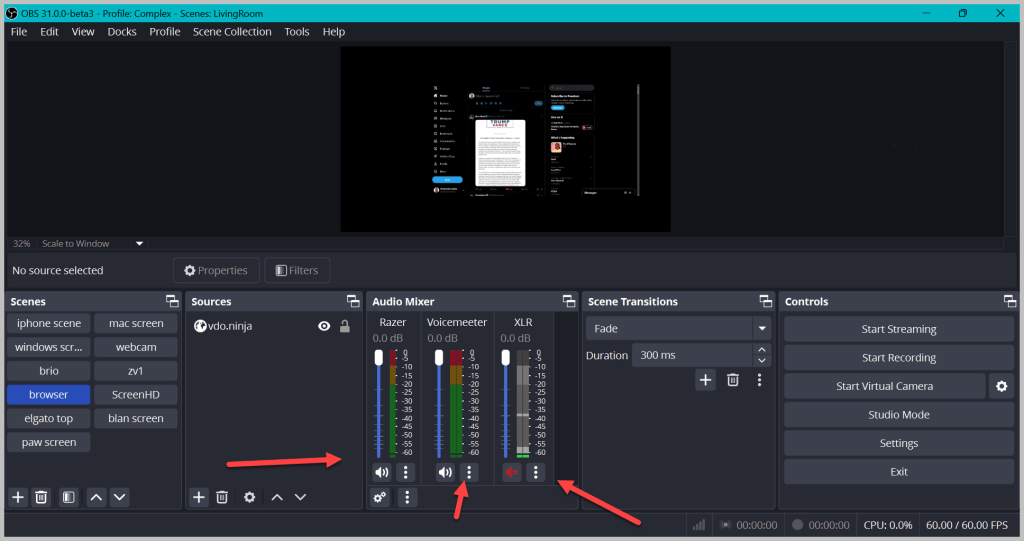
Stop loop back
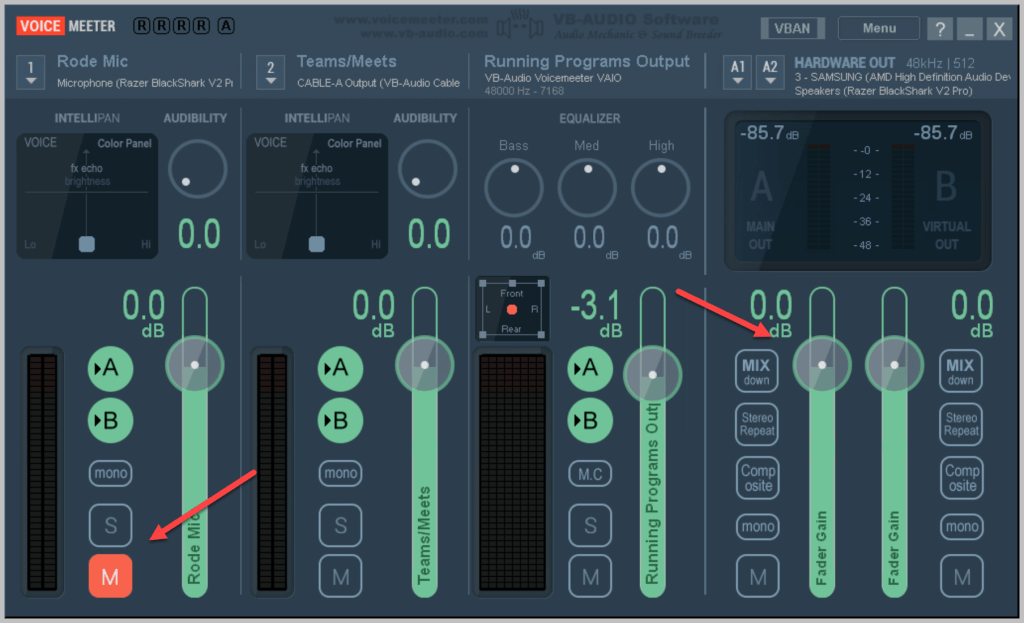
Steps
1.Poweron razer
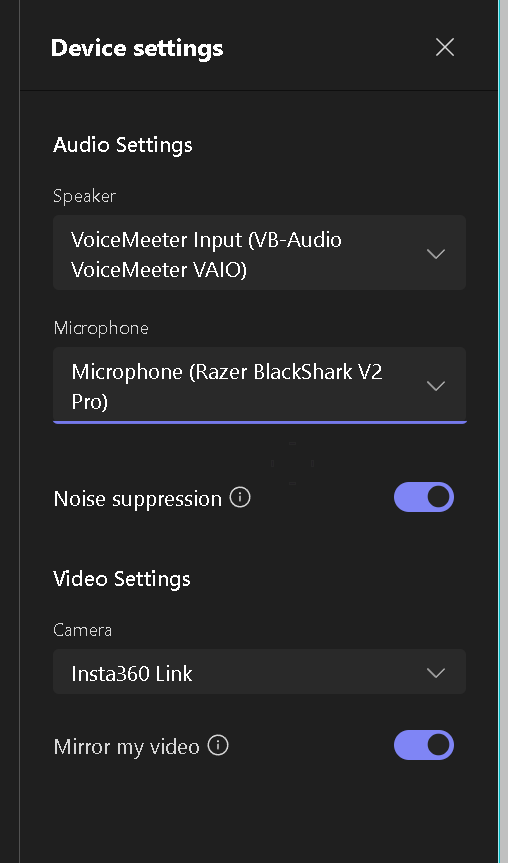
background check
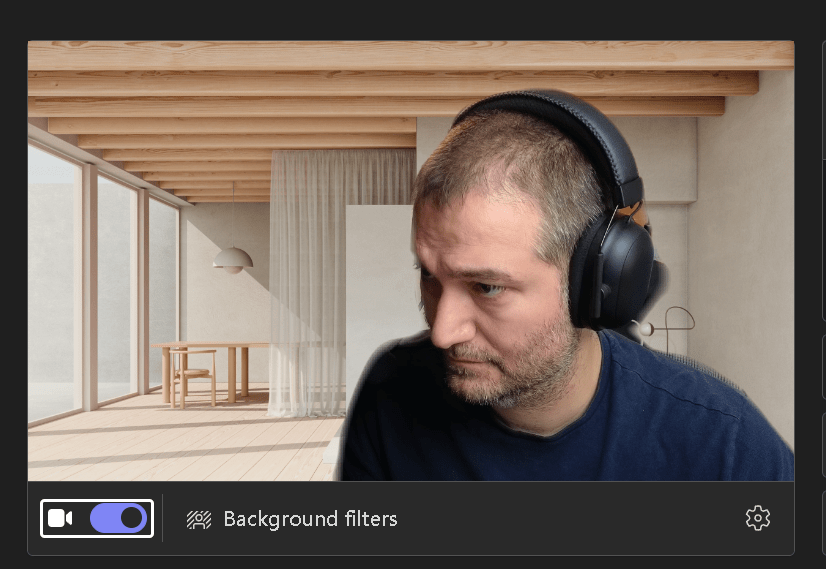
Audio Check
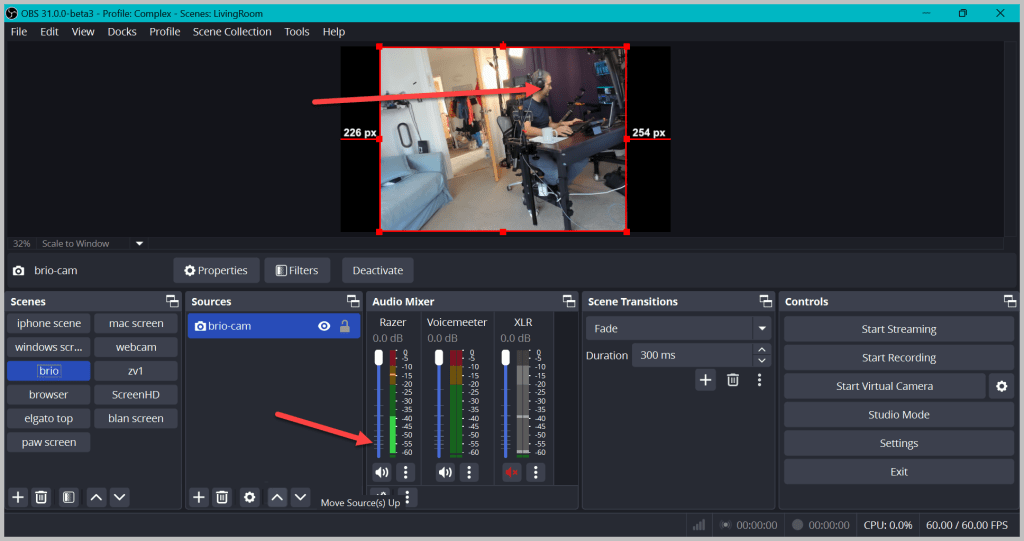
Distortion errors
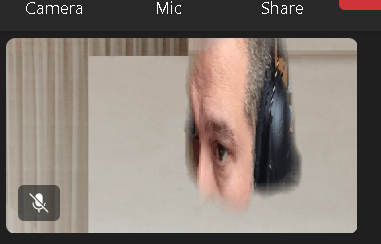
Could be browswer issues
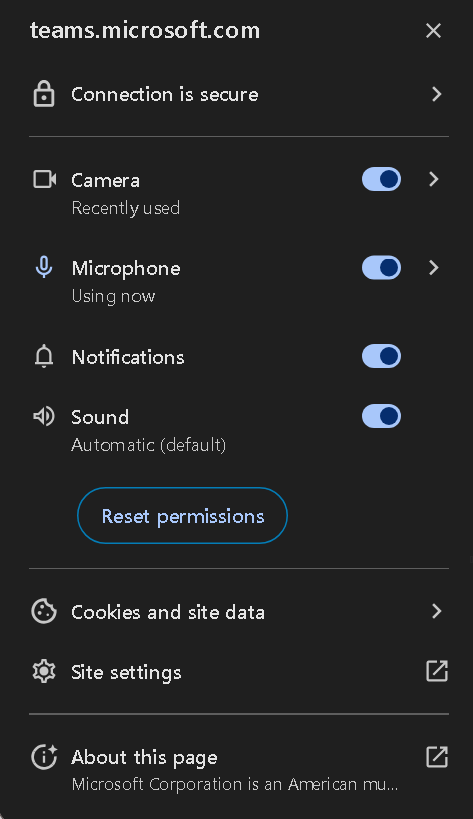
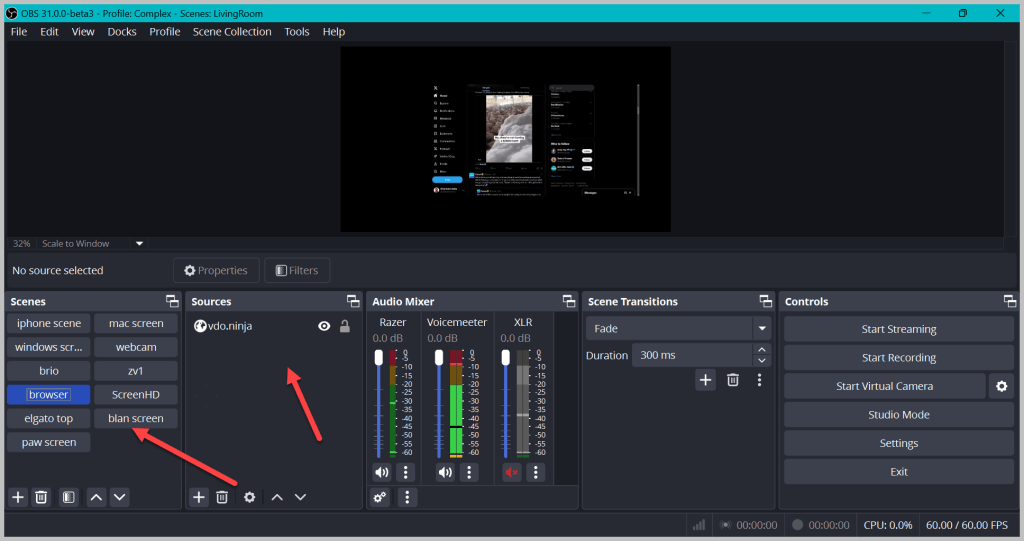
Check the scenes
🎧 Troubleshooting Razer Headphones and Mic with OBS
When setting up your Razer headphones and mic with OBS, it’s easy to miss a few steps and end up with connectivity or audio issues. Here’s a quick guide to help you set everything up smoothly and get back to streaming or recording without a hitch.
🔊 Steps to Set Up Your Razer Headphones and Mic with OBS
-
Power On the Razer Headphones and Mic 🎧
-
Start by ensuring your Razer headphones and microphone are powered on and connected to your device.
-
Run a Background Check ✅
-
Before diving into audio settings, make sure your system recognizes your headphones and mic. Open your audio settings and verify that Razer devices are showing up correctly.
-
Audio Check 🕵️♂️
-
In OBS, go to the Audio settings and make sure your Razer devices are selected for both input (microphone) and output (headphones). Sometimes, OBS defaults to system settings, so manually check these to avoid any miscommunication between OBS and your audio setup.
-
Identify Distortion Errors 🎚️
-
Test the audio levels to ensure there's no static, distortion, or any sound lag. If you notice any distortion:
Check that there are no open browser tabs or applications that might be interfering.
-
Close any background programs that might be consuming high CPU or memory.
-
Check for Browser Issues 🌐
-
Sometimes, browser tabs with sound can interfere with OBS, causing unexpected audio feedback or interruptions. Close unnecessary tabs or mute audio on tabs that are open but not actively needed.
-
Review Your OBS Scenes 🖥️
-
Open each OBS scene you plan to use and confirm that audio sources are correctly set to your Razer mic and headphones. This prevents issues when switching between scenes during recording or streaming.
-
Disable Loopback 🔁
-
OBS may have a loopback setting enabled if you’re hearing an echo. Go to Advanced Audio Properties in OBS, find your Razer mic and headphones, and turn off Audio Monitoring if it’s enabled.
🎥 Screenshot Pauses for Key Steps
For extra clarity, consider taking screenshots at these key stages:
-
Audio Device Check: Ensure the Razer mic and headphones are selected in your system settings.
-
OBS Audio Settings: Capture your OBS settings with Razer as the chosen devices.
-
Advanced Audio Properties: Show the loopback option disabled to prevent echo issues.
With these steps, your Razer headphones and mic should be all set up and ready for OBS without any audio surprises. Happy streaming! 🌟
🔗 Connect with me:
-
💼 LinkedIn: https://www.linkedin.com/in/rifaterdemsahin/
-
🐦 Twitter: https://x.com/rifaterdemsahin
-
🎥 YouTube: https://www.youtube.com/@RifatErdemSahin
-
💻 GitHub: https://github.com/rifaterdemsahin
Imported from rifaterdemsahin.com · 2024