Choco install errors Fix
It seems you're encountering dependency resolution issues when trying to upgrade all packages using Chocolatey. The error messages indicate that some packages have unmet or conflicting dependencies, which prevents the upgrade process from completing successfully. Here are the main issues and possible solutions:
Issues Identified:
-
Dependency Conflicts:
-
The errors state that some packages (like
anydesk.portable,camtasia, andGoogleChrome) have dependencies that conflict with the current versions or required versions of other packages (specificallyobs-studio.installversion30.2.3vs.30.1.2). -
Unresolved Dependencies:
-
The system is trying to resolve dependencies for
obs-studioand its related packages but fails due to version mismatches. For instance,obs-studio.install 30.1.2is not compatible withobs-studio 30.2.3 constraint: obs-studio.install (>= 30.2.3).
Possible Solutions:
-
Manually Upgrade Packages with Conflicts:
-
Try upgrading the conflicting packages manually to ensure that all dependencies are correctly resolved.
-
For example, run:
bash choco upgrade obs-studio.install -y choco upgrade obs-studio -y -
After upgrading the specific package causing the conflict, try running
choco upgrade all -yagain. -
Remove and Reinstall Problematic Packages:
-
If a package cannot be upgraded due to dependency issues, you may need to uninstall it and then reinstall the latest version. For example:
bash choco uninstall anydesk.portable -y choco install anydesk.portable -y -
This may solve the dependency conflict by ensuring all required versions are aligned.
-
Clean Chocolatey Cache and Fix Permissions:
-
Chocolatey reported a warning about the system cache directory not being locked down to administrators. Fix this by removing the cache directory and letting Chocolatey recreate it:
bash Remove-Item -Recurse -Force C:\ProgramData\ChocolateyHttpCache -
Then rerun the upgrade command to see if this resolves any issues.
-
Check Chocolatey Logs for Detailed Errors:
-
Check the Chocolatey logs located at
C:\ProgramData\chocolatey\logs\chocolatey.logto get more details on the errors and warnings. This may provide more insight into the specific dependencies causing the problem. -
Use Chocolatey Force Option:
-
If you are certain the upgrades are safe to proceed despite the warnings, you can use the
--forceoption to bypass these constraints. However, use this with caution as it might lead to unstable or broken installations:
bash choco upgrade all -y --force -
Upgrade Chocolatey Itself:
-
Ensure you have the latest version of Chocolatey by upgrading it first:
bash choco upgrade chocolatey -y -
Then try running the upgrade command again.
By following these steps, you should be able to resolve the dependency conflicts and successfully upgrade your packages.
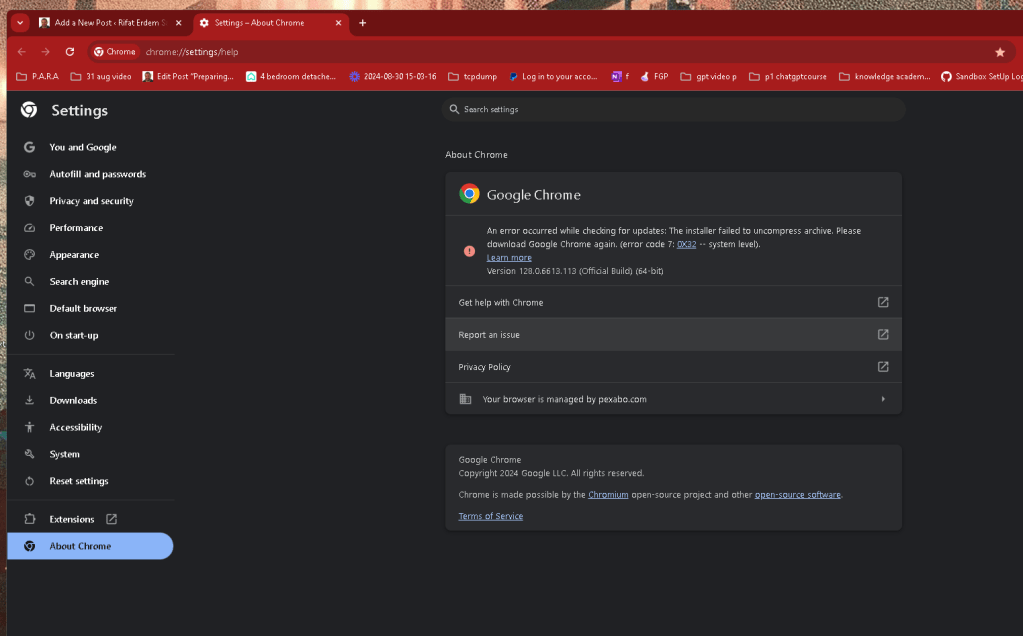
race condition with google
Imported from rifaterdemsahin.com · 2024