🚀 Setting Up Startup Tasks on Windows 11
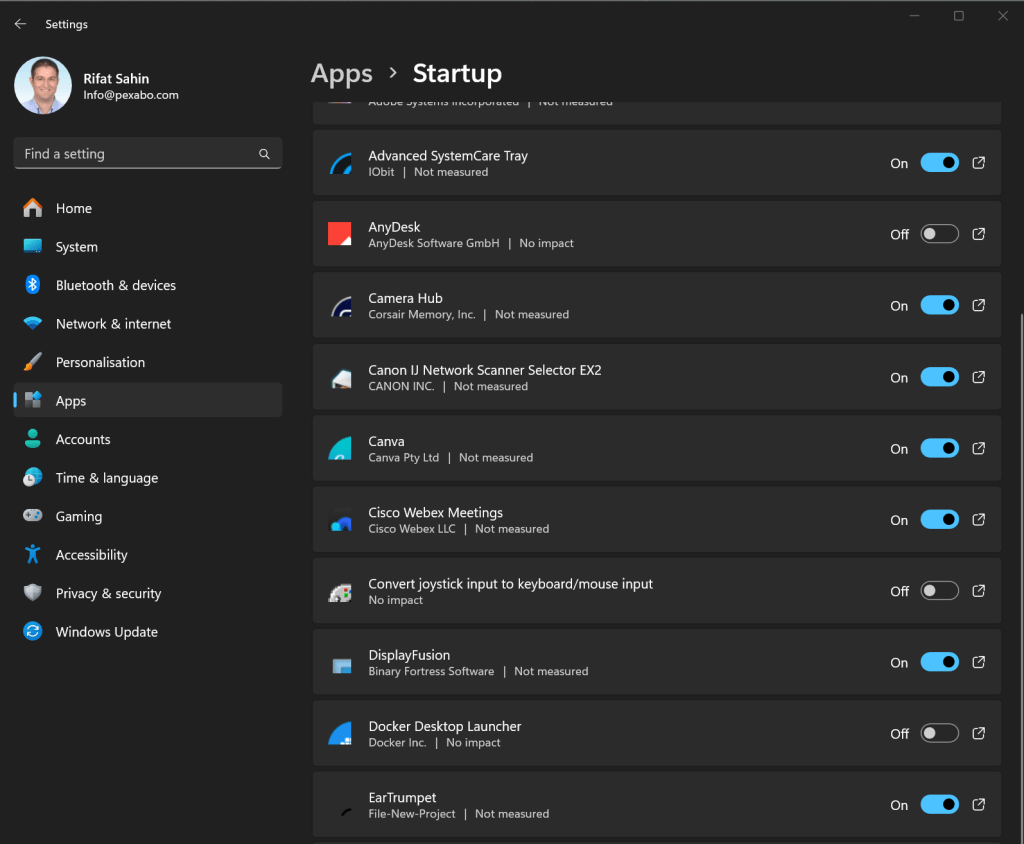
Start
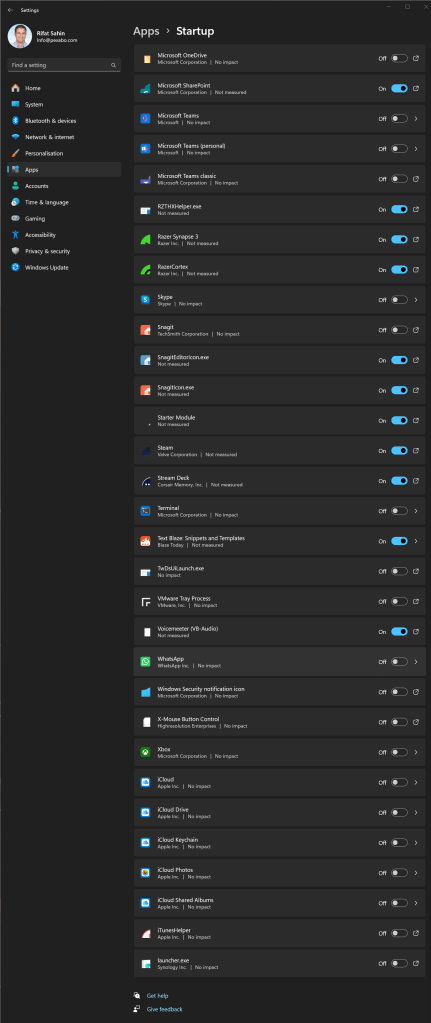
End
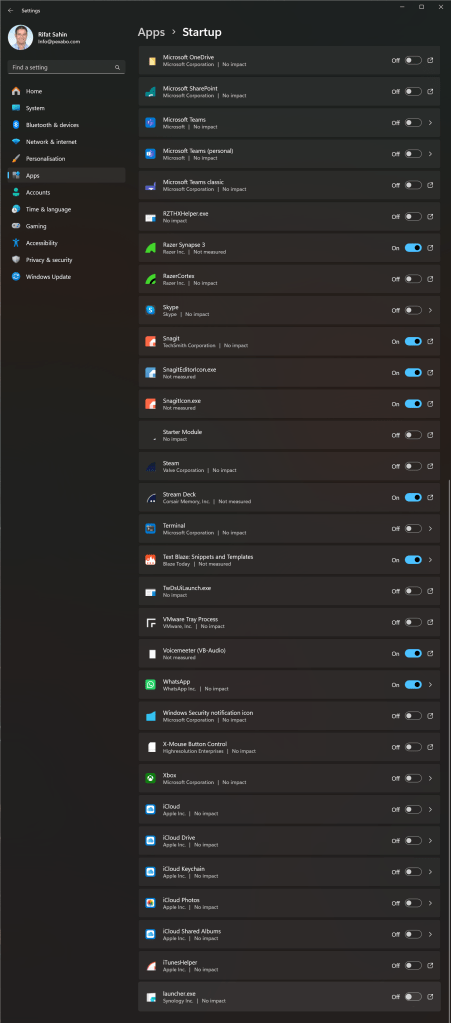
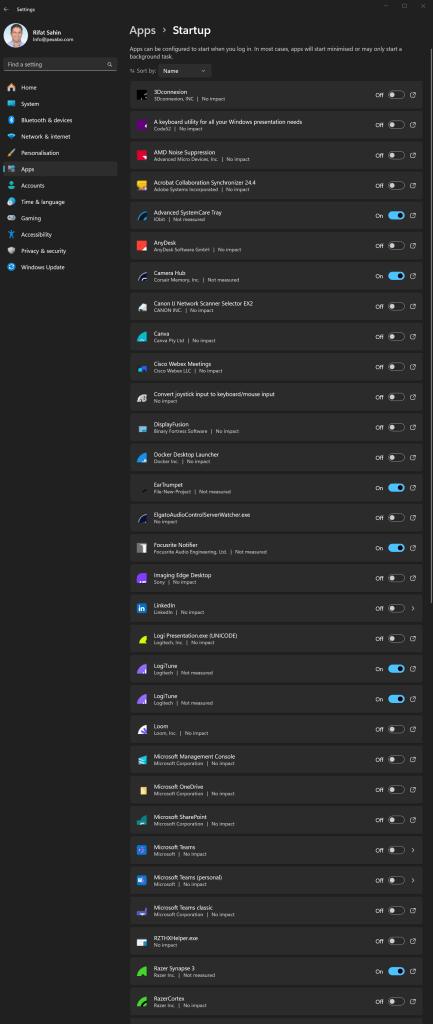
Are you eager to streamline your startup processes on Windows 11? In this post, I'll walk you through adding and managing startup tasks to make sure your essential apps are ready to go the moment you power up! 🎉
🔥 Why Set Up Startup Tasks?
Configuring startup tasks can improve efficiency, ensuring that the programs you need are ready when you start work. Whether it’s your favorite productivity app, task manager, or communication tool, setting up startup tasks on Windows 11 saves you time and boosts productivity. 💪
⚙️ Step-by-Step Guide to Startup Tasks on Windows 11
1. 🖥️ Open the Task Manager
-
Press
Ctrl + Shift + Escto open the Task Manager. -
Alternatively, right-click the Start button and select Task Manager.

2. 🔍 Navigate to the Startup Tab
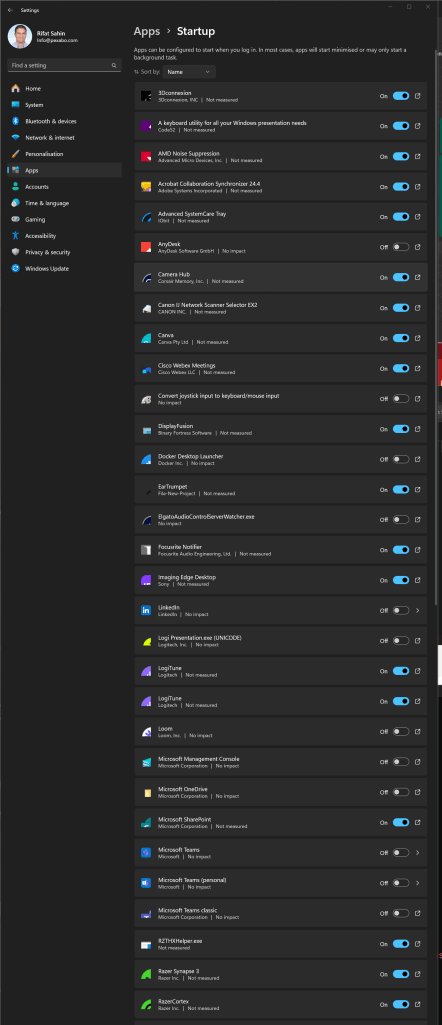
- In Task Manager, go to the Startup tab. This is where you’ll find a list of all apps that have permission to run at startup.
3. ✅ Enable or Disable Apps
- Select an app to toggle its startup status:
Enable: Allows the app to start automatically. - Disable: Prevents the app from launching at startup.
💡 Tip: Only enable essential apps to improve startup speed and reduce system load.
4. ➕ Add New Startup Apps
- To add a program to the startup list:
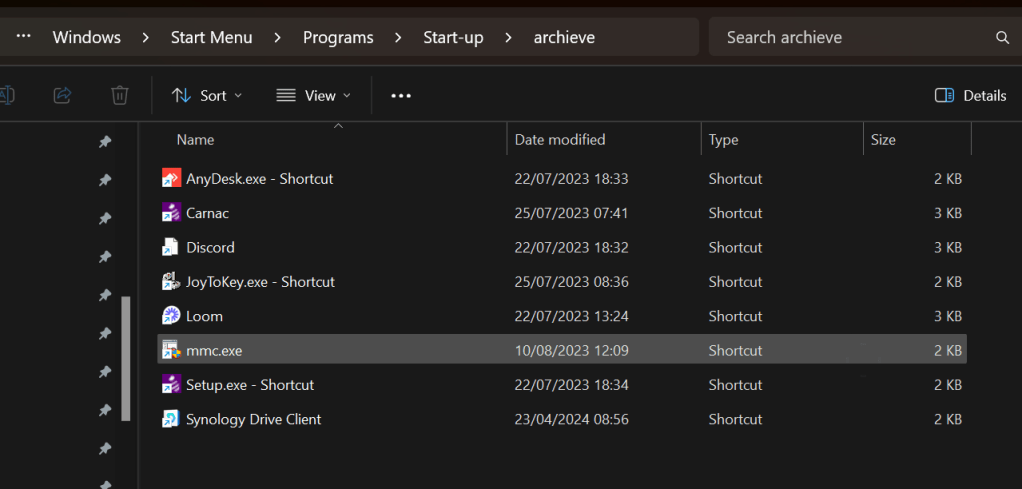
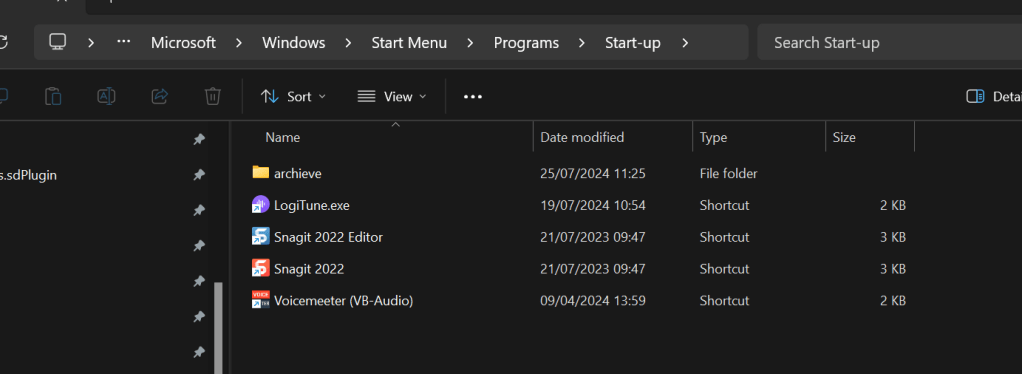
Right-click the Start button and open Run.Typeshell:startupand hit Enter. This opens the Startup folder.Copy shortcuts of apps you want to start automatically and paste them into this folder.
Startup-Tasks
🛠️ Troubleshooting Tips
-
App Not in Task Manager? Manually add it to the Startup folder using the steps above.
-
Too Many Startup Apps? Consider disabling non-essential programs to improve system speed.
💡 Pro Tip: Customize your startup apps based on your work schedule. For example, enable communication tools on weekdays and disable them for a distraction-free weekend. 📆
By setting up your startup tasks, you can be sure that your essential tools are always ready when you need them. Give it a try and make your Windows 11 startup experience smoother! 🚀
🔗 Connect with me:
-
💼 LinkedIn: https://www.linkedin.com/in/rifaterdemsahin/
-
🐦 Twitter: https://x.com/rifaterdemsahin
-
🎥 YouTube: https://www.youtube.com/@RifatErdemSahin
-
💻 GitHub: https://github.com/rifaterdemsahin
Imported from rifaterdemsahin.com · 2024