🚀 How to Uninstall OpenVINO on Windows
💡 What I Want to Achieve: Here’s a step-by-step guide to uninstall OpenVINO from Windows. Whether you installed it via the Intel® Distribution installer or using pip, I’ve got you covered with all the methods!
1. Uninstalling via Control Panel (For Installer-Based Installations)
🛠 If you installed OpenVINO using the Intel® Distribution of OpenVINO™ toolkit installer, follow these steps:
-
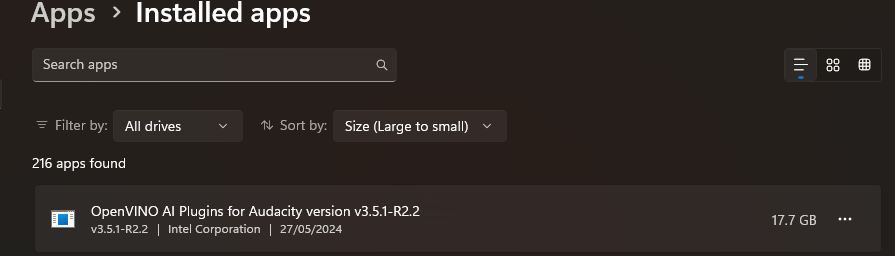
Open Control Panel:
-
Press
Windows + S, type Control Panel, and press Enter.
*
*
-
Go to Programs:
-
Select Uninstall a program under Programs.

-
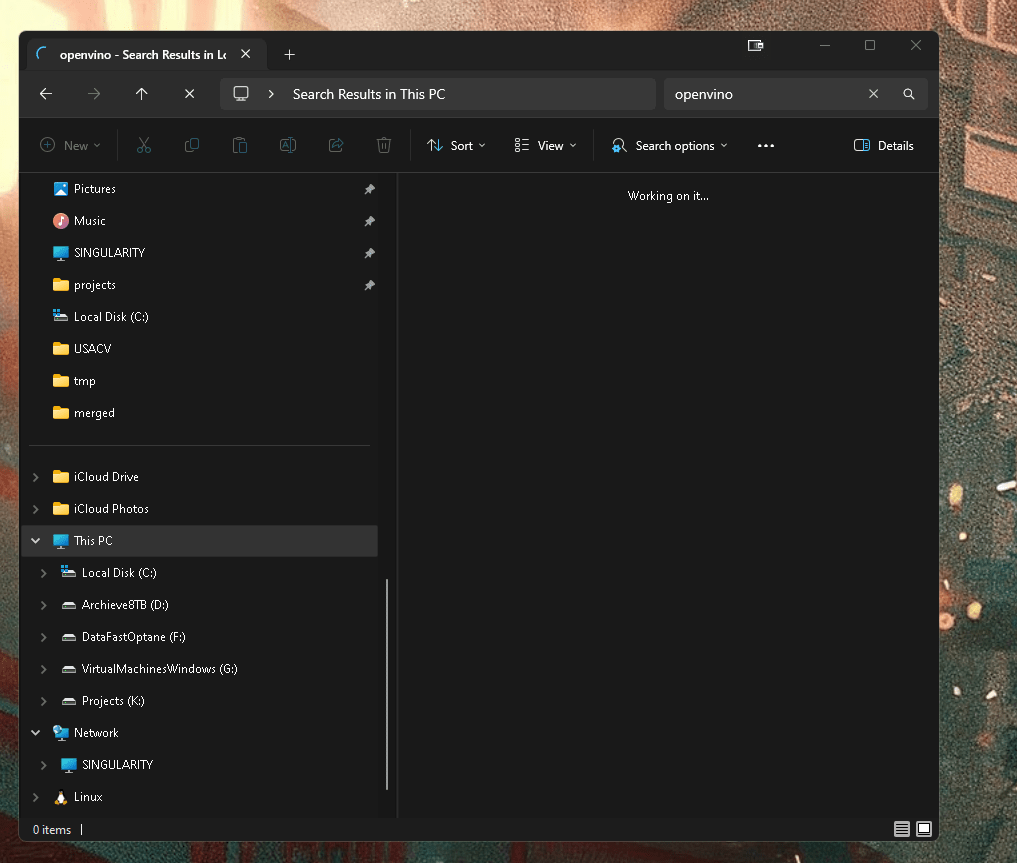
Find OpenVINO:
-
Scroll through the list of installed programs and find Intel® Distribution of OpenVINO™ toolkit.
-
Uninstall:
-
Right-click on the entry and select Uninstall.
-
Follow the on-screen prompts to completely remove OpenVINO from your system.
2. Uninstalling via Python (For pip Installations)
🐍 If you installed OpenVINO using pip (Python package manager):
-
Open Command Prompt or PowerShell.
(Add screenshot here) -
Run the following command to uninstall:
pip uninstall openvino-dev
💡 Or, if you installed the basic version:
pip uninstall openvino
- Follow the prompts to complete the uninstallation.
3. Manual Removal (For zip-based or Source Installations)
🗂 For zip or manually installed OpenVINO:
-
Remove the Installation Directory:
-
Navigate to the directory where OpenVINO was extracted or installed. Delete the entire folder.
(Add screenshot here) -
Remove Environment Variables:
-
Open the Start Menu, type Environment Variables, and select Edit the system environment variables.
-
In the System Properties window, click Environment Variables.
-
Under System variables, find and delete variables related to OpenVINO, such as
InferenceEngine_DIRorOpenVINO_DIR.
(Add screenshot here)
4. Remove Intel Tools (Optional)
🧹 If you no longer need Intel tools associated with OpenVINO, such as the Intel C++ Compiler or Intel Performance Libraries, you can also remove them:
- Head back to the Control Panel > Uninstall a program to find and remove additional Intel components.
📝 Final Step: Restart Your System
🔄 Make sure to restart your system after completing the uninstallation process to ensure all changes are applied.
💡 Let me know if you need further assistance!
🔗 Connect with me:
🚀 Stay tuned for more tips and tutorials!
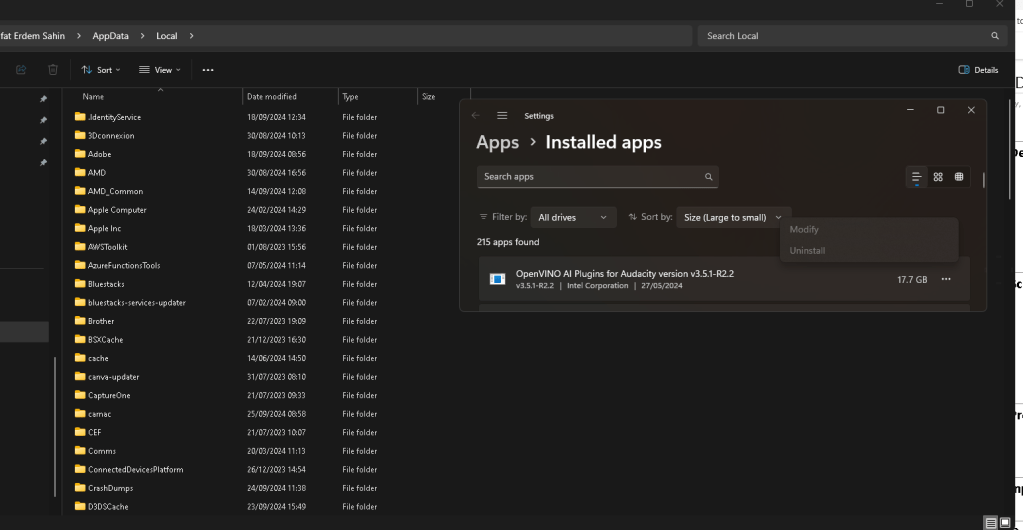
Errors
After the audiacity removed from app data it still stuck
Imported from rifaterdemsahin.com · 2024