🛠️ How to Update Drivers in Windows: A Step-by-Step Guide
Keeping your drivers up-to-date ensures that your system runs smoothly and your devices work as expected. Windows often provides driver updates through the Windows Update section, particularly in the Optional Updates area. Here's a quick guide on how to install these updates.
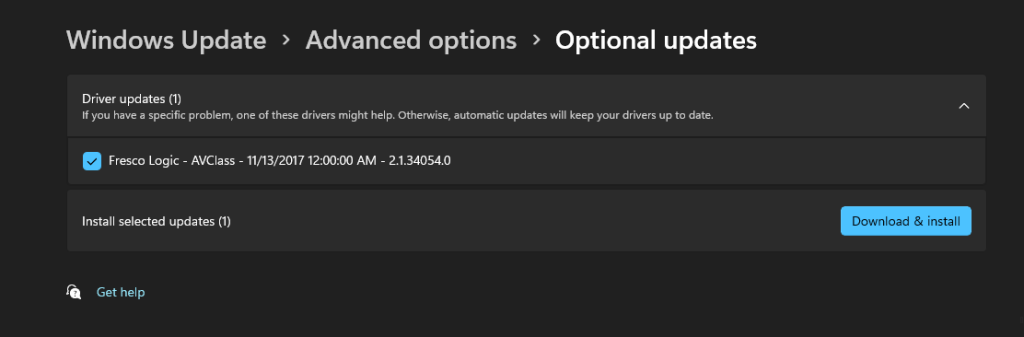
Here's an example of an optional driver update for Fresco Logic in the Windows Update settings. Windows allows you to selectively download and install updates, like the one shown here.
Step-by-Step Guide to Update Drivers:
-
Go to Settings:
-
Open Settings by pressing
Win + I. -
Navigate to Windows Update:
-
Go to Update & Security and then select Windows Update.
-
Select Advanced Options:
-
Scroll down and click on Advanced options, then Optional updates.
-
Check for Optional Driver Updates:
-
Under Driver updates, look for any available drivers that might help resolve issues or enhance performance.
-
Install the Update:
-
Select the driver you want to install and click Download & install.
💡 Tip: Only install driver updates if you encounter issues or need specific device improvements. Windows usually manages critical driver updates automatically.
🔗 Connect with me:
-
💼 LinkedIn: rifaterdemsahin
-
🐦 Twitter: @rifaterdemsahin
-
🎥 YouTube: RifatErdemSahin
-
💻 GitHub: rifaterdemsahin
Stay tuned for more tech tips! 👋
Imported from rifaterdemsahin.com · 2024