Bulk Deploy to CRC
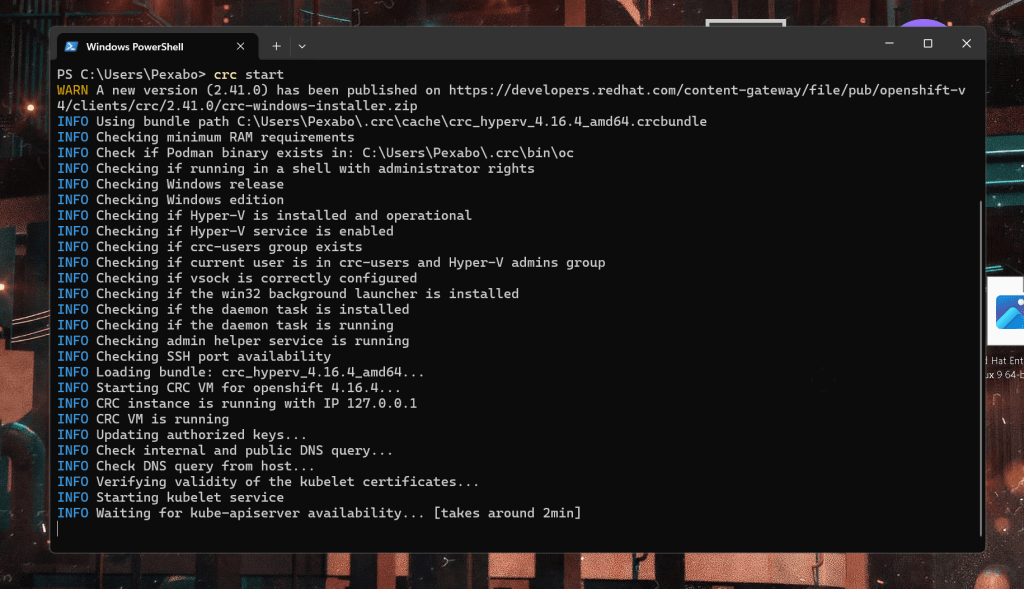
Open the openshift environment
Is this what am i looking for ?
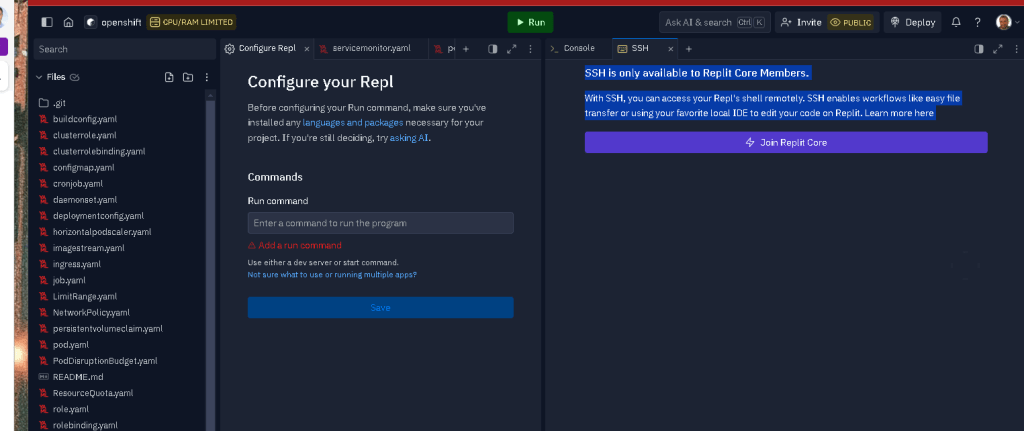
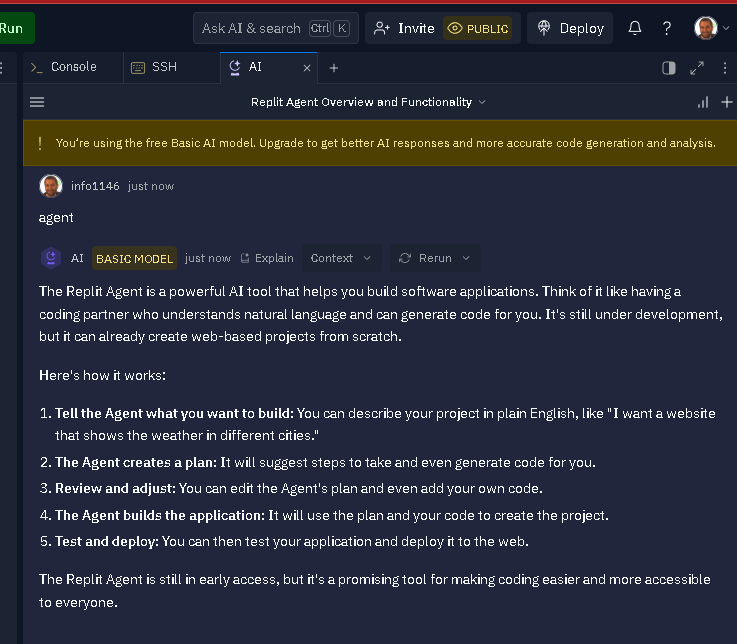
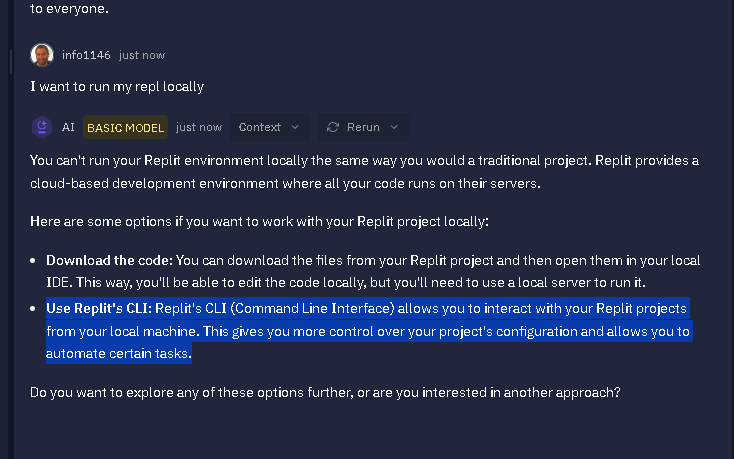
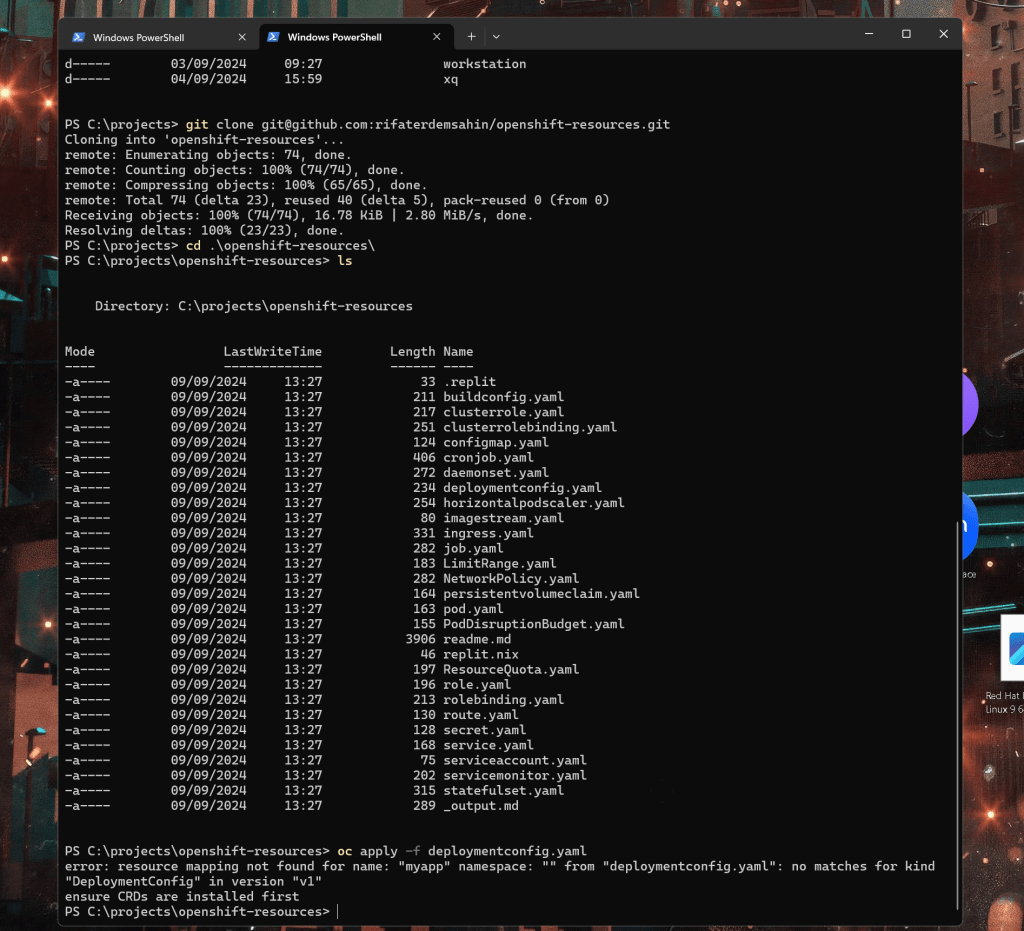
Starts with the error
retry the pod

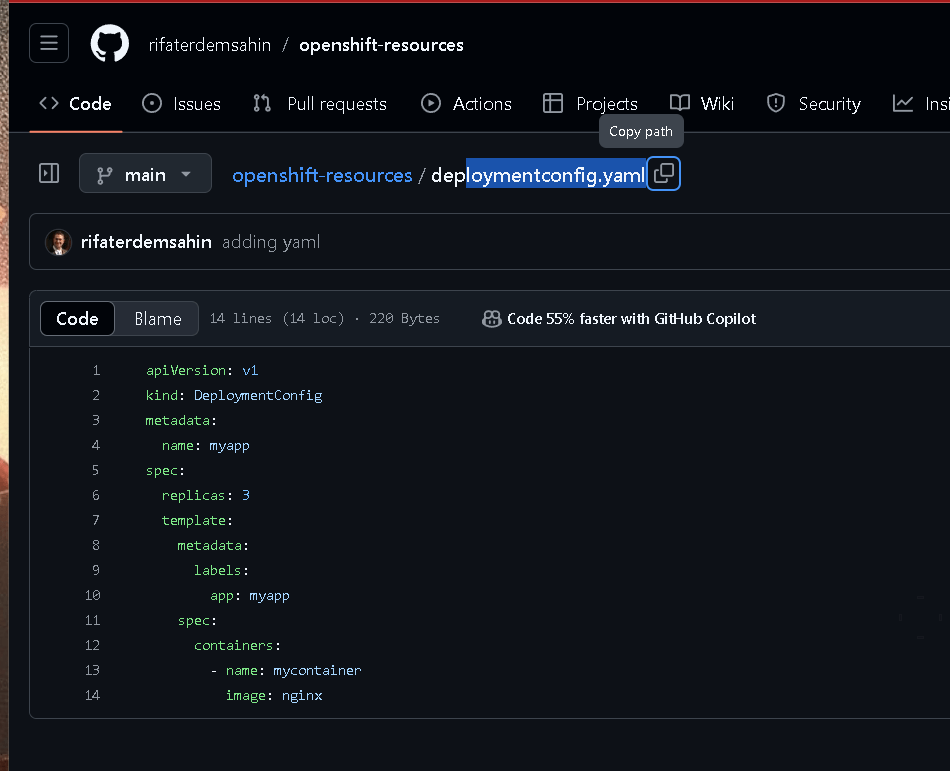
looks like it is dependant to the app
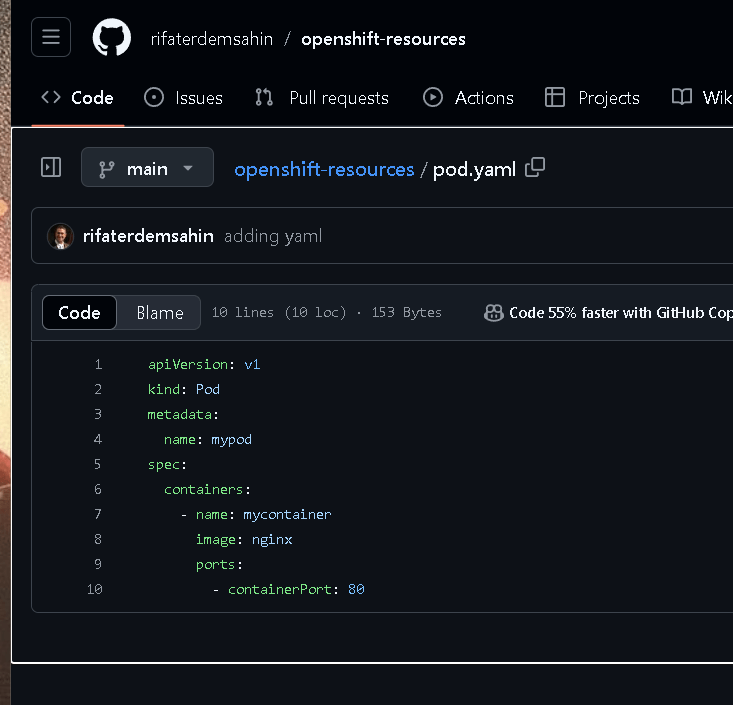
my pod is there
It looks like you're trying to update a DeploymentConfig and a Pod configuration in Kubernetes. Here's the corrected YAML that separates the two configurations and updates them correctly:
apiVersion: v1
kind: DeploymentConfig
metadata:
name: myapp
spec:
replicas: 3
template:
metadata:
labels:
app: myapp
spec:
containers:
- name: mycontainer
image: nginx
For the Pod configuration:
apiVersion: v1
kind: Pod
metadata:
name: mypod
spec:
containers:
- name: mycontainer
image: nginx
ports:
- containerPort: 80
This separates the DeploymentConfig and Pod definitions. The DeploymentConfig controls the deployment of a set of replicas, while the Pod defines a single instance of your container running nginx. If you want to use both in the same file, ensure you separate them with three hyphens (---).
Let me know if you need further adjustments!
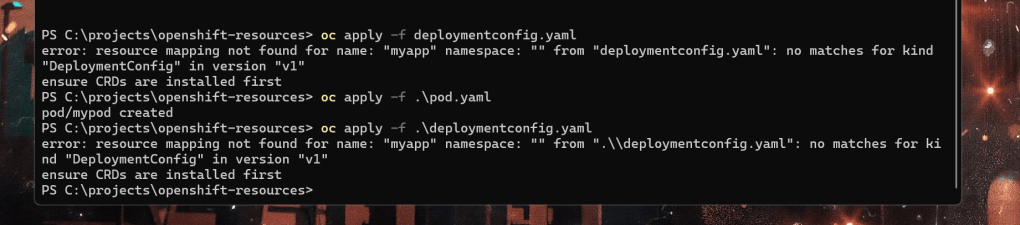
The error you're encountering occurs because the DeploymentConfig resource is specific to OpenShift and isn't available in a standard Kubernetes environment out-of-the-box. In OpenShift, the DeploymentConfig kind belongs to a different API group, not v1. The correct API version for DeploymentConfig is apps.openshift.io/v1.
Here's how you can update your deploymentconfig.yaml file:
apiVersion: apps.openshift.io/v1
kind: DeploymentConfig
metadata:
name: myapp
spec:
replicas: 3
template:
metadata:
labels:
app: myapp
spec:
containers:
- name: mycontainer
image: nginx
Ensure that your OpenShift environment has the necessary permissions to handle this resource, and try applying it again with:
oc apply -f ./deploymentconfig.yaml
Let me know if this resolves your issue!
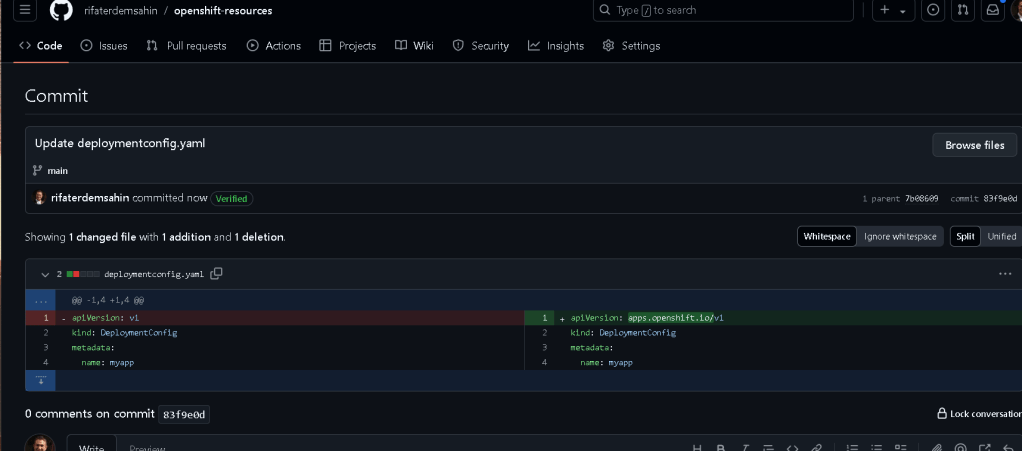
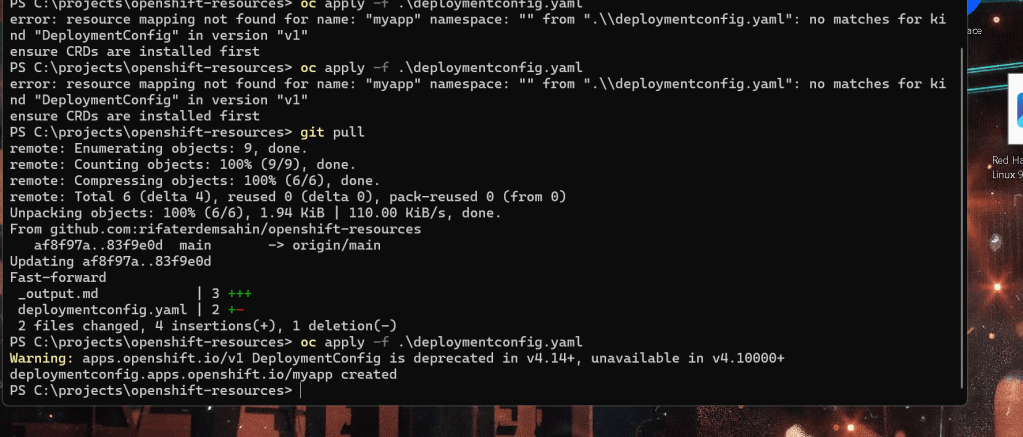
git pull top name space fix and it moves on
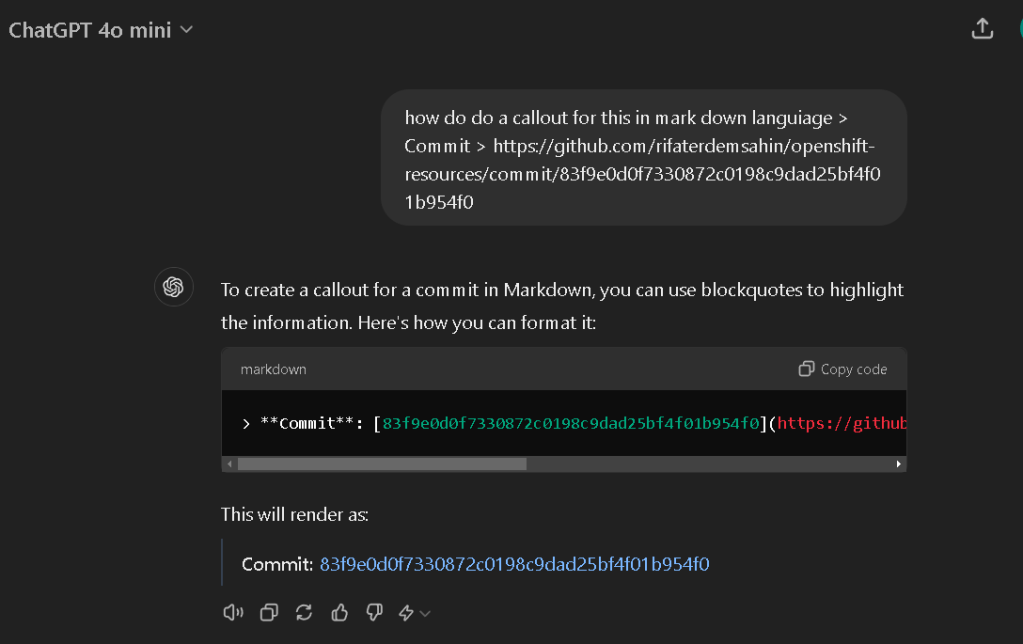
Here is the markdown
redeploy testing with none breaking update
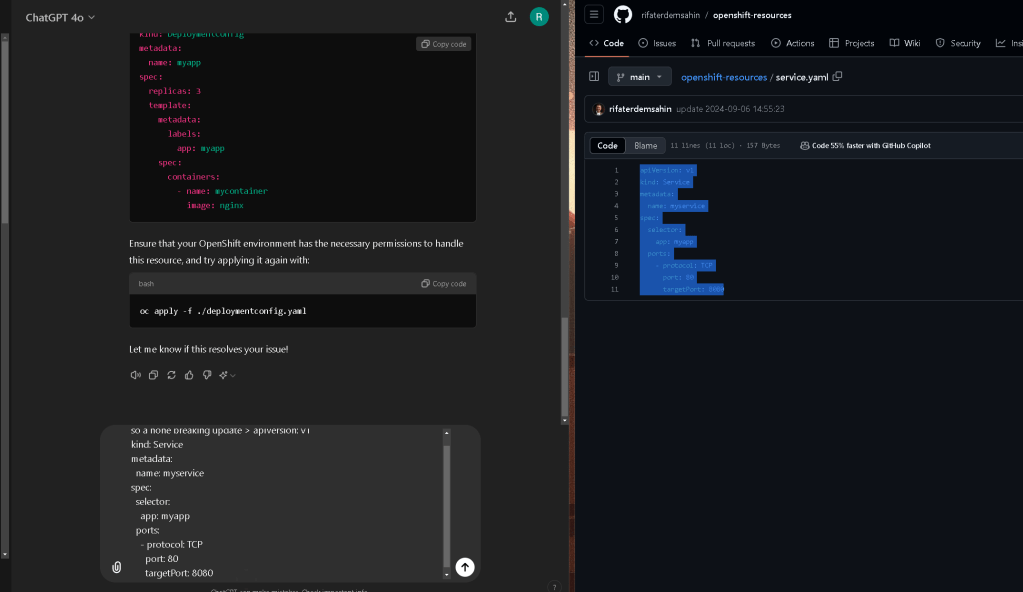
updated the top
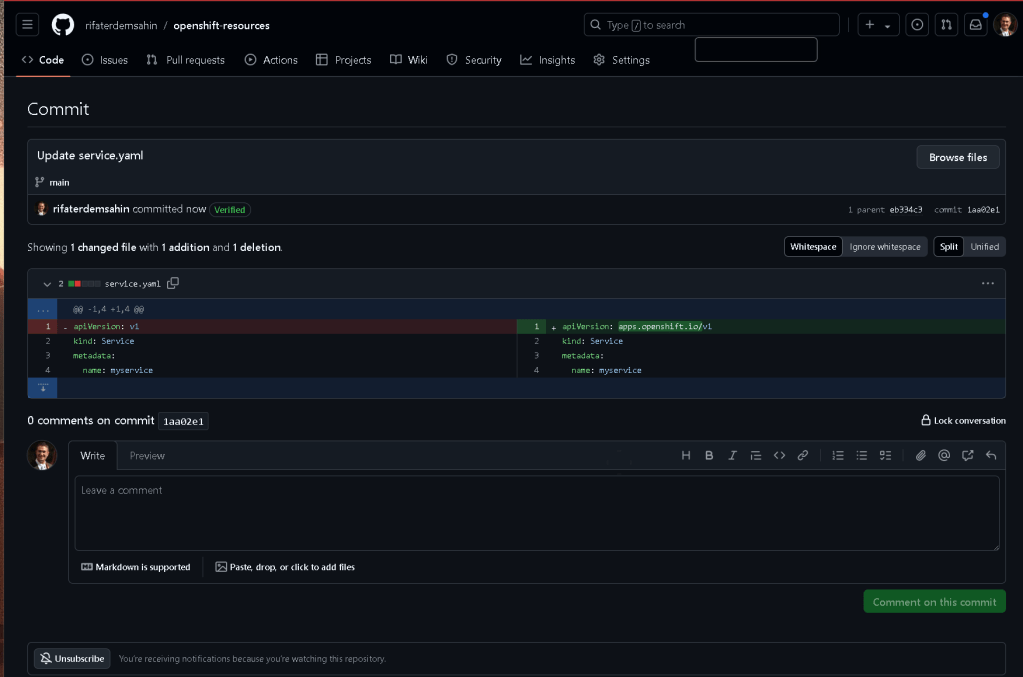
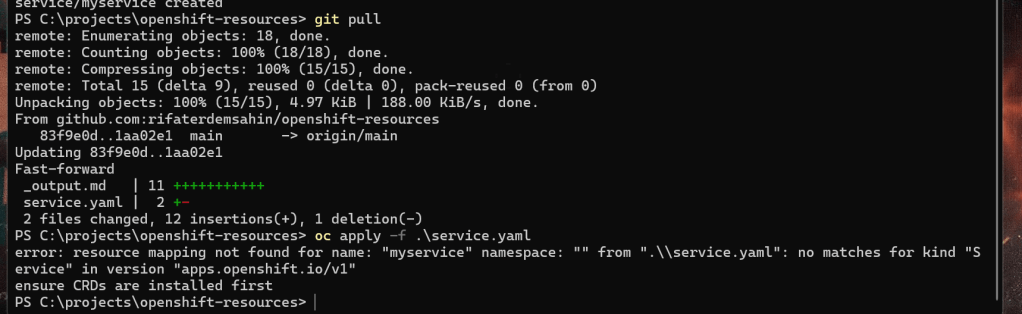
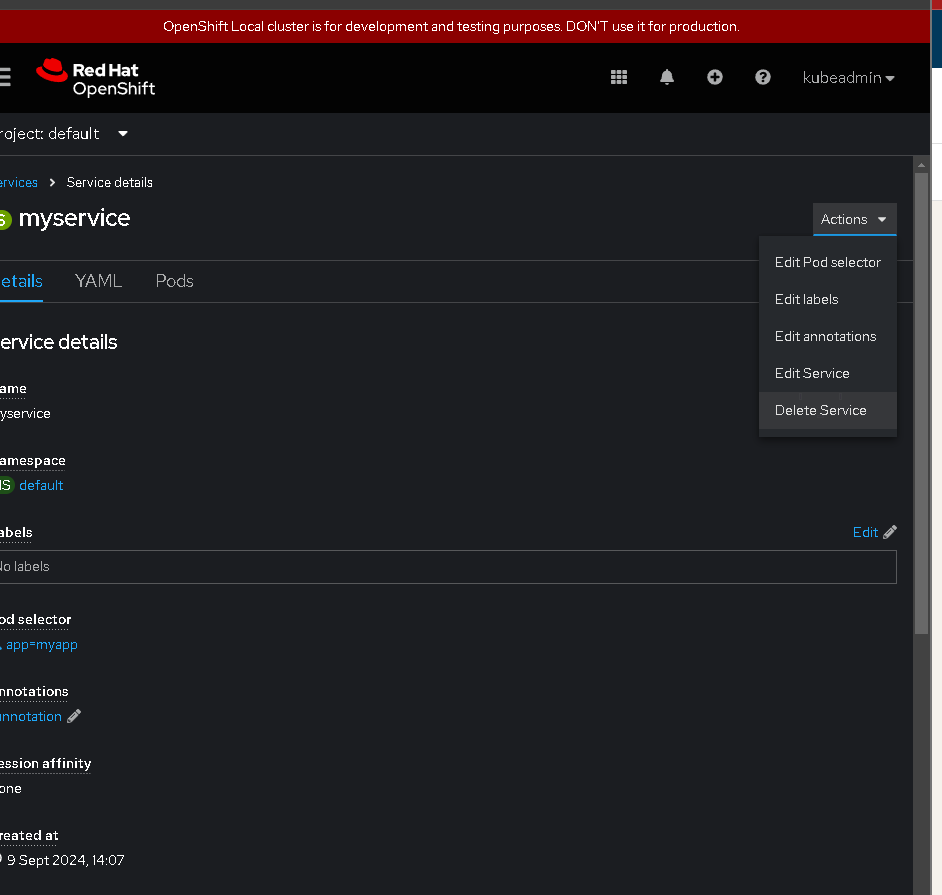
DElete service

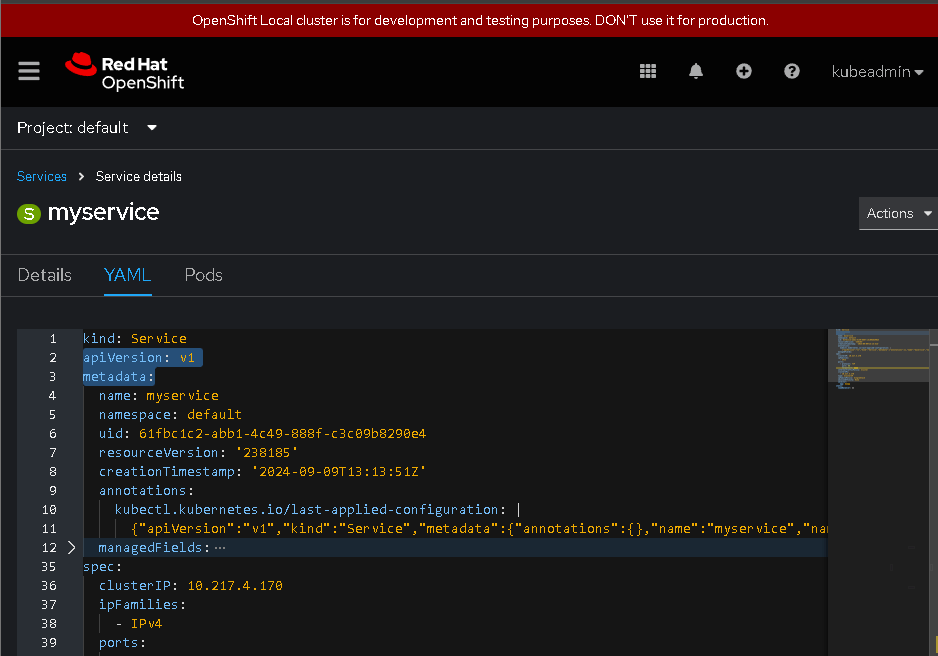
it is v1 only
I want to deploy same yaml with changes add comments
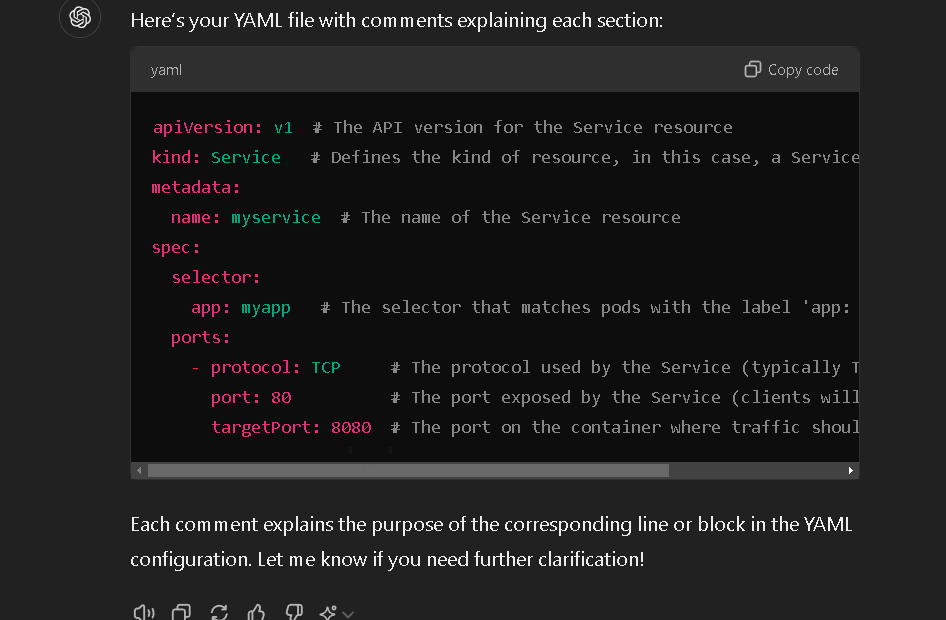
it says unchanged
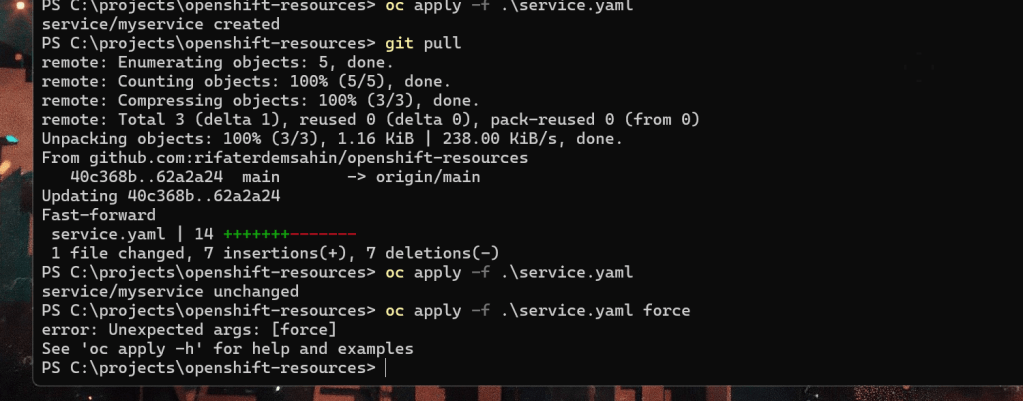
lets force it
It looks like you attempted to apply a service update and tried to force the update with oc apply -f .\service.yaml force. The error suggests that the force argument isn't valid in this context.
To forcefully apply the changes, you might want to use oc replace instead of oc apply. Here’s the correct command to force the update:
oc replace -f .\service.yaml --force
Alternatively, if the resource already exists and you just want to forcefully delete and recreate it, you can combine the delete and create operations:
oc delete -f .\service.yaml
oc apply -f .\service.yaml
This method deletes the existing service and applies the new configuration. However, be careful when doing this for services in production environments, as it might cause temporary downtime.
Let me know if this works!
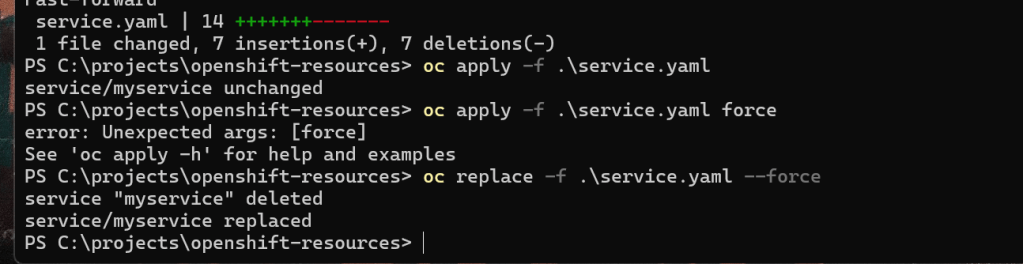
it is replaced can see the pods in the service but not metadata
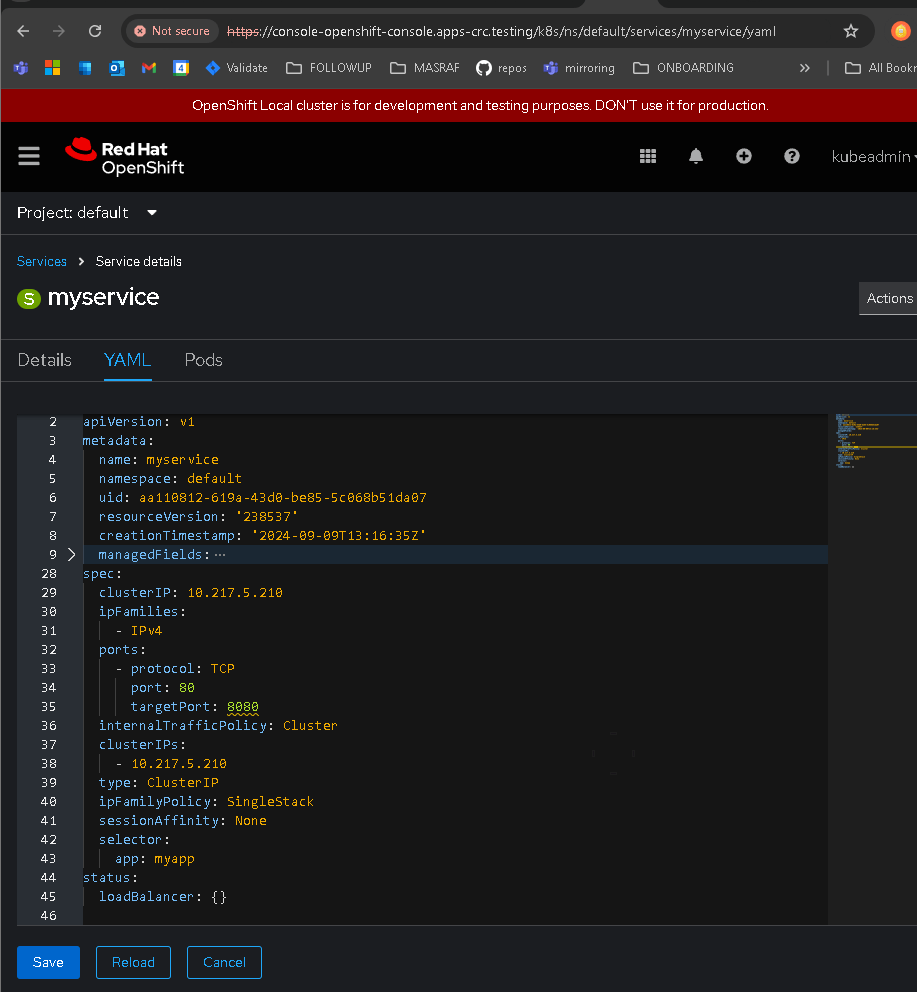
difference t questions
To view the metadata of a resource in OpenShift, you can use the oc get or oc describe commands.
Here are two ways to get the metadata for a resource like a Service:
1. Use oc get with the -o yaml flag
This command will show the complete YAML of the resource, including the metadata.
oc get service
For example, if you want to see the metadata for the service myservice, you can run:
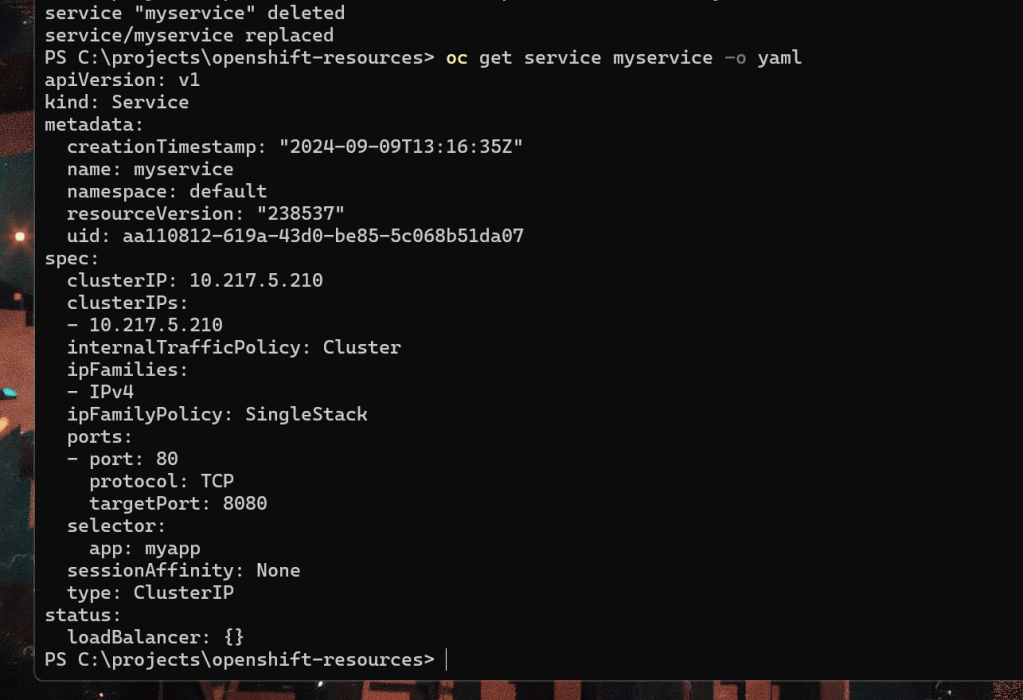
oc get service myservice -o yaml
This will show you all the metadata (labels, annotations, creation timestamps, etc.) associated with the resource.
2. Use oc describe
This will give you a detailed description of the resource, including metadata, events, and other details.
oc describe service
For example:
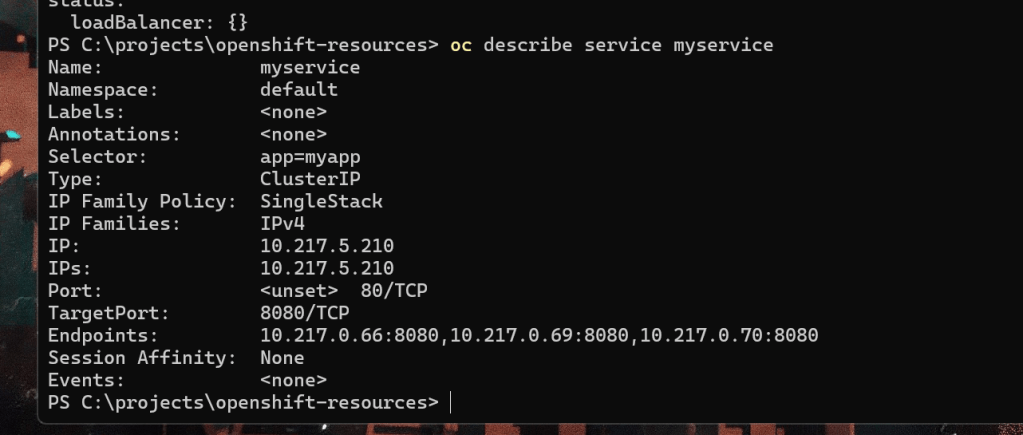
oc describe service myservice
This command provides a more human-readable output, giving you details like metadata, labels, selector, type, and other information about the service.
Either of these methods will allow you to view the metadata for your resource in OpenShift.
Let me know if you need further clarification!
with get no metadata
describe i cant see them
Added pod html
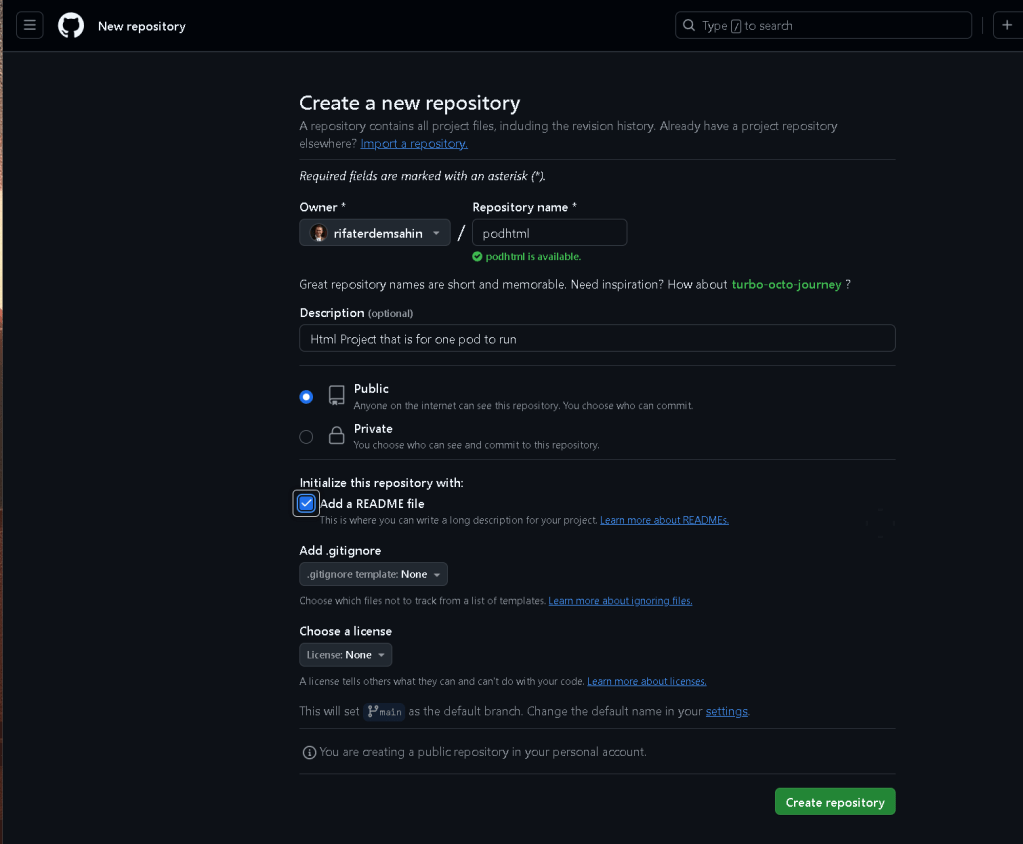
Created the project
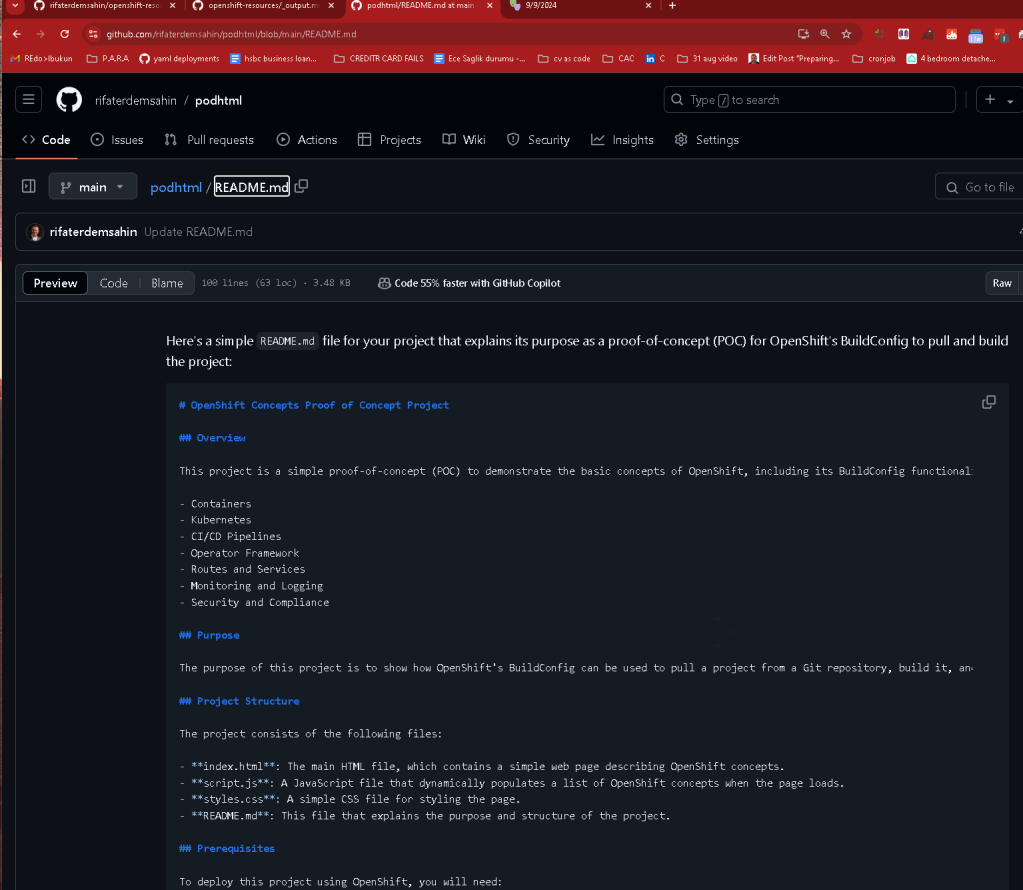
[email protected]:rifaterdemsahin/podhtml.git
end to end project connect the dots from ilkon
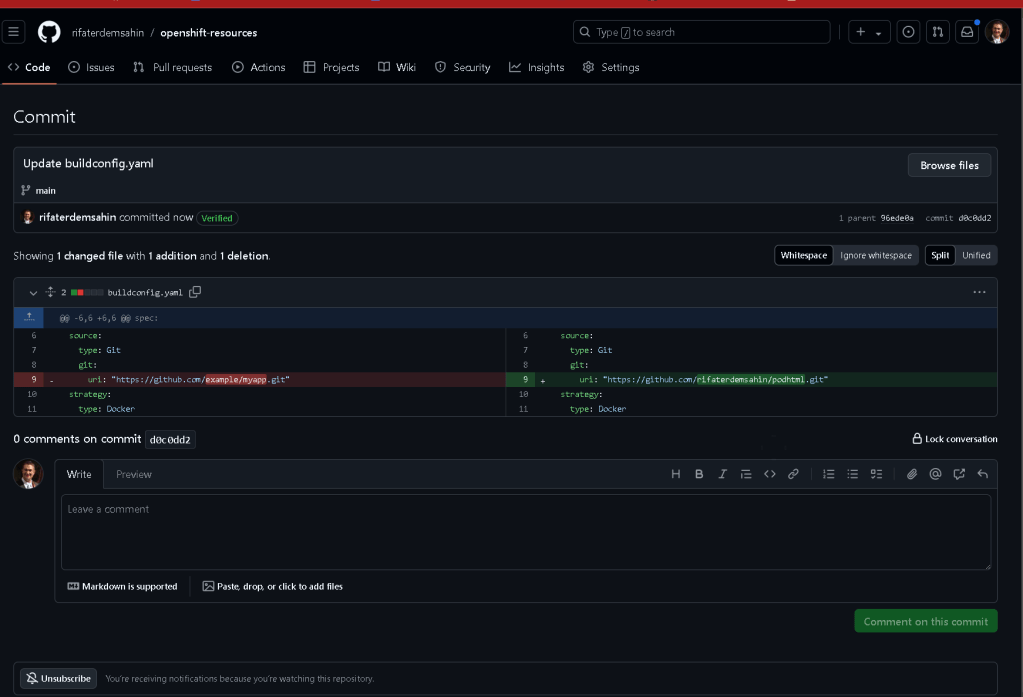
Image stream > image-registry.openshift-image-registry.svc:5000/default/myapp
Public repos by redhat >>> ibm is in the game
This image stream reference appears to be from the Red Hat OpenShift container platform, specifically within a local development cluster, indicated by the message not to use it for production purposes. Here's what the different parts signify:
-
Image Stream: In OpenShift, an image stream tracks changes in container images. It's used to manage images over time, allowing applications to update automatically when a new image is available.
-
Image Stream Name (
myapp): This is the name of the image stream created for a specific app, called "myapp" in this case. -
Namespace (
default): The namespace organizes resources within OpenShift. Here, the image stream resides in the "default" namespace. -
Image Repository: The registry location where container images for "myapp" are stored. The two URLs represent internal and public access to the image registry. The first URL is internal (
image-registry.openshift-image-registry.svc:5000/default/myapp), and the second URL provides public access (default-route-openshift-image-registry.apps-crc.testing/default/myapp). -
Image Count (
0): Currently, no images have been pushed to this image stream. -
Date (
9 Sept 2024, 14:38): The time when this image stream was last updated.
The image stream serves as a link between the source (e.g., Docker images) and OpenShift projects, allowing you to manage and deploy application images efficiently. Since this is a local setup (as noted), it should only be used for development and testing, not in a production environment.
Imported from rifaterdemsahin.com · 2024