How to Upgrade Applications Using Chocolatey on Windows
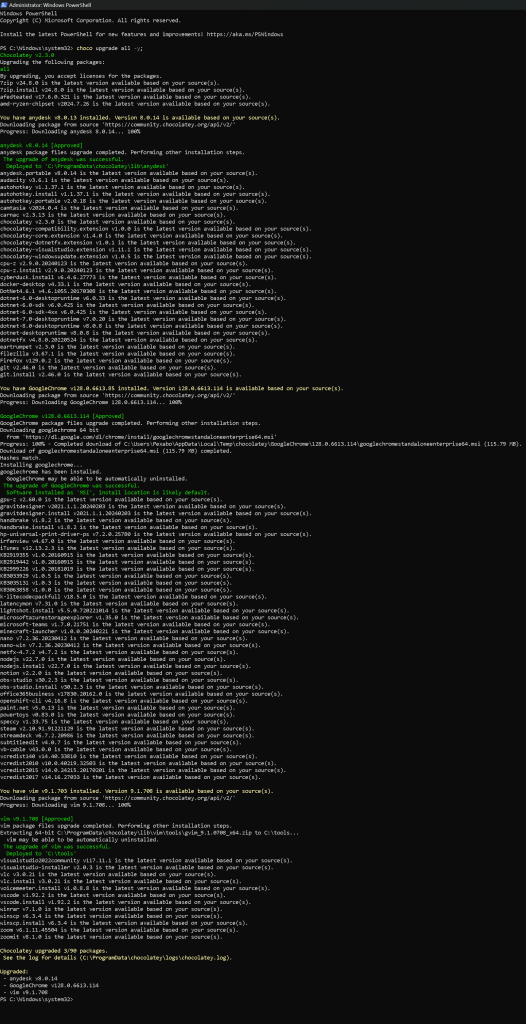
In the realm of Windows system administration, keeping software packages up to date is crucial for maintaining system security and functionality. Chocolatey, a popular package manager for Windows, simplifies the process of managing software packages, automating the tedious task of updating and installing applications. In this post, I’ll walk you through the process of upgrading software packages using Chocolatey, illustrated by a recent upgrade session I performed.
What is Chocolatey?
Chocolatey is a powerful package manager for Windows that automates the installation, updating, and management of software. It provides a simple command-line interface for managing various software packages, including utilities, development tools, and even popular applications like Google Chrome and Visual Studio Code.
The Upgrade Process
In a recent upgrade session, I used Chocolatey to update several software packages on a Windows machine. The process was straightforward and involved running a single command to update all outdated packages.
-
Opening PowerShell with Administrator Privileges:
To start, I launched PowerShell as an administrator. This is necessary because Chocolatey needs elevated permissions to install or update software. -
Running the Upgrade Command:
The command I used was:
choco upgrade all -y
This command tells Chocolatey to upgrade all installed packages (upgrade all) and to automatically confirm all prompts (-y).
-
Packages Updated:
During the session, several packages were upgraded. Notable updates included: -
Anydesk: Upgraded from version 8.0.13 to 8.0.14, a popular remote desktop application.
-
Google Chrome: Upgraded from version 128.0.6613.85 to 128.0.6613.114, ensuring the latest security updates and features.
-
Vim: Upgraded from version 9.1.0738 to 9.1.0788, a text editor essential for many developers and sysadmins. Chocolatey also handled dependencies and ensured that all packages were downloaded and installed from verified sources, maintaining the integrity of the system.
-
Reviewing the Upgrade Log:
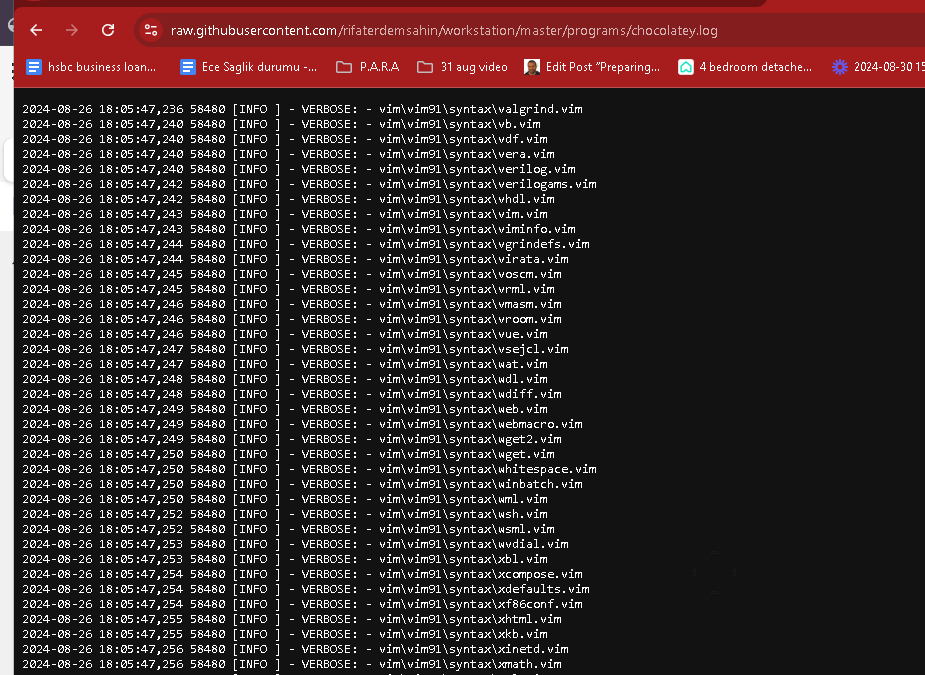
After the upgrade process was completed, Chocolatey provided a summary of the changes made. The session log indicated successful upgrades and deployment of each package, and any potential issues were logged for further review. The log file is saved to the directory:
C:\ProgramData\chocolatey\logs\chocolatey.log
This log is useful for auditing purposes and troubleshooting if any issues arise during the upgrade process.
Benefits of Using Chocolatey for Upgrades
Using Chocolatey for managing software packages offers several benefits:
-
Automation: With a single command, you can update all your software, saving time and effort.
-
Security: Chocolatey pulls packages from trusted sources and handles installations securely.
-
Convenience: The ability to manage software from the command line is particularly useful for system administrators who need to maintain multiple machines.
Conclusion
Chocolatey is an invaluable tool for anyone managing software on a Windows system. It simplifies the process of installing, updating, and managing applications, reducing the time and effort required to keep your system secure and up to date. The recent upgrade session I conducted using Chocolatey was seamless, demonstrating its reliability and efficiency.
Whether you are a developer, system administrator, or just a power user, integrating Chocolatey into your workflow can significantly streamline your software management tasks.
Feel free to share your experiences with Chocolatey or ask any questions you might have in the comments below!
🔗 Connect with me:
-
💼 LinkedIn: https://www.linkedin.com/in/rifaterdemsahin/
-
🐦 Twitter: https://x.com/rifaterdemsahin
-
🎥 YouTube: https://www.youtube.com/@RifatErdemSahin
-
💻 GitHub: https://github.com/rifaterdemsahin
For Geeks the log
https://github.com/rifaterdemsahin/workstation/commit/68ca5d9688c9efd3bba29567bf70253bed967946
Logs
Imported from rifaterdemsahin.com · 2024