Switchbot automation
Automate Your Home with SwitchBot: A Step-by-Step Guide
SwitchBot offers a smart home experience with customizable automation routines that cater to various needs. Whether you're looking to enhance your morning routine, manage your home's lighting, or keep your living space comfortable, SwitchBot's app provides numerous options to streamline these tasks. Let’s explore how to set up some of these automation routines.
Getting Started with SwitchBot Automation
-
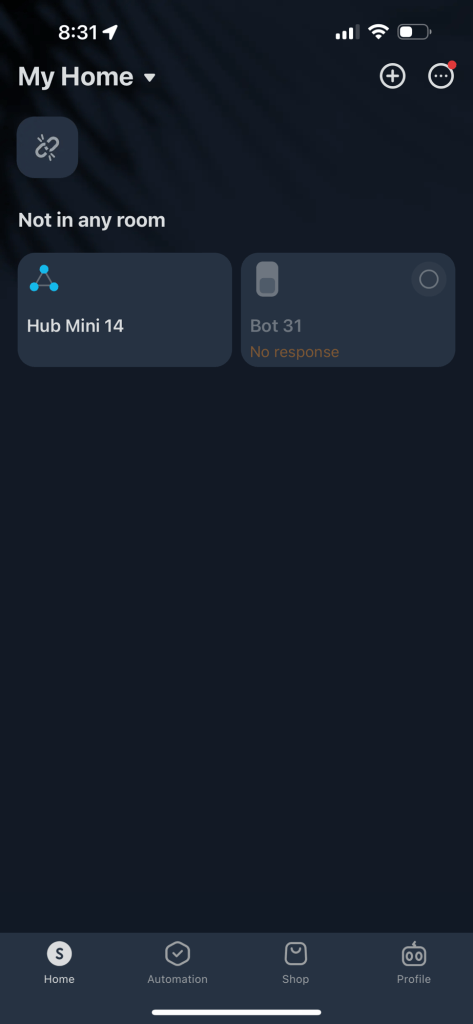
Download and Set Up the SwitchBot App The SwitchBot app is available for both iOS and Android devices. Once downloaded, create an account and log in to access the automation features. The main dashboard displays several options to start creating your own smart home environment.
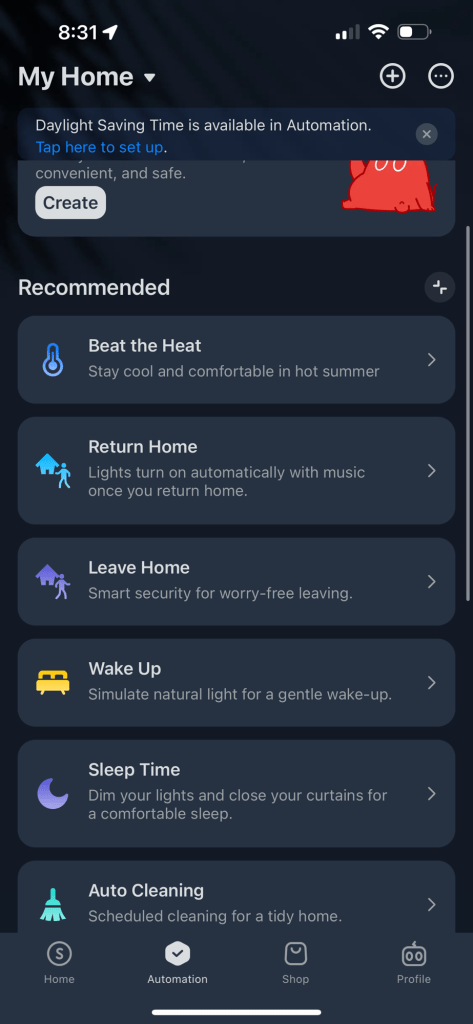
 Screenshot Description: The home screen of the SwitchBot app, showing various recommended automations such as "Beat the Heat", "Return Home", and "Sleep Time."
 -
Exploring Automation Options On the home screen under "Recommended," you will find several predefined automation routines:
-
Beat the Heat: Automatically adjusts the thermostat or fans to keep your home cool during hot weather.
-
Return Home: Lights turn on automatically, and music starts playing when you arrive home, setting a welcoming atmosphere.
-
Leave Home: Activates smart security features to keep your home safe when you're away.
-
Wake Up: Gradually brightens the lights to simulate a natural sunrise, making waking up more pleasant.
-
Sleep Time: Dims lights and closes curtains to create a cozy environment for sleep.
-
Auto Cleaning: Schedules your robot vacuum to clean at specific times, ensuring a tidy home without manual effort.
-
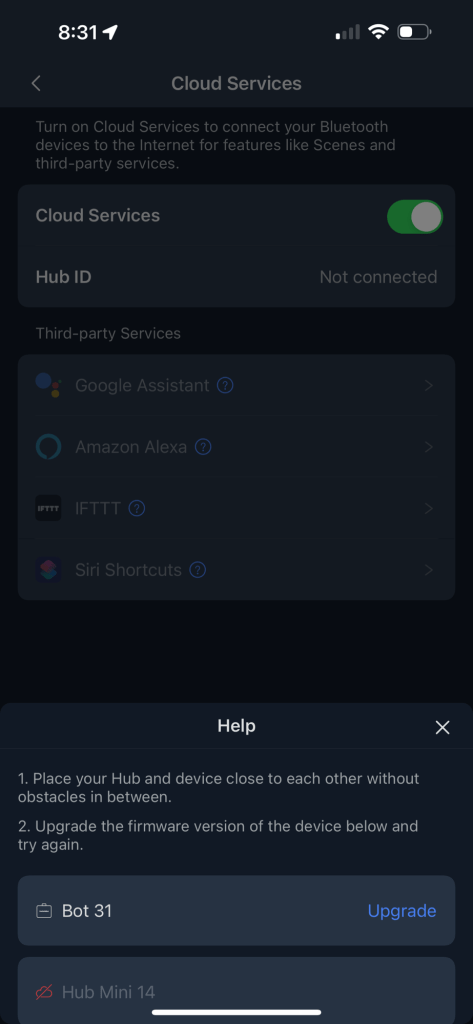
Connecting to Cloud Services To enhance the functionality of your SwitchBot devices, connect them to cloud services. This allows integration with other smart home ecosystems like Google Assistant, Amazon Alexa, and Siri Shortcuts.
 Screenshot Description: The Cloud Services page in the SwitchBot app shows options to connect with Google Assistant, Amazon Alexa, IFTTT, and Siri Shortcuts. Make sure your Hub is connected for seamless operation.
 -
Tips for Optimizing Hub Connection For a reliable connection, follow these steps:
-
Ensure your SwitchBot Hub and device are close to each other, with no physical obstructions.
-
Update the firmware of your devices to the latest version for optimal performance.
 Screenshot Description: Guidance on maintaining a strong connection between the Hub and devices, including firmware updates.
 -
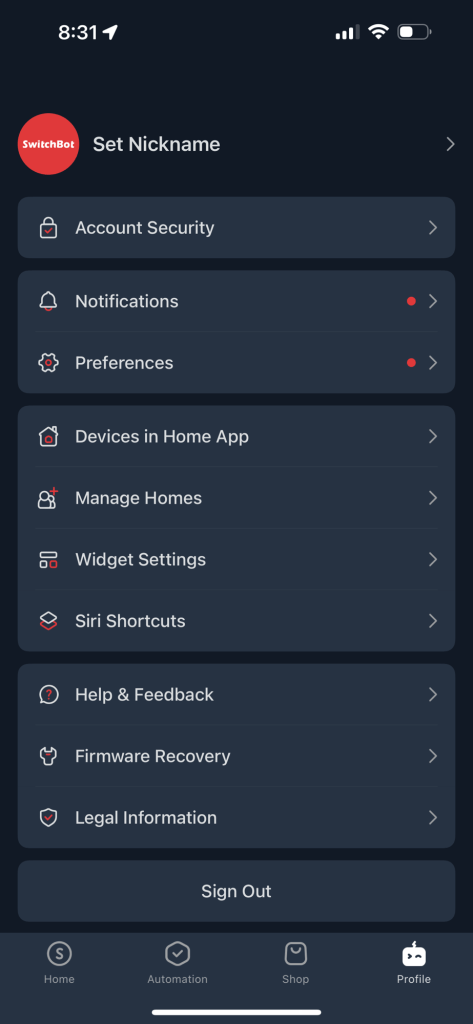
Setting Preferences and Managing Devices Personalize your SwitchBot experience by setting preferences and managing your devices. Navigate to the Profile tab to access options such as:
-
Account Security: Manage security settings to keep your account safe.
-
Notifications: Customize notification preferences for different scenarios.
-
Devices in Home App: Integrate SwitchBot devices with your Apple HomeKit for unified control.
-
Siri Shortcuts: Create custom voice commands for Siri to control your SwitchBot devices effortlessly.
 Screenshot Description: The Profile section of the SwitchBot app, showing options for managing security, notifications, and device integration.
 -
Advanced Automation with Third-Party Integrations Enhance your automation capabilities by integrating SwitchBot with IFTTT, Alexa, or Google Assistant. For example, set a routine where your coffee machine starts brewing when your alarm goes off, or your lights dim when it's time for a movie. These third-party integrations allow for a more connected and responsive smart home environment, tailored to your specific needs.
Conclusion
SwitchBot's automation features make it easy to transform your home into a smart, responsive environment. By following the steps outlined in this guide, you can set up various automations that cater to your lifestyle and preferences. Whether you are looking to enhance comfort, security, or convenience, SwitchBot offers a versatile solution for every home.
Feel free to adjust the text or add more details based on your needs!
Imported from rifaterdemsahin.com · 2024