How to Connect to an OpenShift Cluster

Connecting to an OpenShift cluster can seem daunting at first, but with the right steps, you can seamlessly access and manage your applications on this powerful platform. Whether you're a developer, administrator, or just getting started, this guide will help you connect to your OpenShift cluster with ease.
Prerequisites
Before you begin, ensure you have the following:
-
OpenShift CLI (oc): The OpenShift CLI is a command-line tool that helps you interact with OpenShift clusters.
-
Cluster URL: The URL of your OpenShift cluster.
-
Access Credentials: Username and password or token for authentication.
Step-by-Step Guide
1. Install OpenShift CLI
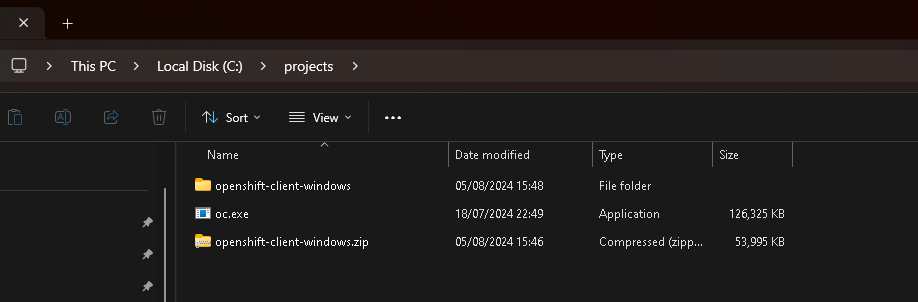
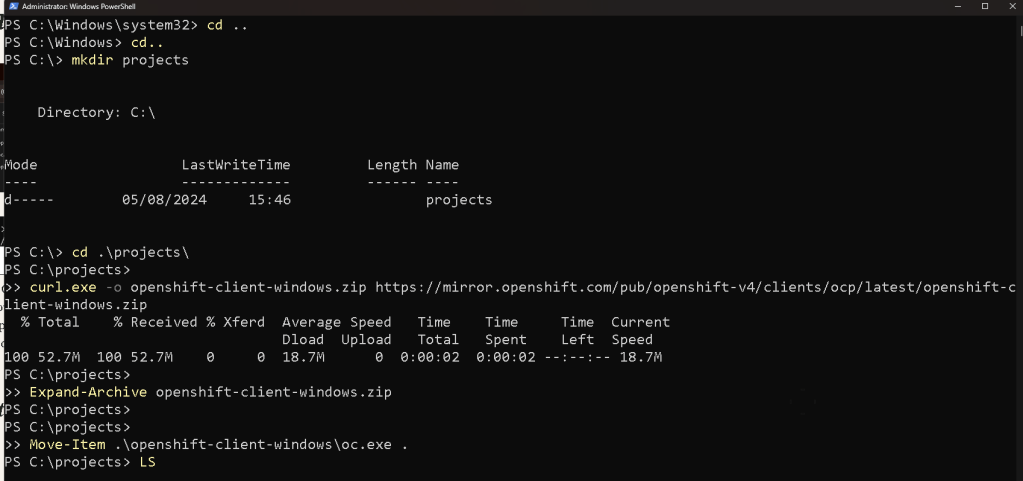
To interact with your OpenShift cluster, you need to install the OpenShift CLI. You can download it from the official OpenShift CLI downloads page.
For example, on macOS, you can use Homebrew:
brew install openshift-cli
For Windows and Linux, download the appropriate binaries and add them to your PATH.
2. Log In to the OpenShift Cluster
Once the CLI is installed, you need to log in to your OpenShift cluster. Open your terminal and use the following command:
oc login https://
Replace <your-cluster-url> with the URL of your OpenShift cluster.
3. Authenticate
You will be prompted to enter your username and password. If you have a token, you can use it with the --token flag:
oc login https://
4. Verify the Connection
After logging in, verify your connection by running:
oc status
This command provides a summary of the current project, services, and resources available in your cluster.
Managing Projects and Applications
Creating a New Project
To create a new project, use the following command:
oc new-project
Replace <project-name> with the desired name for your project.
Deploying Applications
You can deploy applications using templates or source code. For example, to deploy a new application from source code, use:
oc new-app
Replace <source-repo-url> with the URL of your application's source code repository.
Accessing the Web Console
In addition to the CLI, OpenShift provides a web console for managing your cluster. Access it by navigating to your cluster URL in a web browser and logging in with your credentials.
Troubleshooting Connection Issues
If you encounter issues while connecting to your OpenShift cluster, consider the following steps:
-
Check CLI Version: Ensure you are using the latest version of the OpenShift CLI.
-
Network Connectivity: Verify that you can reach the OpenShift cluster URL from your network.
-
Credentials: Double-check your login credentials or token.
-
Cluster Status: Ensure that the OpenShift cluster is running and accessible.
Conclusion
Connecting to an OpenShift cluster is straightforward with the right tools and steps. By installing the OpenShift CLI, logging in, and managing your projects and applications, you can leverage the full power of OpenShift for your development and operational needs. Whether through the command line or the web console, OpenShift offers flexible options for interacting with your cluster.
Happy clustering!
Feel free to leave a comment below if you have any questions or need further assistance.
Imported from rifaterdemsahin.com · 2024