Writing a Screen on Canva Presentations
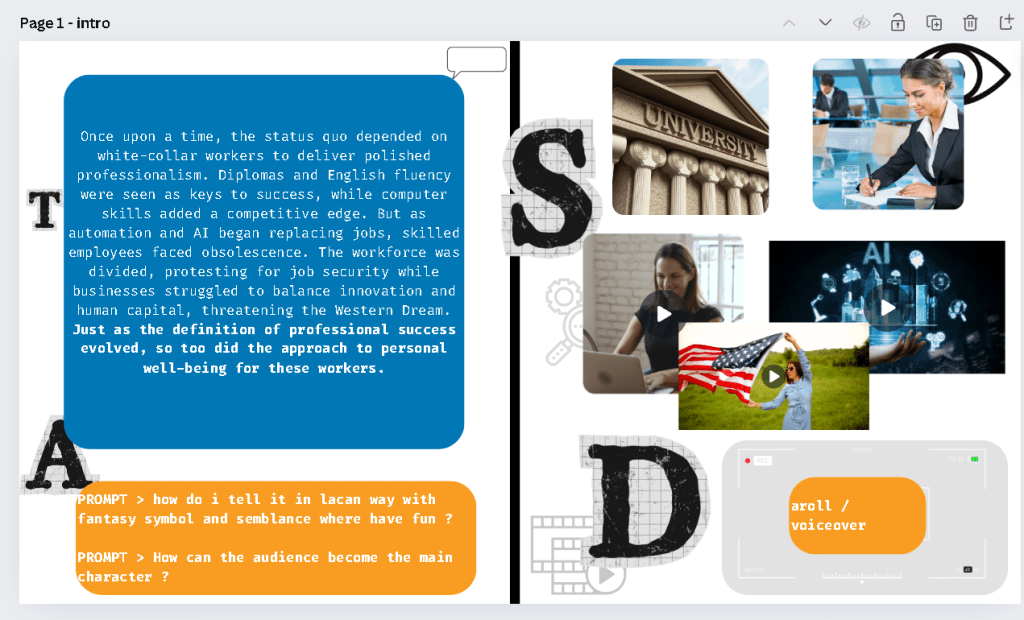
Creating the Audio Visual Table
Writing a Screen on Canva Presentations
Creating a screenwriting process for your instructional videos can be quite challenging, especially when trying to plan and structure everything efficiently. If you find yourself overthinking, don’t worry—many content creators face the same struggle. Recently, I developed a Canva presentation for my scenes, and I’d love to share my approach and gather your thoughts.
The Structure of My Canva Presentation
Left Hand Side: Dialogue
On the left-hand side of my Canva presentation, I’ve included all the dialogue. This includes the scripts, narration, and any on-screen text that guides the viewer through the instructional content. The goal here is to ensure that the information is clear, concise, and aligns with the visual elements.
Right Hand Side: Visuals
On the right-hand side, I’ve placed the corresponding visuals. These could be images, screenshots, graphics, or short video clips that support the dialogue. The idea is to create a visual representation of what’s being discussed, helping viewers to better understand and retain the information.
Instructional Video Stages
Given that this is an instructional video, I’ve applied the "Tell, Show, Do, Apply" stages to my script:
-
Tell: Explain the concept or skill.
-
Show: Demonstrate how it’s done.
-
Do: Encourage the viewer to practice the skill.
-
Apply: Provide scenarios where the skill can be applied in real-life situations.
This structure ensures that the content is engaging and interactive, making it easier for the audience to learn and apply the new skills.
Ensuring Flow with Lacan’s Framework
To maintain a smooth flow in the video, I’ve incorporated Lacan’s framework by asking myself three key questions for each scene:
-
Goal: What is the objective of this scene? What do I want the viewers to achieve or understand by the end of it?
-
Destiny: Where is this leading? How does this scene connect to the overall narrative and the subsequent scenes?
-
Obstacle: What challenges might the viewers face in understanding or applying this information? How can I address these challenges within the scene?
By answering these questions, I can ensure that each part of the video has a clear purpose and contributes to the overall learning journey.
Seeking Feedback
I’m still refining my process and would love to hear your feedback. Have you used Canva for your presentations or screenwriting? What techniques have worked best for you in structuring your instructional videos? Your insights could be incredibly valuable in helping me and others improve our content creation processes.
Feel free to share your thoughts and suggestions in the comments below!
Conclusion
Writing a screen for instructional videos can be daunting, but with the right structure and planning, it becomes much more manageable. Using tools like Canva for presentations and frameworks like “Tell, Show, Do, Apply” and Lacan’s questions can help create a coherent and engaging learning experience for your audience. Keep experimenting and refining your process, and don’t hesitate to seek feedback from the community.
Happy scripting! 🎬✨
Rifat Erdem Sahin
DevOps Enthusiast & Content Creator
Sharing my journey and tips on creating engaging instructional content
Imported from rifaterdemsahin.com · 2024