RHEL ISO
To download the RHEL ISO for VMware Workstation, follow these steps:
-
Register for a Red Hat Developer Account: You will need a Red Hat Developer account to access the download. You can create one for free on the Red Hat Developer website.
-
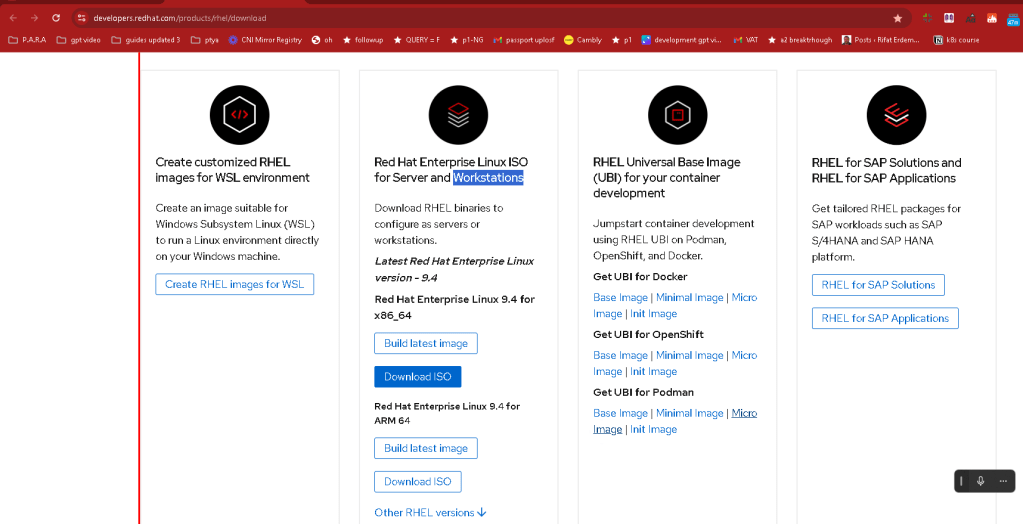
Download the ISO: Once you have an account, go to the Red Hat Enterprise Linux download page. Here, you can select the version of RHEL you need. The latest versions available are RHEL 8 and RHEL 9. Choose the appropriate version and download the ISO file.
-
Prepare VMware Workstation: Open VMware Workstation and create a new virtual machine. During the setup, you will be prompted to select the installation media. Choose the RHEL ISO file you downloaded.
-
Install RHEL on VMware Workstation:
Start the Virtual Machine: Power on the newly created VM.
-
Installation Process: Follow the prompts to configure language, time zone, and installation destination. For partitioning, you can choose automatic partitioning for simplicity.
-
Set Up Users and Root Password: Provide a root password and create a user account.
-
Finalize Installation: Complete the installation process, which may take some time. Once done, the VM will reboot, and you will be prompted to accept the license agreement and register your system with Red Hat to receive updates and access repositories.
For detailed installation instructions, you can refer to guides available on Tecmint and The Sec Master.
By following these steps, you should be able to successfully download and install RHEL on VMware Workstation.
RHEL stands for Red Hat Enterprise Linux. It is a distribution of the Linux operating system developed by Red Hat for the commercial market. RHEL is designed for enterprise-level applications and is known for its stability, security, and extensive support, making it suitable for large-scale deployments in corporate environments.
For more detailed information, you can refer to the Red Hat Enterprise Linux documentation.
Sources:
Stuck at
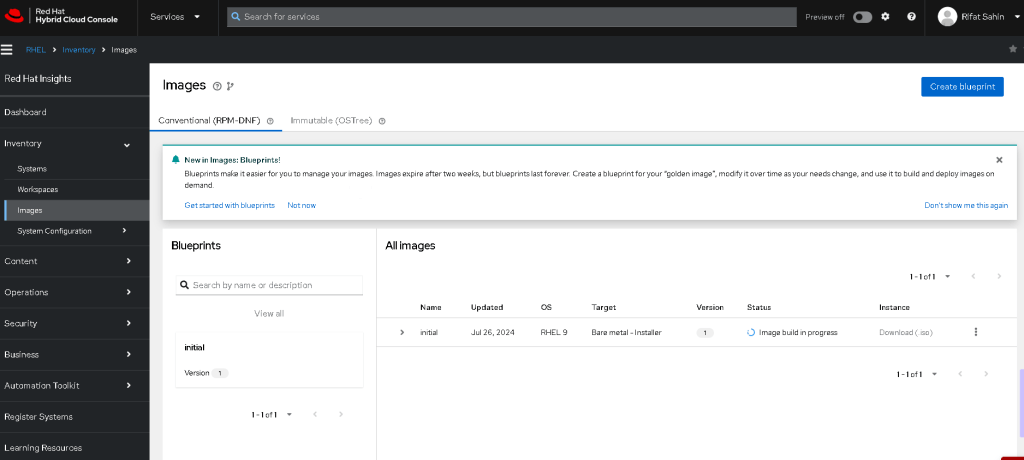
it takes time
Imported from rifaterdemsahin.com · 2024