mouse lag issue
log chrome > chrome://gpu/
uploaded to github > https://github.com/rifaterdemsahin/workstation/tree/master/chrome
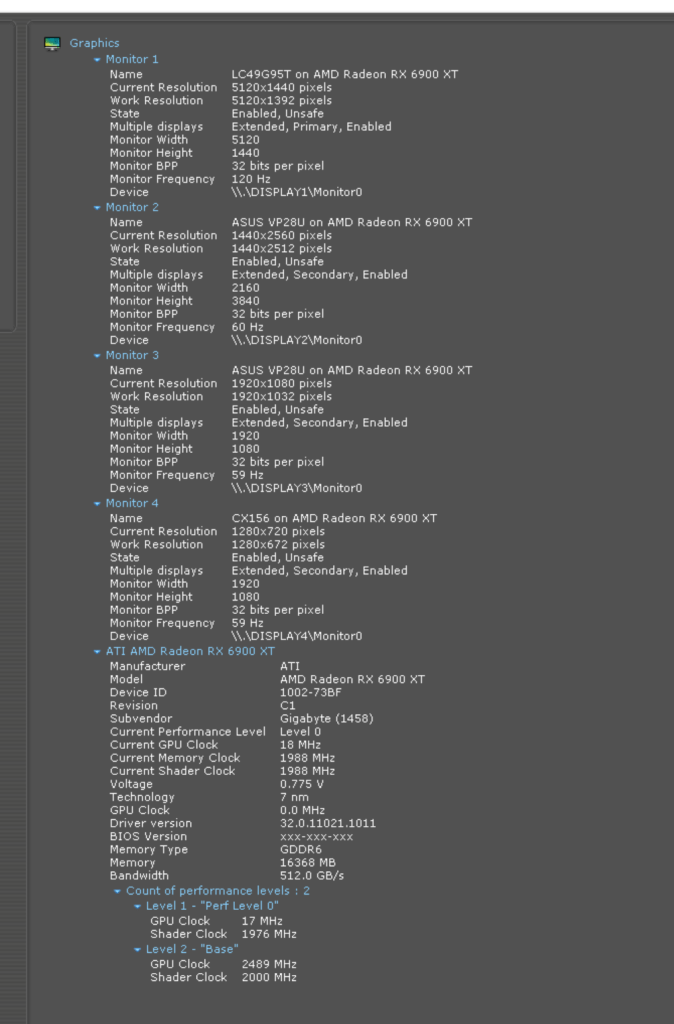
Given the extensive graphics status and driver information you've provided, here are some potential steps to resolve the mouse lag issue:
-
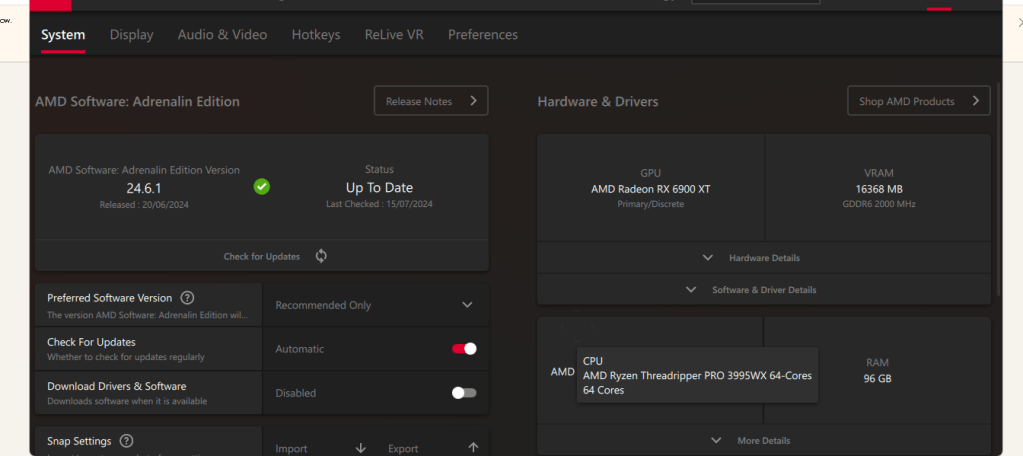
Update GPU Drivers: Ensure that your AMD Radeon RX 6900 XT drivers are up-to-date. Visit the AMD website and download the latest drivers for your GPU.
-
Disable Hardware Acceleration: Sometimes, hardware acceleration can cause mouse lag. You can disable it in your browser settings:
-
Open Chrome settings.
-
Scroll down to the "Advanced" section.
-
In the "System" section, toggle off "Use hardware acceleration when available."
-
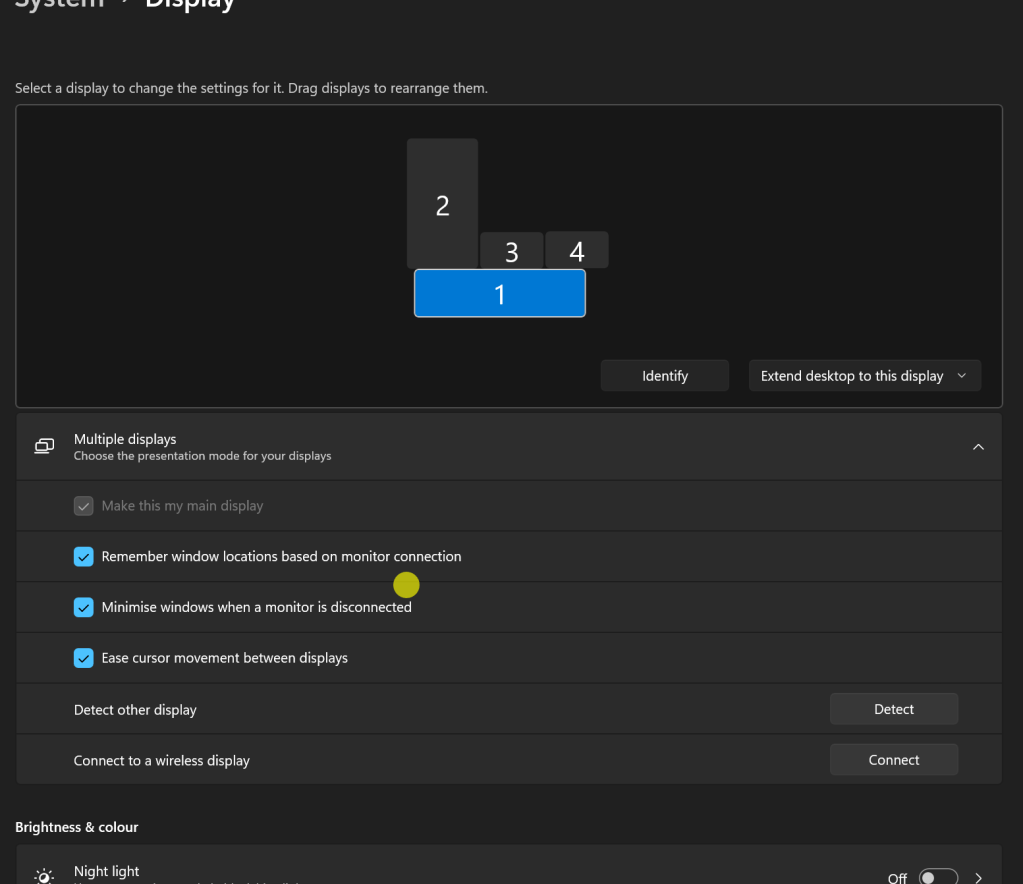
Adjust Display Settings: Ensure your display settings are optimized:
-
Set the refresh rate of your monitors to their maximum supported rates.
-
Ensure that all connected displays are configured properly (resolution, refresh rate, etc.).
-
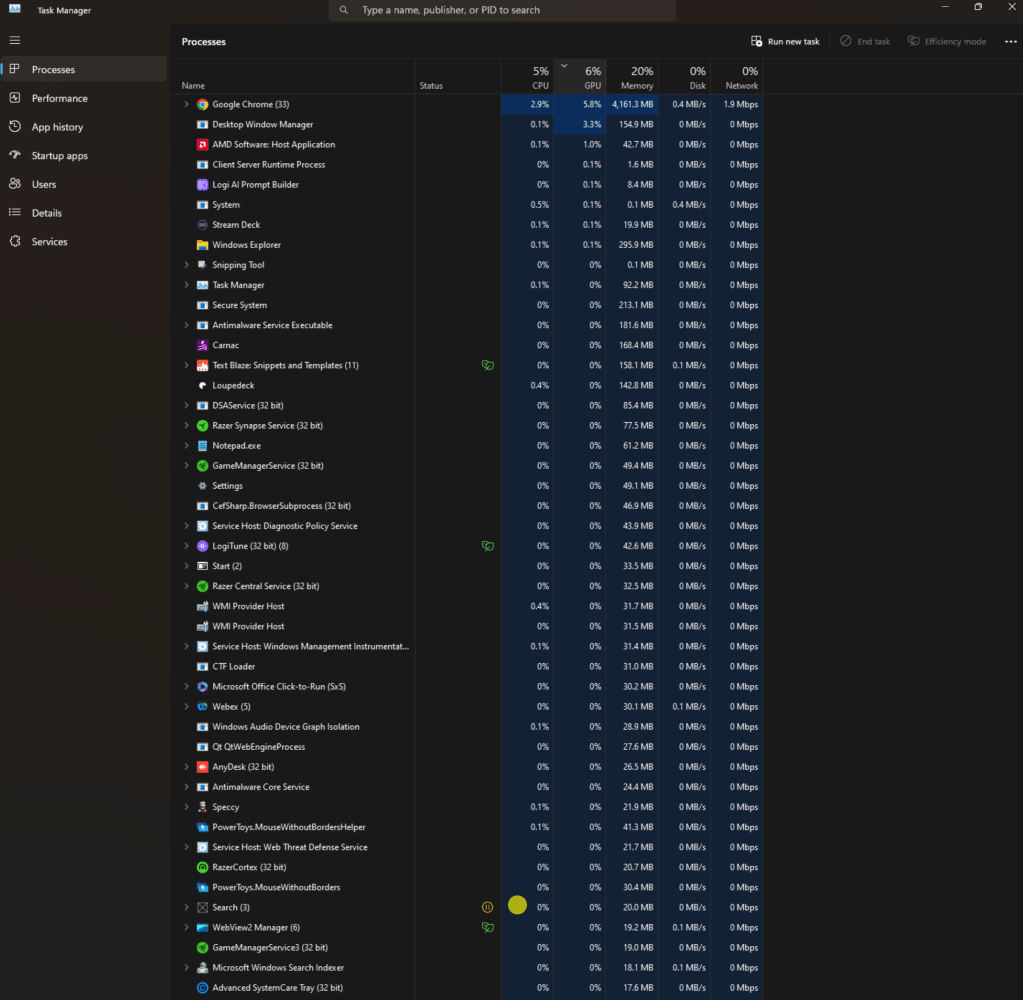
Check for Background Processes: High CPU or GPU usage by background processes can cause lag.
-
Open Task Manager (Ctrl + Shift + Esc) and check for processes consuming high resources.
-
End unnecessary processes.
-
Mouse Settings: Check your mouse settings:
-
Go to the Control Panel > Hardware and Sound > Devices and Printers.
-
Right-click your mouse and select "Mouse settings."
-
Adjust the pointer speed and ensure "Enhance pointer precision" is enabled.
-
Disable Unnecessary Chrome Flags: Some experimental flags in Chrome might be causing issues.
-
Open Chrome and type
chrome://flags/in the address bar. -
Reset all flags to their default settings.
-
resetted
-
Check for Malware: Run a full system scan to ensure there is no malware affecting your system's performance.
-
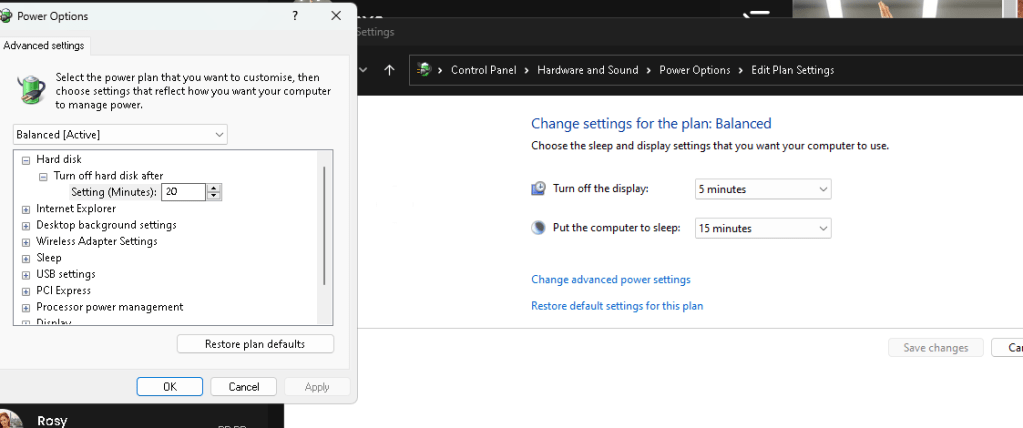
Power Settings: Ensure your computer is set to High Performance mode:
high performance
-
Go to Control Panel > Hardware and Sound > Power Options.
-
Select "High Performance."
-
Reconnect and Test Mouse: Sometimes, simply reconnecting your mouse or testing with another mouse can resolve the issue.
-
Check for USB Conflicts: If you're using a USB mouse, try connecting it to a different USB port.
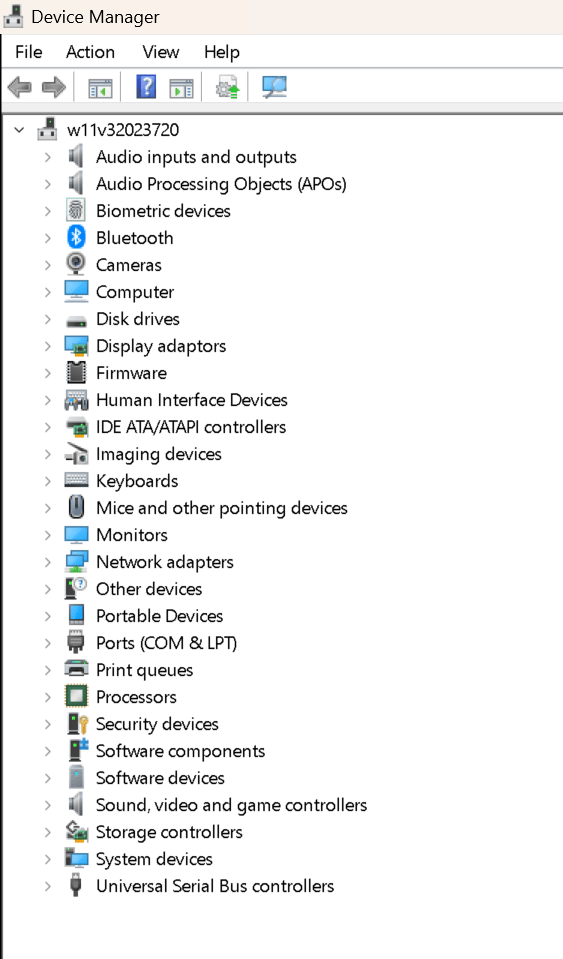
If the problem persists after these steps, there might be a deeper issue with the GPU configuration or a potential hardware malfunction.
direct cable mouse feels faster
but after a use it is similar >after the amd driver update it is an issue
Imported from rifaterdemsahin.com · 2024