Screenwriting with GPT
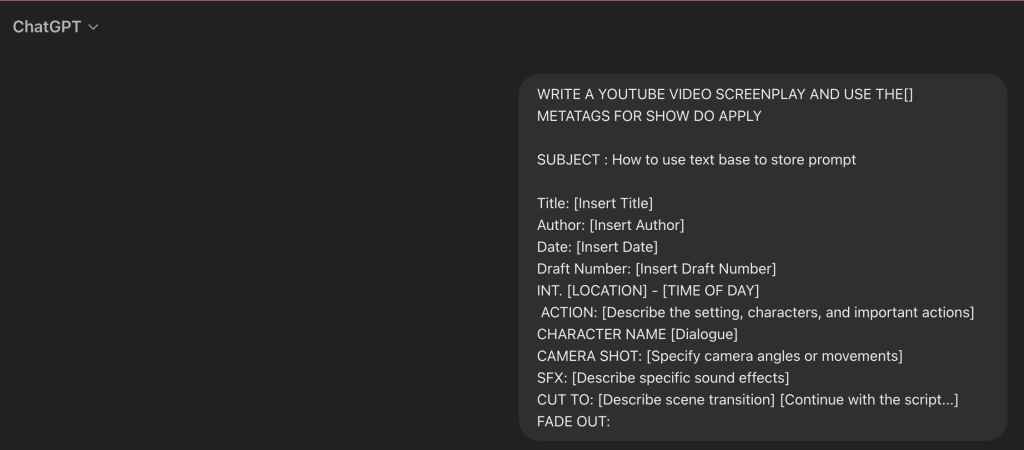
Title: How to Use Text Base to Store Prompt
Author: [Insert Author]
Date: [Insert Date]
Draft Number: [Insert Draft Number]
INT. HOME OFFICE - DAY
ACTION: A tidy home office with a desk, computer, and some plants in the background. A PERSON sits at the desk, typing on their laptop. A cup of coffee steams nearby.
HOST
(cheerful)
Hi everyone! Welcome back to our channel. Today, I'm going to show you how to use a text base to store your prompts effectively.
CAMERA SHOT: Medium shot focusing on the host, sitting at the desk.
SFX: Light background music starts playing.
CUT TO:
INT. COMPUTER SCREEN - CLOSE UP
ACTION: The screen shows a text editor with the title "Prompt Storage" at the top. The cursor blinks, waiting for input.
HOST (V.O.)
(off-screen)
First, let's open our text editor. You can use any text editor you prefer, like Notepad, Sublime Text, or even an IDE like VSCode.
CAMERA SHOT: Over-the-shoulder shot of the host typing on the computer.
SFX: Typing sounds.
CUT TO:
INT. HOME OFFICE - DAY
ACTION: The host turns to face the camera, smiling.
HOST
(engaging)
Now, let's start by creating a simple structure for our prompts. This will help us keep everything organized and easy to find later.
CAMERA SHOT: Medium shot of the host.
SFX: Calm background music continues.
CUT TO:
INT. COMPUTER SCREEN - CLOSE UP
ACTION: The text editor displays a template for storing prompts.
HOST (V.O.)
(off-screen)
Here's an example template you can use:
Text on screen:
Prompt Title
Date: [Insert Date]
Category: [Insert Category]
Tags: [Insert Tags]
Prompt
[Write your prompt here]
Notes
[Add any additional notes or context here]
CAMERA SHOT: Close-up of the screen.
SFX: Typing sounds continue.
CUT TO:
INT. HOME OFFICE - DAY
ACTION: The host gestures towards the screen, explaining.
HOST
(informative)
By using this template, you can keep your prompts organized by title, date, category, and tags. This way, you'll always know where to find them.
CAMERA SHOT: Medium shot of the host.
SFX: Background music softly playing.
CUT TO:
INT. COMPUTER SCREEN - CLOSE UP
ACTION: The cursor moves to fill in the template with a sample prompt.
HOST (V.O.)
(off-screen)
Let's fill in a sample prompt to see how it looks:
Text on screen:
Creative Writing Prompt
Date: July 2, 2024
Category: Writing
Tags: creativity, writing, inspiration
Prompt
Write a story that begins with the sound of a mysterious knock at the door.
Notes
This prompt is great for sparking creative thinking and can be used in various genres.
CAMERA SHOT: Close-up of the screen.
SFX: Typing sounds and a soft ding as the prompt is completed.
CUT TO:
INT. HOME OFFICE - DAY
ACTION: The host turns back to the camera, looking pleased.
HOST
(happy)
And there you have it! By using a simple template like this, you can keep your prompts organized and ready for whenever inspiration strikes.
CAMERA SHOT: Medium shot of the host.
SFX: Background music slowly fades out.
FADE OUT:
TEXT ON SCREEN:
Thanks for watching!
Don't forget to like, share, and subscribe for more tips and tutorials.
SFX: Cheerful outro music starts playing.
END SCREEN:
ACTION: Display end screen with social media handles and subscribe button.
FADE OUT:
SFX: Music fades out.
Imported from rifaterdemsahin.com · 2024