Fancy Zones update the main monitor
Ergonomic is the key in production
Understanding FancyZones in Windows: A Comprehensive Guide
Introduction
In the ever-evolving world of digital productivity, managing multiple applications and windows efficiently is crucial. FancyZones, a feature of Microsoft PowerToys, offers a powerful window management solution for Windows users. It allows users to create custom window layouts to organize their workspace better, enhancing productivity and multitasking capabilities. This blog post delves into the functionalities, benefits, and setup process of FancyZones, helping you make the most of this innovative tool.
What is FancyZones?
FancyZones is a window manager that enables users to create complex window layouts and snap windows into these predefined zones quickly. It is part of the Microsoft PowerToys suite, a collection of utilities designed to streamline and enhance the Windows user experience. FancyZones allows for the customization of window layouts, facilitating a more organized and efficient workflow.
Key Features of FancyZones
-
Customizable Layouts: FancyZones provides the ability to create and save custom window layouts, tailoring the workspace to individual preferences and specific tasks.
-
Quick Window Snapping: Users can easily snap windows into predefined zones using keyboard shortcuts or dragging them with the mouse, promoting efficient multitasking.
-
Zone Editing: The intuitive editor allows for precise customization of zones, including resizing and repositioning, ensuring an optimal arrangement for different screen sizes and resolutions.
-
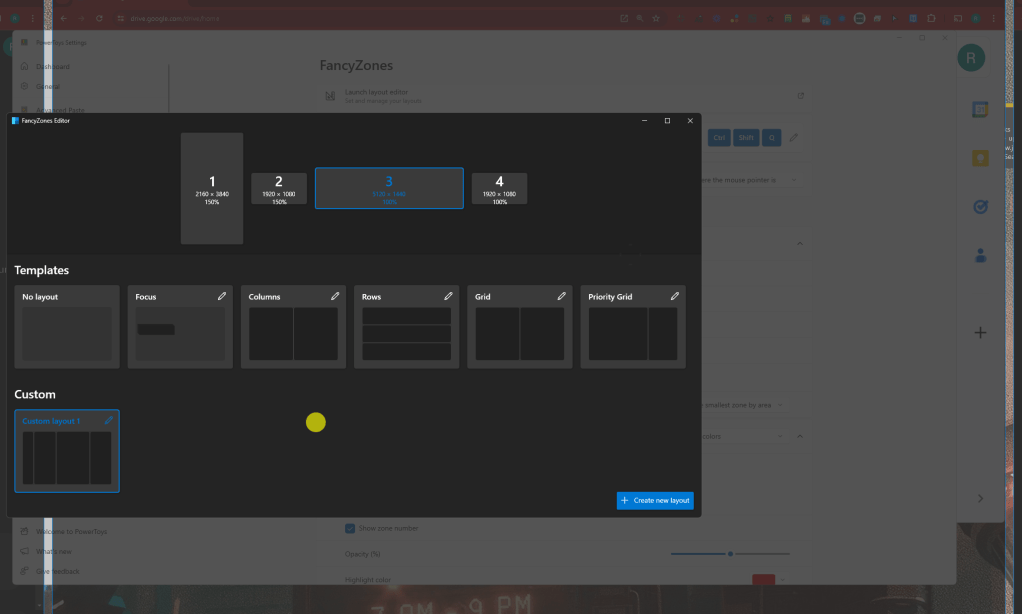
Multi-Monitor Support: FancyZones supports multiple monitors, enabling users to create separate layouts for each display, enhancing productivity across a multi-monitor setup.
-
Focus Mode: This feature helps minimize distractions by highlighting the active window and dimming inactive ones, aiding concentration and focus.
Setting Up FancyZones
-
Installation:
-
Download and install Microsoft PowerToys from the official GitHub repository or the Microsoft Store.
-
Launch PowerToys and navigate to the FancyZones settings.
-
Configuring FancyZones:
-
Open the FancyZones settings from the PowerToys menu.
-
Click on "Launch layout editor" to open the layout editor.
-
Creating and Editing Layouts:
-
In the layout editor, you can choose from several pre-configured templates or create a custom layout from scratch.
-
To create a custom layout, select "Create new layout" and define the number of zones, their sizes, and positions.
-
Save your layout and assign it to your monitor.
-
Using FancyZones:
-
Hold the Shift key (or a customizable key) while dragging a window to snap it into one of the predefined zones.
-
Use keyboard shortcuts to quickly move windows between zones, streamlining your workflow.
Benefits of Using FancyZones
-
Enhanced Productivity: By organizing your workspace into efficient layouts, FancyZones minimizes the time spent managing windows, allowing you to focus on your tasks.
-
Improved Multitasking: Custom zones make it easy to keep multiple applications visible and accessible, facilitating seamless multitasking.
-
Reduced Clutter: FancyZones helps maintain a tidy desktop, reducing visual clutter and making it easier to find and use open applications.
-
Customizable Experience: The ability to create and save personalized layouts ensures that your workspace is tailored to your specific needs and preferences.
Conclusion
FancyZones is a powerful tool for Windows users looking to optimize their workspace and enhance their productivity. By offering customizable layouts, quick window snapping, and multi-monitor support, it transforms the way users interact with their applications and windows. Whether you're a professional managing multiple projects or a student juggling various assignments, FancyZones can help you achieve a more organized and efficient workflow. Download Microsoft PowerToys today and experience the benefits of FancyZones for yourself.
Call to Action
Have you tried FancyZones yet? Share your experiences and tips in the comments below! If you found this guide helpful, don't forget to share it with your friends and colleagues who might benefit from a more organized workspace.
Imported from rifaterdemsahin.com · 2024