Installing Office 365 Business Using Chocolatey on Windows
Date: June 14, 2024
Author: Rifat Erdem Sahin
In today's fast-paced digital world, efficient software management is crucial for productivity. One powerful tool that simplifies software installation on Windows is Chocolatey, a package manager designed for Windows. In this blog post, we will guide you through the process of installing Office 365 Business using Chocolatey. This approach ensures a smooth, automated installation, saving you time and effort.
What is Chocolatey?
Chocolatey is a machine-level package manager and installer for Windows software, similar to what apt-get does for Debian-based Linux distributions. With Chocolatey, you can automate the installation of applications and tools, streamlining your workflow and ensuring that your environment is consistently configured.
Prerequisites
Before we dive into the installation steps, ensure that you have the following:
-
Administrator Access: You need to run commands as an administrator.
-
Chocolatey Installed: If you haven't installed Chocolatey yet, you can follow the instructions on the official Chocolatey website.
Step-by-Step Guide to Installing Office 365 Business
-
Open PowerShell as Administrator:
-
Press
Win + Xand selectWindows PowerShell (Admin). -
Install Office 365 Business:
-
In the PowerShell window, type the following command and press
Enter:choco install office365business -y -
The
-yflag automatically accepts all prompts, making the installation process seamless. -
Observe the Installation Process:
-
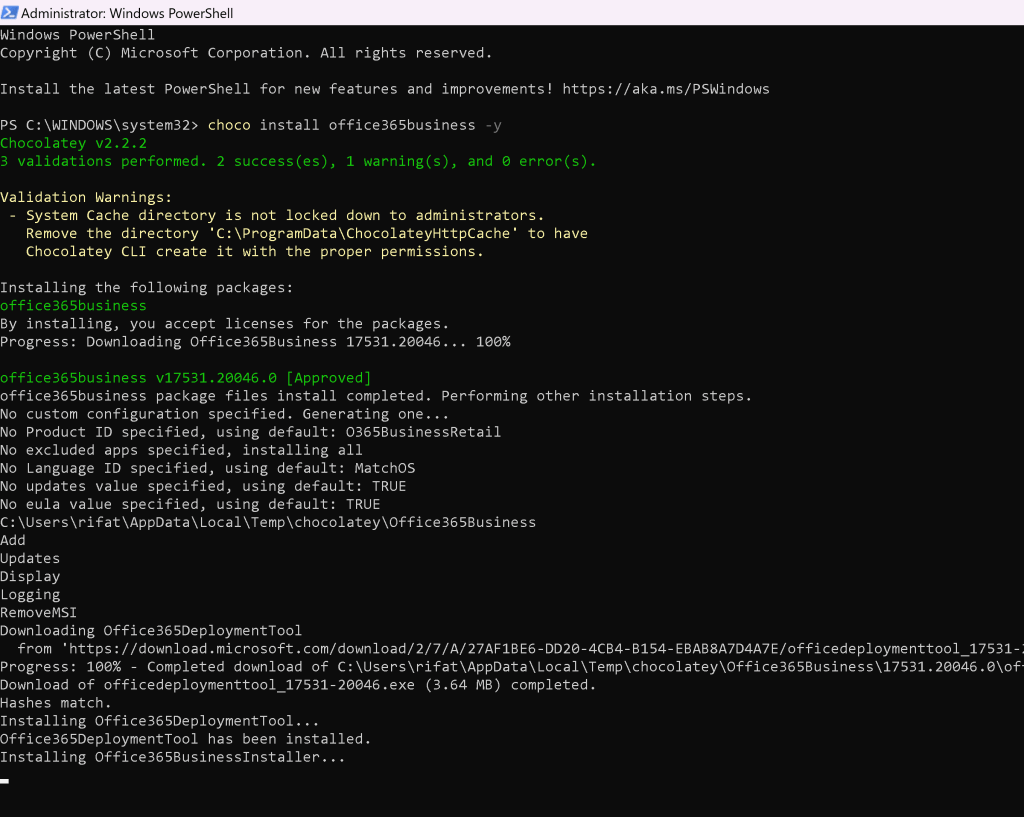
After executing the command, you will see the following output (as shown in the screenshot):
Chocolatey v2.2.2 3 validations performed. 2 success(es), 1 warning(s), and 0 error(s). Validation Warnings: - System Cache directory is not locked down to administrators. Remove the directory 'C:\ProgramData\ChocolateyHttpCache' to have Chocolatey CLI create it with the proper permissions. Installing the following packages: office365business By installing, you accept licenses for the packages. Progress: Downloading Office365Business 17531.20046... 100% office365business v17531.20046.0 [Approved] office365business package files install completed. Performing other installation steps. No custom configuration specified. Generating one... No Product ID specified, using default: O365BusinessRetail No excluded apps specified, installing all No Language ID specified, using default: MatchOS No updates value specified, using default: TRUE No eula value specified, using default: TRUE C:\Users\rifat\AppData\Local\Temp\chocolatey\Office365Business Downloading Office365DeploymentTool... ... Installing Office365DeploymentTool... Office365DeploymentTool has been installed. Installing Office365BusinessInstaller...During the installation, Chocolatey downloads the necessary files and installs them on your system. The output provides real-time feedback, ensuring you are informed of the installation's progress. -
Completion:
-
Once the installation is complete, you should see a message indicating that the installation was successful. You can now launch Office 365 Business applications from the Start menu.
Conclusion
Using Chocolatey to install Office 365 Business simplifies the process significantly. This method not only saves time but also ensures a consistent setup across multiple machines. Whether you are managing a small business or a large enterprise, automation tools like Chocolatey can streamline your IT operations and enhance productivity.
Feel free to share your experience with Chocolatey or any tips you have for managing software installations in the comments below. Happy installing!
Note: The commands and outputs in this blog post are based on a specific version of Chocolatey and Office 365 Business. Ensure to check for the latest versions and documentation for any updates.
If you found this post helpful, don't forget to subscribe to our blog for more tech tips and tutorials!
Disclaimer: This post is for informational purposes only. The author and the blog are not affiliated with Microsoft or Chocolatey.
Imported from rifaterdemsahin.com · 2024