Canon home printer journey
InkJet
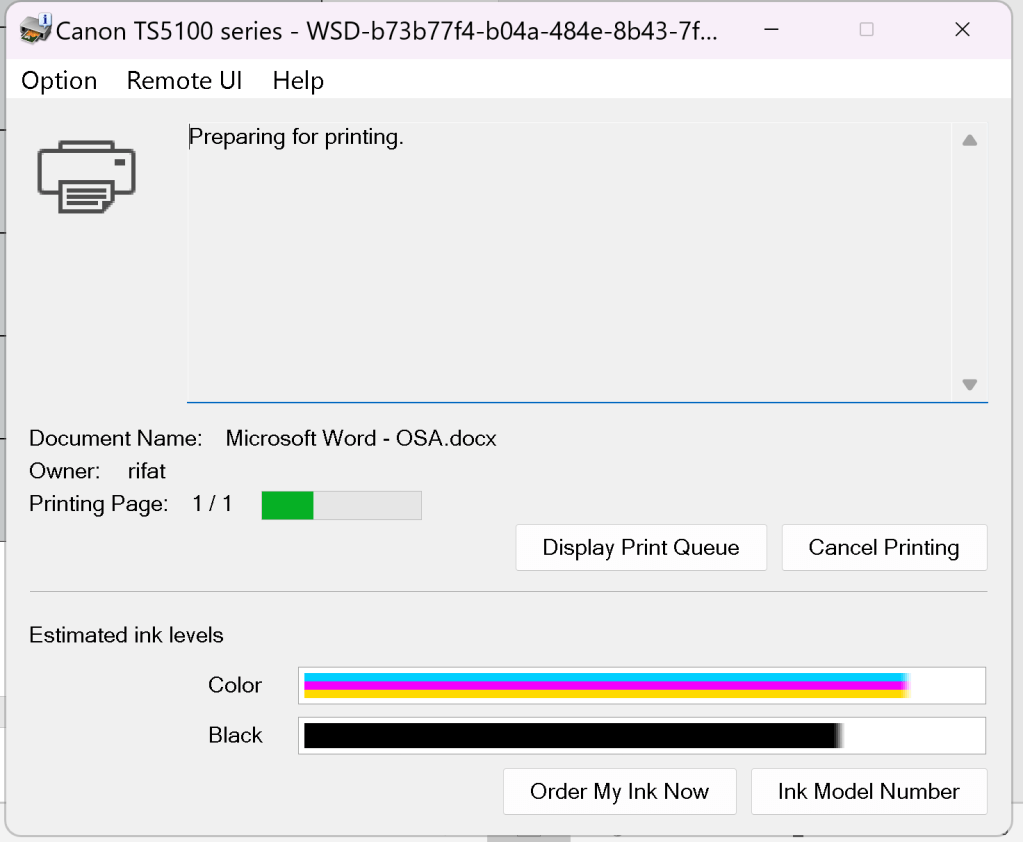
Not used that much >
Main usecases
-
Print work related documents
-
Print GPT prompts
-
Use it as a scanner
scanner
https://www.canon.co.uk/support/consumer_products/software/ij-scan-utility.html?softwareid=tcm:14-1331737&productid=tcm:14-1604877&os=Windows%2011
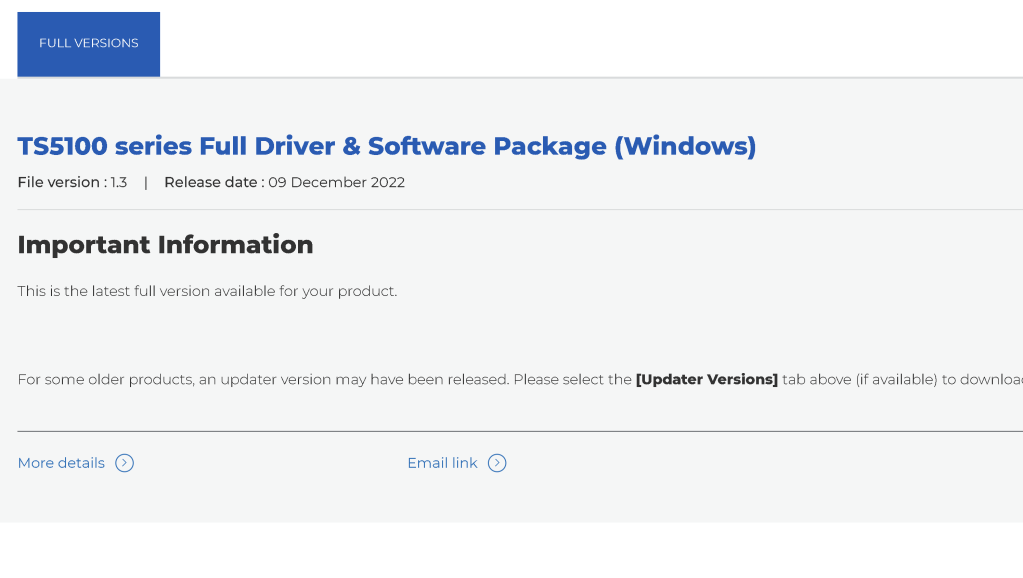
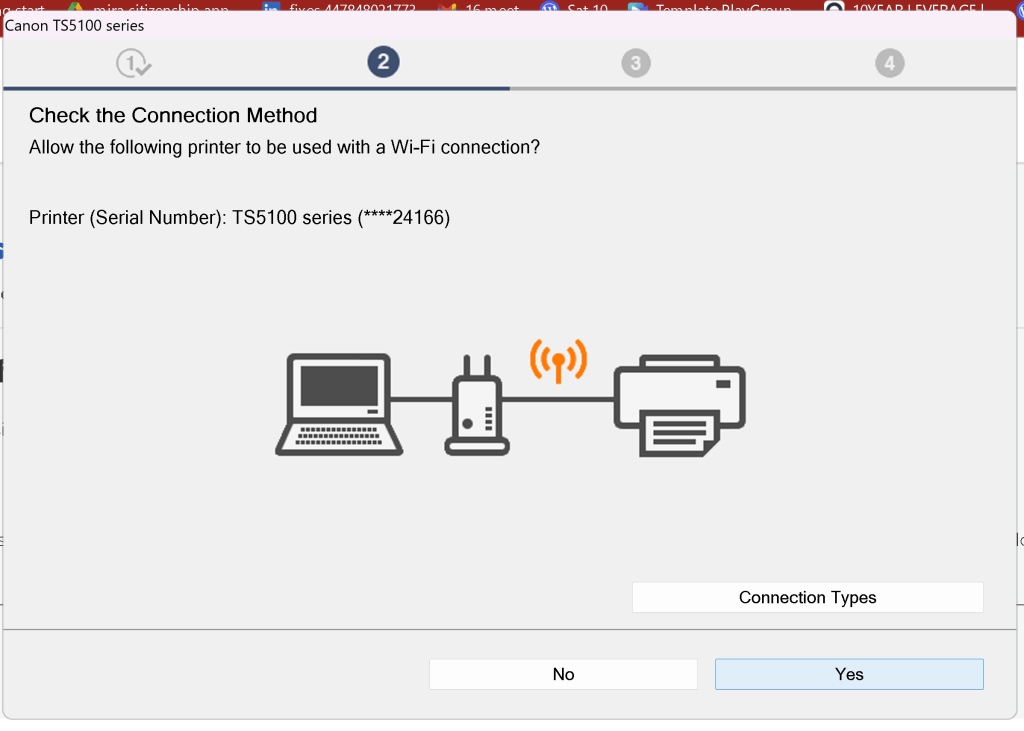
hope it works over wifi
gpt output
Using the scanner on the TS5100 series printer involves a few straightforward steps. Here’s a general guide:
Scanning with the Canon TS5100 Series
Using the Scanner via Computer:
-
Prepare the Scanner:
-
Ensure the printer is turned on and properly connected to your computer.
-
Lift the scanner lid and place the document you want to scan face-down on the glass.
-
Install Software (if not already installed):
-
Make sure you have the necessary Canon software installed on your computer. This typically includes the Canon IJ Scan Utility and the necessary drivers. You can download these from the Canon support website if needed.
-
Open Canon IJ Scan Utility:
-
On your computer, open the Canon IJ Scan Utility application.
-
Select the Document Type:
-
In the IJ Scan Utility, select the type of document you are scanning (e.g., photo, document, etc.).
-
Adjust Settings:
-
Adjust any necessary settings such as resolution, color mode, and save location.
-
Start Scanning:
-
Click the 'Scan' button. The scanner will begin scanning the document. Once the scan is complete, it will be saved to the designated location on your computer.
Using the Scanner via Printer’s Control Panel:
-
Prepare the Scanner:
-
Ensure the printer is turned on.
-
Lift the scanner lid and place the document face-down on the glass.
-
Access Scan Function:
-
Use the printer’s control panel to navigate to the scanning function. This is usually labeled 'Scan' on the display menu.
-
Select Scan Destination:
-
Choose the destination for your scanned document (e.g., computer, USB drive, etc.).
-
Adjust Settings:
-
Adjust any necessary settings using the control panel, such as resolution and color mode.
-
Start Scanning:
-
Confirm the settings and start the scanning process by pressing the 'Start' button.
Troubleshooting Tips:
-
Ensure that the scanner drivers are properly installed on your computer.
-
Make sure the printer is connected to the same network as your computer if scanning wirelessly.
-
Check for any error messages on the printer’s display and refer to the user manual for specific troubleshooting steps.
By following these steps, you should be able to successfully scan documents using your Canon TS5100 series printer. If you encounter any specific issues, please provide more details so I can assist you further.
Update on what could be a better install
if canon had a qr code to download on the display it would make the life easier.
Skip version and model search
Skip the gpt step
multiple apps needs to get installed
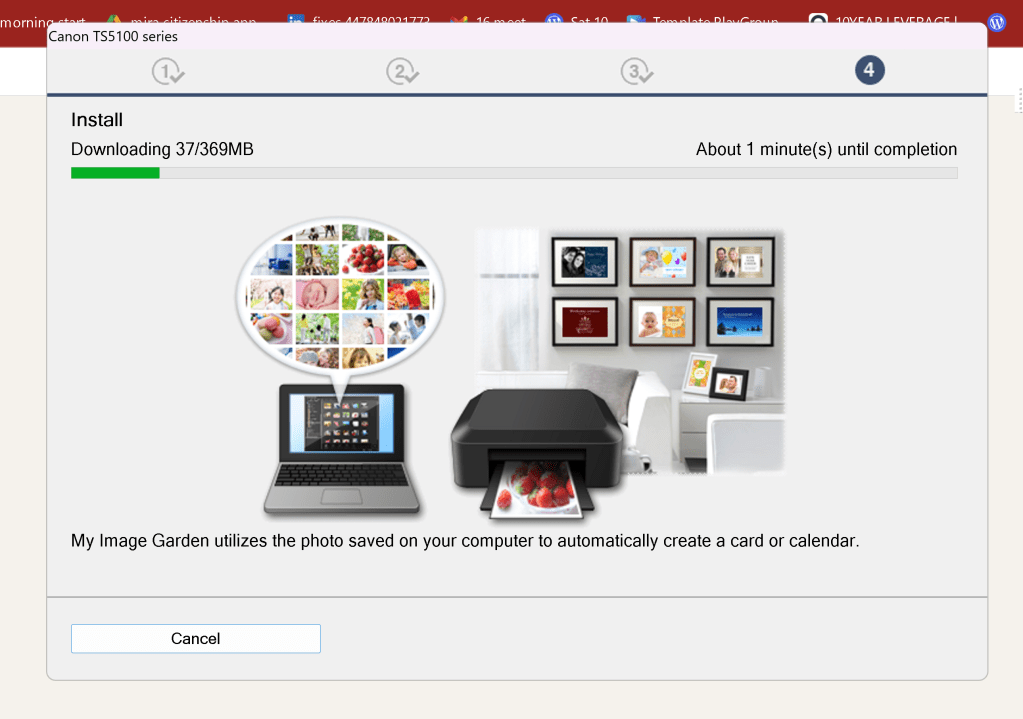
Scaner use
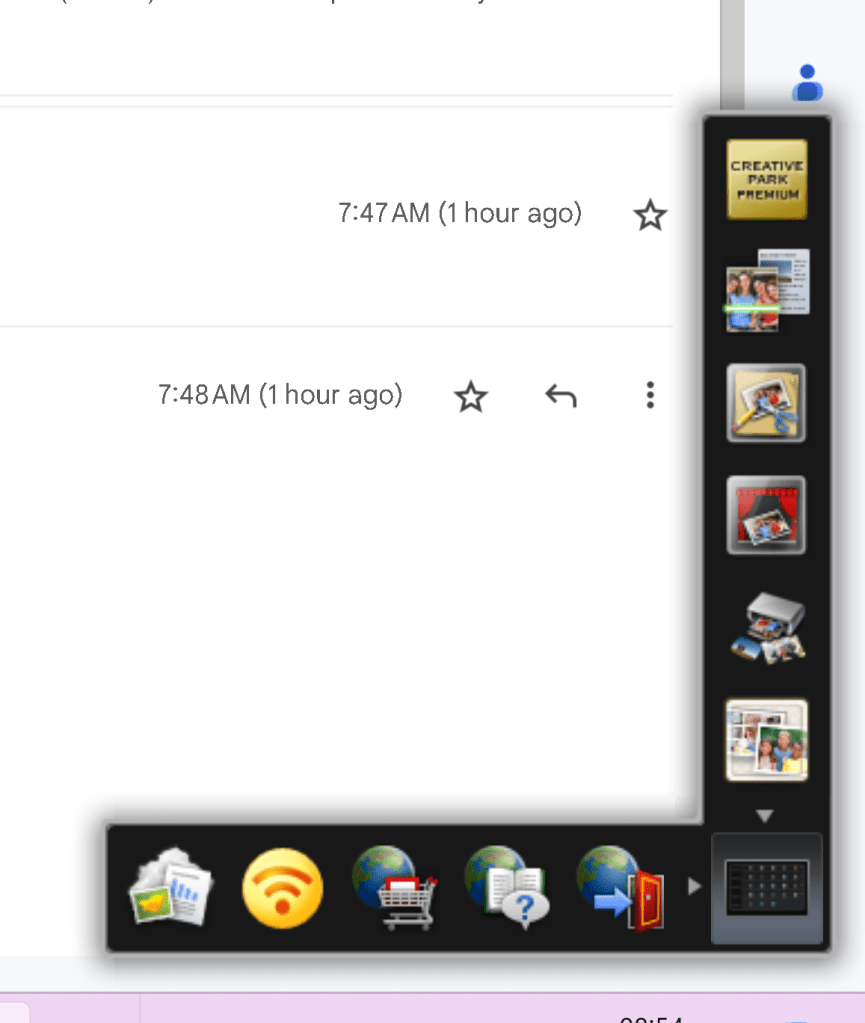
learn more on scanner > https://ij.manual.canon/ij/webmanual/Manual2/UF/functions.html?lng=en&model=ts51&lapp=ms&los=W&area=eu&os=w
Imported from rifaterdemsahin.com · 2024