Morning todos on the workstation and supported by GPT
GPT support
How to Handle PowerToys Notifications and Improve Your Workstation Setup
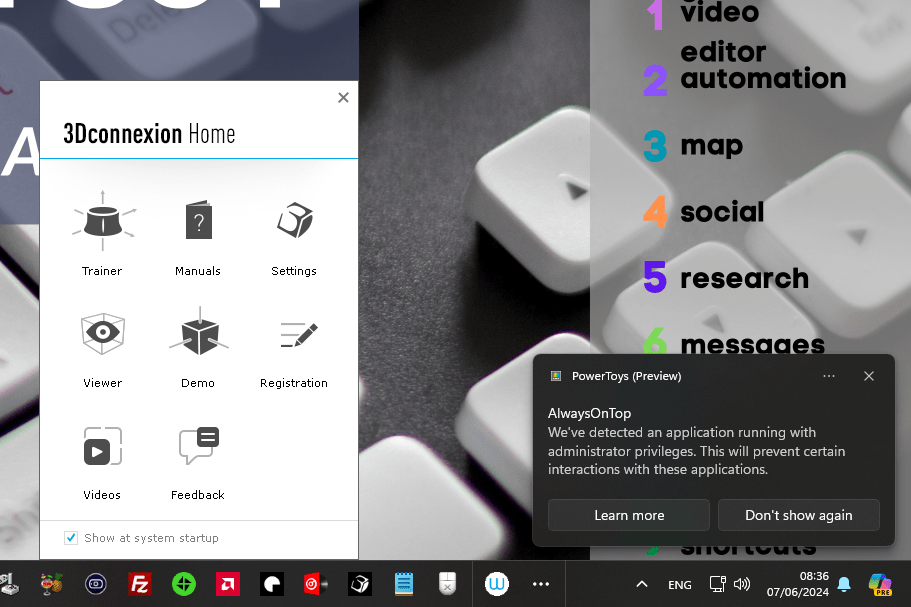
If you’ve recently received a notification from PowerToys about the "Always On Top" feature detecting an application running with administrator privileges, you might be wondering how to handle this and streamline your workstation setup. Let's break it down and add some useful tips for maintaining an efficient and tidy workspace.
Understanding the Notification
When you see the notification from PowerToys indicating an application running with administrator privileges, it’s usually because the Always On Top feature has identified a potential conflict. Here’s a step-by-step guide on what to do next:
-
Acknowledge the Notification: You can click "Don't show again" if you find these notifications unnecessary, or click "Learn more" to understand the issue in detail.
-
Check Administrator Privileges: Evaluate if the applications need to run with administrator privileges. If not, consider running them with standard user privileges to prevent conflicts.
-
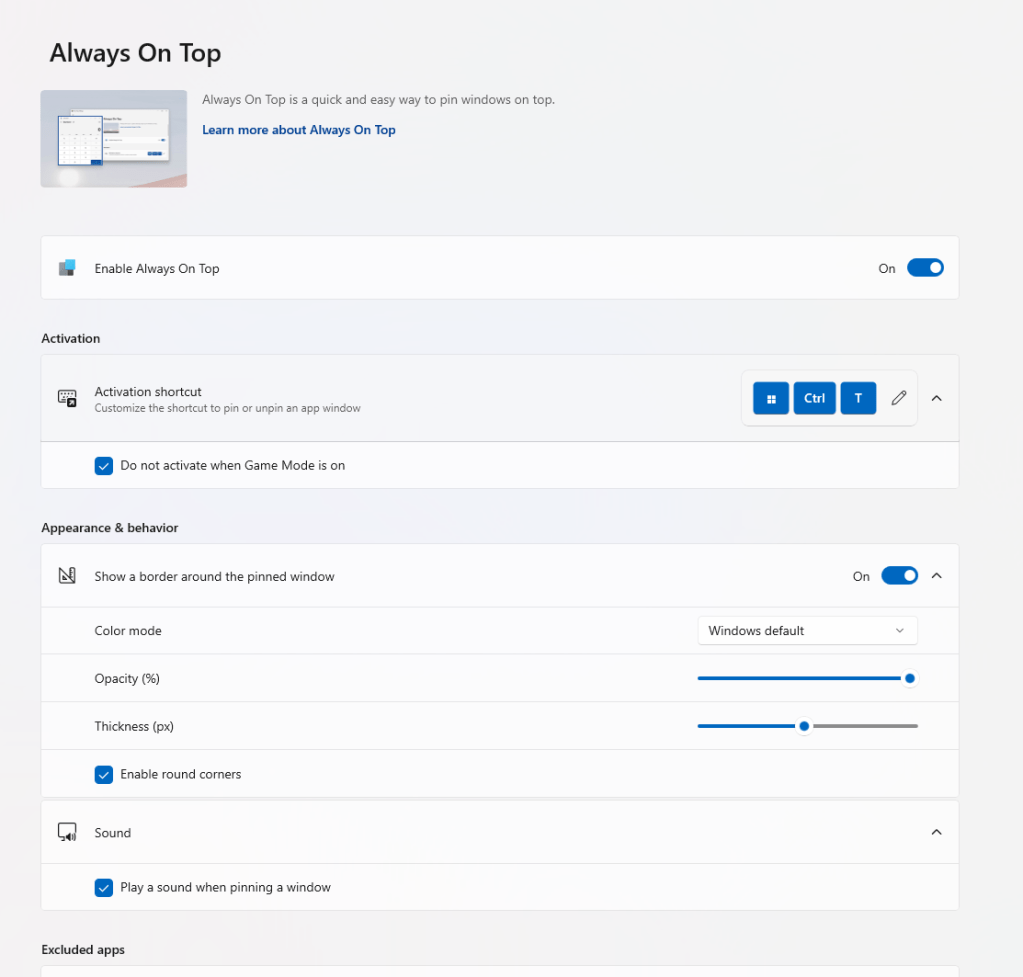
Review PowerToys Settings: Open PowerToys settings and review any configurations related to the Always On Top feature. Adjustments here can often resolve the conflict.
-
Check 3Dconnexion Settings: Look into the settings of the 3Dconnexion software for any options that might help reduce conflicts, such as running the software without administrative privileges if feasible.
Enhancing Your Workstation Setup
Beyond resolving software conflicts, maintaining a clean and organized workstation can significantly boost your productivity. Here are some tips to get you started:
Declutter Your Workspace
-
Physical Cleanup: Start by removing unnecessary items from your desk. Keep only the essentials within reach to create a more organized and spacious work environment.
-
Cable Management: Use cable organizers or clips to keep your cords tidy and out of the way. This not only looks better but also prevents tangling and damage.
Optimize Your Digital Space
-
Clean Up Your Desktop: Organize your desktop icons and files. Consider creating folders for different categories of work to keep everything easily accessible.
-
Manage Your Applications: Uninstall applications that you no longer use. This not only frees up space but also reduces potential software conflicts.
Regular Maintenance
-
Routine Cleaning: Set aside time each week to tidy up your workspace. A clean environment can help you stay focused and reduce stress.
-
System Updates: Keep your operating system and applications up-to-date to benefit from the latest features and security improvements.
Overlays
To ensure these tips are memorable, consider using visual overlays in your workspace setup. Here’s how:
-
Sticky Notes: Place sticky notes with reminders or motivational quotes on your monitor or desk.
-
Screen Overlays: Use screen overlays to highlight important areas or tools on your desktop. Applications like PowerToys can help you create these overlays effectively.
Final Thoughts
Maintaining a well-organized and conflict-free workstation involves both managing your physical space and optimizing your digital environment. By handling software notifications properly and keeping your workspace tidy, you can enhance your productivity and create a more pleasant working experience.
J.P's Tip: Always take a moment to clean up your room and workstation. A clear space fosters a clear mind, enabling you to work more efficiently and creatively.
Remember, a little effort in organizing your space can go a long way in improving your daily workflow and overall satisfaction.
This approach ensures that you address the immediate issue while also creating a productive and enjoyable working environment. Happy organizing!
Imported from rifaterdemsahin.com · 2024