Keep Learning: A Guide to Enhancing Your Skills and Creating Engaging Content
In today's fast-paced world, the mantra "Keep Learning" has never been more relevant. Continuous learning not only helps us stay competitive but also fuels our creativity and innovation. One powerful way to apply this concept is by creating engaging content that educates and inspires others. This guide will walk you through the steps to enhance your skills and create compelling videos using Canva and Audacity.
Step 1: Creating the Initial Canva Slide
Begin by crafting an eye-catching and informative slide in Canva. This slide will serve as the introduction to your video. Here's how to do it:
-
Open Canva: Log into your Canva account and navigate to the folder where your project is located.
-
Select the Previous Slide: If you have a sequence of slides, pick the one that serves as a good introduction to your topic. If starting from scratch, create a new slide with a clear and engaging title, relevant images, and concise text.
-
Move to Videos: Once your slide is ready, move it to the "Videos" section in Canva. This allows you to use the slide as the starting frame for your video project.
Step 2: Recording Voice Over with Audacity
Voice over is crucial for making your videos more engaging and informative. Audacity is a fantastic, free tool for recording and editing audio.
-
Open Audacity: Launch Audacity and open a new project.
-
Record Your Script: Write a script that complements your Canva slide. Keep it clear and concise. Hit the record button in Audacity and read your script aloud.
-
Edit the Audio: Use Audacity’s tools to trim any unwanted parts, adjust the volume, and enhance the clarity of your voice.
-
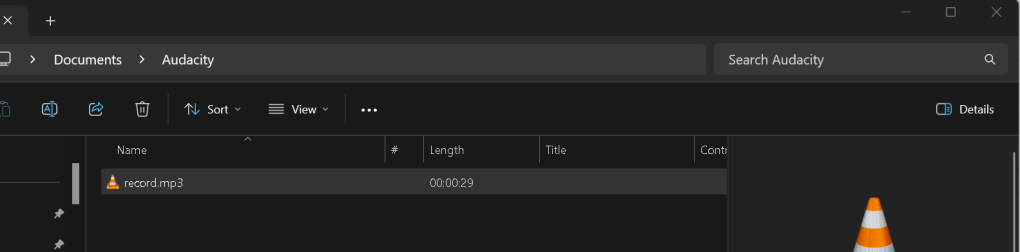
Save and Backup: Save your project frequently and keep a backup to avoid losing your work.
Step 3: Preparing Your Footage
Before adding your audio to the Canva timeline, ensure your video footage is well-prepared.
-
Resize the Footage: If you're using pre-recorded footage, resize it to fit your Canva project. This can be done by checking the duration and dimensions of your footage in a video editing software or within Canva itself.
-
Check Windows Duration: Ensure that the length of your footage matches the duration of your voice over. This will create a seamless viewing experience.
Step 4: Adding Audio to Canva Timeline
Now that your slide and audio are ready, it’s time to combine them in Canva.
-
Upload Audio: Go back to Canva, and upload your audio file to the project.
-
Drag and Drop: Drag the audio file to the timeline. Ensure it aligns well with the visuals.
-
Sync Audio and Video: Adjust the timing so that your audio syncs perfectly with the visuals. This might involve some trial and error to get it just right.
Final Touches
-
Review and Edit: Watch your video from start to finish. Make any necessary adjustments to the timing, transitions, or content.
-
Export and Share: Once satisfied, export your video. Canva offers various formats depending on where you plan to share your video (e.g., social media, website).
Keep Learning and Improving
Creating engaging content is a continuous learning process. With each project, you’ll discover new tips and tricks to improve your skills. Stay curious, keep experimenting, and never stop learning.
By following these steps, you'll be well on your way to creating high-quality, engaging videos that captivate and educate your audience. Happy creating!
https://www.canva.com/design/DAGGuLKZJfo/oUlihcwrjpX_Wq0SyrnfEw/edit
Imported from rifaterdemsahin.com · 2024