NAS not looking ok
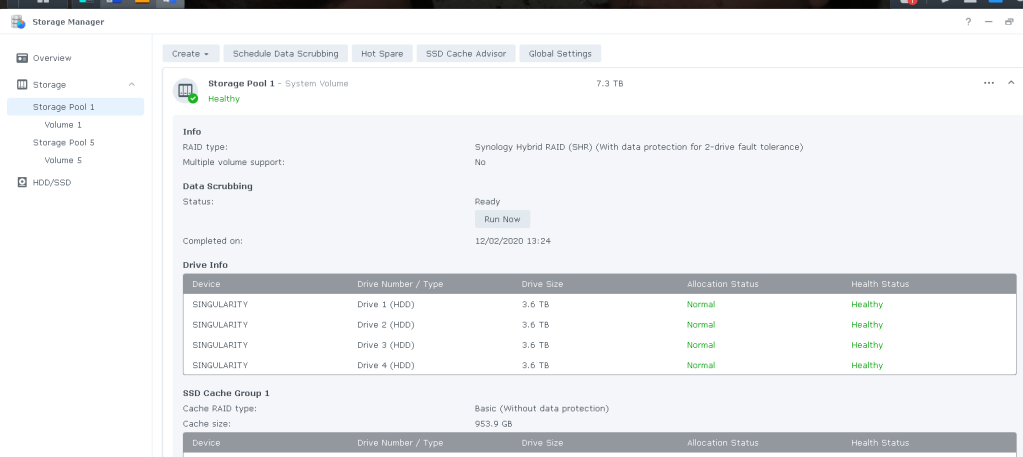
health of drives ok
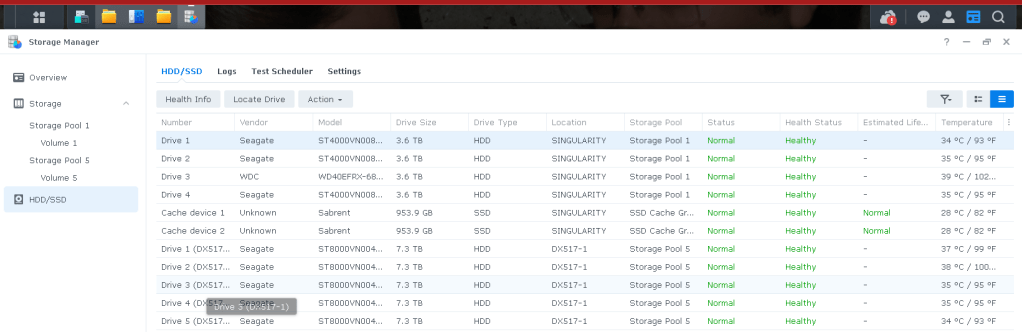
the usage not ok
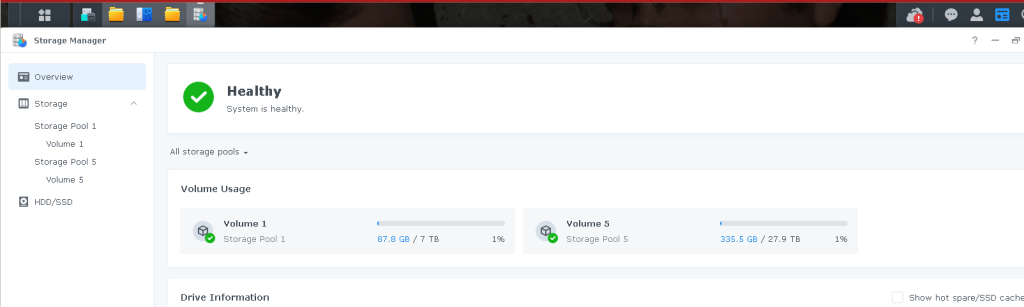
files are not there
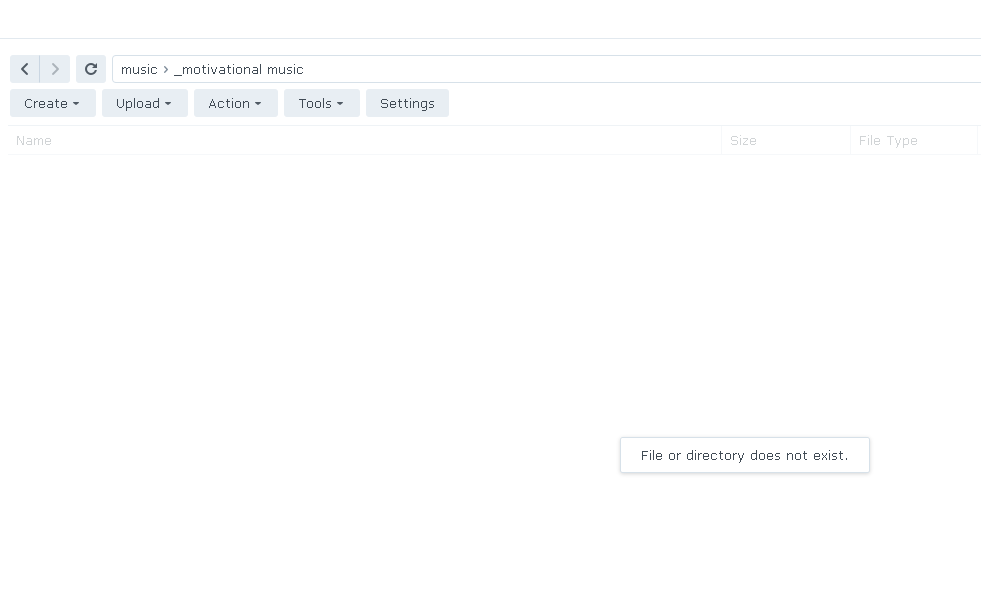
Storage analyzer has issues
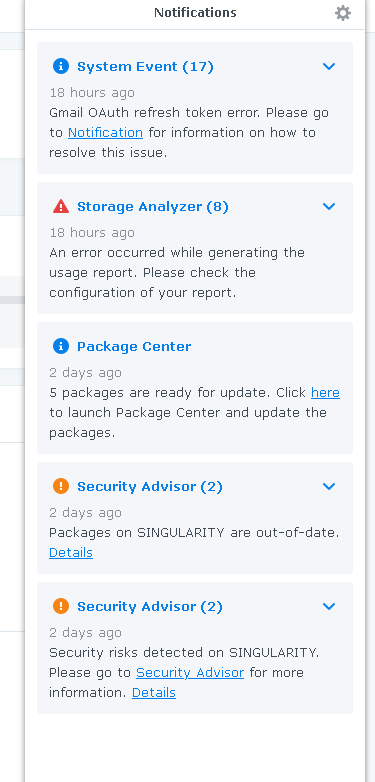
Drives
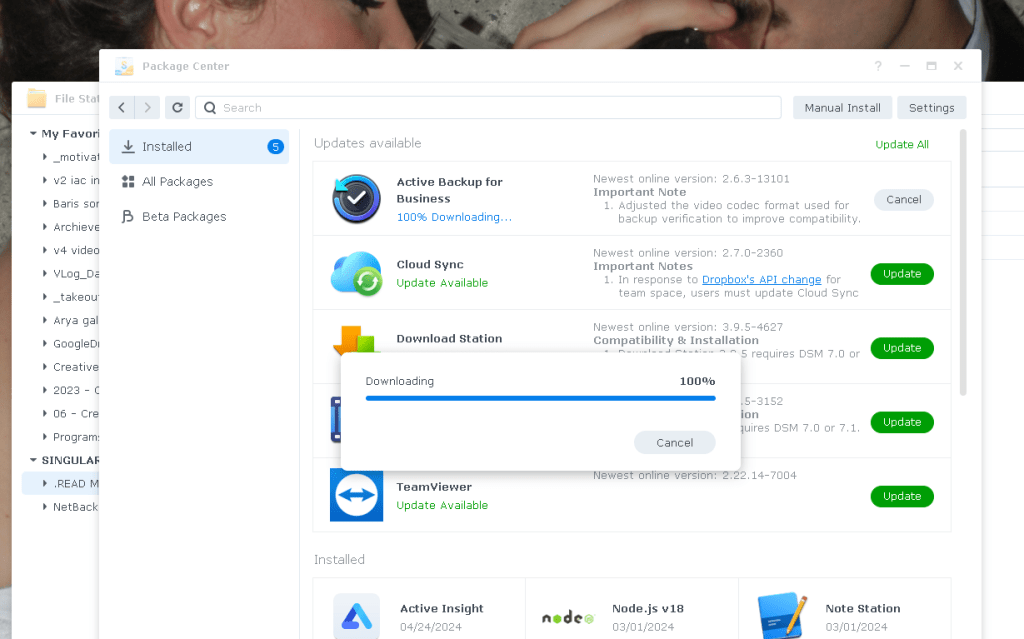
Triggering updates
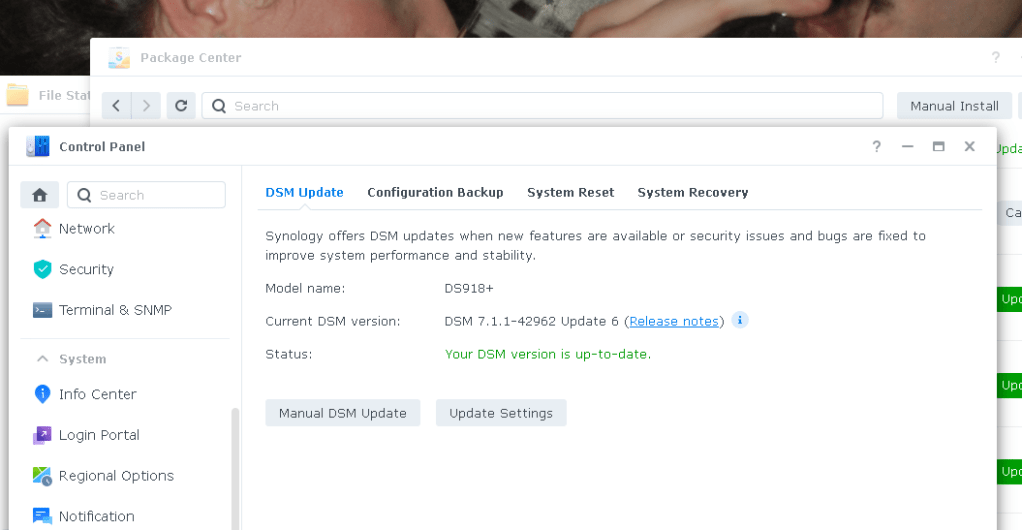
DSM to to date
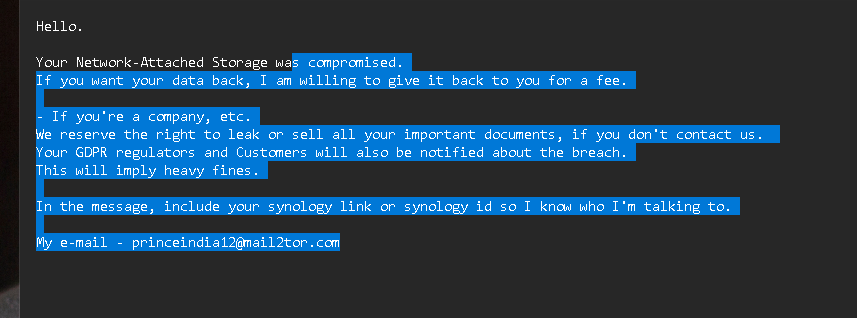
todo > understand what happened ( in progress )
unlikely > to download 40 TB data
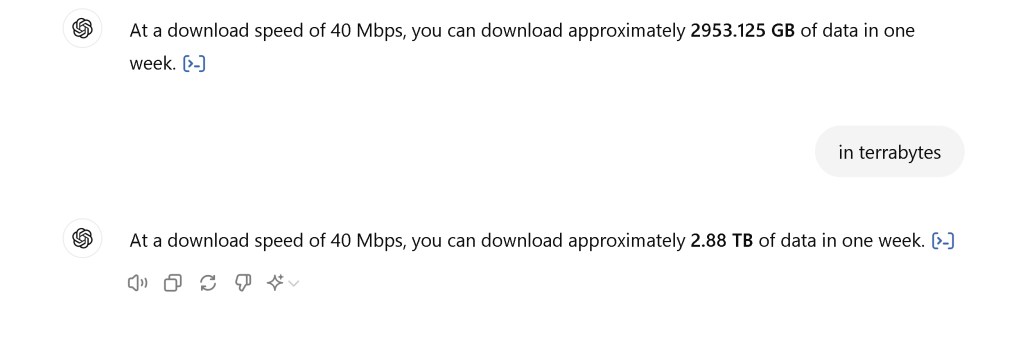
likely > production account does not have the main account access but admin access can nuke the system
todo > baran > get cyber secrity insurance > https://www.hiscox.co.uk/business-insurance/cyber-and-data-insurance
todo > update passwords classical password wont cut it anymore >>> go over the password
todo > uninstall everything!
todo > got the system from ftp and ip scan feels like the source
todo > get the blue ray writer and back it >>>> too many drives needed
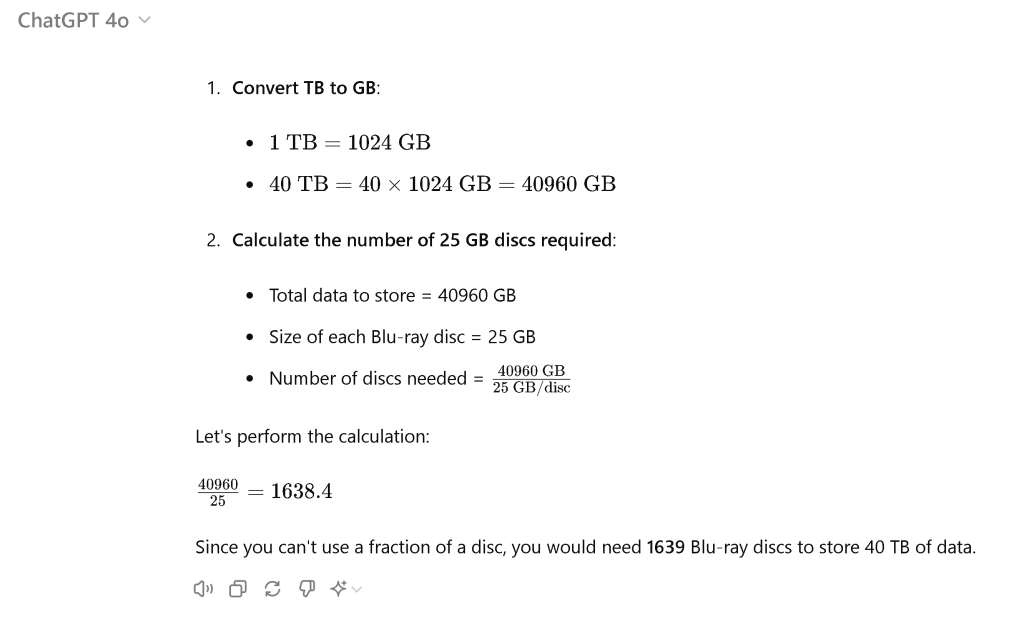
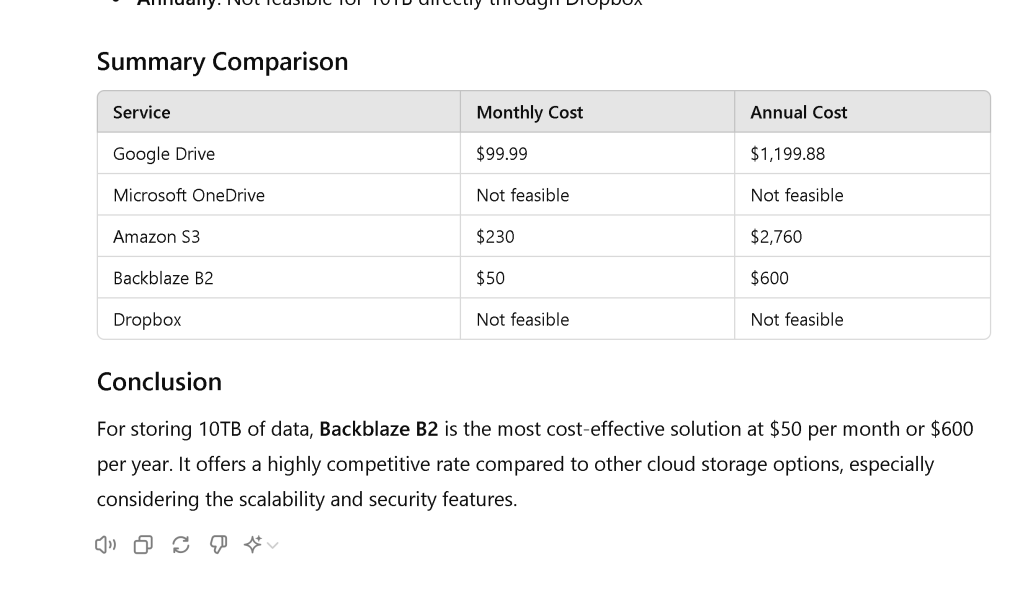
todo > check google drive
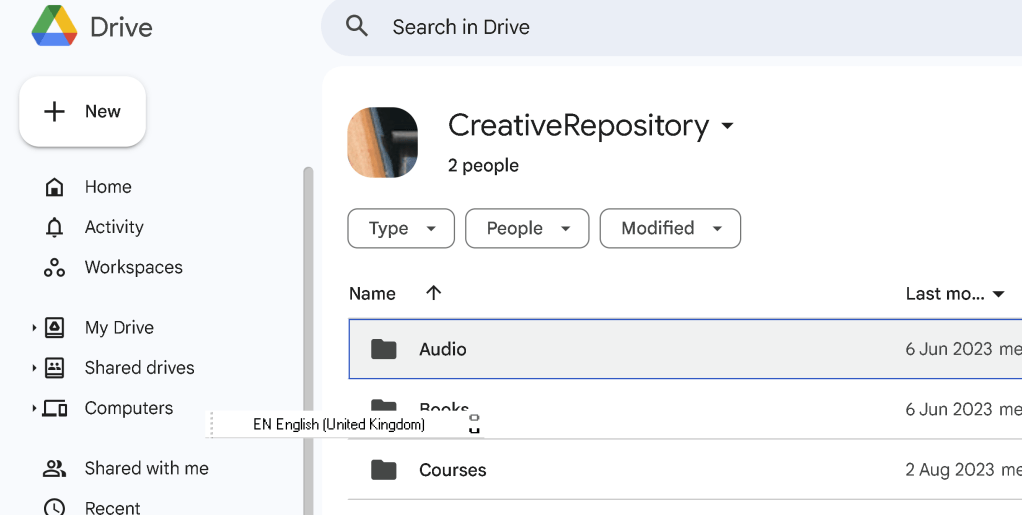
Google drive is there
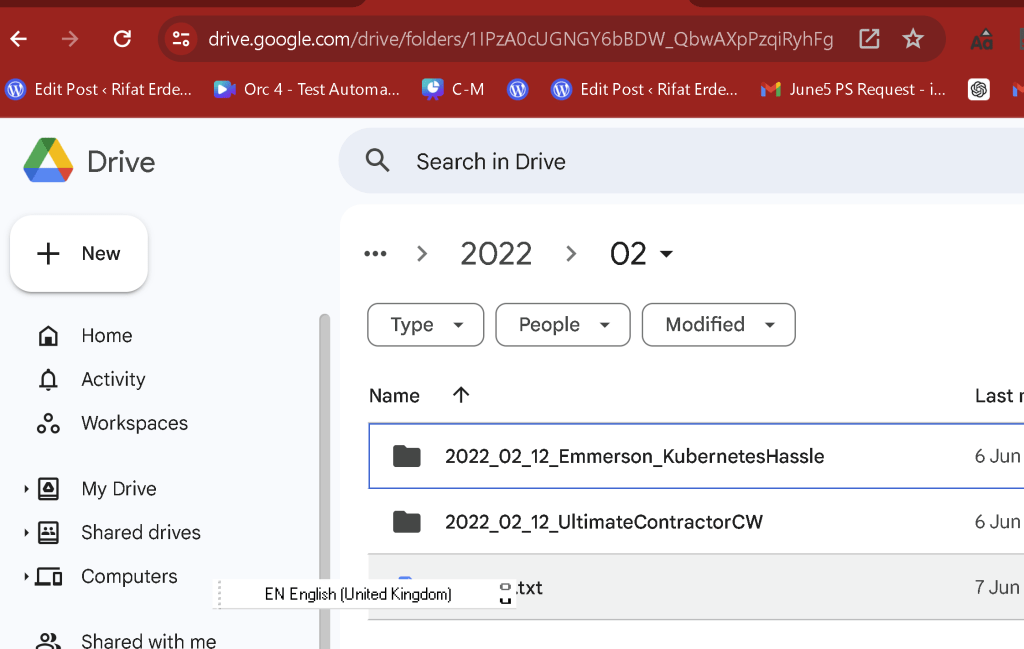
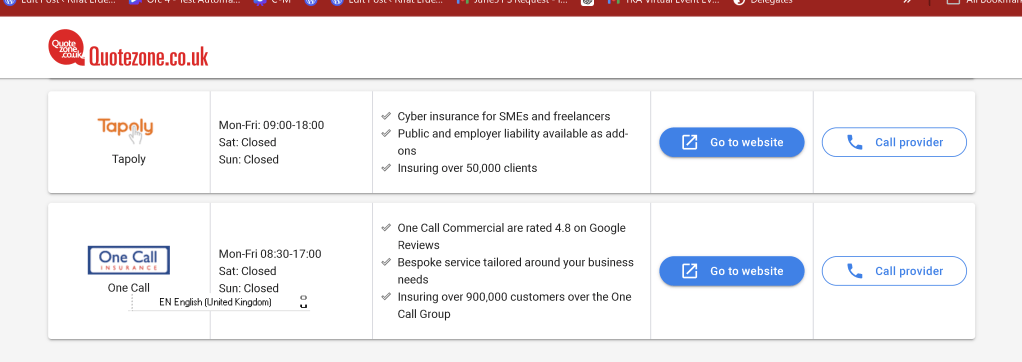

hiscox as well
urls
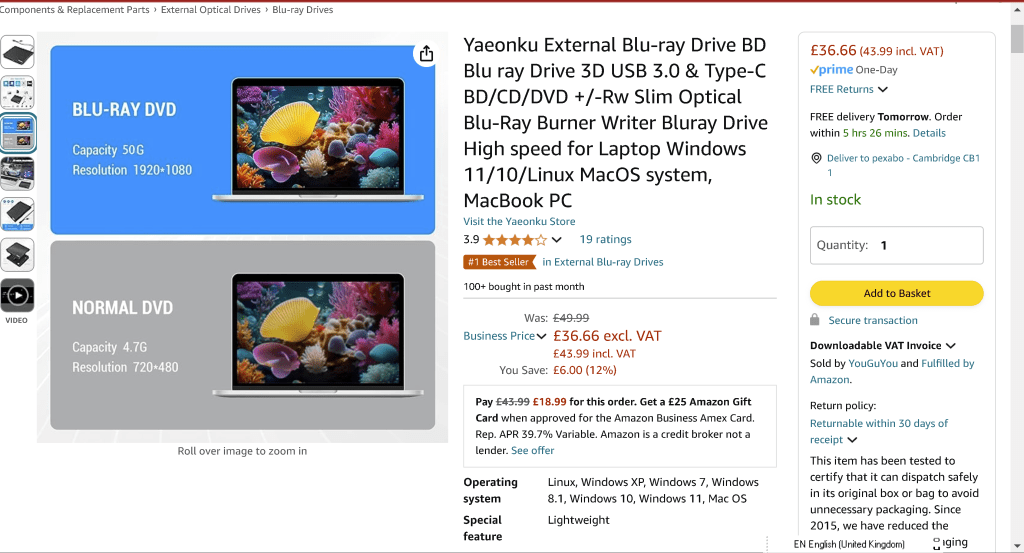
50 gb is also small
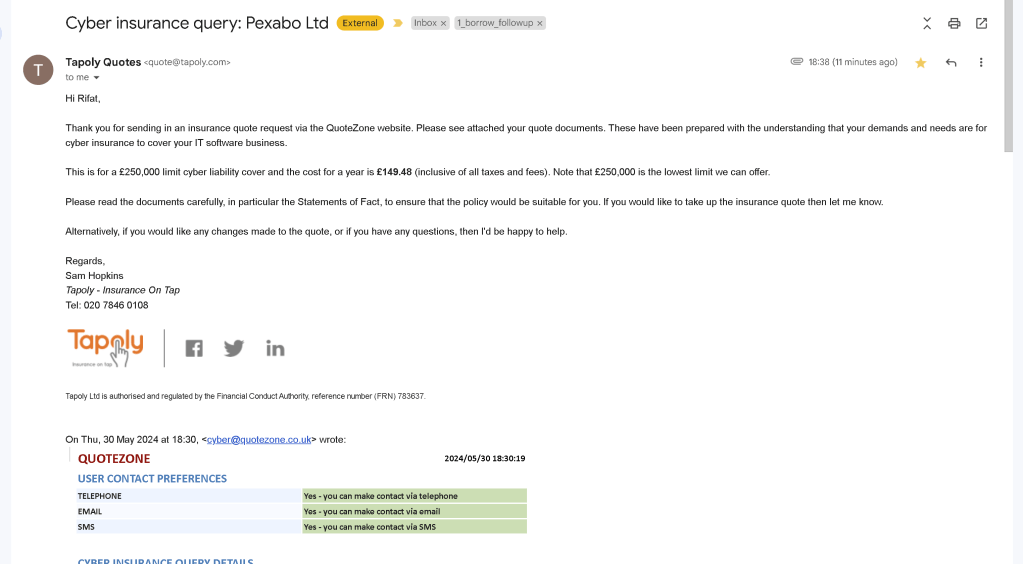
quote insurance > https://mail.google.com/mail/u/0/#inbox/FMfcgzQVwnZlcnWnXpbjDmLcbbNhLrxG
https://register.fca.org.uk/s/firm?id=001b000003ruLJyAAM
cant contact hacker than we are in his game >>> unique email to catch you
pay insurance and move on > https://mail.google.com/mail/u/0/#inbox/FMfcgzQVwnZlcnWnXpbjDmLcbbNhLrxG
they attack synology

it looks like a linux fail
When considering the cheapest per-storage backup solution using Blu-ray discs, here are the key points to consider:
Blu-ray Disc Types and Costs
-
BD-R (25GB): Standard writable Blu-ray discs that can store up to 25GB of data.
-
Cost: Approximately $0.30 to $1 per disc, depending on the brand and quantity purchased in bulk.
-
BD-R DL (50GB): Dual-layer writable Blu-ray discs that can store up to 50GB of data.
-
Cost: Approximately $1.50 to $3 per disc, depending on the brand and quantity purchased in bulk.
-
BD-R XL (100GB and 128GB): High-capacity Blu-ray discs that can store 100GB (triple layer) or 128GB (quad layer) of data.
-
Cost: Approximately $8 to $15 per disc for 100GB and $15 to $25 per disc for 128GB.
Calculating Cost per GB
To determine the cost-effectiveness of each type, we calculate the cost per GB:
-
BD-R (25GB)
-
Cost per GB: ( \frac{0.30}{25} \text{ to } \frac{1}{25} = \text{\$0.012 to \$0.04 per GB} )
-
BD-R DL (50GB)
-
Cost per GB: ( \frac{1.50}{50} \text{ to } \frac{3}{50} = \text{\$0.03 to \$0.06 per GB} )
-
BD-R XL (100GB)
-
Cost per GB: ( \frac{8}{100} \text{ to } \frac{15}{100} = \text{\$0.08 to \$0.15 per GB} )
-
BD-R XL (128GB)
-
Cost per GB: ( \frac{15}{128} \text{ to } \frac{25}{128} = \text{\$0.12 to \$0.20 per GB} )
Summary of Cheapest Options
-
BD-R (25GB): Offers the lowest cost per GB, especially when purchased in bulk.
-
BD-R DL (50GB): Slightly higher cost per GB but still relatively economical for larger backups.
-
BD-R XL (100GB and 128GB): Significantly higher cost per GB but useful for very large backups with fewer discs.
Conclusion
The cheapest per-storage backup solution using Blu-ray is to use BD-R (25GB) discs, especially when bought in bulk, due to their lower cost per GB. For larger, more consolidated backups, BD-R DL (50GB) discs offer a reasonable compromise between cost and storage capacity.
todo : hit analysis > videos / files/ photos
todo> recovery
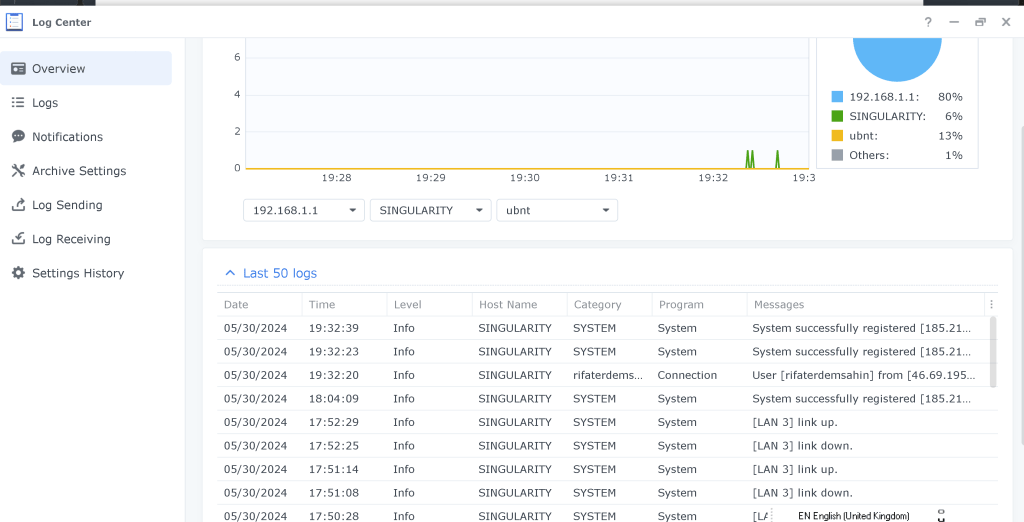
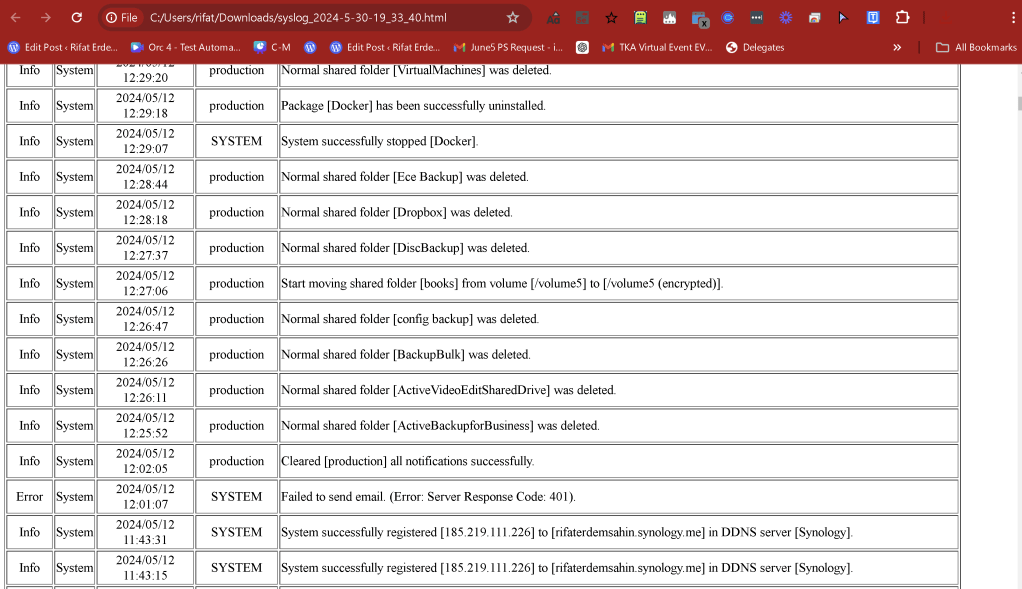
Analysis > Drive folder > hack analysis 2024 May

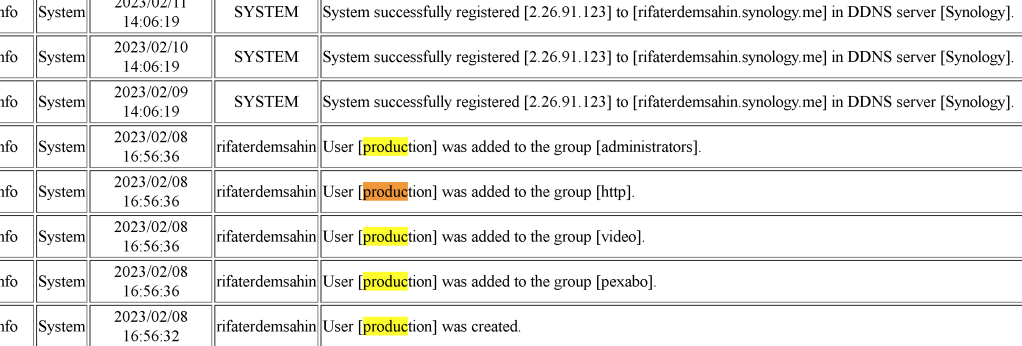
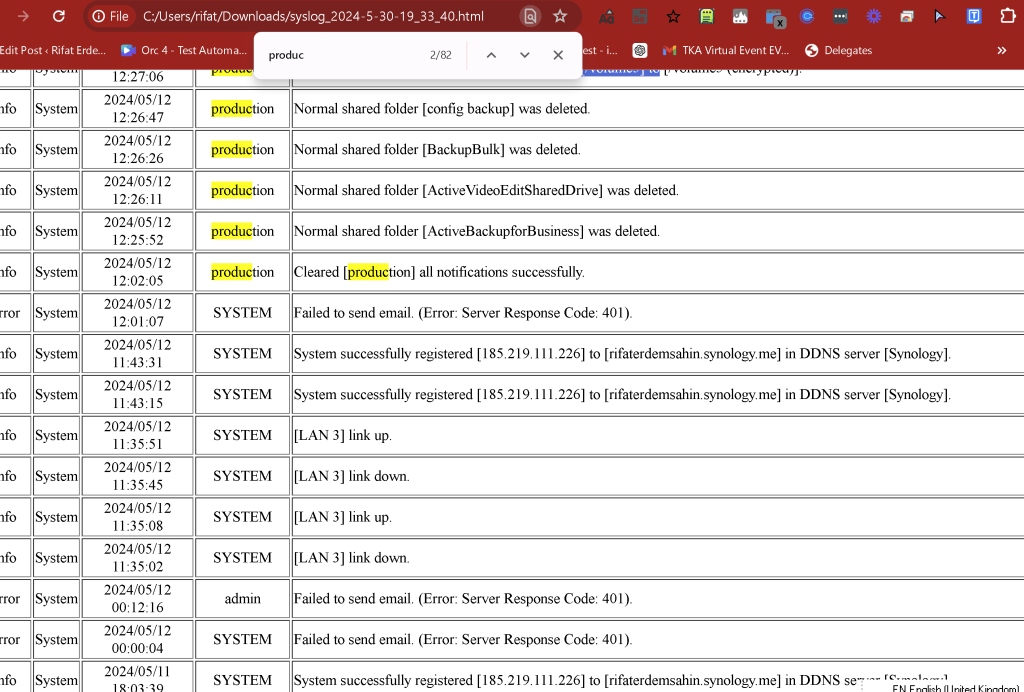
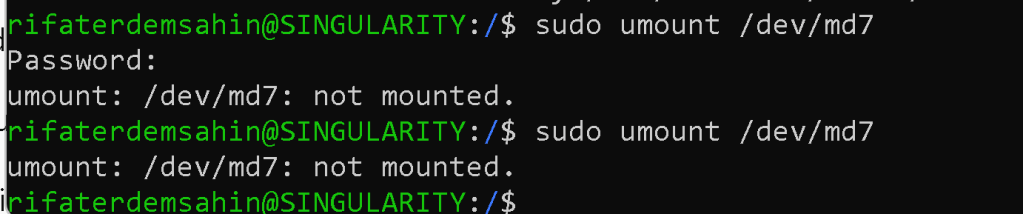
mostly unmounting the system
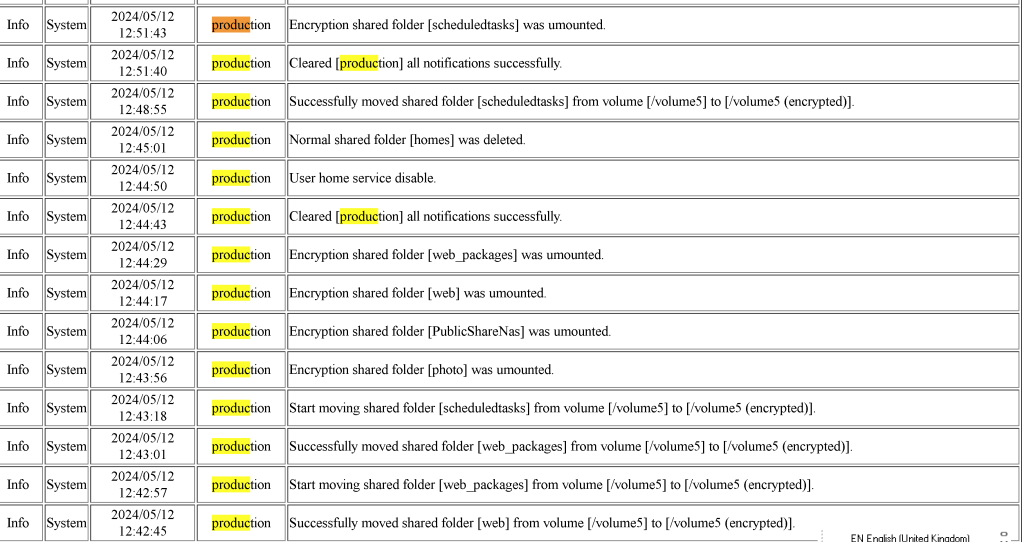
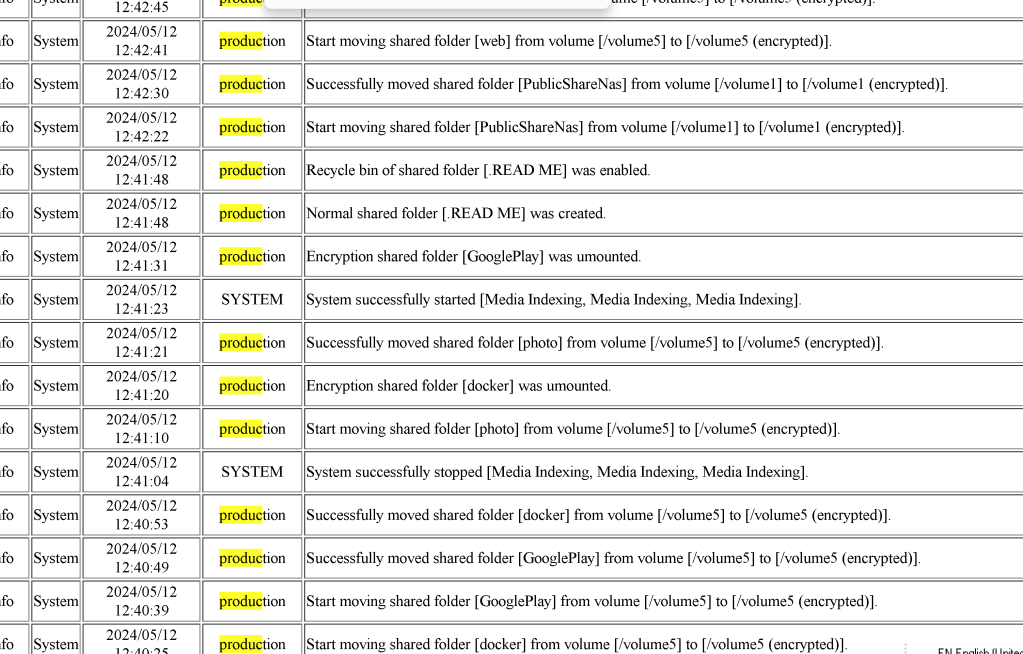
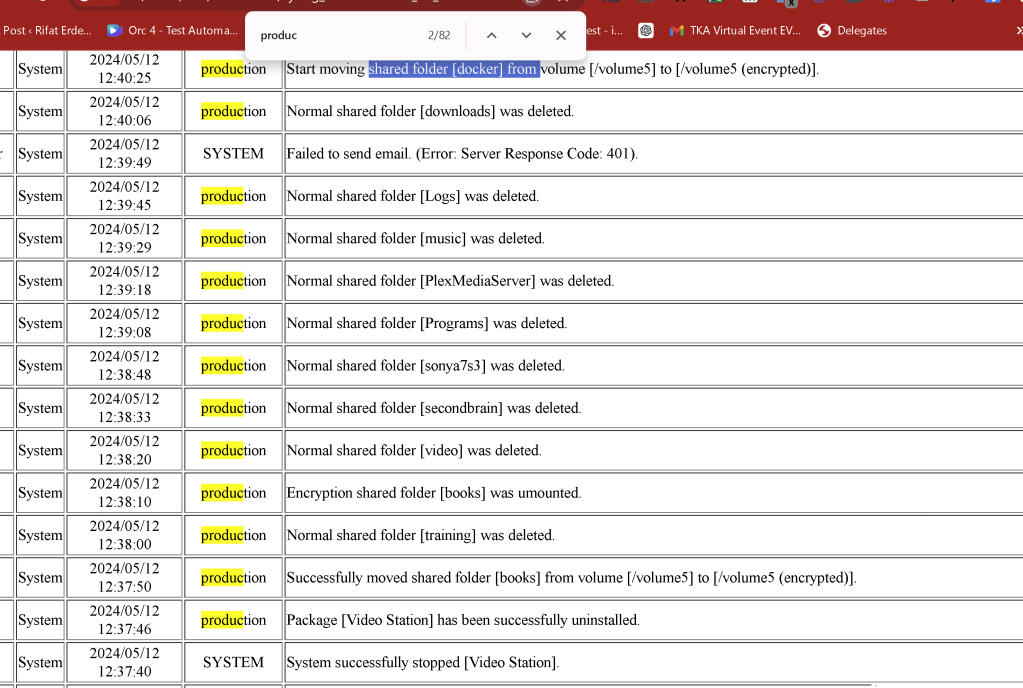
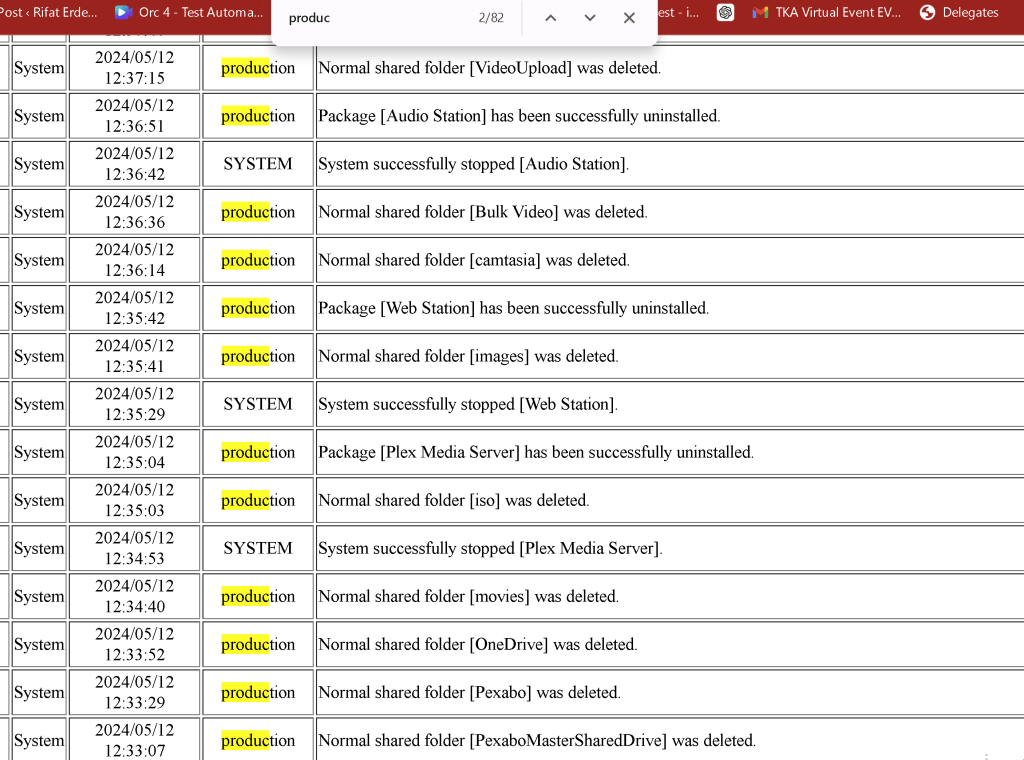
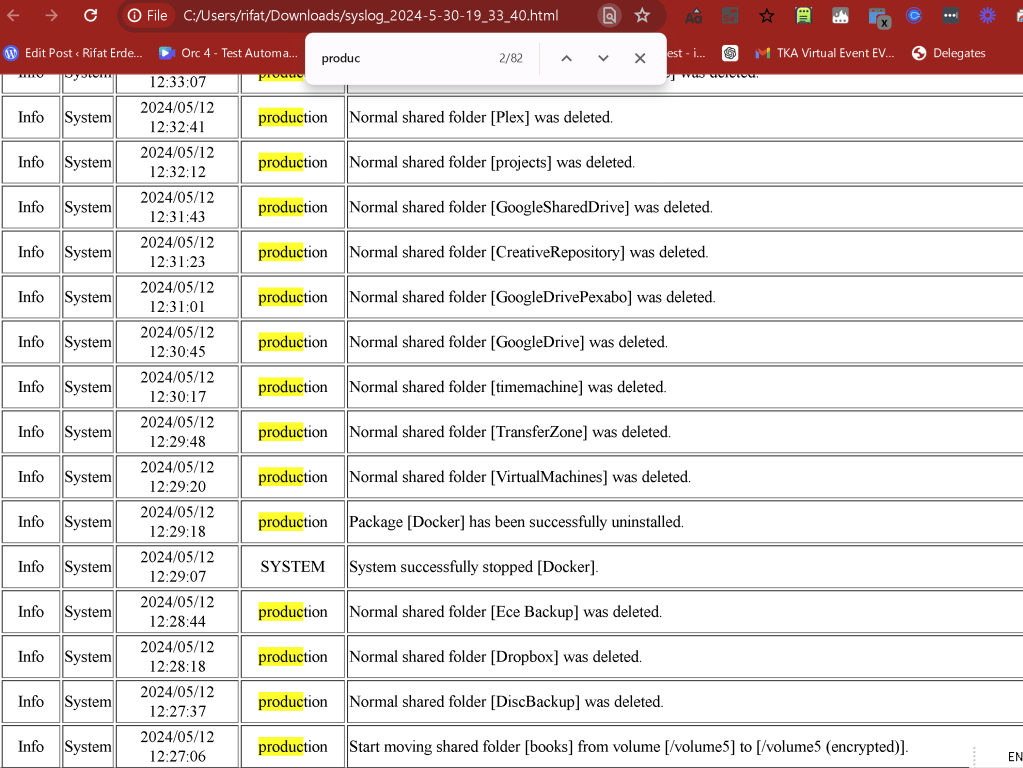
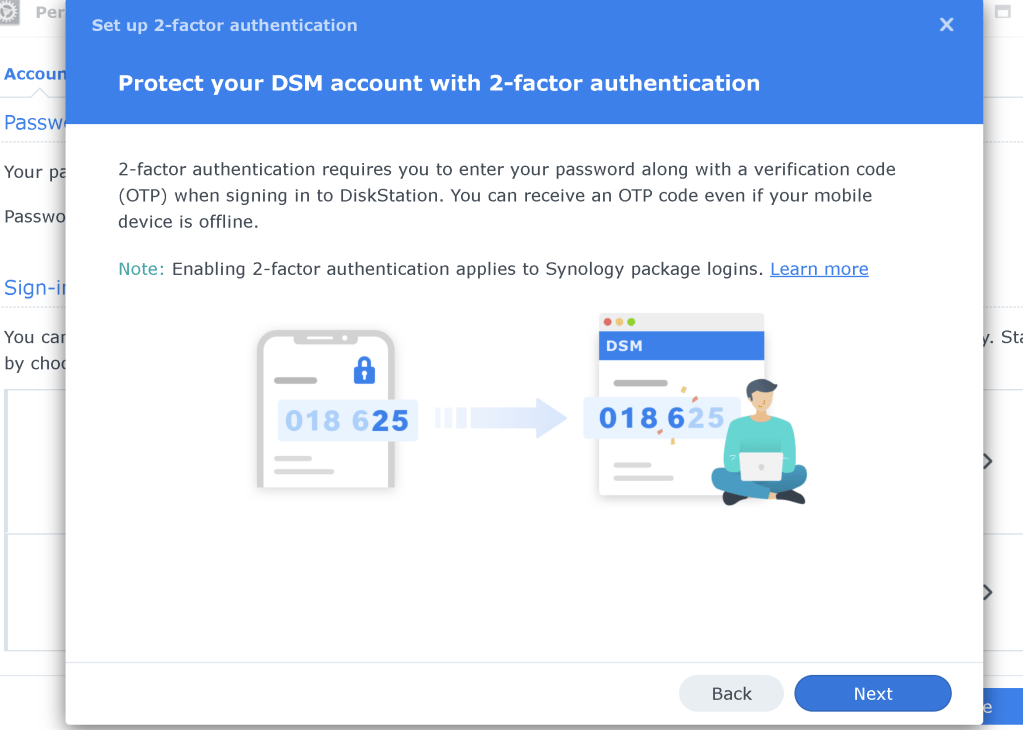
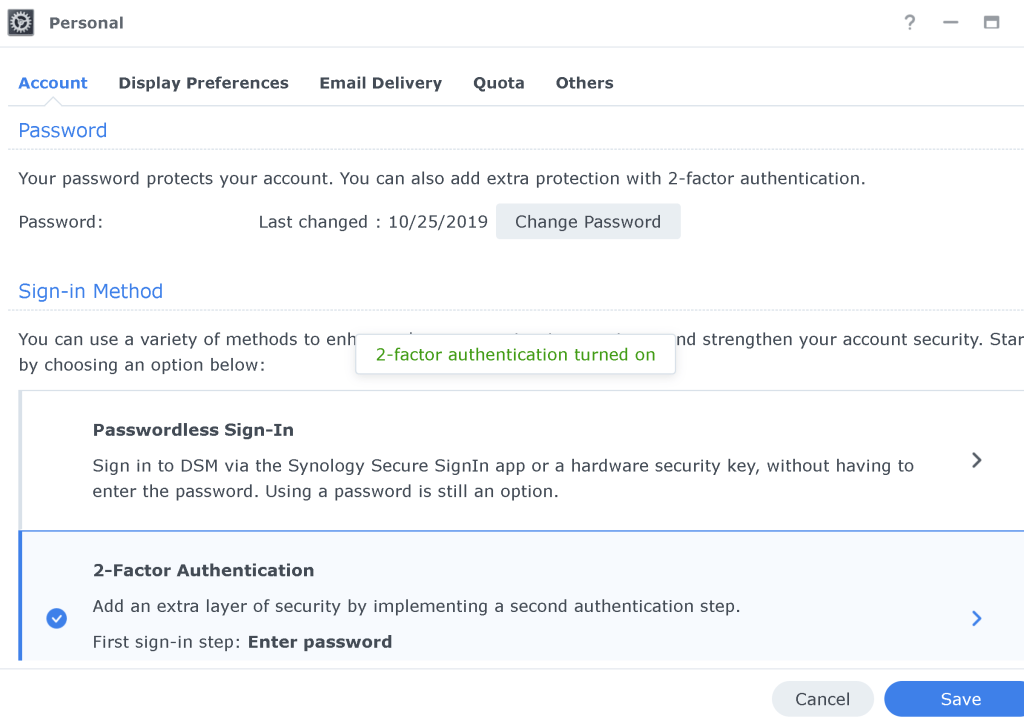
enabled
45 GB could be out in one hour

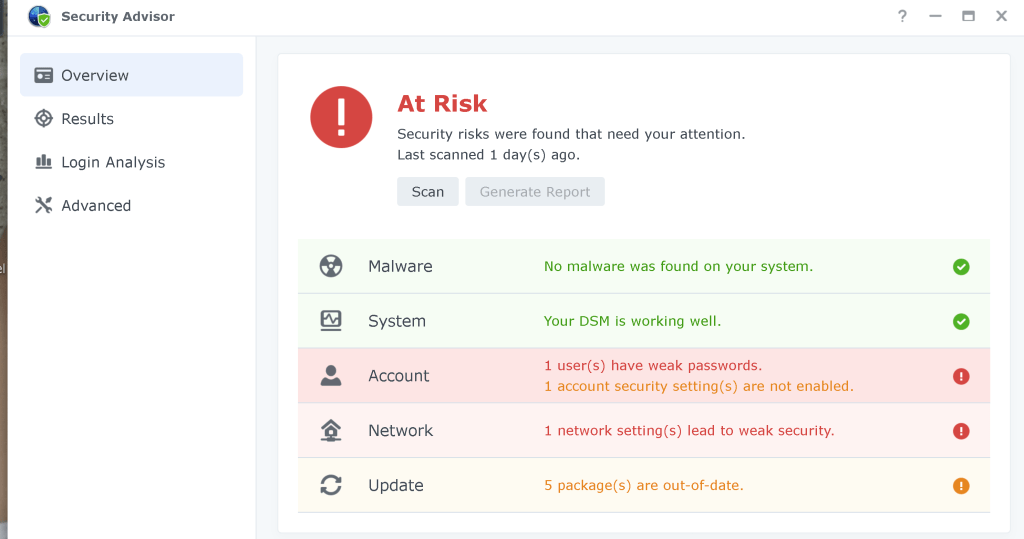
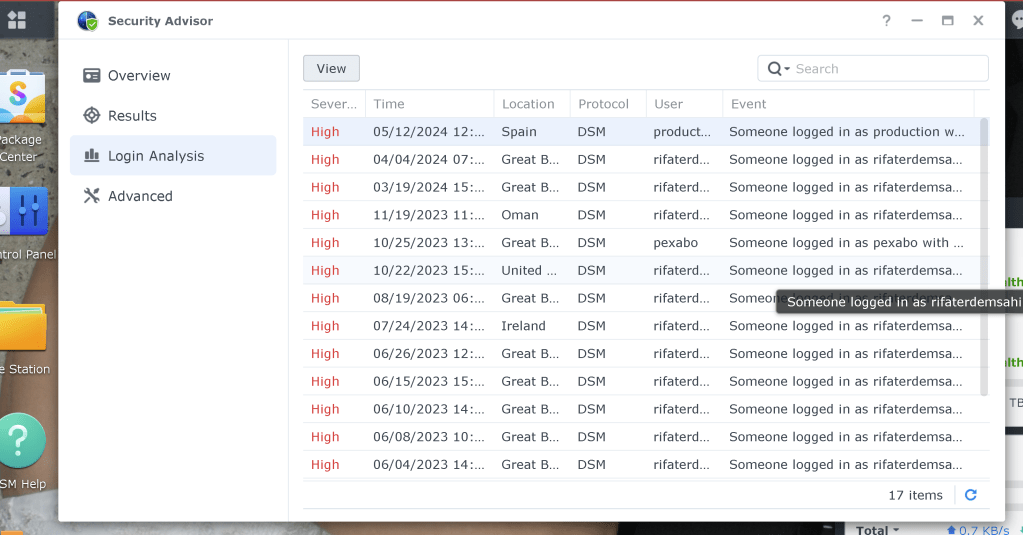
could be an ftp attack
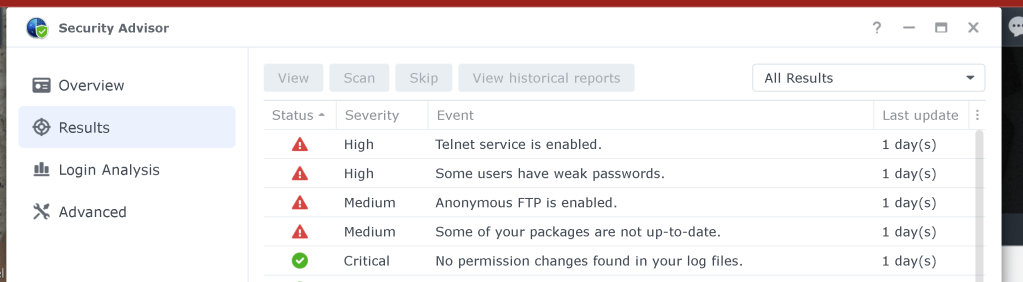
todo > nuke the synology > restart from scracth >>> google drive has the important files
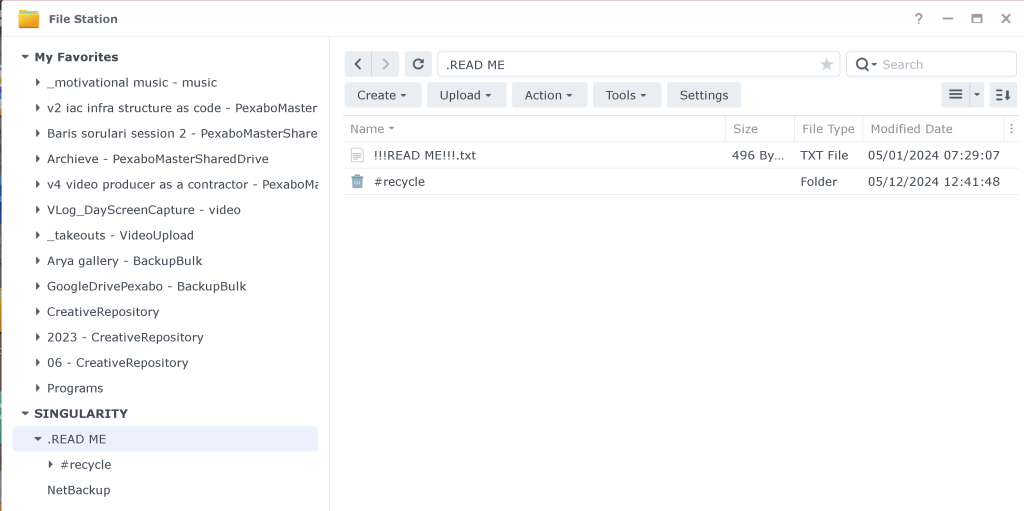
To retrieve deleted shared drives on a Synology NAS, you can follow these steps. The process typically involves using the Synology Drive Admin Console or File Station, depending on your setup and the specifics of your NAS configuration.
Method 1: Using Synology Drive Admin Console
-
Log in to Synology Drive Admin Console:
-
Open a web browser and log in to your Synology NAS.
-
Navigate to the Synology Drive Admin Console.
-
Go to Team Folder:
-
In the Synology Drive Admin Console, click on "Team Folder" in the left panel.
-
Here, you can see the list of shared drives (Team Folders).
-
Check for Deleted Shared Drives:
-
Look for any shared drives that might have been disabled instead of deleted. Disabled shared drives can be re-enabled.
-
Enable the Shared Drive:
-
If you find the shared drive, select it and click on "Enable" to restore it.
Method 2: Using File Station
-
Log in to DSM:
-
Open a web browser and log in to your Synology DSM (DiskStation Manager).
-
Open File Station:
-
Launch File Station from the main menu.
-
Check the Recycle Bin:
-
Navigate to the Recycle Bin of the volume where the shared drive was located.
-
The Recycle Bin might contain the deleted shared drive if the Recycle Bin feature was enabled before deletion.
-
Restore from Recycle Bin:
-
If you find the deleted shared drive in the Recycle Bin, right-click on it and select "Restore" to recover the shared drive.
Method 3: Using Hyper Backup
If you have Hyper Backup configured, you can restore the shared drives from a backup.
-
Open Hyper Backup:
-
Open Hyper Backup from the main menu.
-
Select the Backup Task:
-
Choose the backup task that contains the shared drives.
-
Restore Data:
-
Follow the prompts to restore the specific shared drive from the backup.
Method 4: Data Recovery Tools
If the shared drives are not found in the Recycle Bin or backups, you might need to use data recovery tools.
-
Use Data Recovery Tools:
-
Connect to your Synology NAS via SSH (using a tool like PuTTY).
-
Use Linux data recovery tools such as
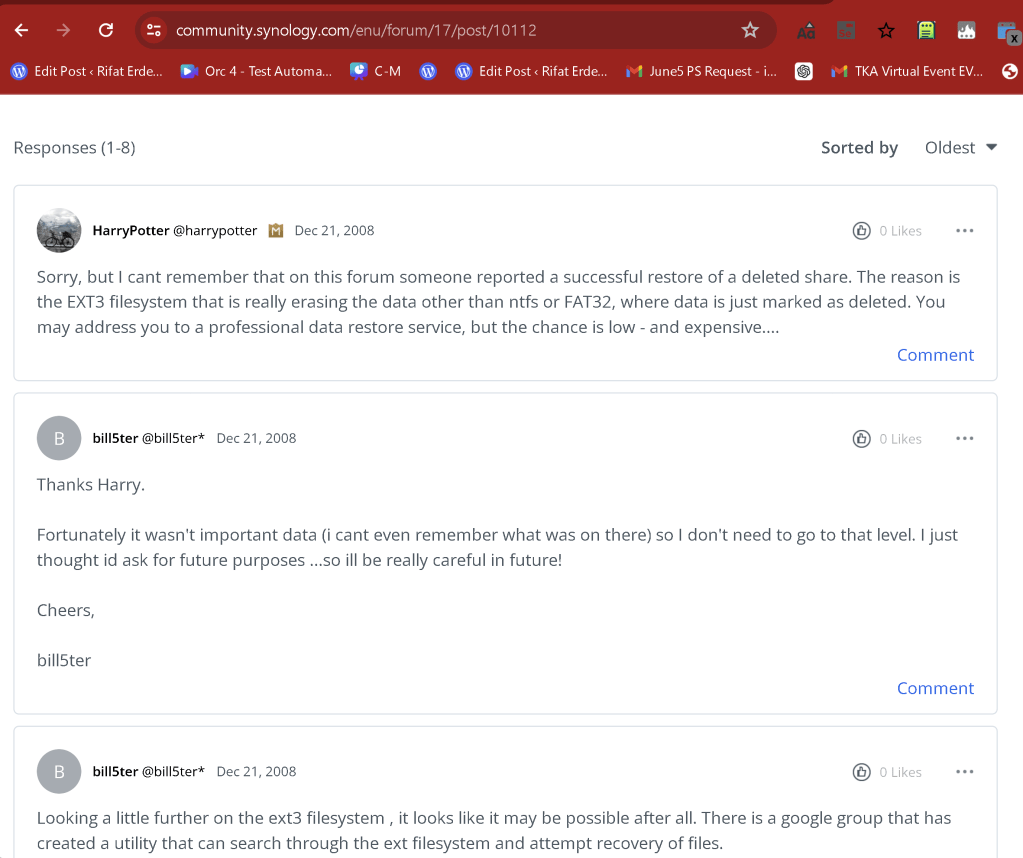
extundeleteortestdiskto attempt to recover the deleted shared drives. These tools can scan the disk for deleted files and attempt to restore them. Note: Using data recovery tools can be complex and may require technical expertise. It's recommended to seek professional help if you're not comfortable with these tools.
Preventive Measures
To prevent data loss in the future:
-
Enable Recycle Bin:
-
Enable the Recycle Bin for shared folders. This will allow you to recover deleted files easily.
-
Regular Backups:
-
Regularly back up your data using Hyper Backup or another backup solution.
-
Permissions Management:
-
Carefully manage permissions to prevent accidental deletions.
If you encounter any issues or need further assistance, consider contacting Synology support for help.

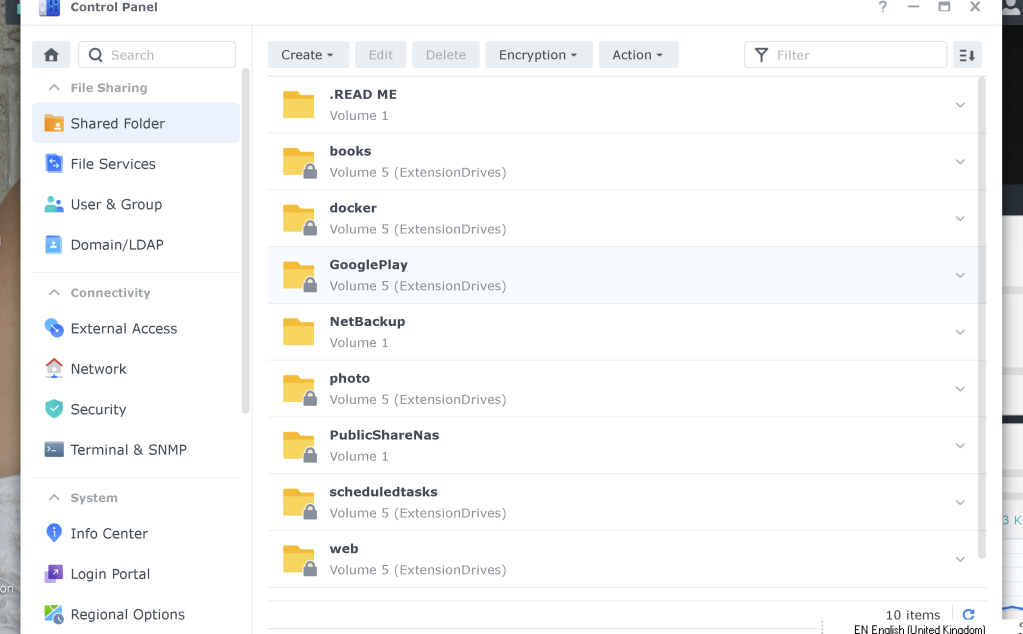
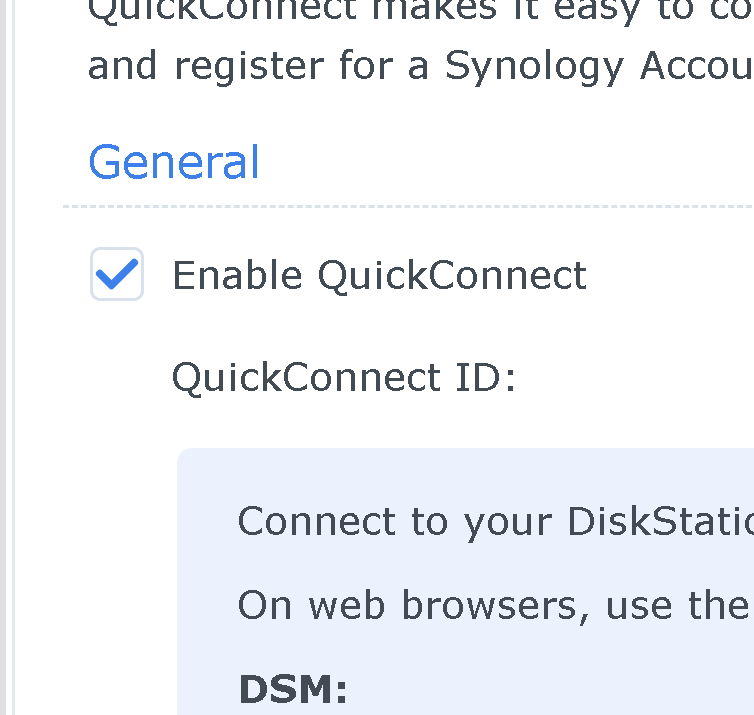
todo > change the quick connect id
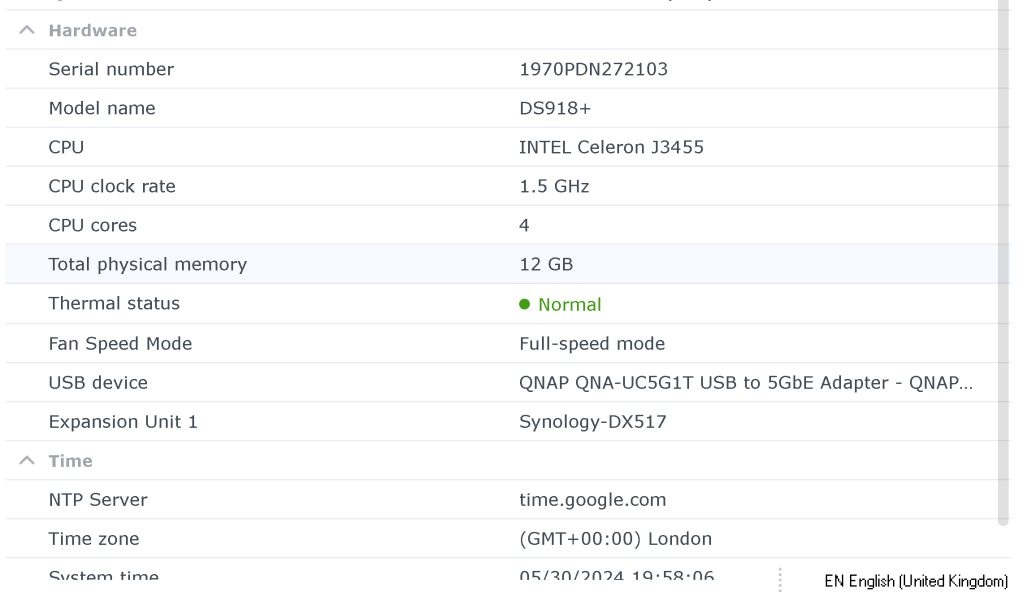
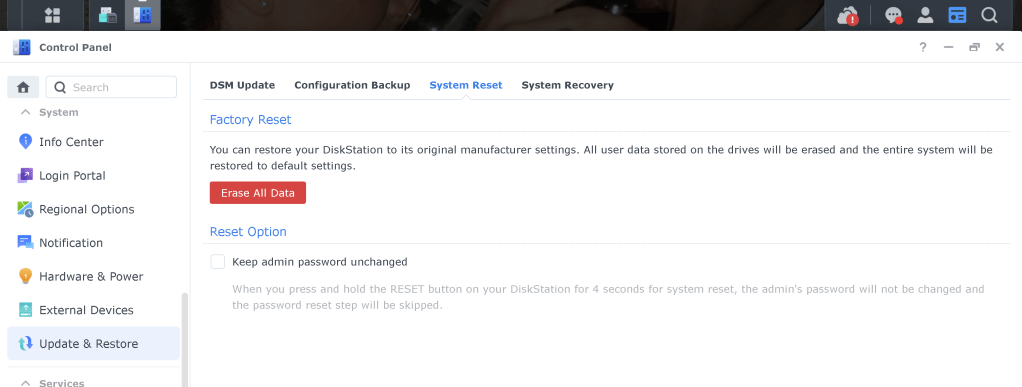
todo > nuke dsm as it could have a trojan inside >
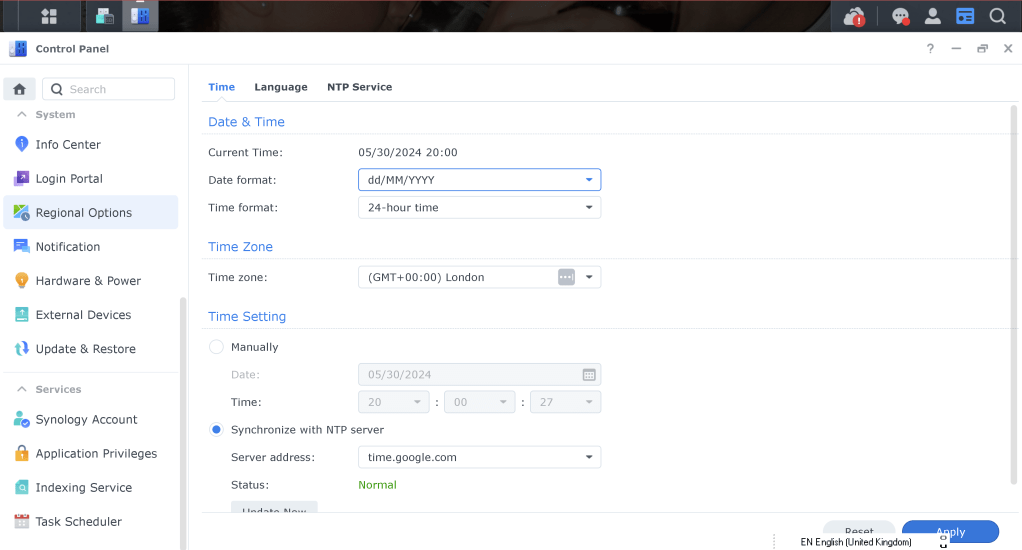
move to correct time not to confuse yourself
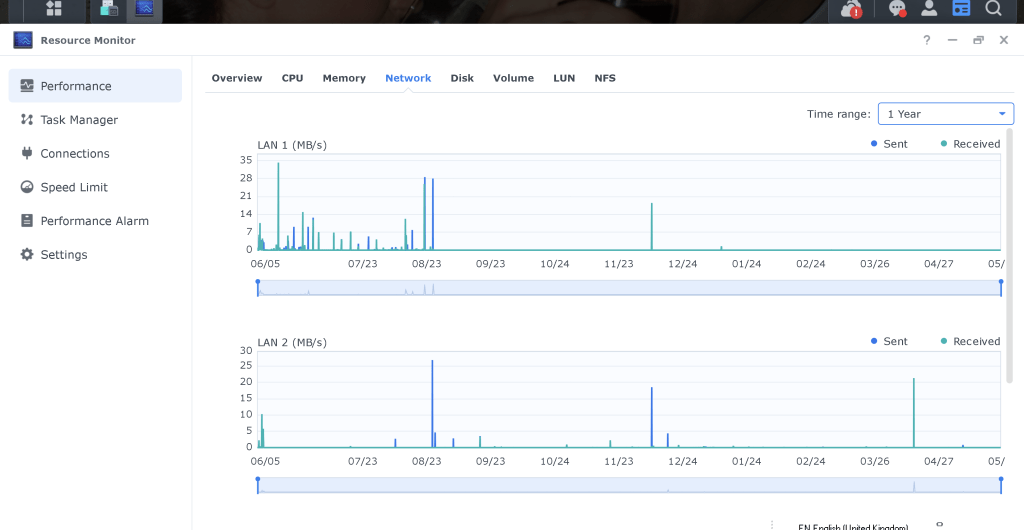
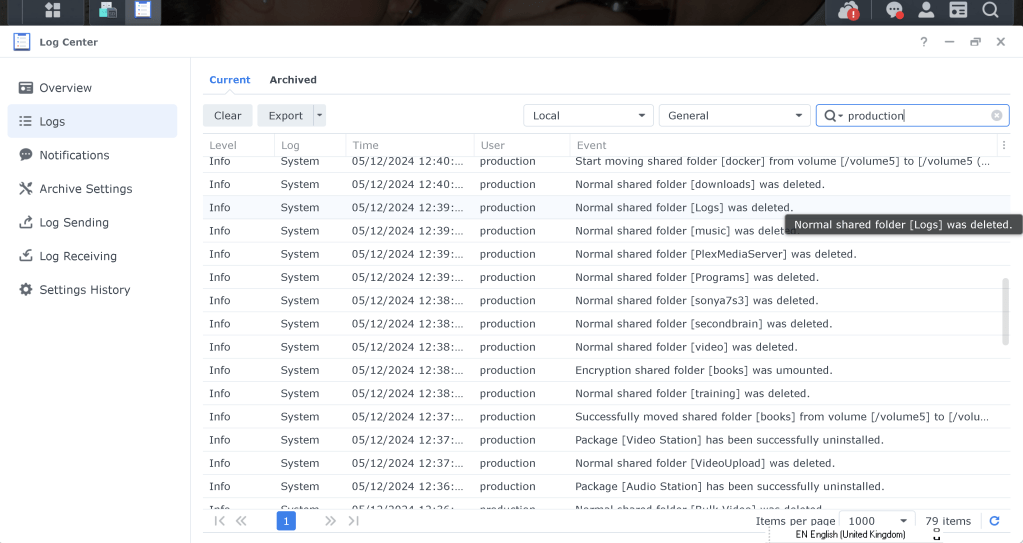
looks like only the deletion took place
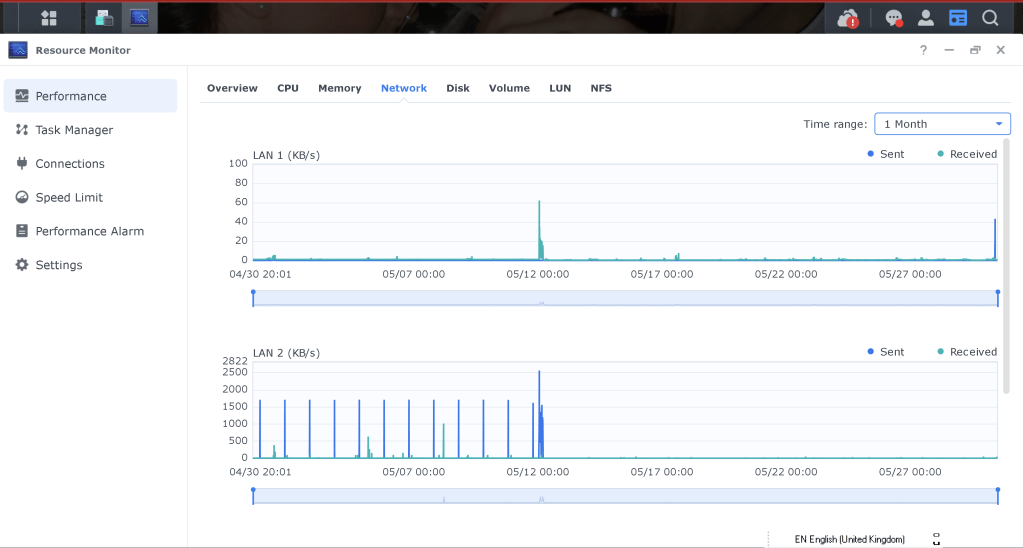
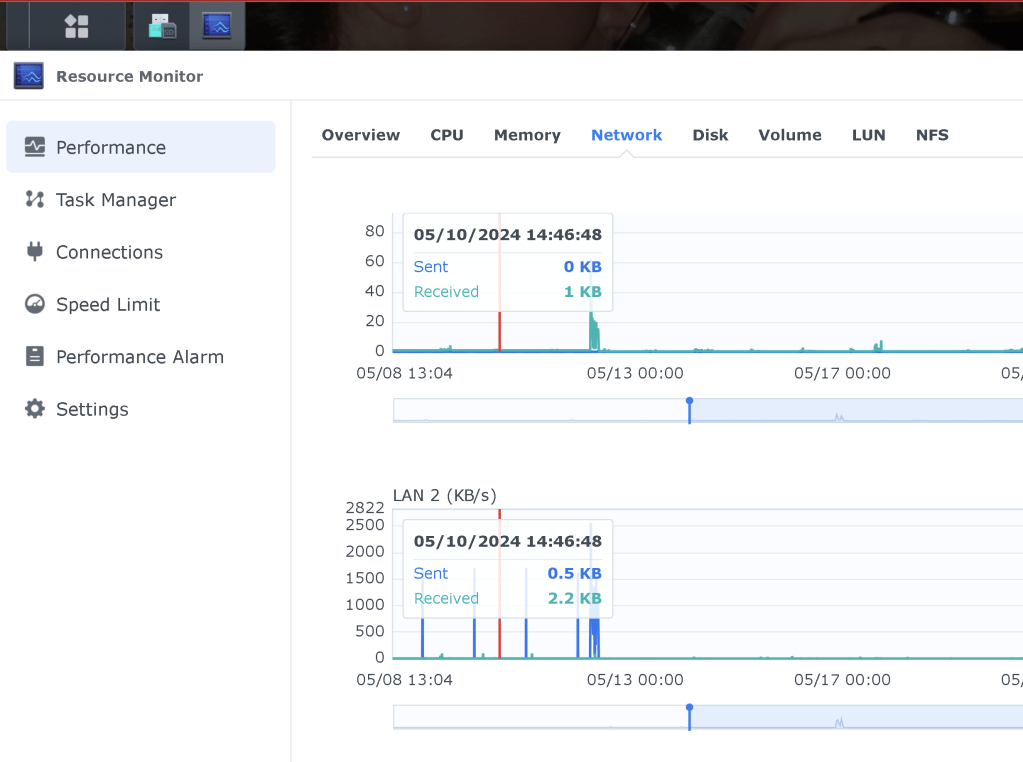
looks only deletion
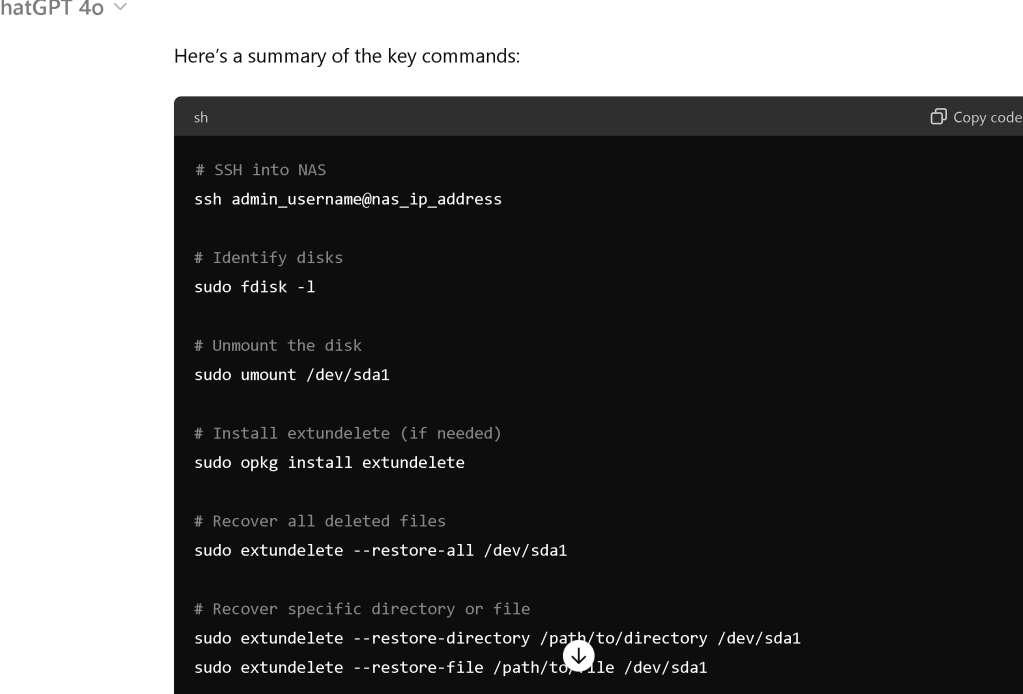
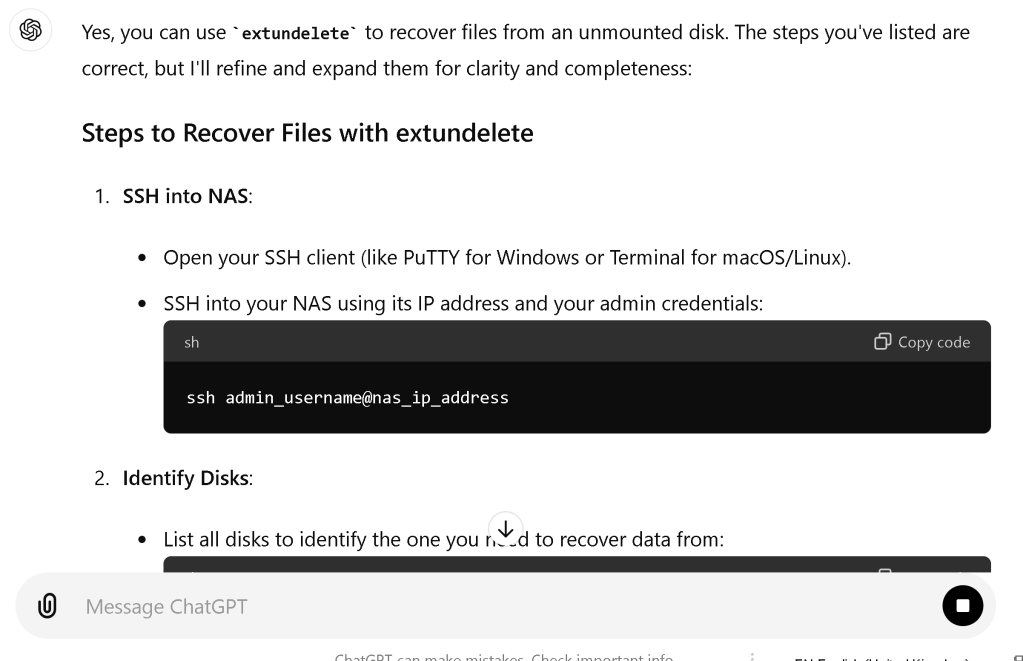
`# SSH into NAS
ssh admin_username@nas_ip_address
Identify disks
sudo fdisk -l
Unmount the disk
sudo umount /dev/sda1
Install extundelete (if needed)
sudo opkg install extundelete
Recover all deleted files
sudo extundelete --restore-all /dev/sda1
Or recover a specific directory or file
sudo extundelete --restore-directory /path/to/directory /dev/sda1
sudo extundelete --restore-file /path/to/file /dev/sda1
Check recovered files
ls RECOVERED_FILES
Remount the disk
sudo mount /dev/sda1 /path/to/mountpoint
`
no forwarding should try from the studio
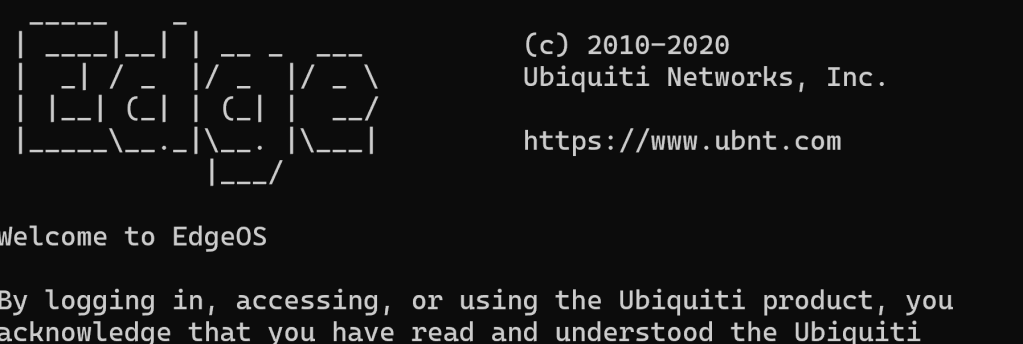
ask gpt
Receiving a ransom note indicating that your Synology NAS has been compromised is a serious situation. Here are the steps you should take immediately:
1. Do Not Pay the Ransom
Paying the ransom does not guarantee that you will get your data back and can make you a target for future attacks.
2. Disconnect the NAS from the Network
Disconnect your NAS from the internet to prevent further data leakage or damage.
3. Report the Incident
-
Local Authorities: Report the incident to your local law enforcement agency.
-
Data Protection Authorities: If you are in the EU or are handling data of EU citizens, report the breach to your local GDPR supervisory authority.
4. Assess the Damage
-
Check if you have backups of your data that are not compromised.
-
Determine the extent of the breach and what data might have been accessed or stolen.
5. Contact Synology Support
Contact Synology Support for assistance. They can provide specific guidance tailored to your device and situation.
6. Implement a Disaster Recovery Plan
If you have a disaster recovery plan, now is the time to implement it. This plan should include steps for restoring data from backups.
7. Strengthen Security Measures
-
Update Firmware and Software: Ensure all firmware and software on your NAS and network are up to date.
-
Change Passwords: Change all passwords for accounts that have access to your NAS.
-
Enable Two-Factor Authentication (2FA): Enable 2FA for an additional layer of security.
-
Firewall and VPN: Use a firewall and consider setting up a VPN for accessing your NAS remotely.
-
Antivirus and Anti-Malware: Run a full antivirus and anti-malware scan on your systems.
8. Monitor for Further Threats
-
Log Monitoring: Regularly check logs for any suspicious activity.
-
Security Software: Utilize security software to monitor your network and devices for future threats.
9. Consult with a Cybersecurity Expert
If needed, consult with a cybersecurity expert to assess your network's security and get professional assistance in dealing with the breach.
Template for Reporting the Incident
Subject: Security Breach Report
Dear [Recipient's Name],
I am writing to inform you about a security breach that occurred on our Synology NAS device. We received a ransom note indicating that our NAS has been compromised, and sensitive data may have been accessed or stolen.
Details of the Incident:
-
Date of Incident: [Date]
-
Affected Systems: Synology NAS
-
Nature of Data Compromised: [Details]
We have taken immediate action to disconnect the NAS from the network and are currently working on assessing the full extent of the breach. We are in the process of reporting this incident to the relevant authorities and have contacted Synology Support for assistance.
We are also implementing additional security measures to prevent future incidents and will keep you updated on any further developments.
Thank you for your attention to this matter.
Sincerely,
[Your Name]
[Your Position]
[Your Contact Information]
Final Note
Dealing with a security breach is challenging, but taking prompt and appropriate actions can mitigate the damage and help you recover more effectively.
Connect over to the jump point
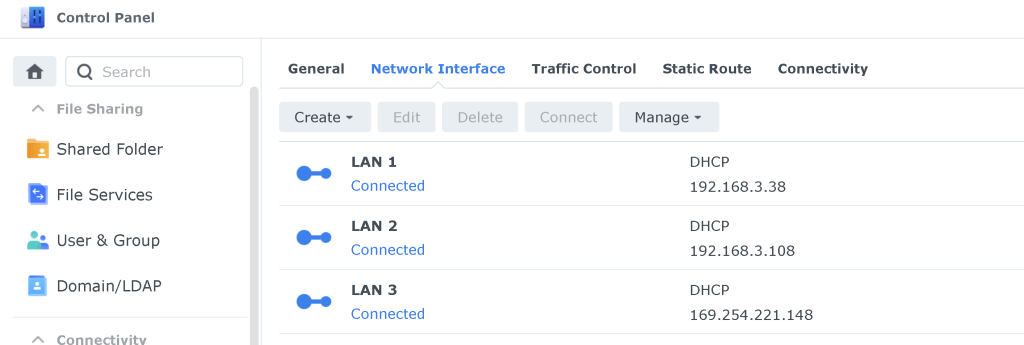
make it harder
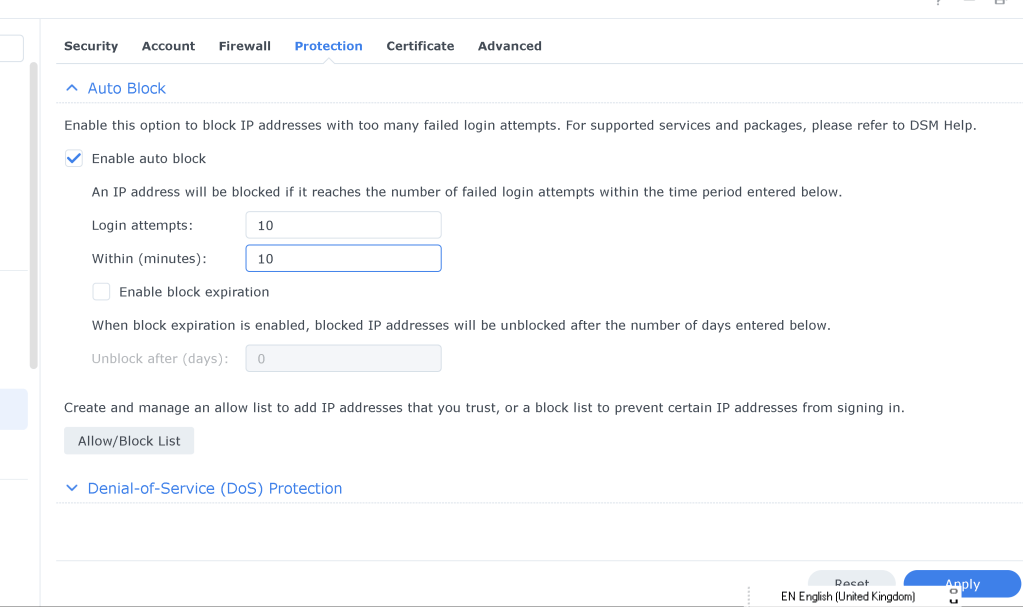
disconnect it as it might be backing up in the back
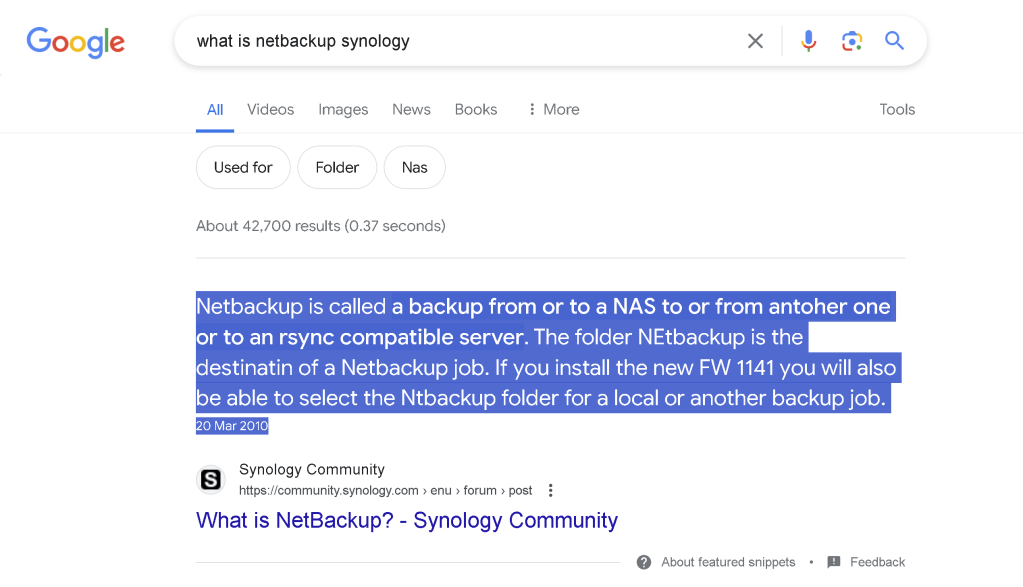
can not login there

https://community.synology.com/enu/forum/17/post/18518
cut the internet connection is the way to go
maybe it is there by default
router
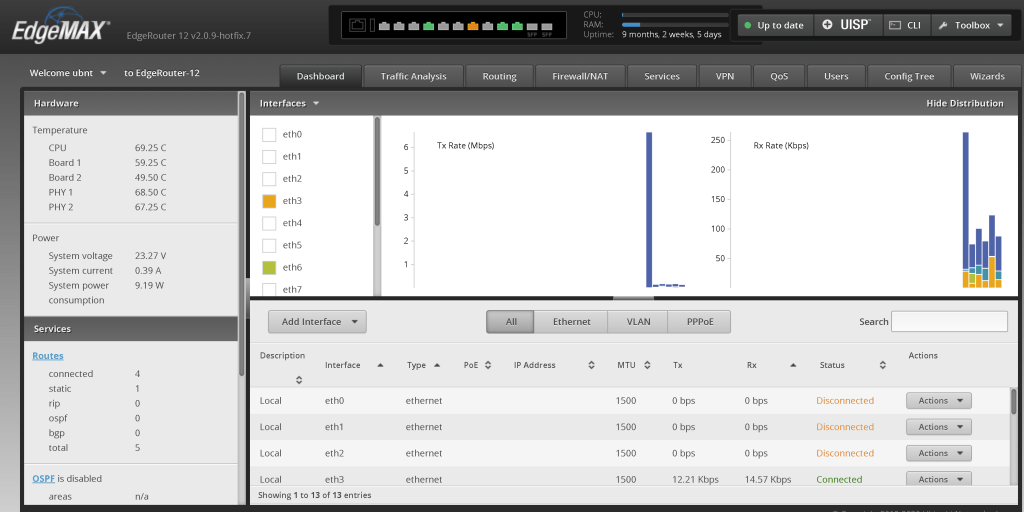
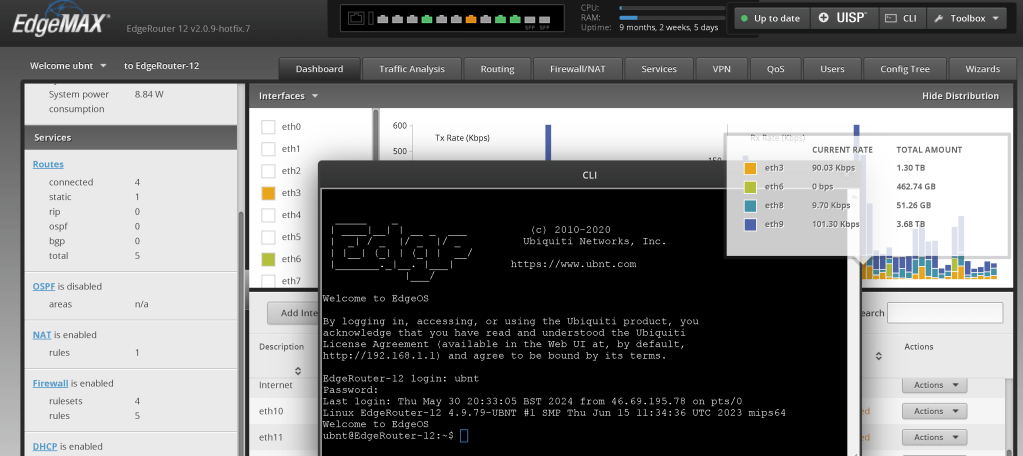
it was off now turned on the traffic analysis
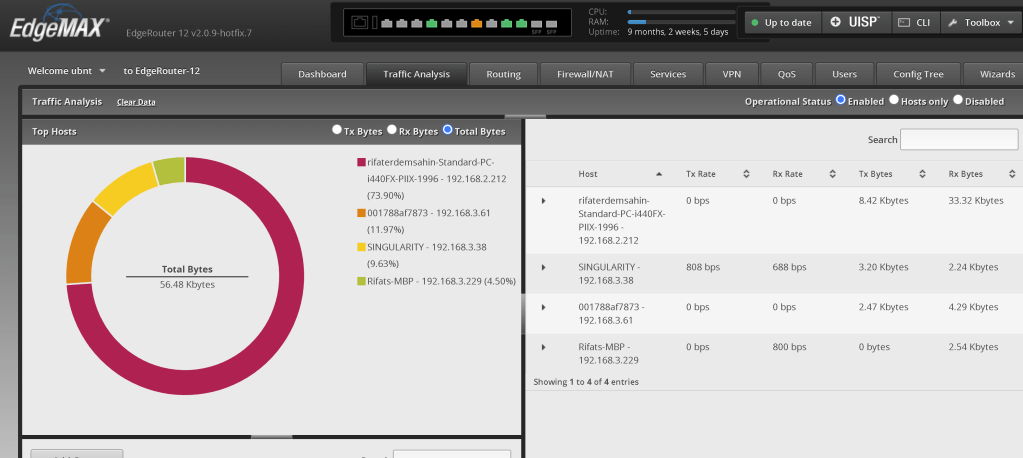
todo > enable clickatell
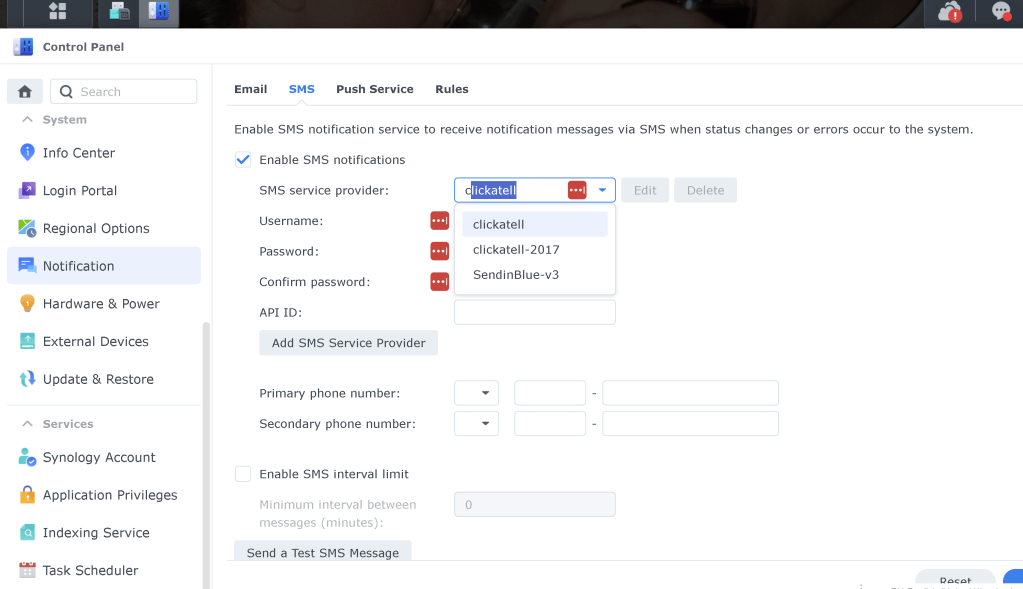
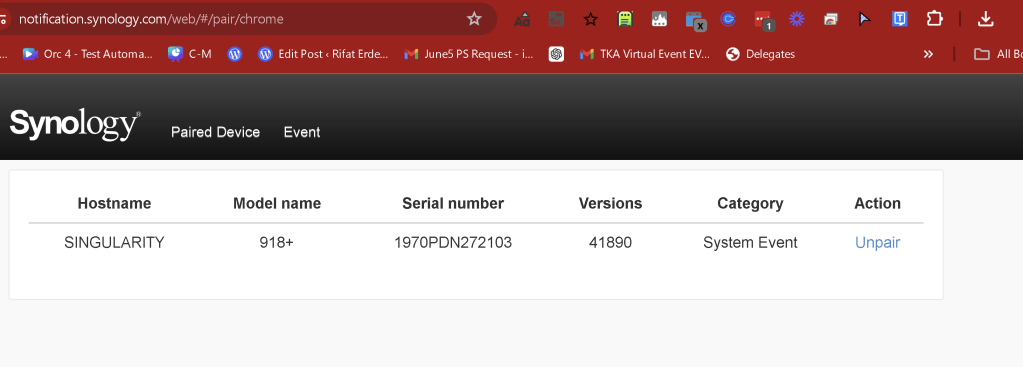
browser push is there synology is also working on it
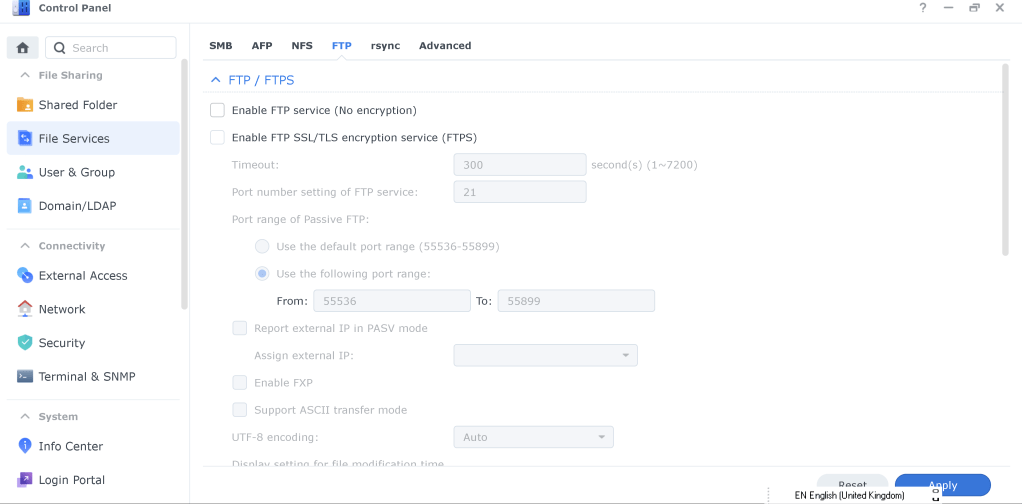
ftp off
updated the ssh port > i need to be in the studio to do that in that network >>> oer the router it did not work...it should have worked?
after port change i am in
`Disk /dev/ram0: 640 MiB, 671088640 bytes, 1310720 sectors
Units: sectors of 1 * 512 = 512 bytes
Sector size (logical/physical): 512 bytes / 4096 bytes
I/O size (minimum/optimal): 4096 bytes / 4096 bytes
Disk /dev/ram1: 640 MiB, 671088640 bytes, 1310720 sectors
Units: sectors of 1 * 512 = 512 bytes
Sector size (logical/physical): 512 bytes / 4096 bytes
I/O size (minimum/optimal): 4096 bytes / 4096 bytes
Disk /dev/ram2: 640 MiB, 671088640 bytes, 1310720 sectors
Units: sectors of 1 * 512 = 512 bytes
Sector size (logical/physical): 512 bytes / 4096 bytes
I/O size (minimum/optimal): 4096 bytes / 4096 bytes
Disk /dev/ram3: 640 MiB, 671088640 bytes, 1310720 sectors
Units: sectors of 1 * 512 = 512 bytes
Sector size (logical/physical): 512 bytes / 4096 bytes
I/O size (minimum/optimal): 4096 bytes / 4096 bytes
Disk /dev/ram4: 640 MiB, 671088640 bytes, 1310720 sectors
Units: sectors of 1 * 512 = 512 bytes
Sector size (logical/physical): 512 bytes / 4096 bytes
I/O size (minimum/optimal): 4096 bytes / 4096 bytes
Disk /dev/ram5: 640 MiB, 671088640 bytes, 1310720 sectors
Units: sectors of 1 * 512 = 512 bytes
Sector size (logical/physical): 512 bytes / 4096 bytes
I/O size (minimum/optimal): 4096 bytes / 4096 bytes
Disk /dev/ram6: 640 MiB, 671088640 bytes, 1310720 sectors
Units: sectors of 1 * 512 = 512 bytes
Sector size (logical/physical): 512 bytes / 4096 bytes
I/O size (minimum/optimal): 4096 bytes / 4096 bytes
Disk /dev/ram7: 640 MiB, 671088640 bytes, 1310720 sectors
Units: sectors of 1 * 512 = 512 bytes
Sector size (logical/physical): 512 bytes / 4096 bytes
I/O size (minimum/optimal): 4096 bytes / 4096 bytes
Disk /dev/ram8: 640 MiB, 671088640 bytes, 1310720 sectors
Units: sectors of 1 * 512 = 512 bytes
Sector size (logical/physical): 512 bytes / 4096 bytes
I/O size (minimum/optimal): 4096 bytes / 4096 bytes
Disk /dev/ram9: 640 MiB, 671088640 bytes, 1310720 sectors
Units: sectors of 1 * 512 = 512 bytes
Sector size (logical/physical): 512 bytes / 4096 bytes
I/O size (minimum/optimal): 4096 bytes / 4096 bytes
Disk /dev/ram10: 640 MiB, 671088640 bytes, 1310720 sectors
Units: sectors of 1 * 512 = 512 bytes
Sector size (logical/physical): 512 bytes / 4096 bytes
I/O size (minimum/optimal): 4096 bytes / 4096 bytes
Disk /dev/ram11: 640 MiB, 671088640 bytes, 1310720 sectors
Units: sectors of 1 * 512 = 512 bytes
Sector size (logical/physical): 512 bytes / 4096 bytes
I/O size (minimum/optimal): 4096 bytes / 4096 bytes
Disk /dev/ram12: 640 MiB, 671088640 bytes, 1310720 sectors
Units: sectors of 1 * 512 = 512 bytes
Sector size (logical/physical): 512 bytes / 4096 bytes
I/O size (minimum/optimal): 4096 bytes / 4096 bytes
Disk /dev/ram13: 640 MiB, 671088640 bytes, 1310720 sectors
Units: sectors of 1 * 512 = 512 bytes
Sector size (logical/physical): 512 bytes / 4096 bytes
I/O size (minimum/optimal): 4096 bytes / 4096 bytes
Disk /dev/ram14: 640 MiB, 671088640 bytes, 1310720 sectors
Units: sectors of 1 * 512 = 512 bytes
Sector size (logical/physical): 512 bytes / 4096 bytes
I/O size (minimum/optimal): 4096 bytes / 4096 bytes
Disk /dev/ram15: 640 MiB, 671088640 bytes, 1310720 sectors
Units: sectors of 1 * 512 = 512 bytes
Sector size (logical/physical): 512 bytes / 4096 bytes
I/O size (minimum/optimal): 4096 bytes / 4096 bytes
Disk /dev/nvme0n1: 953.9 GiB, 1024209543168 bytes, 2000409264 sectors
Disk model: Sabrent
Units: sectors of 1 * 512 = 512 bytes
Sector size (logical/physical): 512 bytes / 512 bytes
I/O size (minimum/optimal): 512 bytes / 512 bytes
Disklabel type: dos
Disk identifier: 0x6d64a1e7
Device Boot Start End Sectors Size Id Type
/dev/nvme0n1p1 2048 2000397734 2000395687 953.9G fd Linux raid autodetect
Disk /dev/nvme1n1: 953.9 GiB, 1024209543168 bytes, 2000409264 sectors
Disk model: Sabrent
Units: sectors of 1 * 512 = 512 bytes
Sector size (logical/physical): 512 bytes / 512 bytes
I/O size (minimum/optimal): 512 bytes / 512 bytes
Disklabel type: dos
Disk identifier: 0x7416dd48
Device Boot Start End Sectors Size Id Type
/dev/nvme1n1p1 2048 2000397734 2000395687 953.9G fd Linux raid autodetect
Disk /dev/sdc: 3.7 TiB, 4000787030016 bytes, 7814037168 sectors
Disk model: WD40EFRX-68WT0N0
Units: sectors of 1 * 512 = 512 bytes
Sector size (logical/physical): 512 bytes / 4096 bytes
I/O size (minimum/optimal): 4096 bytes / 4096 bytes
Disklabel type: gpt
Disk identifier: D0E4059F-AB8D-4A11-8A3F-6946020B629A
Device Start End Sectors Size Type
/dev/sdc1 2048 4982527 4980480 2.4G Linux RAID
/dev/sdc2 4982528 9176831 4194304 2G Linux RAID
/dev/sdc5 9453280 7813830239 7804376960 3.6T Linux RAID
Disk /dev/sdd: 3.7 TiB, 4000787030016 bytes, 7814037168 sectors
Disk model: ST4000VN008-2DR166
Units: sectors of 1 * 512 = 512 bytes
Sector size (logical/physical): 512 bytes / 4096 bytes
I/O size (minimum/optimal): 4096 bytes / 4096 bytes
Disklabel type: gpt
Disk identifier: C51556C9-AFA6-4C7F-909C-B54891A8F955
Device Start End Sectors Size Type
/dev/sdd1 2048 4982527 4980480 2.4G Linux RAID
/dev/sdd2 4982528 9176831 4194304 2G Linux RAID
/dev/sdd5 9453280 7813830239 7804376960 3.6T Linux RAID
Disk /dev/sda: 3.7 TiB, 4000787030016 bytes, 7814037168 sectors
Disk model: ST4000VN008-2DR166
Units: sectors of 1 * 512 = 512 bytes
Sector size (logical/physical): 512 bytes / 4096 bytes
I/O size (minimum/optimal): 4096 bytes / 4096 bytes
Disklabel type: gpt
Disk identifier: 72070AA7-D1F2-4486-BB1B-13496D6E9931
Device Start End Sectors Size Type
/dev/sda1 2048 4982527 4980480 2.4G Linux RAID
/dev/sda2 4982528 9176831 4194304 2G Linux RAID
/dev/sda5 9453280 7813830239 7804376960 3.6T Linux RAID
Disk /dev/sdb: 3.7 TiB, 4000787030016 bytes, 7814037168 sectors
Disk model: ST4000VN008-2DR166
Units: sectors of 1 * 512 = 512 bytes
Sector size (logical/physical): 512 bytes / 4096 bytes
I/O size (minimum/optimal): 4096 bytes / 4096 bytes
Disklabel type: gpt
Disk identifier: 8A5E79C8-32E3-451F-B3A0-DDBFF2A6C3AC
Device Start End Sectors Size Type
/dev/sdb1 2048 4982527 4980480 2.4G Linux RAID
/dev/sdb2 4982528 9176831 4194304 2G Linux RAID
/dev/sdb5 9453280 7813830239 7804376960 3.6T Linux RAID
Disk /dev/sdeb: 7.3 TiB, 8001563222016 bytes, 15628053168 sectors
Disk model: ST8000VN004-2M2101
Units: sectors of 1 * 512 = 512 bytes
Sector size (logical/physical): 512 bytes / 4096 bytes
I/O size (minimum/optimal): 4096 bytes / 4096 bytes
Disklabel type: gpt
Disk identifier: 14CE4DFF-A71D-4E8F-BABA-30260DAB65D5
Device Start End Sectors Size Type
/dev/sdeb1 2048 4982527 4980480 2.4G Linux RAID
/dev/sdeb2 4982528 9176831 4194304 2G Linux RAID
/dev/sdeb3 9437184 15627848351 15618411168 7.3T Linux RAID
Disk /dev/sdec: 7.3 TiB, 8001563222016 bytes, 15628053168 sectors
Disk model: ST8000VN004-2M2101
Units: sectors of 1 * 512 = 512 bytes
Sector size (logical/physical): 512 bytes / 4096 bytes
I/O size (minimum/optimal): 4096 bytes / 4096 bytes
Disklabel type: gpt
Disk identifier: 0AB15BFF-81D9-4C16-B1F3-05C655CC051C
Device Start End Sectors Size Type
/dev/sdec1 2048 4982527 4980480 2.4G Linux RAID
/dev/sdec2 4982528 9176831 4194304 2G Linux RAID
/dev/sdec3 9437184 15627848351 15618411168 7.3T Linux RAID
Disk /dev/sded: 7.3 TiB, 8001563222016 bytes, 15628053168 sectors
Disk model: ST8000VN004-2M2101
Units: sectors of 1 * 512 = 512 bytes
Sector size (logical/physical): 512 bytes / 4096 bytes
I/O size (minimum/optimal): 4096 bytes / 4096 bytes
Disklabel type: gpt
Disk identifier: D9F6B9D6-2127-4CC8-AE65-D89B56D93AF1
Device Start End Sectors Size Type
/dev/sded1 2048 4982527 4980480 2.4G Linux RAID
/dev/sded2 4982528 9176831 4194304 2G Linux RAID
/dev/sded3 9437184 15627848351 15618411168 7.3T Linux RAID
Disk /dev/sdee: 7.3 TiB, 8001563222016 bytes, 15628053168 sectors
Disk model: ST8000VN004-2M2101
Units: sectors of 1 * 512 = 512 bytes
Sector size (logical/physical): 512 bytes / 4096 bytes
I/O size (minimum/optimal): 4096 bytes / 4096 bytes
Disklabel type: gpt
Disk identifier: 9096D738-58D4-48CB-A737-CC1F86F0AFD2
Device Start End Sectors Size Type
/dev/sdee1 2048 4982527 4980480 2.4G Linux RAID
/dev/sdee2 4982528 9176831 4194304 2G Linux RAID
/dev/sdee3 9437184 15627848351 15618411168 7.3T Linux RAID
Disk /dev/sdea: 7.3 TiB, 8001563222016 bytes, 15628053168 sectors
Disk model: ST8000VN004-2M2101
Units: sectors of 1 * 512 = 512 bytes
Sector size (logical/physical): 512 bytes / 4096 bytes
I/O size (minimum/optimal): 4096 bytes / 4096 bytes
Disklabel type: gpt
Disk identifier: 811403DD-2F61-498A-838D-06D906BD9BC4
Device Start End Sectors Size Type
/dev/sdea1 2048 4982527 4980480 2.4G Linux RAID
/dev/sdea2 4982528 9176831 4194304 2G Linux RAID
/dev/sdea3 9437184 15627848351 15618411168 7.3T Linux RAID
Disk /dev/md0: 2.4 GiB, 2549940224 bytes, 4980352 sectors
Units: sectors of 1 * 512 = 512 bytes
Sector size (logical/physical): 512 bytes / 4096 bytes
I/O size (minimum/optimal): 4096 bytes / 4096 bytes
Disk /dev/zram0: 1.8 GiB, 1860173824 bytes, 454144 sectors
Units: sectors of 1 * 4096 = 4096 bytes
Sector size (logical/physical): 4096 bytes / 4096 bytes
I/O size (minimum/optimal): 4096 bytes / 4096 bytes
Disk /dev/zram1: 1.8 GiB, 1860173824 bytes, 454144 sectors
Units: sectors of 1 * 4096 = 4096 bytes
Sector size (logical/physical): 4096 bytes / 4096 bytes
I/O size (minimum/optimal): 4096 bytes / 4096 bytes
Disk /dev/zram2: 1.8 GiB, 1860173824 bytes, 454144 sectors
Units: sectors of 1 * 4096 = 4096 bytes
Sector size (logical/physical): 4096 bytes / 4096 bytes
I/O size (minimum/optimal): 4096 bytes / 4096 bytes
Disk /dev/zram3: 1.8 GiB, 1860173824 bytes, 454144 sectors
Units: sectors of 1 * 4096 = 4096 bytes
Sector size (logical/physical): 4096 bytes / 4096 bytes
I/O size (minimum/optimal): 4096 bytes / 4096 bytes
Disk /dev/md1: 2 GiB, 2147418112 bytes, 4194176 sectors
Units: sectors of 1 * 512 = 512 bytes
Sector size (logical/physical): 512 bytes / 4096 bytes
I/O size (minimum/optimal): 4096 bytes / 4096 bytes
GPT PMBR size mismatch (239649 != 245759) will be corrected by write.
The backup GPT table is not on the end of the device. This problem will be corre
cted by write.
Disk /dev/synoboot: 120 MiB, 125829120 bytes, 245760 sectors
Disk model: DiskStation
Units: sectors of 1 * 512 = 512 bytes
Sector size (logical/physical): 512 bytes / 512 bytes
I/O size (minimum/optimal): 512 bytes / 512 bytes
Disklabel type: gpt
Disk identifier: 69CADB00-B415-4EFF-841F-7AFBC84E1A0B
Device Start End Sectors Size Type
/dev/synoboot1 2048 67583 65536 32M EFI System
/dev/synoboot2 67584 239615 172032 84M Linux filesystem
Disk /dev/md4: 953.9 GiB, 1024201523200 bytes, 2000393600 sectors
Units: sectors of 1 * 512 = 512 bytes
Sector size (logical/physical): 512 bytes / 512 bytes
I/O size (minimum/optimal): 512 bytes / 512 bytes
Disk /dev/md3: 953.9 GiB, 1024201523200 bytes, 2000393600 sectors
Units: sectors of 1 * 512 = 512 bytes
Sector size (logical/physical): 512 bytes / 512 bytes
I/O size (minimum/optimal): 512 bytes / 512 bytes
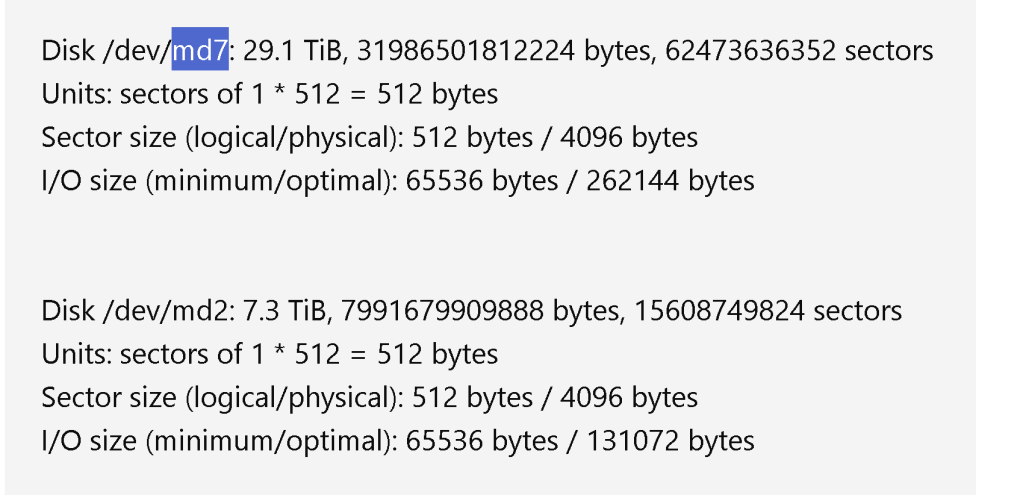
Disk /dev/md7: 29.1 TiB, 31986501812224 bytes, 62473636352 sectors
Units: sectors of 1 * 512 = 512 bytes
Sector size (logical/physical): 512 bytes / 4096 bytes
I/O size (minimum/optimal): 65536 bytes / 262144 bytes
Disk /dev/md2: 7.3 TiB, 7991679909888 bytes, 15608749824 sectors
Units: sectors of 1 * 512 = 512 bytes
Sector size (logical/physical): 512 bytes / 4096 bytes
I/O size (minimum/optimal): 65536 bytes / 131072 bytes
Disk /dev/mapper/shared_cache_vg1-syno_vg_reserved_area: 12 MiB, 12582912 bytes,
24576 sectors
Units: sectors of 1 * 512 = 512 bytes
Sector size (logical/physical): 512 bytes / 512 bytes
I/O size (minimum/optimal): 512 bytes / 512 bytes
Disk /dev/mapper/shared_cache_vg1-alloc_cache_1: 953 GiB, 1023275958272 bytes, 1
998585856 sectors
Units: sectors of 1 * 512 = 512 bytes
Sector size (logical/physical): 512 bytes / 512 bytes
I/O size (minimum/optimal): 512 bytes / 512 bytes
Disk /dev/mapper/shared_cache_vg2-syno_vg_reserved_area: 12 MiB, 12582912 bytes,
24576 sectors
Units: sectors of 1 * 512 = 512 bytes
Sector size (logical/physical): 512 bytes / 512 bytes
I/O size (minimum/optimal): 512 bytes / 512 bytes
Disk /dev/mapper/shared_cache_vg2-alloc_cache_1: 953 GiB, 1023275958272 bytes, 1
998585856 sectors
Units: sectors of 1 * 512 = 512 bytes
Sector size (logical/physical): 512 bytes / 512 bytes
I/O size (minimum/optimal): 512 bytes / 512 bytes
Disk /dev/mapper/vg1000-lv: 7.3 TiB, 7991675846656 bytes, 15608741888 sectors
Units: sectors of 1 * 512 = 512 bytes
Sector size (logical/physical): 512 bytes / 4096 bytes
I/O size (minimum/optimal): 65536 bytes / 131072 bytes
Disk /dev/mapper/vg2-syno_vg_reserved_area: 12 MiB, 12582912 bytes, 24576 sector
s
Units: sectors of 1 * 512 = 512 bytes
Sector size (logical/physical): 512 bytes / 4096 bytes
I/O size (minimum/optimal): 65536 bytes / 262144 bytes
Disk /dev/mapper/vg2-volume_5: 29.1 TiB, 31985695195136 bytes, 62472060928 secto
rs
Units: sectors of 1 * 512 = 512 bytes
Sector size (logical/physical): 512 bytes / 4096 bytes
I/O size (minimum/optimal): 65536 bytes / 262144 bytes
Disk /dev/mapper/cachedev_0: 29.1 TiB, 31985695195136 bytes, 62472060928 sectors
Units: sectors of 1 * 512 = 512 bytes
Sector size (logical/physical): 512 bytes / 4096 bytes
I/O size (minimum/optimal): 65536 bytes / 262144 bytes
Disk /dev/mapper/cachedev_1: 7.3 TiB, 7991675846656 bytes, 15608741888 sectors
Units: sectors of 1 * 512 = 512 bytes
Sector size (logical/physical): 512 bytes / 4096 bytes
I/O size (minimum/optimal): 65536 bytes / 131072 bytes
rifaterdemsahin@SINGULARITY:/$ `
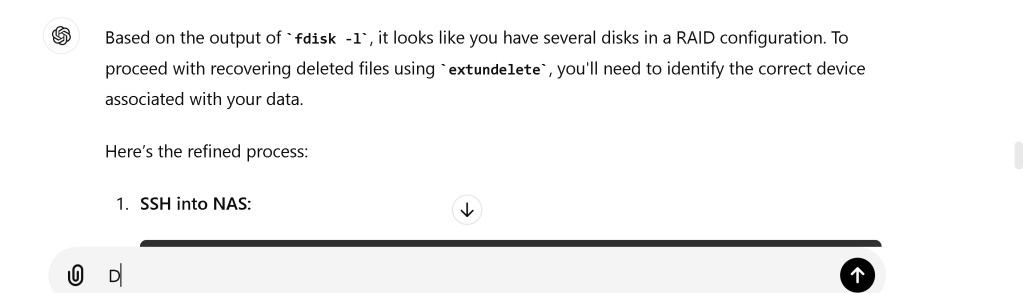
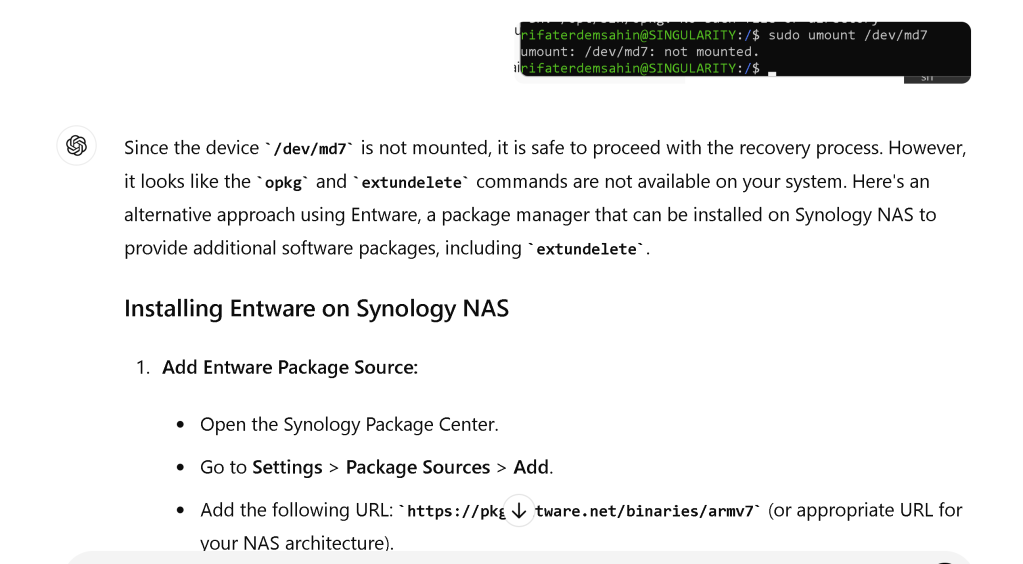
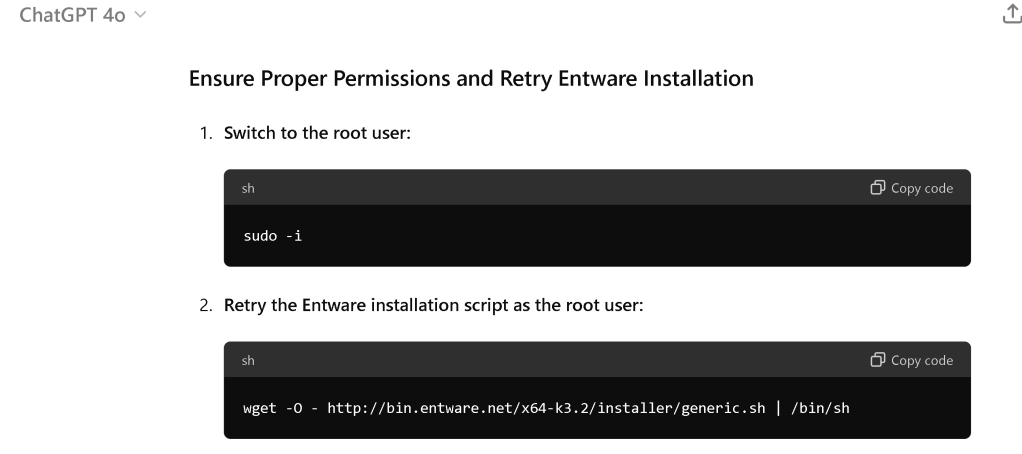
switch to root
The error "Bad magic number in super-block" suggests that extundelete cannot recognize the filesystem on /dev/md7. This typically happens when the filesystem is not ext3 or ext4, which are the only filesystems extundelete supports.
Given this, we need to determine the correct filesystem on the RAID device and use appropriate tools for recovery. Here's how you can proceed:
Check the Filesystem Type
- Identify the Filesystem Type:
sudo file -s /dev/md7
Alternative Recovery Tools
If the filesystem is not ext3/ext4, you might need to use a different recovery tool. Synology NAS typically uses Btrfs or EXT4. Here’s how to handle both:
For Btrfs Filesystems
If the filesystem is Btrfs, you can use Btrfs-specific tools:
- Install Btrfs Tools (if not already installed):
opkg install btrfs-progs
- Use Btrfs Restore to Recover Files:
sudo btrfs restore -v /dev/md7 /path/to/recovery_directory
For EXT4 Filesystems
If the filesystem is EXT4 and extundelete still cannot recognize it, you can try ext4magic:
- Install ext4magic:
opkg install ext4magic
- Recover Files Using ext4magic:
sudo ext4magic /dev/md7 -d /path/to/recovery_directory
Synology’s Built-In Recovery Options
If the above methods are not feasible or you encounter further issues, consider using Synology’s built-in options:
-
Check the Recycle Bin:
-
If enabled, deleted files might be in the shared folder’s
#recycledirectory. -
Access this through the DSM File Station.
-
Use Hyper Backup:
-
If you have backups created with Hyper Backup, you can restore files from there.
-
Contact Synology Support:
-
For critical data recovery, reaching out to Synology Support or a professional data recovery service may be the best option.
Steps to Check Recycle Bin
-
Open DSM and log in.
-
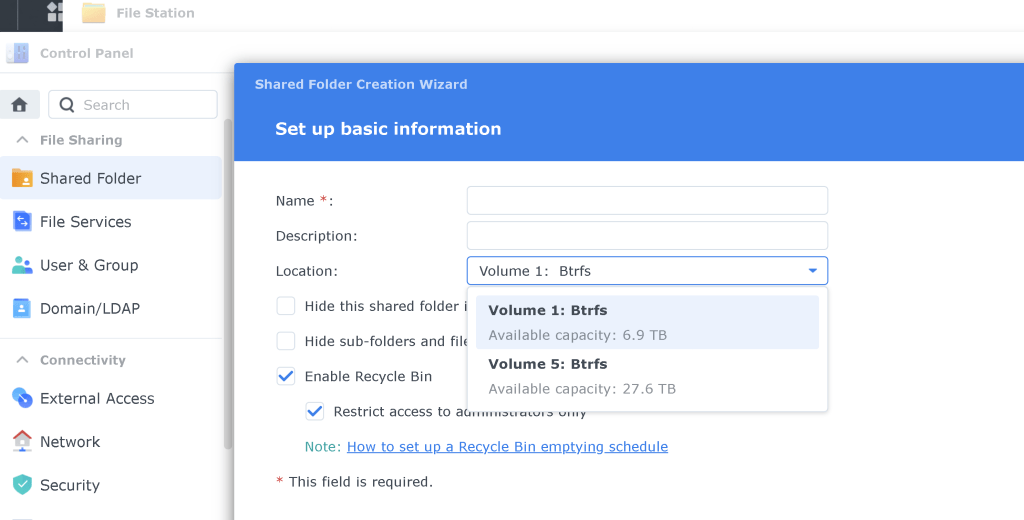
Go to Control Panel > Shared Folder.
-
Select the shared folder and click Edit.
-
Go to the Recycle Bin tab and enable it if not already enabled.
-
Navigate to the shared folder via File Station and check the
#recyclesubfolder for deleted files.
Let’s start by identifying the filesystem type on /dev/md7 and proceed accordingly.
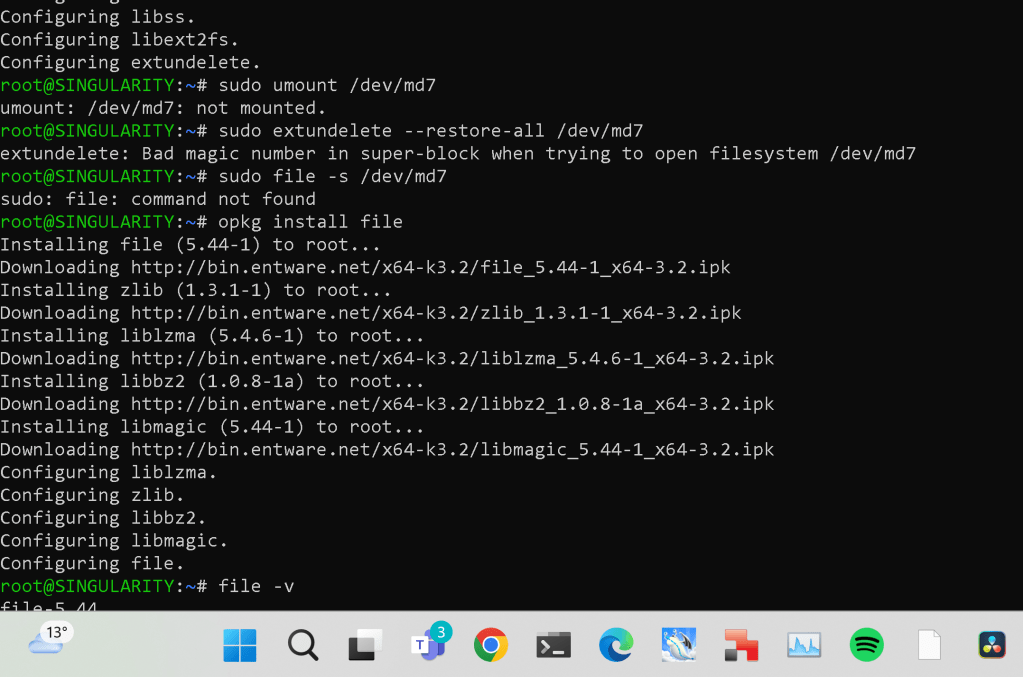

The output indicates that /dev/md7 is part of an LVM (Logical Volume Manager) setup. The device is identified as an LVM Physical Volume (PV), which means the filesystem is not directly on /dev/md7, but on logical volumes (LVs) managed by LVM.
To proceed with file recovery, you need to identify the logical volumes and then determine the filesystem type on those volumes.
Steps to Identify Logical Volumes and Filesystem Type
- List the Volume Groups:
sudo vgdisplay
- List the Logical Volumes:
sudo lvdisplay
- Identify Filesystem on Logical Volumes:
sudo file -s /dev/mapper/
Replace <vg_name> with the name of the volume group and <lv_name> with the name of the logical volume.
Example Commands
Assuming your volume group is vg1 and logical volume is lv1:
- Check Filesystem on Logical Volume:
sudo file -s /dev/mapper/vg1-lv1
Recover Deleted Files
For EXT4 Filesystem
- Install ext4magic:
opkg install ext4magic
- Recover Files Using ext4magic:
sudo ext4magic /dev/mapper/vg1-lv1 -d /path/to/recovery_directory
For Btrfs Filesystem
- Install Btrfs Tools:
opkg install btrfs-progs
- Use Btrfs Restore to Recover Files:
sudo btrfs restore -v /dev/mapper/vg1-lv1 /path/to/recovery_directory
Example Recovery Steps
Here’s a hypothetical example assuming the filesystem is EXT4:
- Check Filesystem on Logical Volume:
sudo file -s /dev/mapper/vg1-lv1
If the output confirms it is EXT4, proceed with:
- Install ext4magic:
opkg install ext4magic
- Recover Files Using ext4magic:
sudo ext4magic /dev/mapper/vg1-lv1 -d /path/to/recovery_directory
Using Synology’s Built-In Recovery Options
-
Check the Recycle Bin:
-
If enabled, deleted files might be in the shared folder’s
#recycledirectory. -
Access this through the DSM File Station.
-
Use Hyper Backup:
-
If you have backups created with Hyper Backup, you can restore files from there.
-
Contact Synology Support:
-
For critical data recovery, reaching out to Synology Support or a professional data recovery service may be the best option.
Please proceed with identifying the logical volumes and determining the filesystem type on those volumes.
root@SINGULARITY:~# sudo vgdisplay
--- Volume group ---
VG Name vg2
System ID
Format lvm2
Metadata Areas 1
Metadata Sequence No 3
VG Access read/write
VG Status resizable
MAX LV 0
Cur LV 2
Open LV 1
Max PV 0
Cur PV 1
Act PV 1
VG Size 29.09 TiB
PE Size 4.00 MiB
Total PE 7626176
Alloc PE / Size 7625987 / 29.09 TiB
Free PE / Size 189 / 756.00 MiB
VG UUID aR5xzY-RXsc-KtGQ-QEi0-J04k-jlC6-83fZXY
--- Volume group ---
VG Name shared_cache_vg2
System ID
Format lvm2
Metadata Areas 1
Metadata Sequence No 3
VG Access read/write
VG Status resizable
MAX LV 0
Cur LV 2
Open LV 1
Max PV 0
Cur PV 1
Act PV 1
VG Size 953.86 GiB
PE Size 4.00 MiB
Total PE 244188
Alloc PE / Size 243971 / 953.01 GiB
Free PE / Size 217 / 868.00 MiB
VG UUID CjHfca-vcwV-kc5I-gyV1-29Rj-abKy-fyqCOM
--- Volume group ---
VG Name shared_cache_vg1
System ID
Format lvm2
Metadata Areas 1
Metadata Sequence No 3
VG Access read/write
VG Status resizable
MAX LV 0
Cur LV 2
Open LV 1
Max PV 0
Cur PV 1
Act PV 1
VG Size 953.86 GiB
PE Size 4.00 MiB
Total PE 244188
Alloc PE / Size 243971 / 953.01 GiB
Free PE / Size 217 / 868.00 MiB
VG UUID 8NGAd8-SgNt-eaUM-ScbB-Cohv-ucm6-teH1BQ
--- Volume group ---
VG Name vg1000
System ID
Format lvm2
Metadata Areas 1
Metadata Sequence No 4
VG Access read/write
VG Status resizable
MAX LV 0
Cur LV 1
Open LV 1
Max PV 0
Cur PV 1
Act PV 1
VG Size 7.27 TiB
PE Size 4.00 MiB
Total PE 1905364
Alloc PE / Size 1905364 / 7.27 TiB
Free PE / Size 0 / 0
VG UUID zMMm9L-UKAS-1RmA-cIpZ-Ed5I-Q31O-2PcDUc
root@SINGULARITY:~# sudo lvdisplay
--- Logical volume ---
LV Path /dev/vg2/syno_vg_reserved_area
LV Name syno_vg_reserved_area
VG Name vg2
LV UUID Do7Ja1-DCkh-orIq-eymB-Hs0u-S5Kx-m036Os
LV Write Access read/write
LV Creation host, time ,
LV Status available
open 0
LV Size 12.00 MiB
Current LE 3
Segments 1
Allocation inherit
Read ahead sectors auto
-
currently set to 1024
Block device 248:5 --- Logical volume ---
LV Path /dev/vg2/volume_5
LV Name volume_5
VG Name vg2
LV UUID CuAe7f-tzRJ-VQZ6-sqkH-usV3-HFV9-sy7BCS
LV Write Access read/write
LV Creation host, time ,
LV Status available open 1 LV Size 29.09 TiB
Current LE 7625984
Segments 1
Allocation inherit
Read ahead sectors auto -
currently set to 1024
Block device 248:6 --- Logical volume ---
LV Path /dev/shared_cache_vg2/syno_vg_reserved_area
LV Name syno_vg_reserved_area
VG Name shared_cache_vg2
LV UUID iFuVFR-G31p-47WX-5Byn-U3N3-vi61-iLysXV
LV Write Access read/write
LV Creation host, time ,
LV Status available open 0 LV Size 12.00 MiB
Current LE 3
Segments 1
Allocation inherit
Read ahead sectors auto -
currently set to 384
Block device 248:2 --- Logical volume ---
LV Path /dev/shared_cache_vg2/alloc_cache_1
LV Name alloc_cache_1
VG Name shared_cache_vg2
LV UUID 5yNjcK-cl9t-wedw-LGoc-yppP-38Jn-TDZpHY
LV Write Access read/write
LV Creation host, time ,
LV Status available open 1 LV Size 953.00 GiB
Current LE 243968
Segments 1
Allocation inherit
Read ahead sectors auto -
currently set to 384
Block device 248:3 --- Logical volume ---
LV Path /dev/shared_cache_vg1/syno_vg_reserved_area
LV Name syno_vg_reserved_area
VG Name shared_cache_vg1
LV UUID SMCHeg-eQhK-zxkn-WoAU-Ds30-U0bA-P0eu8b
LV Write Access read/write
LV Creation host, time ,
LV Status available open 0 LV Size 12.00 MiB
Current LE 3
Segments 1
Allocation inherit
Read ahead sectors auto -
currently set to 384
Block device 248:0 --- Logical volume ---
LV Path /dev/shared_cache_vg1/alloc_cache_1
LV Name alloc_cache_1
VG Name shared_cache_vg1
LV UUID tXOMtY-iS2O-qcpx-ejzT-WHF8-M8EG-JtXdMt
LV Write Access read/write
LV Creation host, time ,
LV Status available open 1 LV Size 953.00 GiB
Current LE 243968
Segments 1
Allocation inherit
Read ahead sectors auto -
currently set to 384
Block device 248:1 --- Logical volume ---
LV Path /dev/vg1000/lv
LV Name lv
VG Name vg1000
LV UUID WxtqdU-x37b-poaD-UeK4-Enrr-IFvt-KRXJUQ
LV Write Access read/write
LV Creation host, time ,
LV Status available open 1 LV Size 7.27 TiB
Current LE 1905364
Segments 1
Allocation inherit
Read ahead sectors auto -
currently set to 512
Block device 248:4
root@SINGULARITY:~# sudo file -s /dev/vg2/volume_5
/dev/vg2/volume_5: symbolic link to /dev/mapper/vg2-volume_5
root@SINGULARITY:~# sudo file -s /dev/mapper/vg2-volume_5
/dev/mapper/vg2-volume_5: BTRFS Filesystem label "2021.11.03-11:50:47 v41890", sectorsize 4096, nodesize 16384, leafsize 16384, UUID=e22d5701-f7cb-494d-a2b8-5e0c95907508, 361388879872/31985695195136 bytes used, 1 devices
root@SINGULARITY:~# sudo file -s /dev/mapper/vg1000-lv
/dev/mapper/vg1000-lv: BTRFS Filesystem label "2019.10.25-17:54:34 v24922", sectorsize 4096, nodesize 16384, leafsize 16384, UUID=3510d87c-db3a-4462-8e14-9e7d8a57e4d8, 94442868736/7991675846656 bytes used, 1 devices
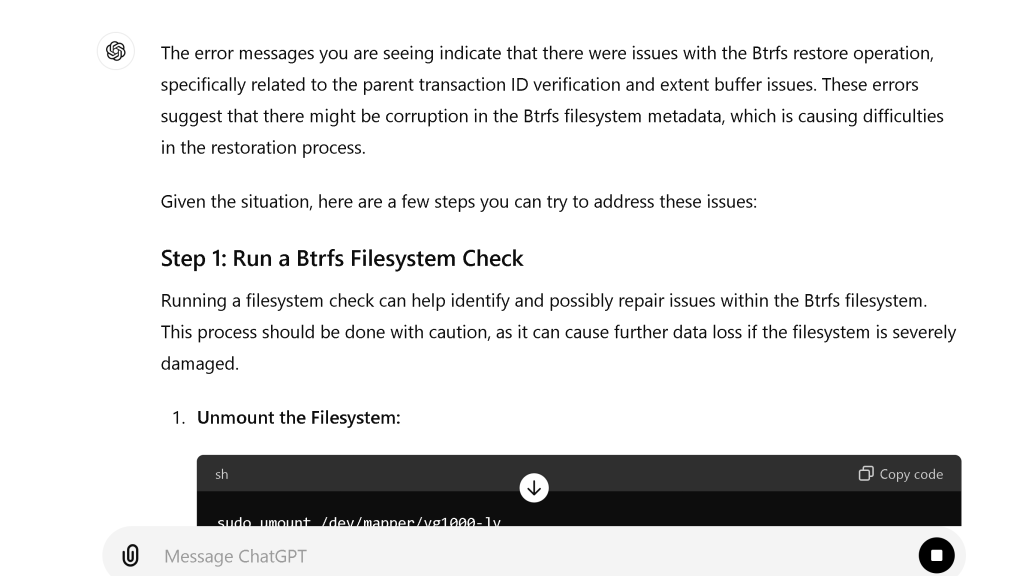
If you want to restore the files to their original locations instead of a separate recovery directory, you can mount the Btrfs filesystem and manually copy the recovered files back to their original locations. However, Btrfs does not directly support restoring deleted files back to their original location in-place.
To ensure no further data is overwritten during recovery, it’s recommended to restore to a different directory and then move the files back to their original locations manually.
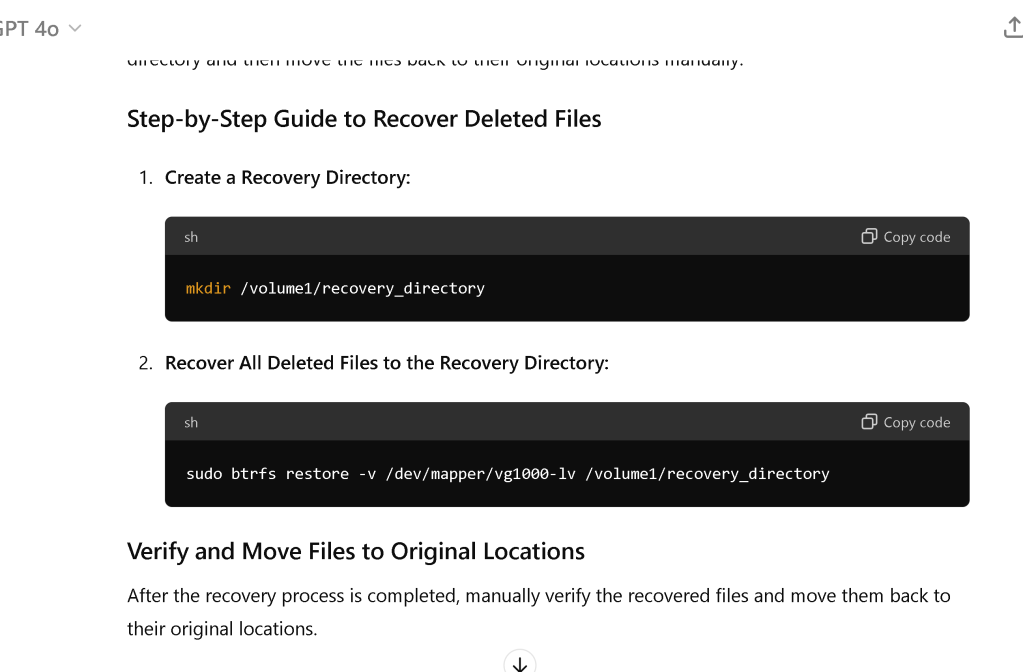
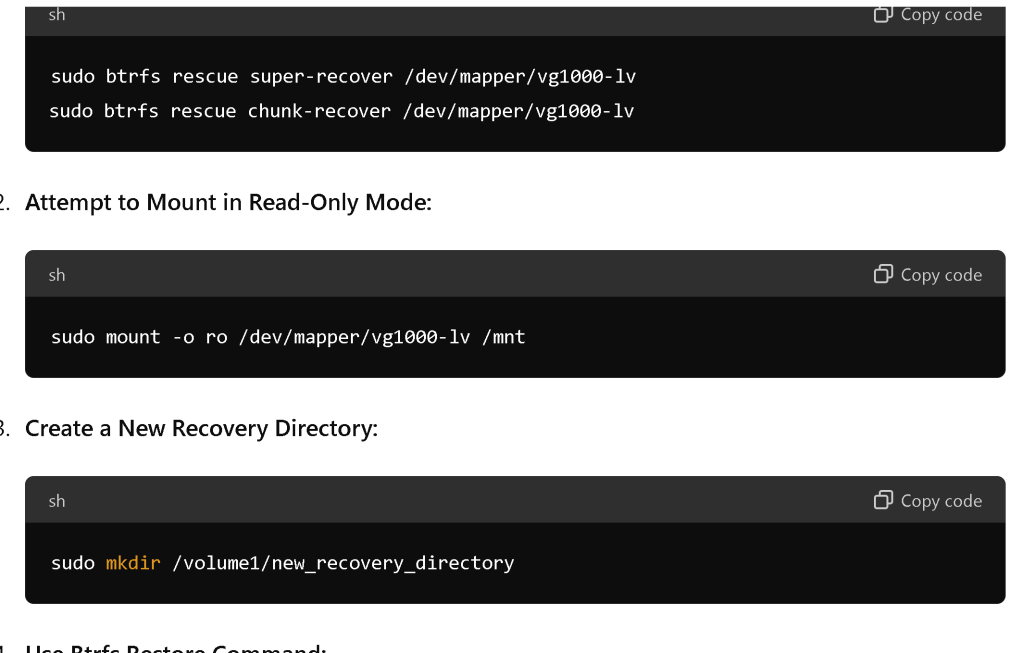
Step-by-Step Guide to Recover Deleted Files
- Create a Recovery Directory:
mkdir /volume1/recovery_directory
- Recover All Deleted Files to the Recovery Directory:
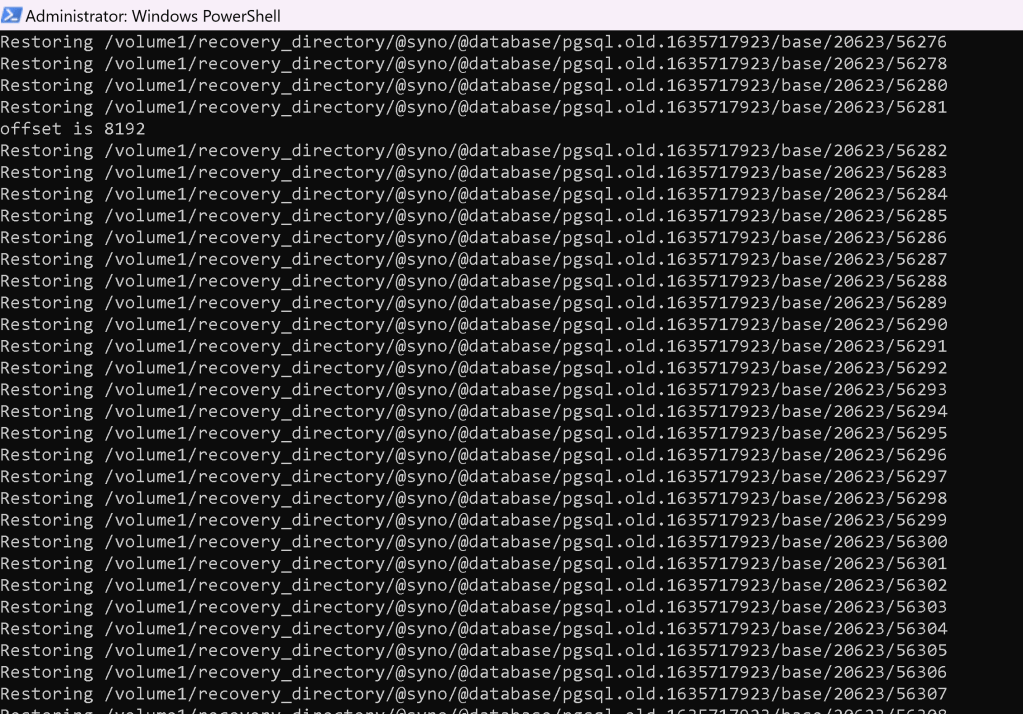
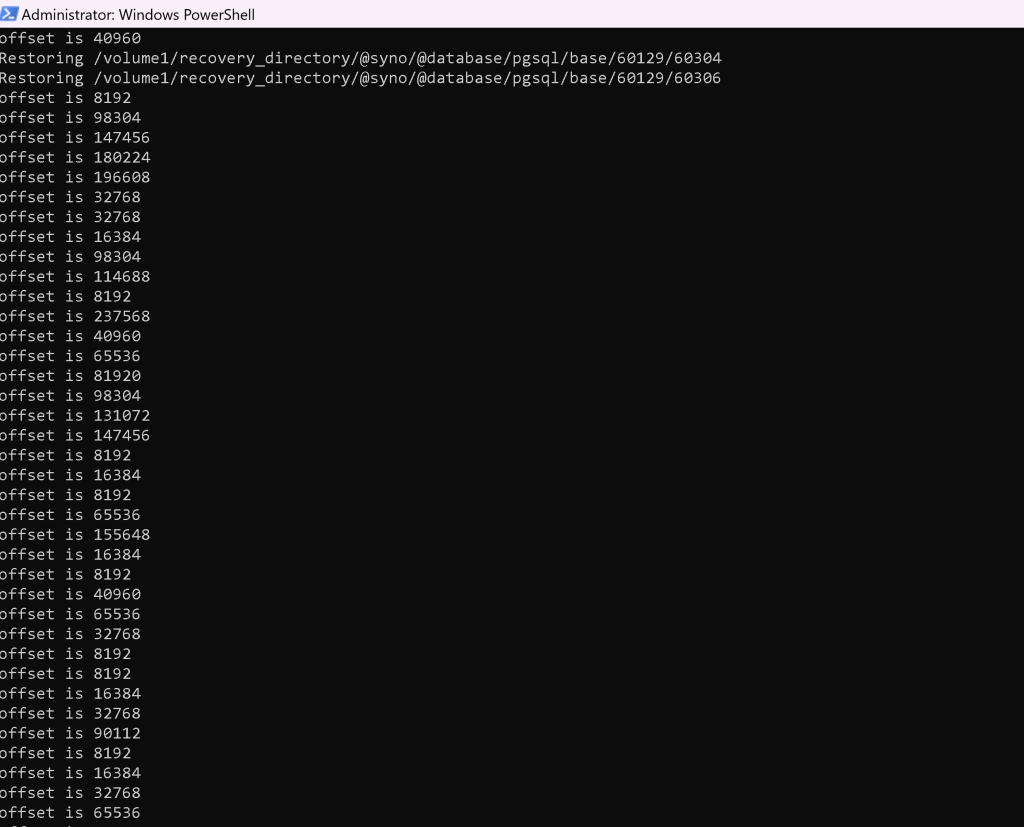
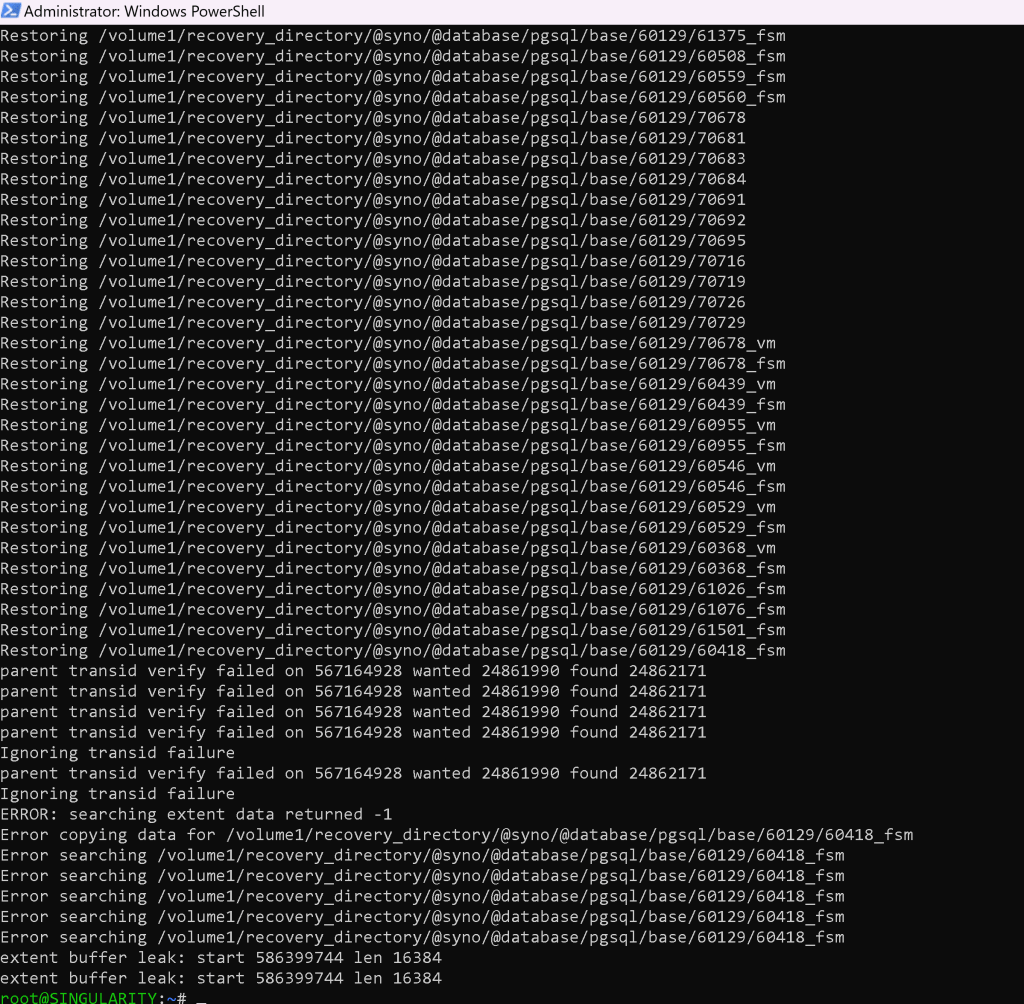
sudo btrfs restore -v /dev/mapper/vg1000-lv /volume1/recovery_directory
Verify and Move Files to Original Locations
After the recovery process is completed, manually verify the recovered files and move them back to their original locations.
Example Commands to Move Files
Assuming you have recovered the files to /volume1/recovery_directory:
- Navigate to the Recovery Directory:
cd /volume1/recovery_directory
- Move Recovered Files to Their Original Locations:
sudo mv path/to/recovered_file /original/location
Repeat the move command for each file or directory you need to restore to its original location.
If Recycle Bin is Enabled
If you have Recycle Bin enabled on your Synology NAS, check the #recycle directory in your shared folders:
-
Open DSM and log in.
-
Go to File Station.
-
Navigate to the shared folder and check the
#recycledirectory.
Summary
To recover all deleted files to a recovery directory and then manually move them back to their original locations:
- Recover files to a recovery directory:
sudo btrfs restore -v /dev/mapper/vg1000-lv /volume1/recovery_directory
- Manually move files to their original locations.
This method ensures the recovered files are safely stored and verified before moving them back, minimizing the risk of data loss.
If you need further assistance or have additional questions, feel free to ask!



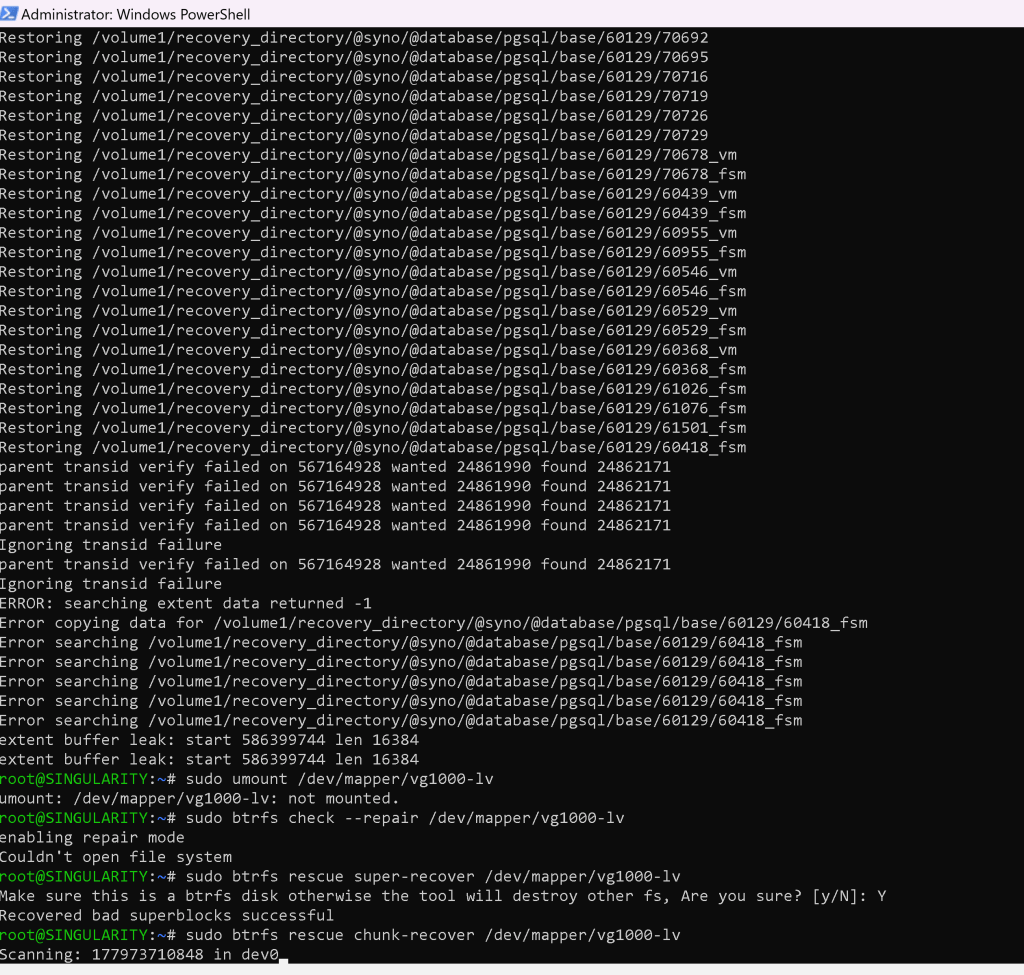
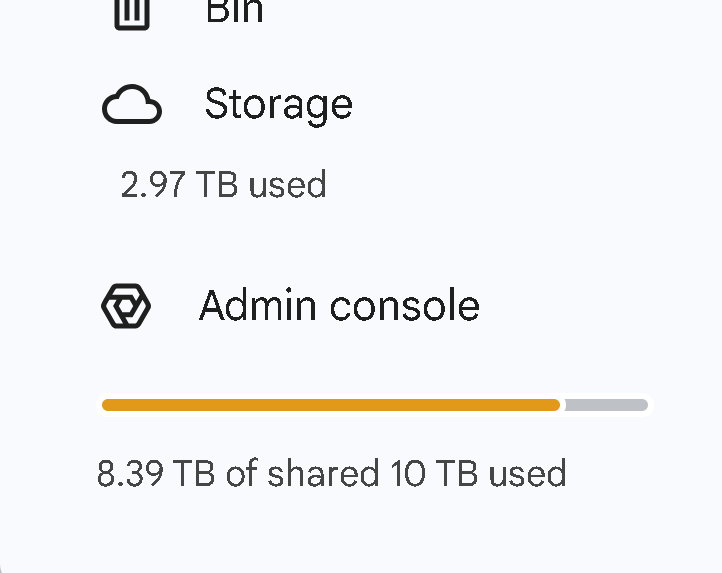
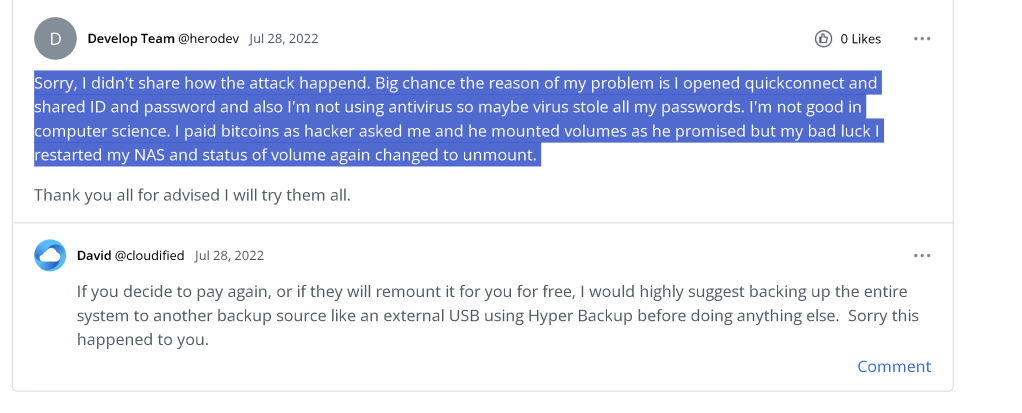
tomorrow continue with secure connection as there is a reset
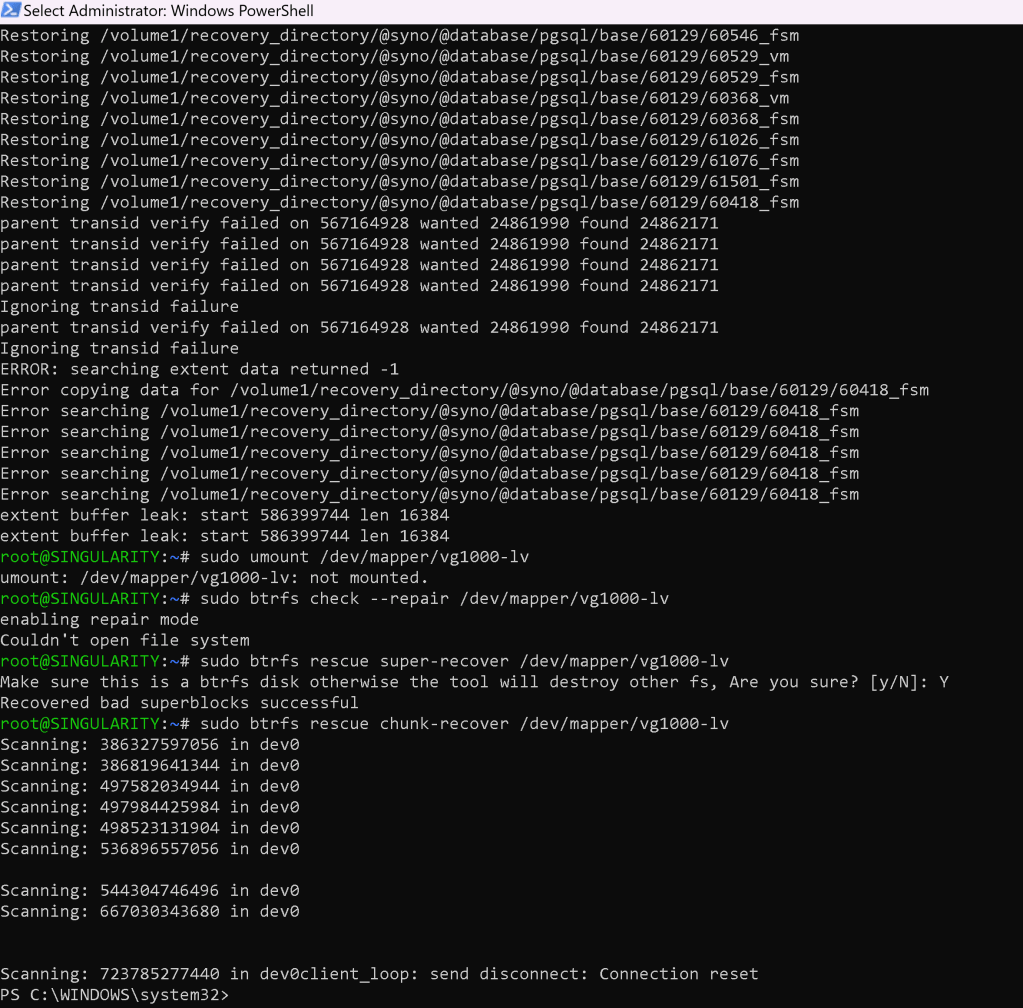
https://chatgpt.com/c/9ba9a24c-75a1-4a86-ab8d-4217e854974f
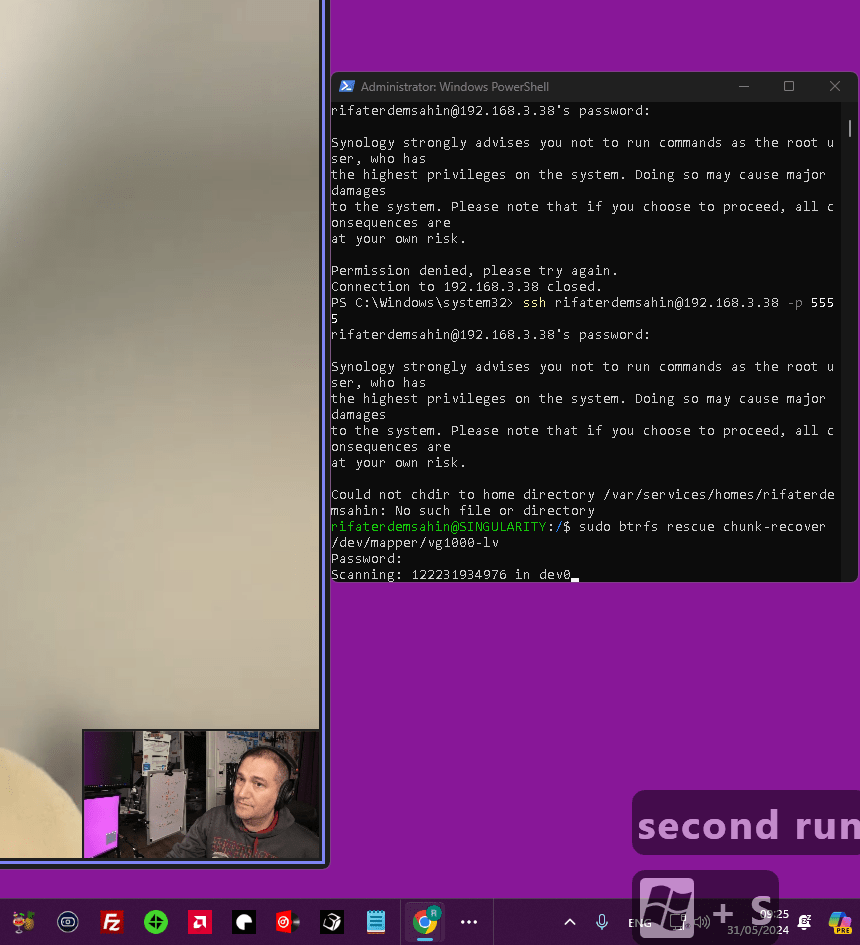
second run
Imported from rifaterdemsahin.com · 2024