My Way to Do Video Production: A Seamless Workflow
my journey outlines here where i reach this in 3 years > 2021-2024
Creating high-quality videos requires a streamlined workflow that maximizes efficiency and creativity. Here’s a step-by-step breakdown of my process, from taking initial notes to finalizing the video with voiceovers and animations.
1. Taking Initial Notes and Collecting Feedback using WordPress
I begin the video production process by taking notes. This stage is crucial for brainstorming ideas and structuring the content. I use a digital platform like WordPress to jot down these ideas, which allows me to share and collect feedback swiftly. Gathering input at this early stage helps refine the content and ensures that the final product meets the audience's needs. The webpages where I can add multimedia are great.
2. Moving to Canva for Visuals
Once I have a solid outline, I move to Canva to start creating slides. Canva’s user-friendly interface and extensive template library make it easy to design visually appealing slides. I often start with a basic template and customize it to match the video's theme and style. This phase involves adding images, graphics, and text to create engaging visuals that will keep the audience interested. I can always use the previous slides and brand colors to make it easier for me. I have also created a guide and am updating it as I learn to remove the friction.
3. Transitioning to Whiteboard and Course Binder
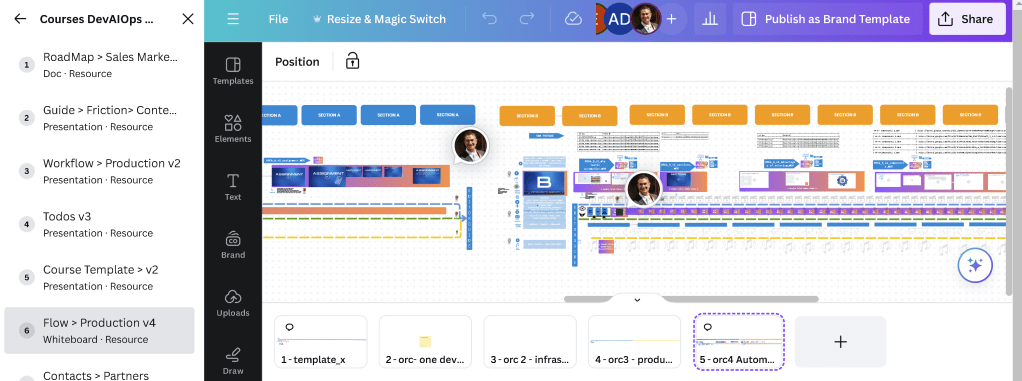
After creating the initial slides in Canva, I transition to a Canva whiteboard for more detailed planning and organization. Using a whiteboard allows me to visualize the flow of the video and make any necessary adjustments. I embed the Google shared drive published videos where I have exported the animations from Canva slides. I also use a course binder to keep all my notes, feedback, and design drafts organized. This step ensures that all elements of the video are cohesive and well-integrated in Canva.
4. Production
With the visuals and script ready, I move to the production phase. This involves putting together the slides, animations, and other multimedia elements to create the video. Canva’s pre-visualization (previz) capabilities are particularly useful here. Previz helps in mapping out the entire video, ensuring that all transitions and animations are smooth and effective. I can embed the previz slides to the Canva whiteboards.
5. Adding Voiceovers with GPT
The final step is adding the voiceover. I use GPT technology to record the voiceover, which involves uploading the Canva PDF to generate the script. This AI-driven approach ensures that the voiceover is clear, professional, and matches the tone of the video. GPT’s ability to produce natural-sounding speech enhances the overall quality of the video. When I record, I use a widescreen setup: on the left, there are Canva slides previz; in the middle, there is the GPT prompter with pauses; and on the right, the Canva whiteboard with all directions and embeds so I have continuity.
It just looks like a DaVinci Resolve timeline and I can delegate to the video editor as there is a visual walkthrough and it is straight to import to a video editor.
Conclusion
This structured approach to video production allows me to create high-quality videos efficiently. By leveraging digital tools like Canva and GPT, I can seamlessly integrate visuals and voiceovers, ensuring that the final product is engaging and polished. Whether you’re creating educational content, marketing videos, or any other type of multimedia, this workflow can help streamline the production process and enhance the quality of your videos.
Reference
PS:
"I canceled all previous methods and am now using Canva, embedding the designs into Google Drive. I wrote a script using Selenium and API automation to retrieve the published URLs and place them on the whiteboard."
Imported from rifaterdemsahin.com · 2024