Writing the code to create all the videos
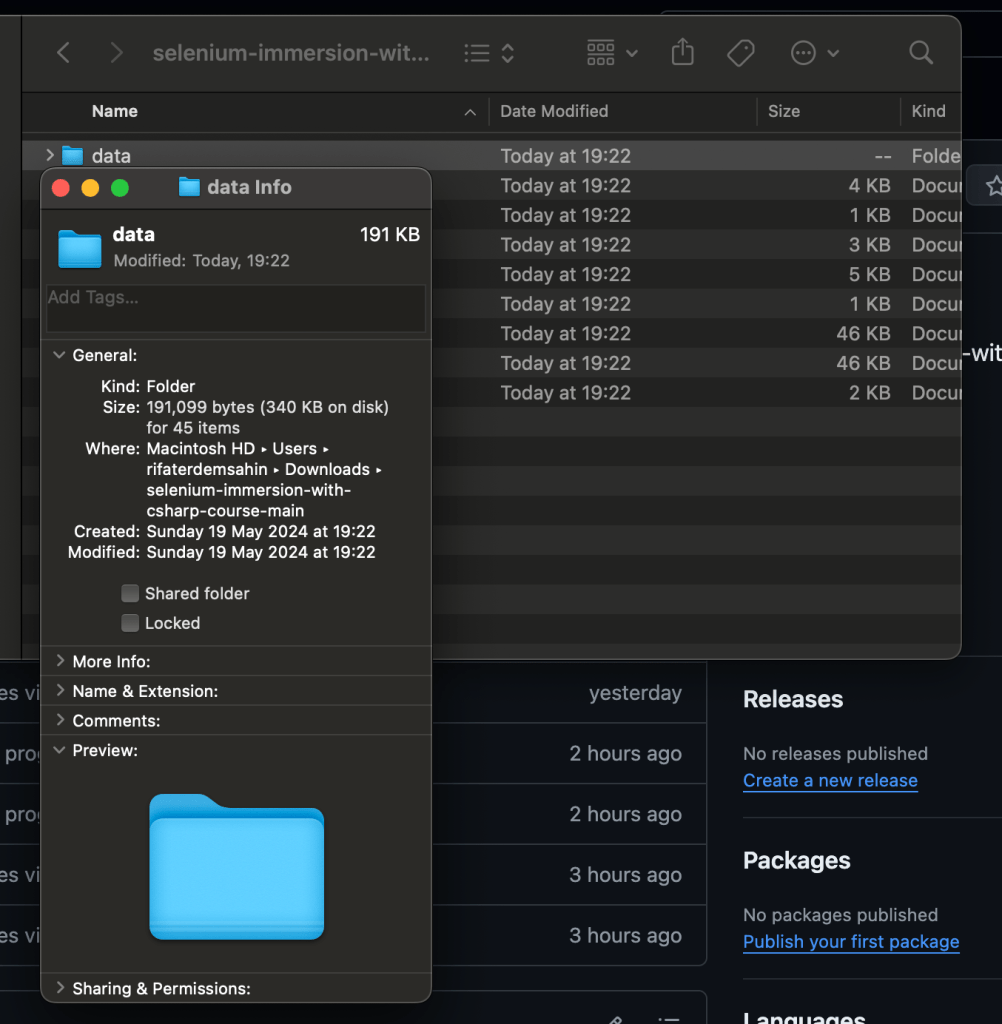
https://github.com/rifaterdemsahin/selenium-immersion-with-csharp-course/tree/main/data
json
{
                  "name": "Architecture & Design in DevOps: Implementing Full Audit Trails in Production for Enhanced Delivery",
                  "sections": [
                    {
                      "name": "Section 1: Introduction to DevOps and Full Audit Trails",
                      "videos": [
                        { "name": "Understanding DevOps Principles" },
                        { "name": "The Importance of Audit Trails in DevOps" },
                        { "name": "Benefits of Full Audit Trails in Production" },
                        { "name": "Challenges in Implementing Audit Trails" },
                        { "name": "Course Objectives and Structure" }
                      ]
                    },
                    {
                      "name": "Section 2: Fundamentals of Audit Trails",
                      "videos": [
                        { "name": "What is an Audit Trail?" },
                        { "name": "Key Concepts and Terminology" },
                        { "name": "Types of Audit Trails: System, Application, User Activity" },
                        { "name": "Legal and Compliance Requirements" },
                        { "name": "Best Practices for Designing Audit Trails" }
                      ]
                    },
                    {
                      "name": "Section 3: Setting Up Your Environment for Audit Trails",
                      "videos": [
                        { "name": "Choosing the Right Tools and Frameworks" },
                        { "name": "Installing and Configuring Audit Trail Tools" },
                        { "name": "Integrating Audit Trails with Version Control and CI/CD Systems" },
                        { "name": "Setting Up Continuous Monitoring" },
                        { "name": "Best Practices for Environment Setup" }
                      ]
                    },
                    {
                      "name": "Section 4: Implementing Full Audit Trails",
                      "videos": [
                        { "name": "Designing an Effective Audit Trail System" },
                        { "name": "Capturing System and Application Logs" },
                        { "name": "Tracking User Activities and Changes" },
                        { "name": "Ensuring Data Integrity and Security" },
                        { "name": "Automating Audit Trail Collection and Storage" }
                      ]
                    },
                    {
                      "name": "Section 5: Tools and Technologies for Audit Trails",
                      "videos": [
                        { "name": "Overview of Popular Audit Trail Tools (e.g., ELK Stack, Splunk, Graylog)" },
                        { "name": "Integrating Audit Trail Tools with DevOps Pipelines" },
                        { "name": "Using SIEM (Security Information and Event Management) Systems" },
                        { "name": "Best Practices for Tool Configuration" },
                        { "name": "Troubleshooting Common Issues" }
                      ]
                    },
                    {
                      "name": "Section 6: Monitoring and Analyzing Audit Trails",
                      "videos": [
                        { "name": "Setting Up Real-Time Monitoring and Alerts" },
                        { "name": "Using Dashboards for Visualizing Audit Data" },
                        { "name": "Analyzing Audit Logs for Insights" },
                        { "name": "Conducting Regular Audits and Reviews" },
                        { "name": "Responding to Security Incidents and Anomalies" }
                      ]
                    },
                    {
                      "name": "Section 7: Building a Culture of Accountability and Compliance",
                      "videos": [
                        { "name": "Encouraging Team Collaboration and Communication" },
                        { "name": "Establishing Guidelines and Standards for Audit Trails" },
                        { "name": "Training Teams on Best Practices for Audit Trail Implementation" },
                        { "name": "Overcoming Resistance to Change" },
                        { "name": "Case Studies: Successful Adoption of Audit Trail Practices" }
                      ]
                    },
                    {
                      "name": "Section 8: Enhancing Delivery with Full Audit Trails",
                      "videos": [
                        { "name": "Improving Workflow and Reducing Bottlenecks" },
                        { "name": "Ensuring High-Quality Deliverables with Comprehensive Audit Trails" },
                        { "name": "Accelerating Delivery Times with Continuous Monitoring" },
                        { "name": "Increasing Team Productivity and Morale" },
                        { "name": "Real-World Examples of Enhanced Delivery with Full Audit Trails" }
                      ]
                    },
                    {
                      "name": "Section 9: Future Trends and Career Opportunities in DevOps and Audit Trails",
                      "videos": [
                        { "name": "Emerging Trends in Audit Trails and DevOps" },
                        { "name": "Career Paths in DevOps and Security Compliance" },
                        { "name": "Skills and Certifications Required" },
                        { "name": "Building a Professional Network" },
                        { "name": "Resources for Continuous Learning and Development" }
                      ]
                    },
                    {
                      "name": "Conclusion and Next Steps",
                      "videos": [
                        { "name": "Recap of Key Learnings" },
                        { "name": "Applying Audit Trail Techniques in Real Projects" },
                        { "name": "Further Reading and Educational Resources" },
                        { "name": "Engaging with the DevOps and Security Community" },
                        { "name": "Final Q&A and Feedback" }
                      ]
                    }
                  ]
                }
https://chatgpt.com/c/e056229d-4b10-4283-91ca-8c0cd0f659fa
csharp codes
`// Get the course data
foreach (var course in courses)
{
WebDriverWait wait = new WebDriverWait(driver, TimeSpan.FromSeconds(10));
int sectionInputCounter = 5;
                int videoInputCounter = 15; // Assuming different IDs for videos

                foreach (var section in course.Sections)
                {
                    driver.FindElement(By.CssSelector(".add-chapter_uOzhc")).Click();

                    wait.Until(drv => drv.FindElement(By.CssSelector(".Toast_toast__message__176 > span")));

                    string sectionInputId = $"input-{sectionInputCounter++}";
                    IWebElement sectionInputField = driver.FindElement(By.Id(sectionInputId));
                    sectionInputField.Clear();
                    sectionInputField.SendKeys(section.Name);

                    foreach (var video in section.Videos)
                    {
                        driver.FindElement(By.CssSelector(".add-video-button")).Click(); // Assuming there's a button to add videos

                        wait.Until(drv => drv.FindElement(By.CssSelector(".video-input-field"))); // Adjust selector as needed

                        string videoInputId = $"input-{videoInputCounter++}";
                        IWebElement videoInputField = driver.FindElement(By.Id(videoInputId));
                        videoInputField.Clear();
                        videoInputField.SendKeys(video.Name);
                    }
                }
}
Console.WriteLine("Test completed successfully!");
`
using Newtonsoft.Json;
                using System.Collections.Generic;
                using System.IO;
                using System.Linq;

                namespace SeleniumTestProject
                {
                    public static class CourseData
                    {
                        public static List<CourseClass> GetCourses(string folderPath)
                        {

                            foreach (var jsonFile in jsonFiles)
                            {

                                courses.Add(course);
                            }

                            return courses;
                        }
                    }
                }
using Newtonsoft.Json;
                using System.IO;

                namespace SeleniumTestProject
                {
                    public static class CourseData
                    {
                        public static CourseClass GetCourse()
                        {

                            return JsonConvert.DeserializeObject<CourseClass>(json);
                        }
                    }
                }
using System.Collections.Generic;

                namespace SeleniumTestProject
                {
                    public class Video
                    {
                        public string Name { get; set; }
                    }

                    public class Section
                    {
                        public string Name { get; set; }
                        public List<Video> Videos { get; set; }

                        public Section()
                        {
                            Videos = new List<Video>();
                        }
                    }

                    public class CourseClass
                    {
                        public string Name { get; set; }
                        public List<Section> Sections { get; set; }

                        public CourseClass()
                        {
                            Sections = new List<Section>();
                        }
                    }
                }
merged sample
Sure, here's how you can organize the provided code into a C# project structure:

                1. **Create a new C# Console Application project** in your preferred development environment (Visual Studio, Visual Studio Code, etc.). Let's name the project "SeleniumCourseLoader".

                2. **Add a new class file** named `Program.cs` and paste the following code into it:

                ```csharp
                using OpenQA.Selenium;
                using OpenQA.Selenium.Chrome;
                using OpenQA.Selenium.Support.UI;
                using System;
                using System.IO;

                namespace SeleniumCourseLoader
                {
                    class Program
                    {
                        static void Main(string[] args)
                        {
                            IWebDriver driver = new ChromeDriver();
                            driver.Manage().Window.Size = new System.Drawing.Size(1273, 672);

                            try
                            {
                                driver.Navigate().GoToUrl("https://devopsengineering.thinkific.com/manage/courses/2776905");

                                driver.FindElement(By.LinkText("Bulk importer")).Click();

                                WebDriverWait wait = new WebDriverWait(driver, TimeSpan.FromSeconds(10));

                                int sectionInputCounter = 5;
                                int videoInputCounter = 15; // Assuming different IDs for videos

                                foreach (var course in courses)
                                {
                                    foreach (var section in course.Sections)
                                    {
                                        driver.FindElement(By.CssSelector(".add-chapter_uOzhc")).Click();

                                        wait.Until(drv => drv.FindElement(By.CssSelector(".Toast_toast__message__176 > span")));

                                        string sectionInputId = $"input-{sectionInputCounter++}";
                                        IWebElement sectionInputField = driver.FindElement(By.Id(sectionInputId));
                                        sectionInputField.Clear();
                                        sectionInputField.SendKeys(section.Name);

                                        foreach (var video in section.Videos)
                                        {
                                            driver.FindElement(By.CssSelector(".add-video-button")).Click(); // Assuming there's a button to add videos

                                            wait.Until(drv => drv.FindElement(By.CssSelector(".video-input-field"))); // Adjust selector as needed

                                            string videoInputId = $"input-{videoInputCounter++}";
                                            IWebElement videoInputField = driver.FindElement(By.Id(videoInputId));
                                            videoInputField.Clear();
                                            videoInputField.SendKeys(video.Name);
                                        }
                                    }
                                }

                                Console.WriteLine("Test completed successfully!");
                            }
                            catch (Exception e)
                            {
                                Console.WriteLine($"Test failed: {e.Message}");
                            }
                            finally
                            {
                                driver.Quit();
                            }
                        }
                    }
                }
- Add a new class file named
CourseData.csand paste the following code into it:
using Newtonsoft.Json;
                using System.Collections.Generic;
                using System.IO;

                namespace SeleniumCourseLoader
                {
                    public static class CourseData
                    {
                        public static List<CourseClass> GetCourses(string folderPath)
                        {

                            foreach (var jsonFile in jsonFiles)
                            {

                                courses.Add(course);
                            }

                            return courses;
                        }
                    }
                }
- Add another class file named
CourseClass.csand paste the following code into it:
using System.Collections.Generic;

                namespace SeleniumCourseLoader
                {
                    public class Video
                    {
                        public string Name { get; set; }
                    }

                    public class Section
                    {
                        public string Name { get; set; }
                        public List<Video> Videos { get; set; }

                        public Section()
                        {
                            Videos = new List<Video>();
                        }
                    }

                    public class CourseClass
                    {
                        public string Name { get; set; }
                        public List<Section> Sections { get; set; }

                        public CourseClass()
                        {
                            Sections = new List<Section>();
                        }
                    }
                }
-
Ensure that you have the Selenium WebDriver for Chrome installed and referenced in your project. You can install it via NuGet by right-clicking on your project in Solution Explorer, selecting "Manage NuGet Packages," searching for "Selenium.WebDriver.ChromeDriver," and then installing it.
-
Replace the placeholder folder path
@"C:\path\to\your\json\folder"with the actual path to the folder containing your JSON files.
With these steps, you'll have a C# project set up to load course data from JSON files and use Selenium to interact with a web page. Adjust the Selenium interactions and file paths as needed for your specific use case. Let me know if you need further assistance!
```
Imported from rifaterdemsahin.com · 2024