Using Scope in logic apps could help
Handling errors in Logic Apps, especially when dealing with external services, requires a structured approach to ensure robustness and reliability. Here are some best practices to handle errors effectively:
1. Use Try-Catch Blocks
Logic Apps provides a built-in mechanism for error handling using the Scope action with run-after conditions.
-
Create a Scope for Main Logic:
-
Place your main actions (including calls to external services) inside a
Scopeaction. -
Create a Scope for Error Handling:
-
Create another
Scopeaction for error handling. This scope will contain actions to execute when an error occurs. -
Configure Run-After Conditions:
-
Configure the error handling scope to run if the main scope fails. You can do this by setting the "Run After" property of the error handling scope to execute after the main scope has failed.
Example
Here's a simplified example structure:
{
"mainScope": {
"type": "Scope",
"actions": {
"externalServiceCall": {
"type": "Http",
"inputs": {
"method": "GET",
"uri": "https://api.example.com/data"
}
},
}
},
"errorHandlingScope": {
"type": "Scope",
"runAfter": {
"mainScope": ["Failed"]
},
"actions": {
"sendEmailNotification": {
"type": "Email",
"inputs": {
"to": "[email protected]",
"subject": "Error in Logic App",
"body": "An error occurred while calling the external service."
}
},
}
}
}
2. Check Status Codes
When calling external services, check the status code in the response to handle different outcomes appropriately.
{
"externalServiceCall": {
"type": "Http",
"inputs": {
"method": "GET",
"uri": "https://api.example.com/data"
},
"runAfter": {
"mainScope": ["Succeeded"]
}
},
"checkStatusCode": {
"type": "If",
"expression": {
"equals": [
"@outputs('externalServiceCall')['statusCode']",
200
]
},
"actions": {
"onSuccess": {
}
},
"else": {
"actions": {
"onFailure": {
}
}
}
}
}
3. Log Errors
Log errors to a storage account, database, or monitoring service (e.g., Application Insights) to keep track of issues and analyze patterns.
4. Retries and Timeouts
Configure retries and timeouts for actions to handle transient failures gracefully.
-
Retry Policy:
-
Set up a retry policy for actions that may fail due to transient issues.
{
"externalServiceCall": {
"type": "Http",
"inputs": {
"method": "GET",
"uri": "https://api.example.com/data",
"retryPolicy": {
"type": "exponential",
"interval": "PT5S",
"count": 3
}
}
}
}
-
Timeout:
-
Set a timeout for actions to avoid long-running operations hanging indefinitely.
{
"externalServiceCall": {
"type": "Http",
"inputs": {
"method": "GET",
"uri": "https://api.example.com/data",
"timeout": "PT30S"
}
}
}
5. Fallback Actions
Implement fallback actions to provide alternative solutions when an external service fails.
{
"checkStatusCode": {
"type": "If",
"expression": {
"equals": [
"@outputs('externalServiceCall')['statusCode']",
200
]
},
"actions": {
"onSuccess": {
}
},
"else": {
"actions": {
"fallbackAction": {
}
}
}
}
}
6. Detailed Error Messages
Provide detailed error messages in logs and notifications to aid in troubleshooting.
{
"errorHandlingScope": {
"type": "Scope",
"runAfter": {
"mainScope": ["Failed"]
},
"actions": {
"sendEmailNotification": {
"type": "Email",
"inputs": {
"to": "[email protected]",
"subject": "Error in Logic App",
"body": "An error occurred while calling the external service. Details: @outputs('externalServiceCall')['body']"
}
}
}
}
}
Conclusion
By structuring your Logic Apps with these best practices, you can effectively handle errors from external services, ensuring your workflows are robust and reliable. This approach helps mitigate the impact of errors and provides clear paths for resolution and recovery.
is skipped looks also easy pick
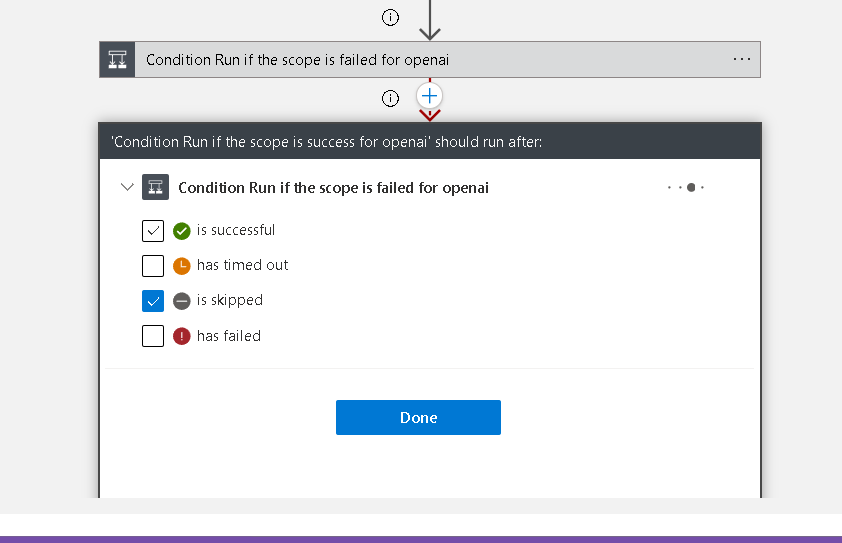
remove old logic and use the first error than skip for the success one ?
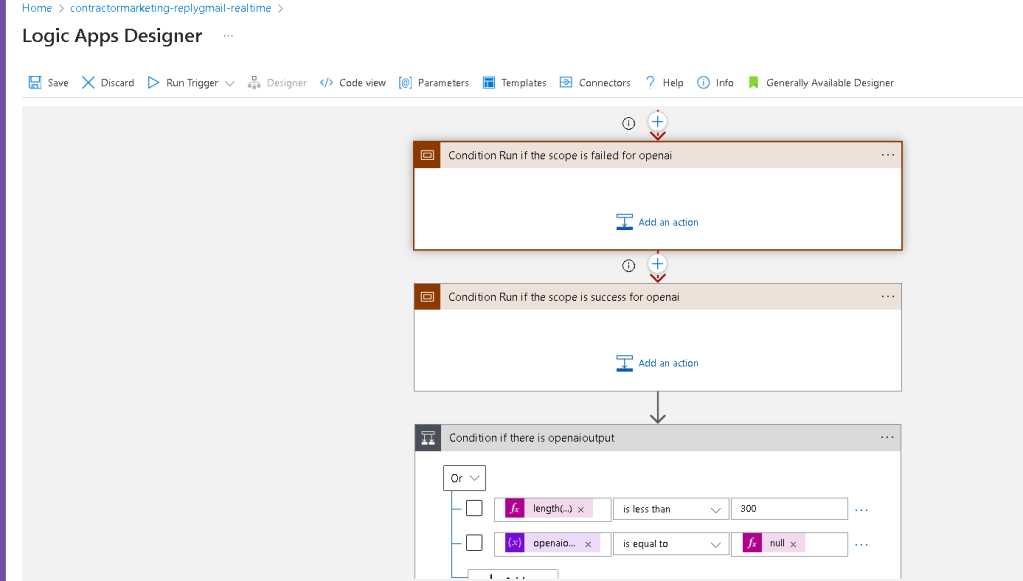
remove the old base
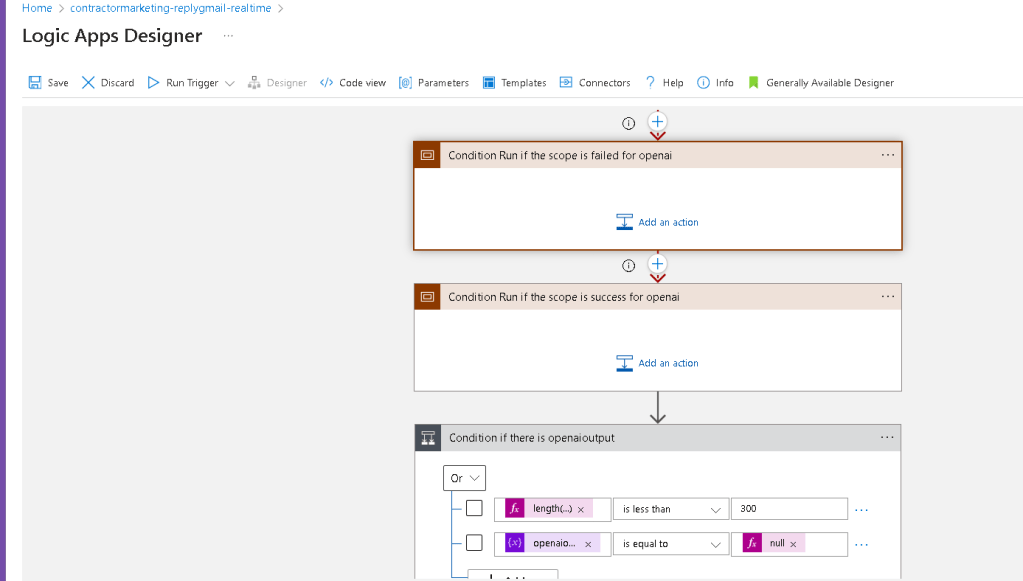
removing my old logic
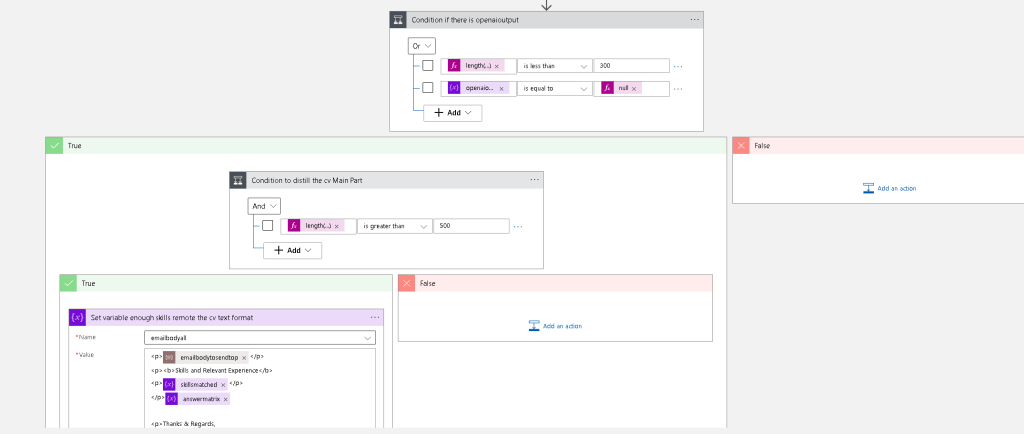
much simpler mapping > and conditional if does not make that much sense> if success do one...if not success handle it...and if failed that step is not skipped...only skipped if success.
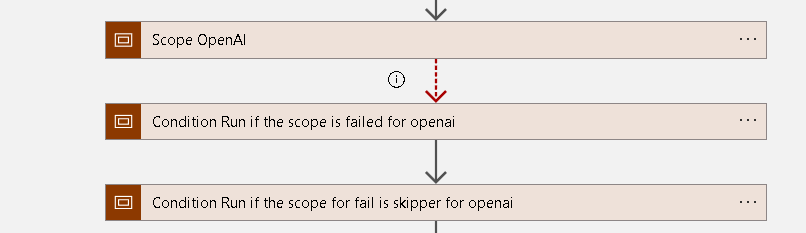
different logic
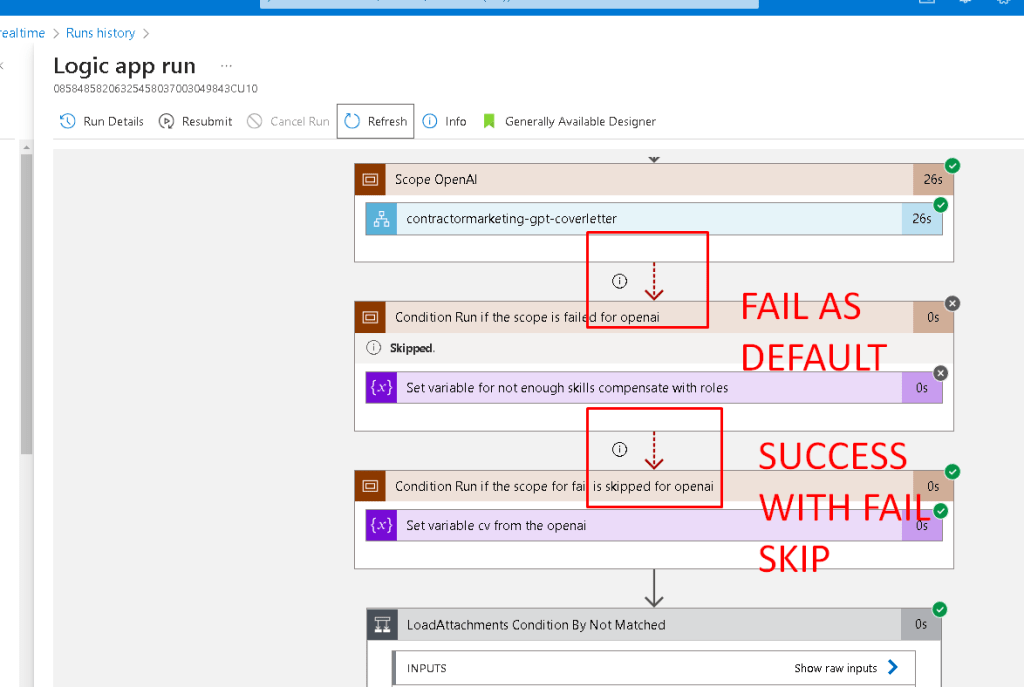
Looking at the provided image, it seems you have a Logic App workflow with a scope named "Scope OpenAI" and two conditions that handle the flow based on the result of the scope. However, it appears the conditions might not be properly set up, as indicated by the skipped status.
Analysis of Current Workflow
-
Scope OpenAI: Executes the
contractormarketing-gpt-coverletteraction. -
Condition Run if the scope is failed for openai: This condition appears to be intended to handle the case where the scope fails, but it's skipped.
-
Condition Run if the scope for fail is skipped for openai: This condition runs and sets a variable when the scope does not fail.
Issues Observed
-
The first condition is skipped, suggesting that it might not be correctly configured to catch failures.
-
The second condition runs and sets a variable, which indicates the scope succeeded.
Suggested Adjustments
To ensure your Logic App handles errors and success cases correctly, you can adjust the conditions based on the scope result. Here’s a revised approach:
Step-by-Step Approach
-
Scope for Main Logic: Place your main action (
contractormarketing-gpt-coverletter) inside a scope. -
Scope for Error Handling: Create a separate scope to handle errors.
-
Configure Run-After Settings: Set the conditions to run based on the scope’s outcome.
Example Configuration
-
Scope: Main Logic (OpenAI):
-
This scope contains the
contractormarketing-gpt-coverletteraction. -
Condition: Check if Scope Failed:
-
Set the condition to run if the main scope fails.
-
Actions for Failure:
-
Inside the "If true" section, handle the error case (e.g., set a variable to indicate insufficient skills).
-
Condition: Check if Scope Succeeded:
-
Set the condition to run if the main scope succeeded.
-
Actions for Success:
-
Inside the "If true" section, handle the success case (e.g., set a variable with the result from OpenAI).
JSON Example
Here is a JSON representation of the adjusted workflow:
{
"definition": {
"$schema": "https://schema.management.azure.com/providers/Microsoft.Logic/schemas/2016-06-01/workflowdefinition.json#",
"actions": {
"Scope_OpenAI": {
"type": "Scope",
"actions": {
"contractormarketing-gpt-coverletter": {
"type": "Http",
"inputs": {
"method": "GET",
"uri": "https://api.example.com/data"
}
}
}
},
"Condition_Scope_Failed": {
"type": "If",
"expression": {
"equals": [
"@result('Scope_OpenAI')",
"Failed"
]
},
"actions": {
"Set_Variable_Failure": {
"type": "SetVariable",
"inputs": {
"name": "ErrorVariable",
"value": "Not enough skills to compensate with roles."
}
}
},
"runAfter": {
"Scope_OpenAI": [
"Failed"
]
}
},
"Condition_Scope_Succeeded": {
"type": "If",
"expression": {
"equals": [
"@result('Scope_OpenAI')",
"Succeeded"
]
},
"actions": {
"Set_Variable_Success": {
"type": "SetVariable",
"inputs": {
"name": "ResultVariable",
"value": "@body('contractormarketing-gpt-coverletter')"
}
}
},
"runAfter": {
"Scope_OpenAI": [
"Succeeded"
]
}
}
},
"triggers": {
"Recurrence": {
"type": "Recurrence",
"recurrence": {
"frequency": "Day",
"interval": 1
}
}
}
}
}
Explanation
-
Scope_OpenAI: Contains the main logic to call the external service.
-
Condition_Scope_Failed: Checks if the scope failed and handles the error case by setting an error variable.
-
Condition_Scope_Succeeded: Checks if the scope succeeded and handles the success case by setting a result variable.
Implementation
-
Open your Logic App in Azure Portal.
-
Add a Scope action and place your
contractormarketing-gpt-coverletteraction inside it. -
Add an If condition to check the result of the scope and configure it to handle failure.
-
Add another If condition to check the result of the scope and configure it to handle success.
By setting up the Logic App this way, you ensure that both success and failure cases are handled appropriately, making your workflow more robust and reliable.
Looking at the provided image, it seems you have a Logic App workflow with a scope named "Scope OpenAI" and two conditions that handle the flow based on the result of the scope. However, it appears the conditions might not be properly set up, as indicated by the skipped status.
Analysis of Current Workflow
-
Scope OpenAI: Executes the
contractormarketing-gpt-coverletteraction. -
Condition Run if the scope is failed for openai: This condition appears to be intended to handle the case where the scope fails, but it's skipped.
-
Condition Run if the scope for fail is skipped for openai: This condition runs and sets a variable when the scope does not fail.
Issues Observed
-
The first condition is skipped, suggesting that it might not be correctly configured to catch failures.
-
The second condition runs and sets a variable, which indicates the scope succeeded.
Suggested Adjustments
To ensure your Logic App handles errors and success cases correctly, you can adjust the conditions based on the scope result. Here’s a revised approach:
Step-by-Step Approach
-
Scope for Main Logic: Place your main action (
contractormarketing-gpt-coverletter) inside a scope. -
Scope for Error Handling: Create a separate scope to handle errors.
-
Configure Run-After Settings: Set the conditions to run based on the scope’s outcome.
Example Configuration
-
Scope: Main Logic (OpenAI):
-
This scope contains the
contractormarketing-gpt-coverletteraction. -
Condition: Check if Scope Failed:
-
Set the condition to run if the main scope fails.
-
Actions for Failure:
-
Inside the "If true" section, handle the error case (e.g., set a variable to indicate insufficient skills).
-
Condition: Check if Scope Succeeded:
-
Set the condition to run if the main scope succeeded.
-
Actions for Success:
-
Inside the "If true" section, handle the success case (e.g., set a variable with the result from OpenAI).
JSON Example
Here is a JSON representation of the adjusted workflow:
{
"definition": {
"$schema": "https://schema.management.azure.com/providers/Microsoft.Logic/schemas/2016-06-01/workflowdefinition.json#",
"actions": {
"Scope_OpenAI": {
"type": "Scope",
"actions": {
"contractormarketing-gpt-coverletter": {
"type": "Http",
"inputs": {
"method": "GET",
"uri": "https://api.example.com/data"
}
}
}
},
"Condition_Scope_Failed": {
"type": "If",
"expression": {
"equals": [
"@result('Scope_OpenAI')",
"Failed"
]
},
"actions": {
"Set_Variable_Failure": {
"type": "SetVariable",
"inputs": {
"name": "ErrorVariable",
"value": "Not enough skills to compensate with roles."
}
}
},
"runAfter": {
"Scope_OpenAI": [
"Failed"
]
}
},
"Condition_Scope_Succeeded": {
"type": "If",
"expression": {
"equals": [
"@result('Scope_OpenAI')",
"Succeeded"
]
},
"actions": {
"Set_Variable_Success": {
"type": "SetVariable",
"inputs": {
"name": "ResultVariable",
"value": "@body('contractormarketing-gpt-coverletter')"
}
}
},
"runAfter": {
"Scope_OpenAI": [
"Succeeded"
]
}
}
},
"triggers": {
"Recurrence": {
"type": "Recurrence",
"recurrence": {
"frequency": "Day",
"interval": 1
}
}
}
}
}
Explanation
-
Scope_OpenAI: Contains the main logic to call the external service.
-
Condition_Scope_Failed: Checks if the scope failed and handles the error case by setting an error variable.
-
Condition_Scope_Succeeded: Checks if the scope succeeded and handles the success case by setting a result variable.
Implementation
-
Open your Logic App in Azure Portal.
-
Add a Scope action and place your
contractormarketing-gpt-coverletteraction inside it. -
Add an If condition to check the result of the scope and configure it to handle failure.
-
Add another If condition to check the result of the scope and configure it to handle success.
By setting up the Logic App this way, you ensure that both success and failure cases are handled appropriately, making your workflow more robust and reliable.
Using scopes with "Run After" conditions is a more streamlined and clear approach for handling success and failure scenarios in Azure Logic Apps. This method leverages the built-in capabilities of Logic Apps to manage workflow execution based on the outcomes of previous actions or scopes.
Here’s how you can structure your Logic App using two scopes and the "Run After" conditions:
Step-by-Step Approach
-
Main Scope for OpenAI Call:
-
This scope will include the main logic for calling the OpenAI API.
-
Error Handling Scope:
-
This scope will run if the main scope fails.
-
Success Handling Scope:
-
This scope will run if the main scope succeeds.
Example Configuration
-
Main Scope (Scope_OpenAI):
-
Contains the action to call the OpenAI API.
-
Error Handling Scope (Scope_ErrorHandling):
-
Contains actions to handle errors, running only if the main scope fails.
-
Success Handling Scope (Scope_SuccessHandling):
-
Contains actions to handle success, running only if the main scope succeeds.
Detailed Steps in the Logic App Designer
-
Create the Main Scope:
-
Add a "Scope" action and name it
Scope_OpenAI. -
Inside this scope, add the
contractormarketing-gpt-coverletteraction. -
Create the Error Handling Scope:
-
Add another "Scope" action and name it
Scope_ErrorHandling. -
Configure this scope to run if
Scope_OpenAIfails. -
Add actions inside this scope to handle the failure (e.g., set an error variable, send a notification).
-
Create the Success Handling Scope:
-
Add another "Scope" action and name it
Scope_SuccessHandling. -
Configure this scope to run if
Scope_OpenAIsucceeds. -
Add actions inside this scope to handle the success (e.g., set a result variable, process the response).
Example in the Logic App Designer
Main Scope (Scope_OpenAI):
- Contains the
contractormarketing-gpt-coverletteraction.
Error Handling Scope (Scope_ErrorHandling):
-
Runs if
Scope_OpenAIfails. -
Contains actions to handle the error.
Success Handling Scope (Scope_SuccessHandling):
-
Runs if
Scope_OpenAIsucceeds. -
Contains actions to handle the success.
JSON Example
Here's a JSON representation of the Logic App using scopes and "Run After" conditions:
{
"definition": {
"$schema": "https://schema.management.azure.com/providers/Microsoft.Logic/schemas/2016-06-01/workflowdefinition.json#",
"actions": {
"Scope_OpenAI": {
"type": "Scope",
"actions": {
"contractormarketing-gpt-coverletter": {
"type": "Http",
"inputs": {
"method": "GET",
"uri": "https://api.example.com/data"
}
}
}
},
"Scope_ErrorHandling": {
"type": "Scope",
"runAfter": {
"Scope_OpenAI": [
"Failed"
]
},
"actions": {
"Set_Error_Variable": {
"type": "SetVariable",
"inputs": {
"name": "ErrorVariable",
"value": "Not enough skills to compensate with roles."
}
},
"Send_Error_Notification": {
"type": "SendEmail",
"inputs": {
"to": "[email protected]",
"subject": "Error in Logic App",
"body": "An error occurred while calling the OpenAI service."
}
}
}
},
"Scope_SuccessHandling": {
"type": "Scope",
"runAfter": {
"Scope_OpenAI": [
"Succeeded"
]
},
"actions": {
"Set_Result_Variable": {
"type": "SetVariable",
"inputs": {
"name": "ResultVariable",
"value": "@body('contractormarketing-gpt-coverletter')"
}
}
}
}
},
"triggers": {
"Recurrence": {
"type": "Recurrence",
"recurrence": {
"frequency": "Day",
"interval": 1
}
}
}
}
}
Explanation
-
Scope_OpenAI:
-
Contains the action to call the OpenAI API.
-
Scope_ErrorHandling:
-
Runs if
Scope_OpenAIfails. -
Contains actions to handle the failure, such as setting an error variable and sending a notification.
-
Scope_SuccessHandling:
-
Runs if
Scope_OpenAIsucceeds. -
Contains actions to handle the success, such as setting a result variable.
Implementation Steps
-
Open your Logic App in Azure Portal.
-
Add a Scope action named
Scope_OpenAIand place yourcontractormarketing-gpt-coverletteraction inside it. -
Add another Scope action named
Scope_ErrorHandling. -
Set its "Run After" property to run after
Scope_OpenAIfails. -
Add actions inside this scope to handle the error case.
-
Add another Scope action named
Scope_SuccessHandling. -
Set its "Run After" property to run after
Scope_OpenAIsucceeds. -
Add actions inside this scope to handle the success case.
By using scopes and "Run After" conditions, you make your Logic App workflow clearer and easier to manage. This approach effectively handles different outcomes of the main action, ensuring proper error handling and success processing.
Imported from rifaterdemsahin.com · 2024