smtp error setup for AWS Route 53 for a WIX site
Error
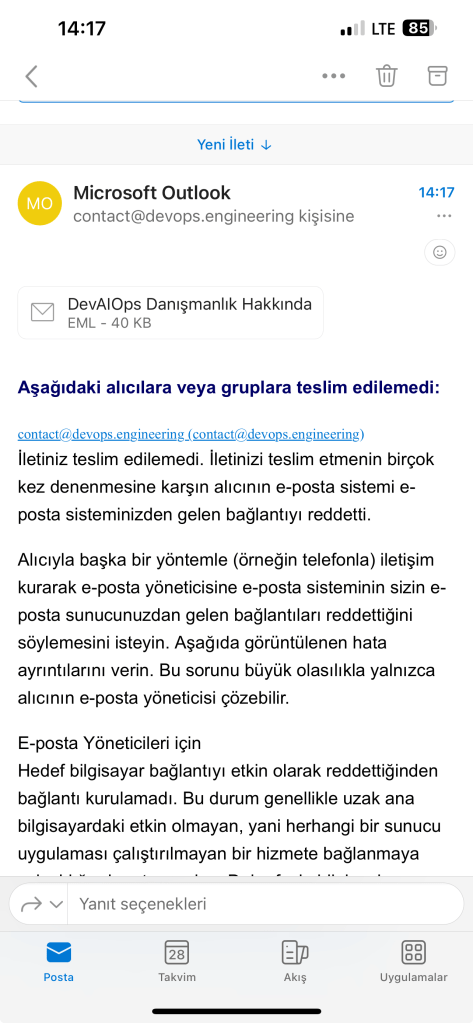
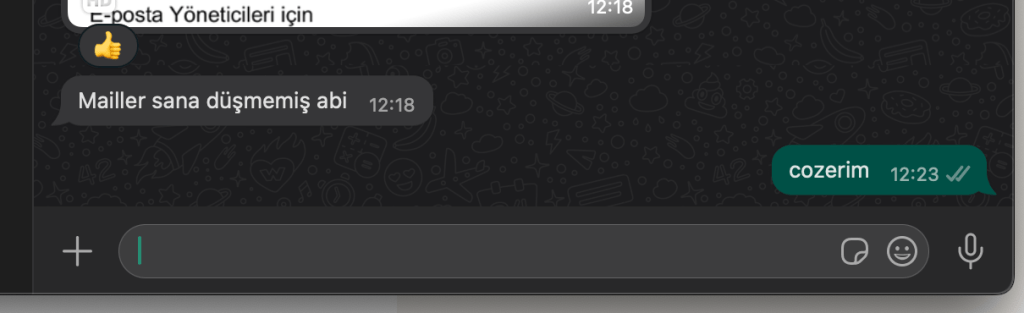
https://mxtoolbox.com/SuperTool.aspx?action=mx%3adevops.engineering&run=toolpage
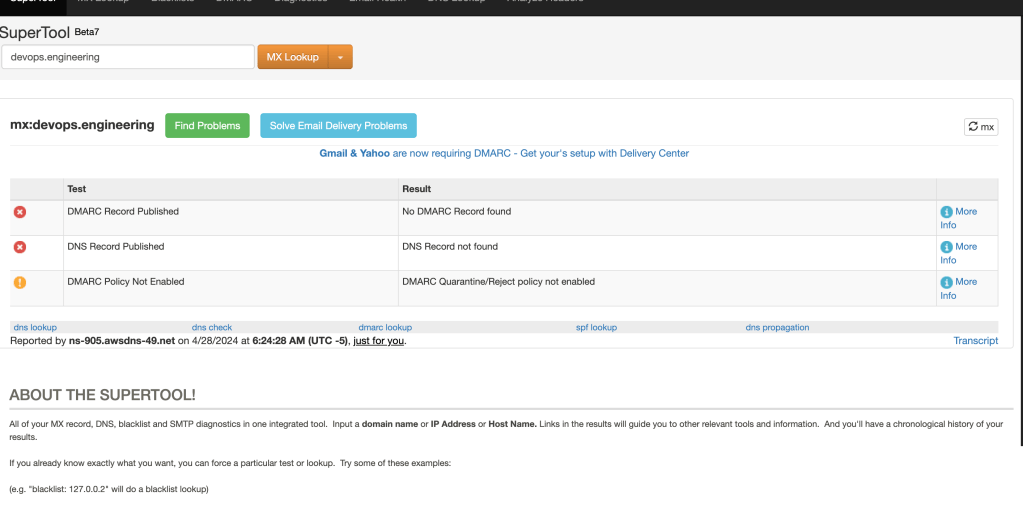
It looks like you might be encountering an issue related to DMARC, which stands for "Domain-based Message Authentication, Reporting, and Conformance." DMARC is an email validation system designed to protect your domain from unauthorized use, often known as email spoofing. The absence of a DMARC record means that your domain is not informing email servers how to handle emails claiming to be from your domain that fail DMARC checks.
Here’s what you can do if you've received a "No DMARC Record found" notification:
-
Create a DMARC Record: You will need to create a DMARC record if you don’t already have one. This record is published in your DNS settings. The record outlines policies for email authentication using SPF (Sender Policy Framework) and DKIM (DomainKeys Identified Mail).
-
Publish the Record to DNS: Once you have your DMARC record ready, you need to add it to your DNS. This usually involves logging into your domain registrar’s DNS management tool and adding a TXT record with the values needed for DMARC.
-
Testing the Record: After publishing, it’s crucial to test and make sure the DMARC record is correctly set up and recognized by email servers. Tools like MXToolbox and Google Admin Toolbox can help you verify if your DMARC record is found and valid.
-
Monitor Reports: DMARC also specifies how receiving mail servers should report back to you about emails that pass and fail DMARC evaluation. Monitoring these reports helps you understand how your email is being handled and identify potential authentication issues.
If you need guidance on how to formulate a DMARC record or need help with the specifics of adding it to your DNS, feel free to ask!
AWS to WIX redirection
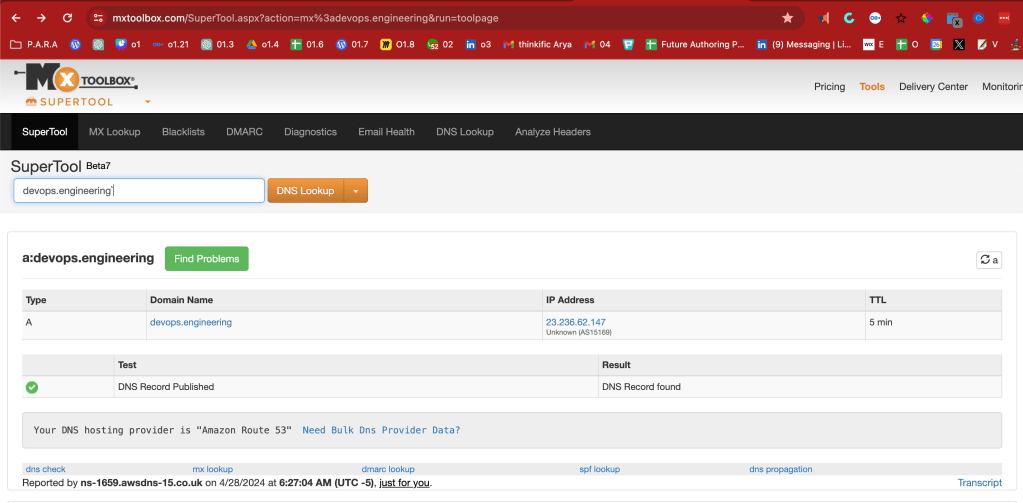
looks like the address if wix
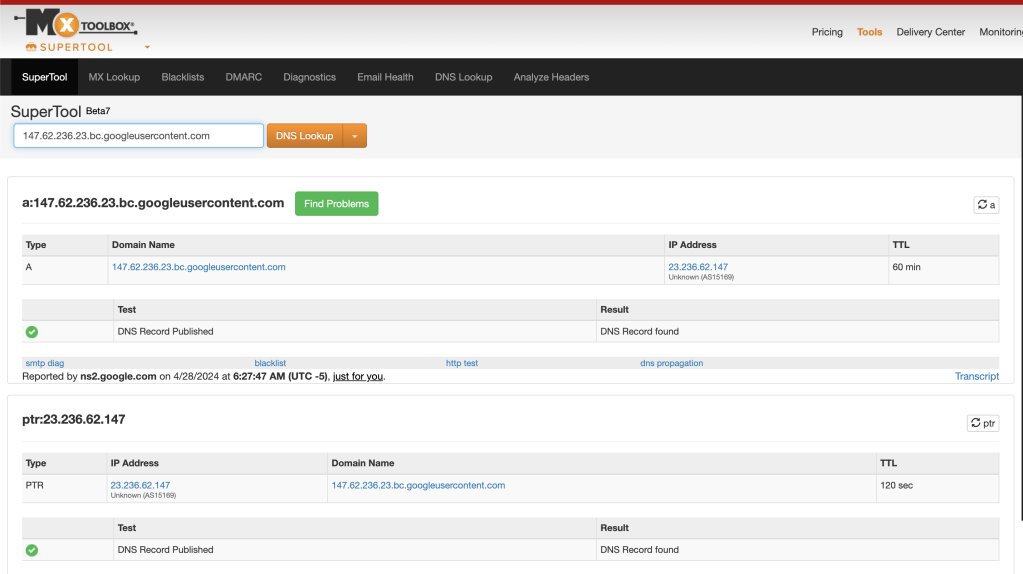
Login to wix
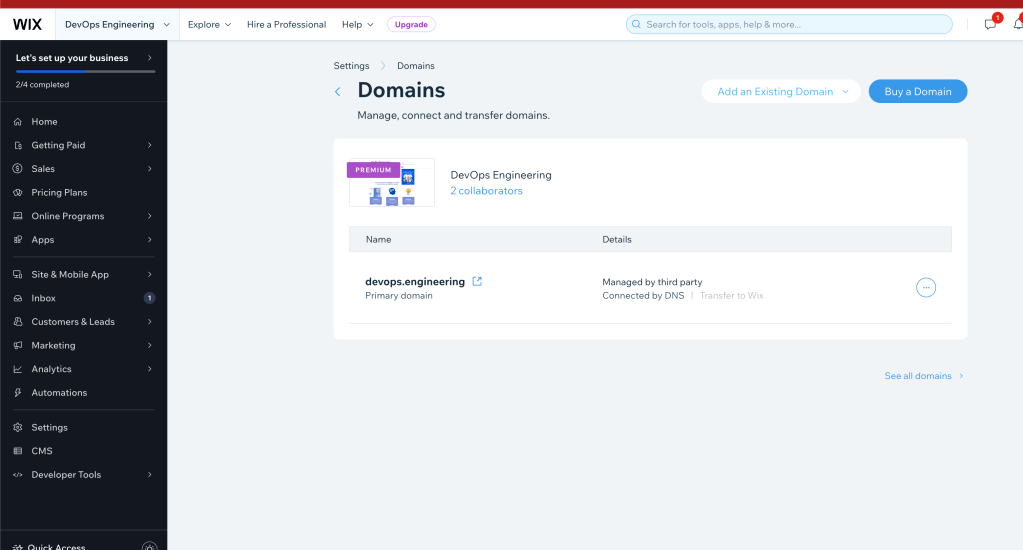
https://manage.wix.com/dashboard/0fa1fa7e-c21a-4ce0-b746-e298cc48024e/domain-settings?referralInfo=settings-lobby
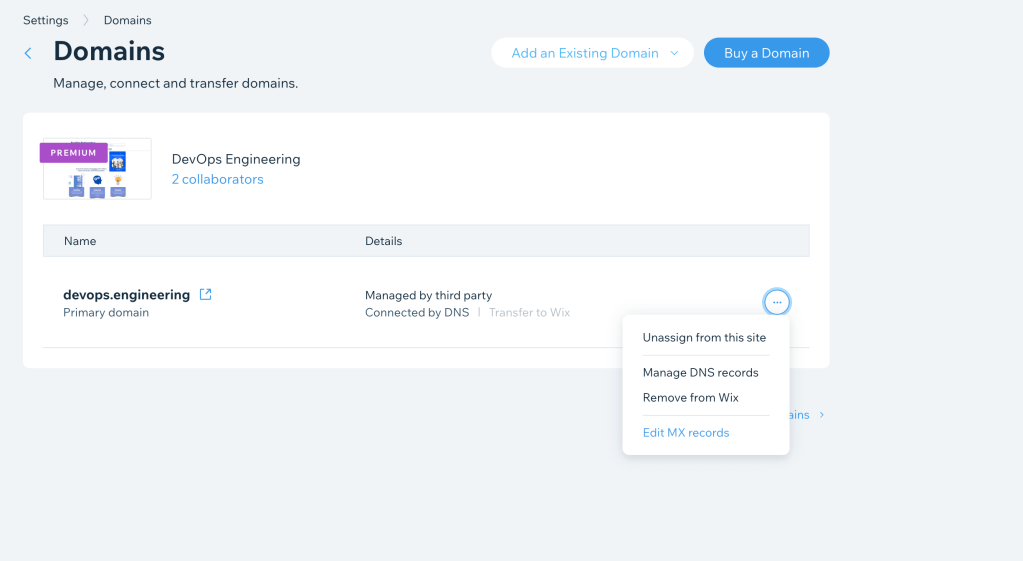
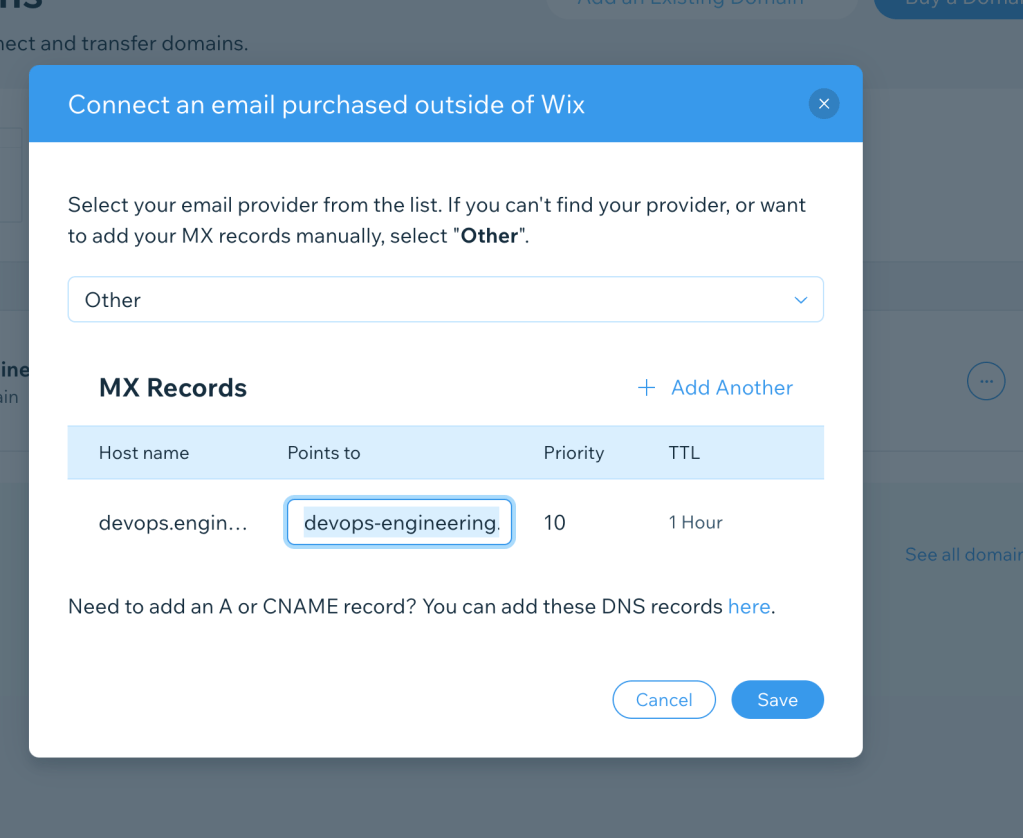
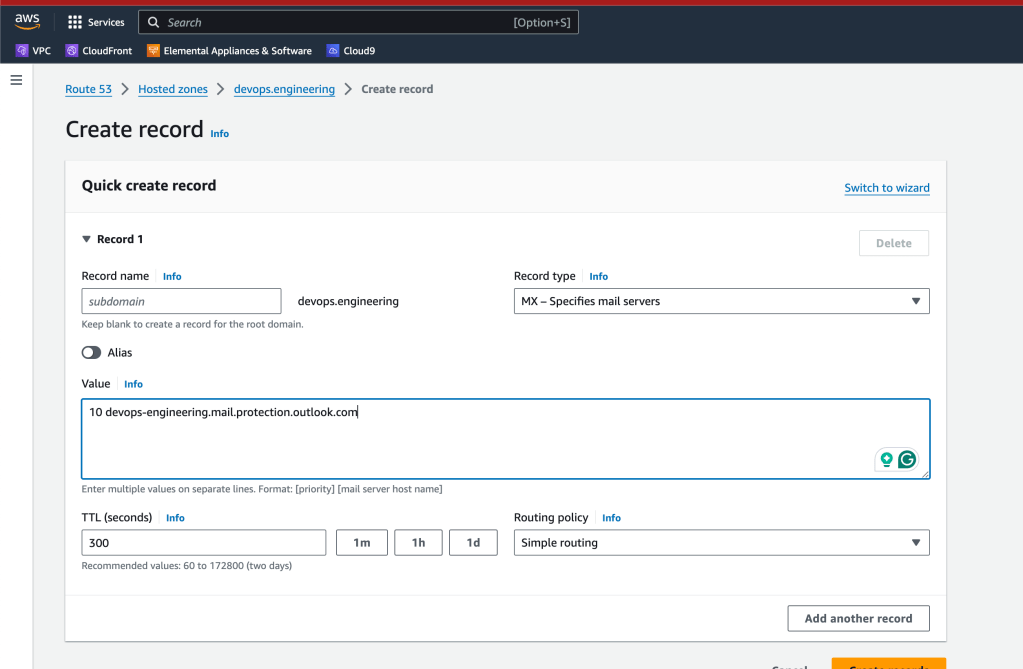
mx records
devops-engineering.mail.protection.outlook.com
Aws login
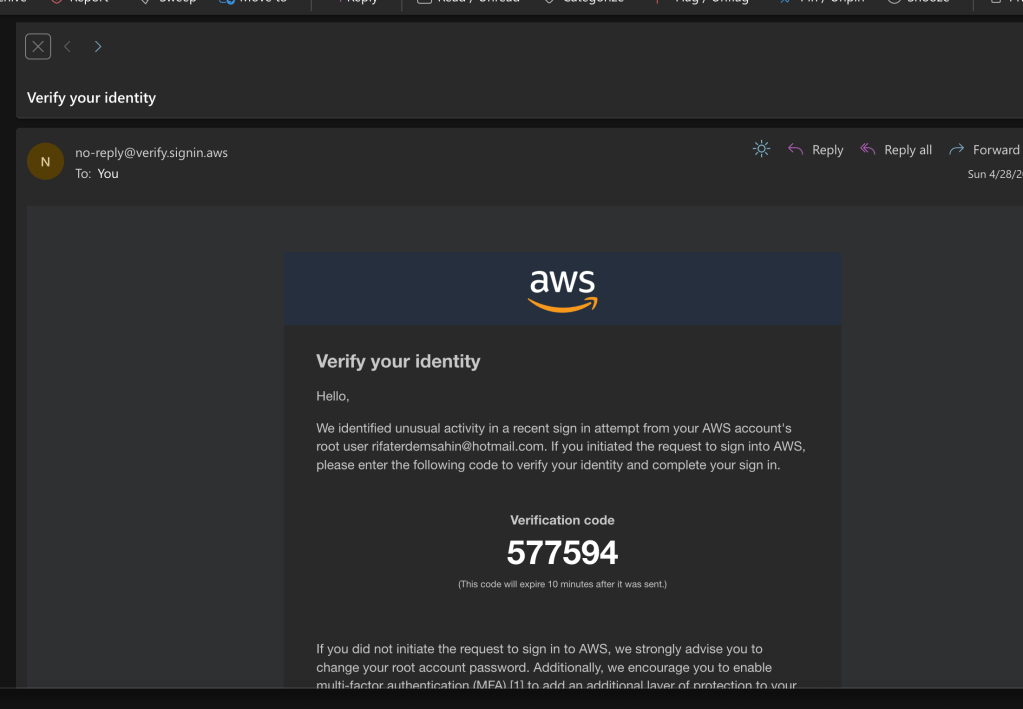
https://outlook.live.com/mail/0/inbox/id/AQMkADAwATYwMAItZTBiOS1kN2NkLTAwAi0wMAoARgAAA%2FfsD8Jf%2BXNHtn99vxdbwccHAHVdppwJUL5Oj2QadsFfQo8AAAIBDAAAAHVdppwJUL5Oj2QadsFfQo8ABsFXqJYAAAA%3D
2 zones
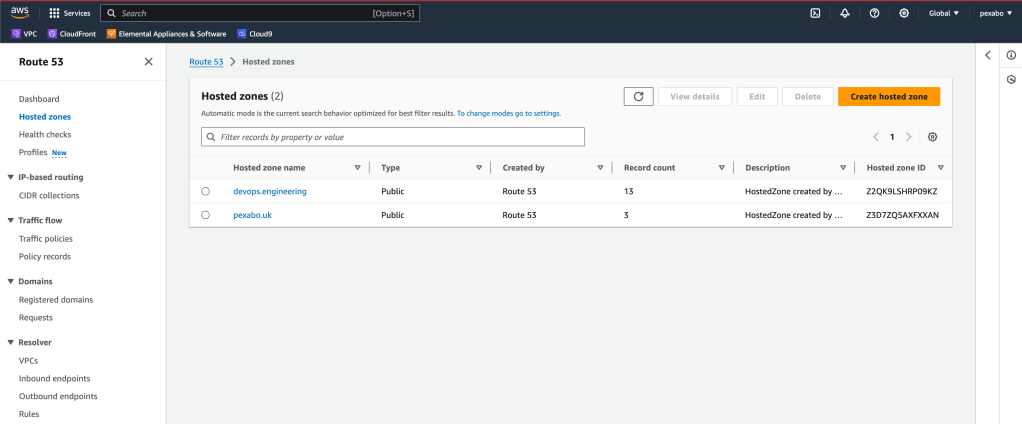
https://us-east-1.console.aws.amazon.com/route53/v2/hostedzones?region=us-east-1#
no mx in amazon aws
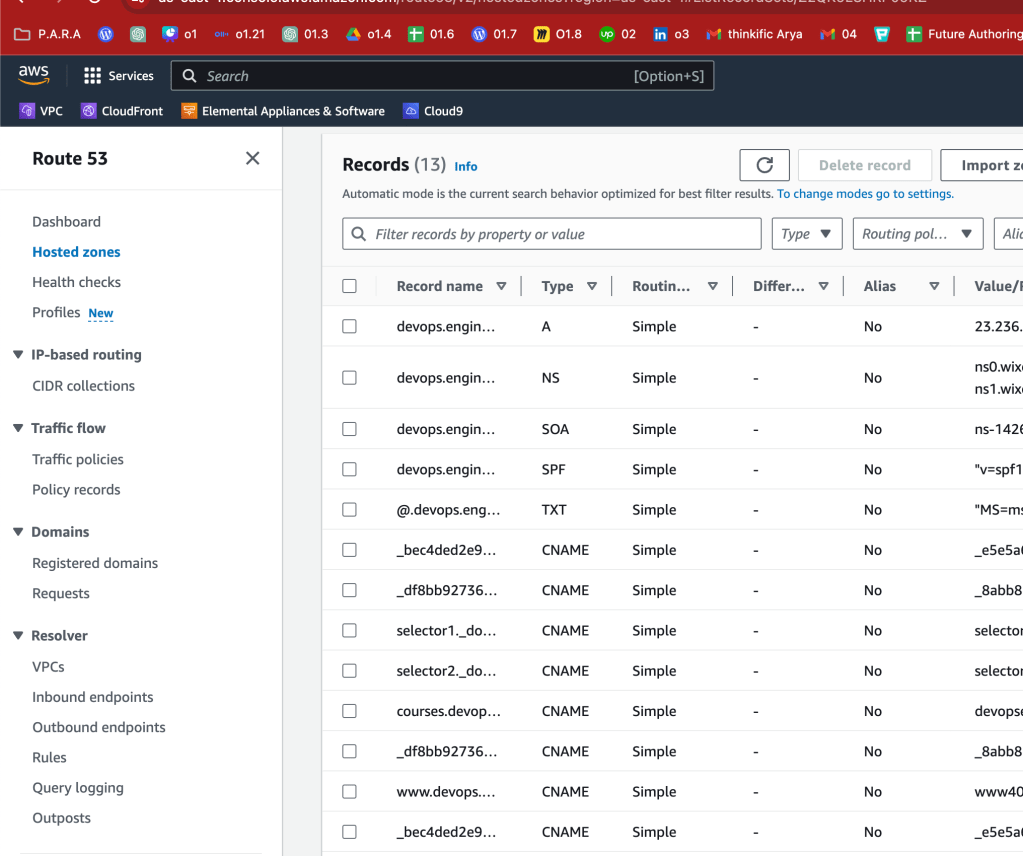
record created
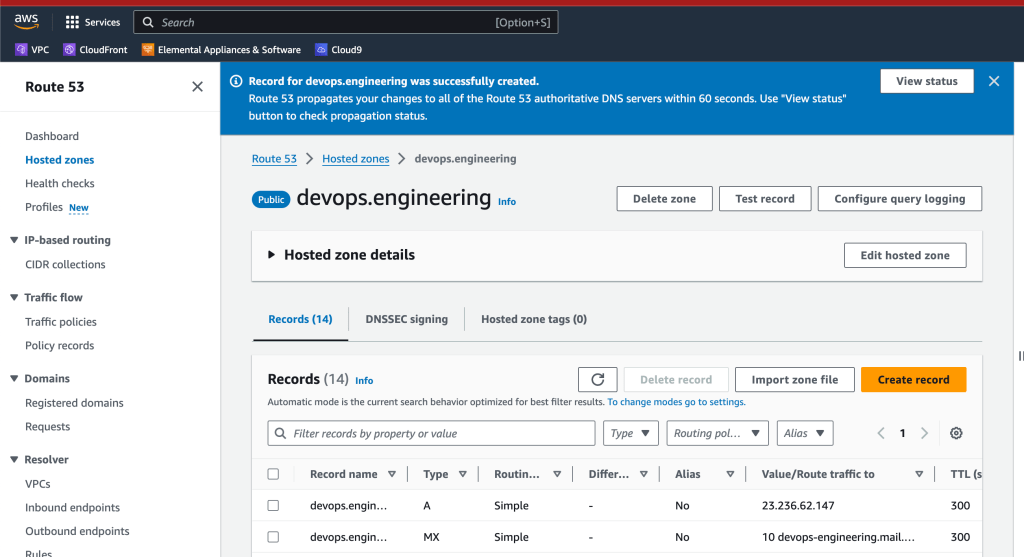
at least dns is checked
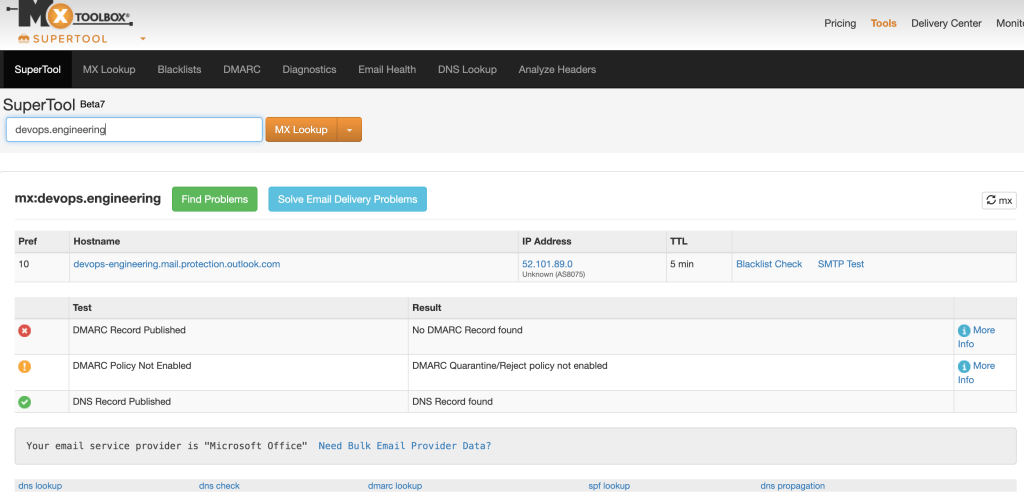
Creating a DMARC record in AWS Route 53 involves a few straightforward steps. Here’s a guide on how you can set up a DMARC record for your domain:
1. Define Your DMARC Policy
Before creating the record in Route 53, you need to determine the policy you want to enforce for your emails. The basic DMARC record format is as follows:
v=DMARC1; p=none; rua=mailto:[email protected];
Here's what each part means:
-
v=DMARC1: This indicates the DMARC version (always DMARC1).
-
p=none: The policy to apply when an email fails DMARC checks. Options are
none,quarantine, orreject. -
none: No action is taken, but you'll receive reports. -
quarantine: Emails will be marked as suspicious. -
reject: Completely reject emails that fail DMARC checks. -
rua=mailto:[email protected]: Address to send aggregate reports of DMARC failures.
You can add more directives based on your needs, such as specifying a percentage of messages to which the DMARC policy applies (pct=100) or providing a different address for forensic reports (ruf=mailto:[email protected]).
2. Log into AWS Management Console
Go to the AWS Management Console and navigate to Route 53.
3. Select Your Hosted Zone
In Route 53, select the "Hosted zones" option and then choose the domain for which you want to create the DMARC record.
4. Create the DMARC Record
-
Click on “Create record” or “Create Record Set” depending on your interface.
-
Enter the following details:
-
Record name: Enter
_dmarc. The full DNS record name will be_dmarc.yourdomain.com. -
Record type: Select “TXT - Text”.
-
Value: Enter the DMARC policy you defined earlier. For example:
"v=DMARC1; p=none; rua=mailto:[email protected];" -
TTL (Time to Live): Set the TTL as per your preference (e.g., 300 seconds).
5. Save the Record
Click on “Create records” or “Save Record Set” to save your new DMARC TXT record.
6. Test Your DMARC Record
After setting up the DMARC record, use tools like MXToolbox to verify that your DMARC record is correctly published and detectable.
By following these steps, you'll have a DMARC record set up in AWS Route 53 that instructs email providers on how to handle emails that do not authenticate against your domain's SPF and DKIM records.
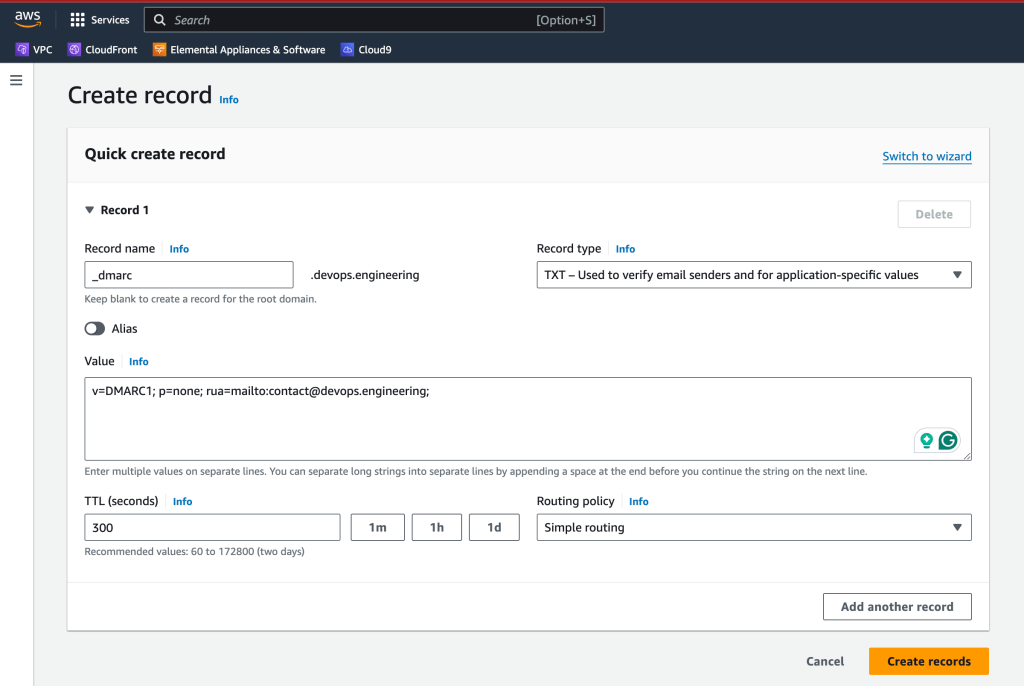
Dmarc policy enabled
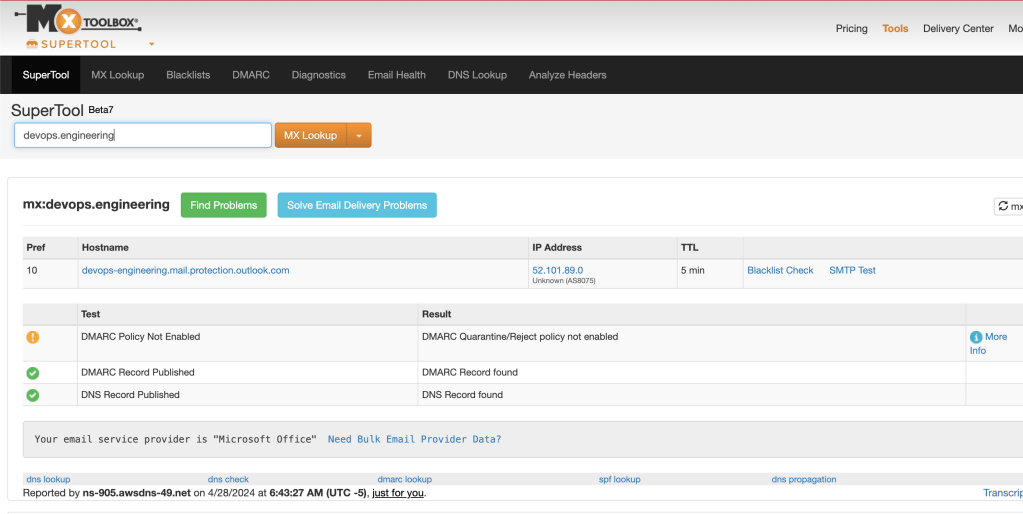
double side working
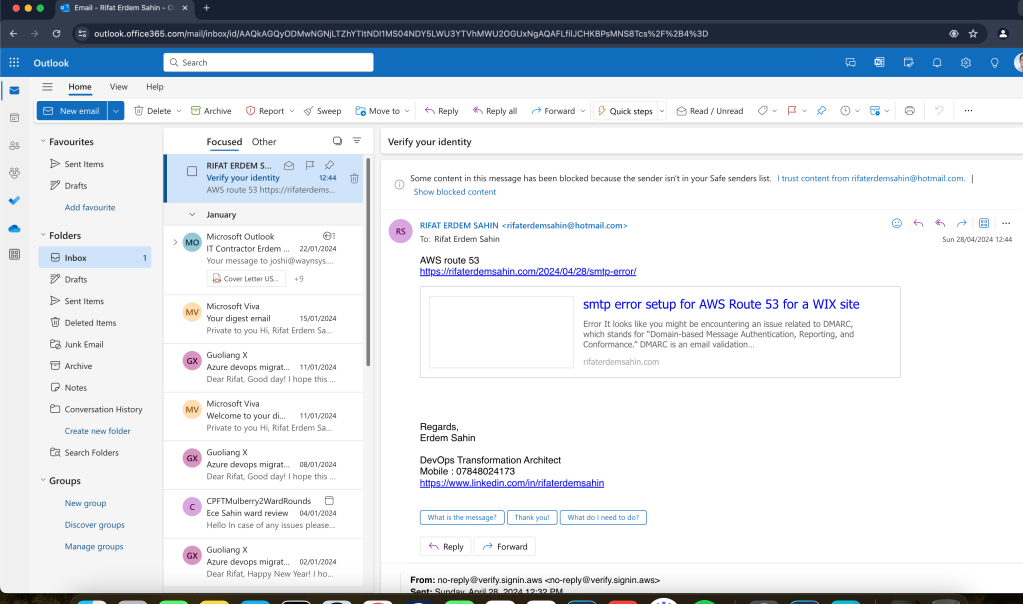
both sides testing
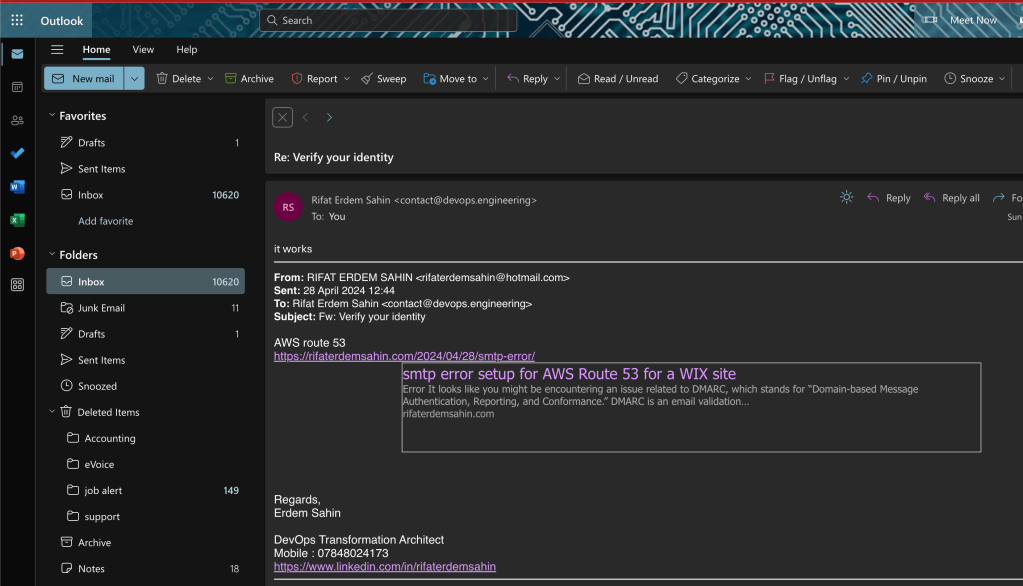
testing from gmail side
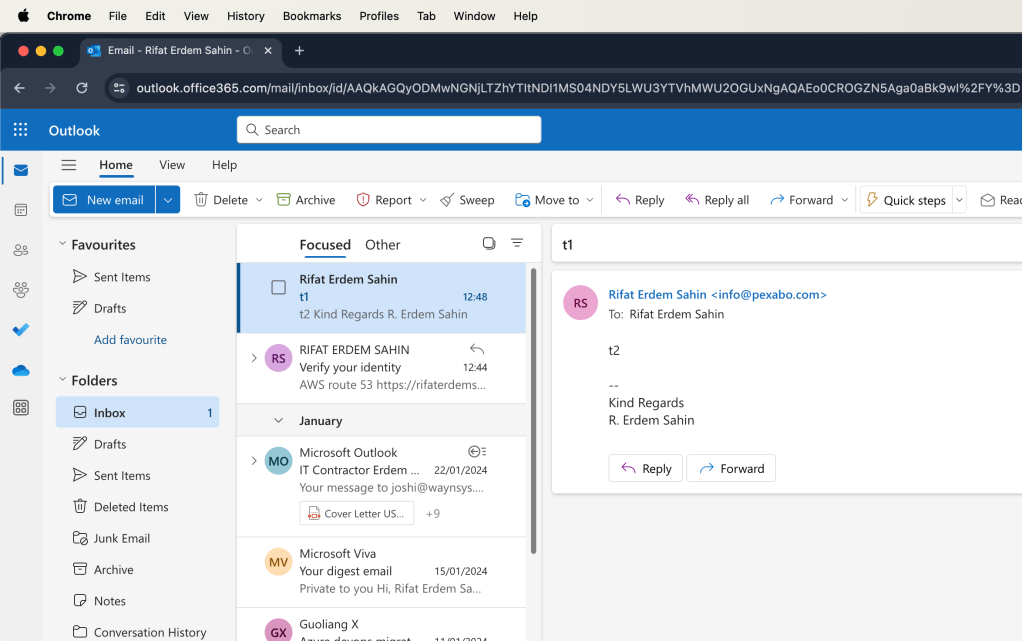
t3 response does not look like it landed > outbox issue ?
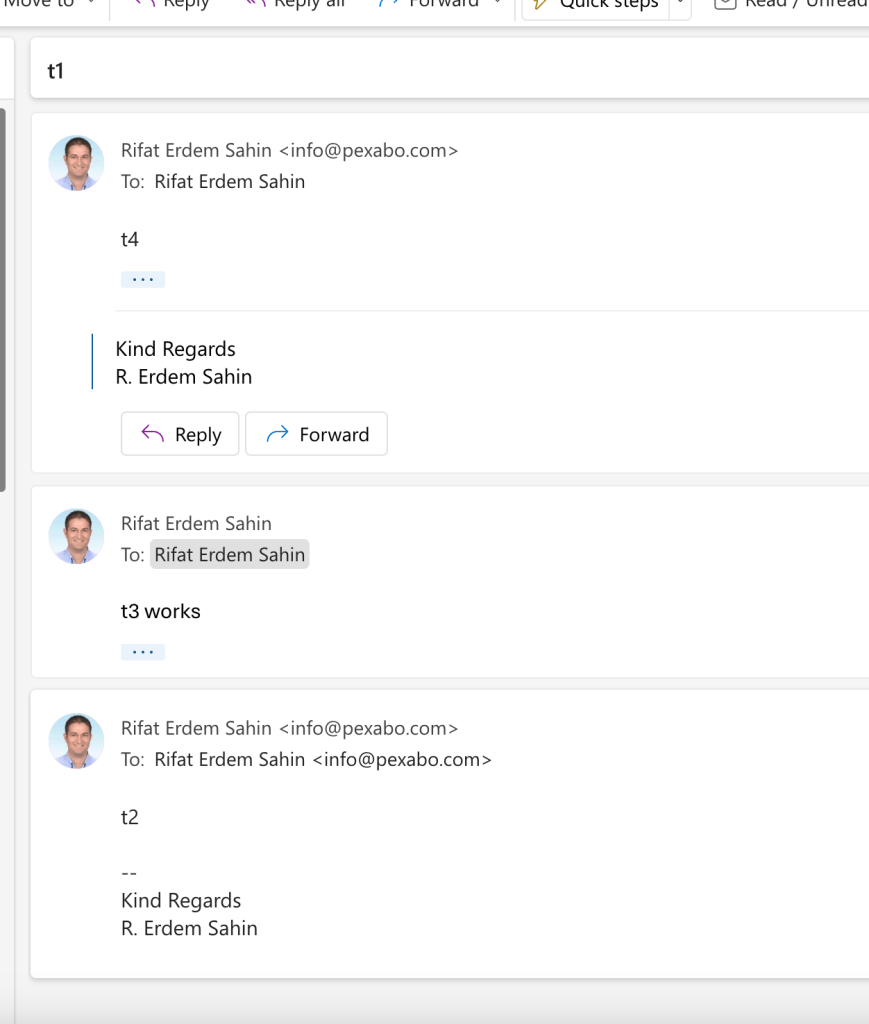
still add it to your main mailbox not to miss it
added forwarding for backup
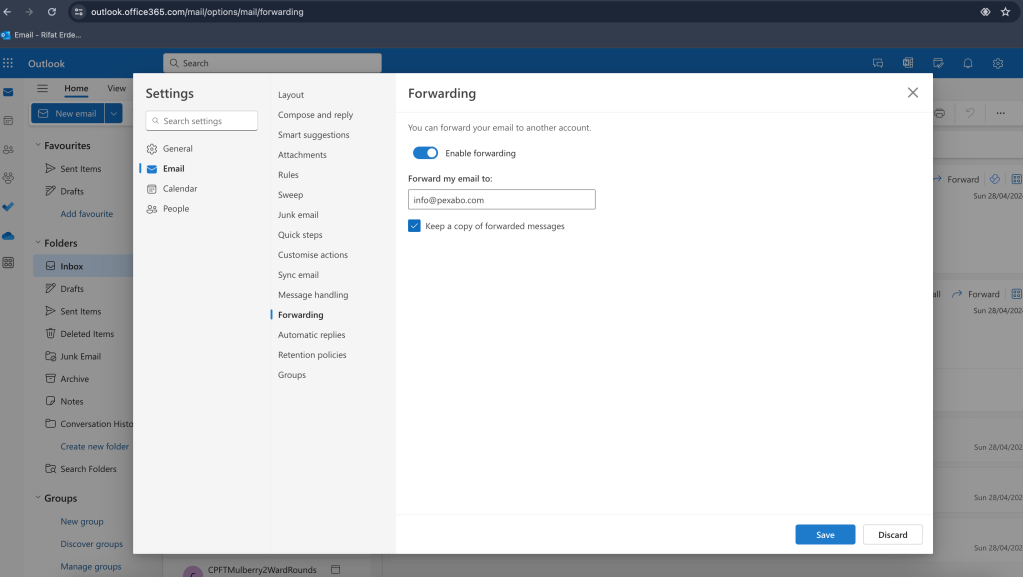
pop did not work > https://support.microsoft.com/en-gb/office/pop-imap-and-smtp-settings-for-outlook-com-d088b986-291d-42b8-9564-9c414e2aa040
Imported from rifaterdemsahin.com · 2024