FEAR OF STAGE
THE do sessions and the apply assignments needs to be shot
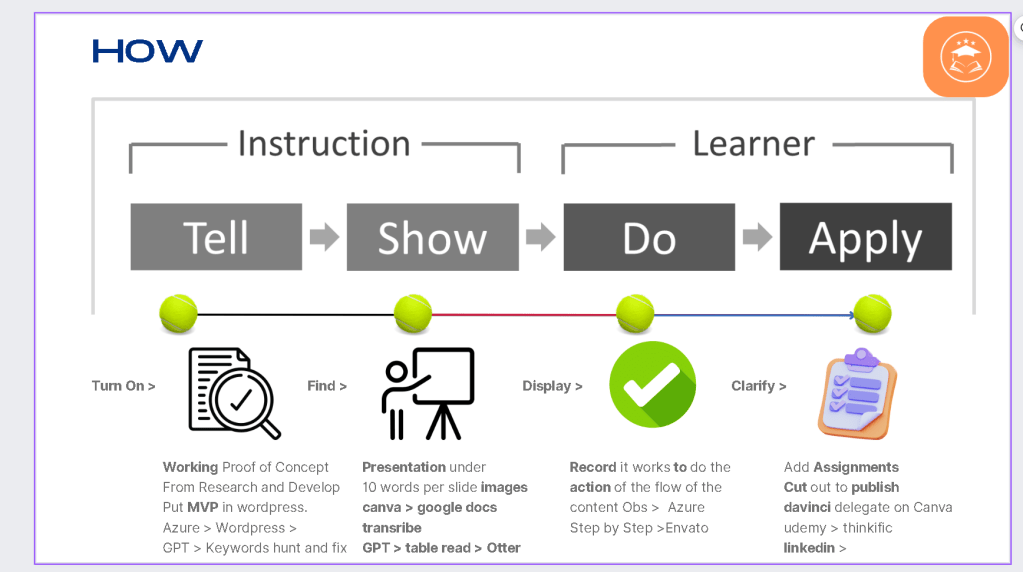
excuse the text is not clear
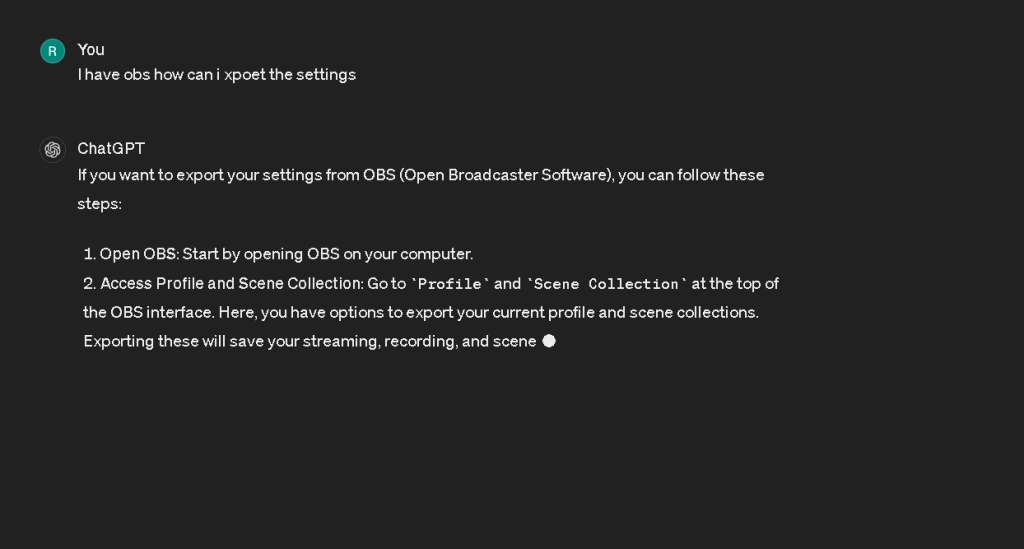
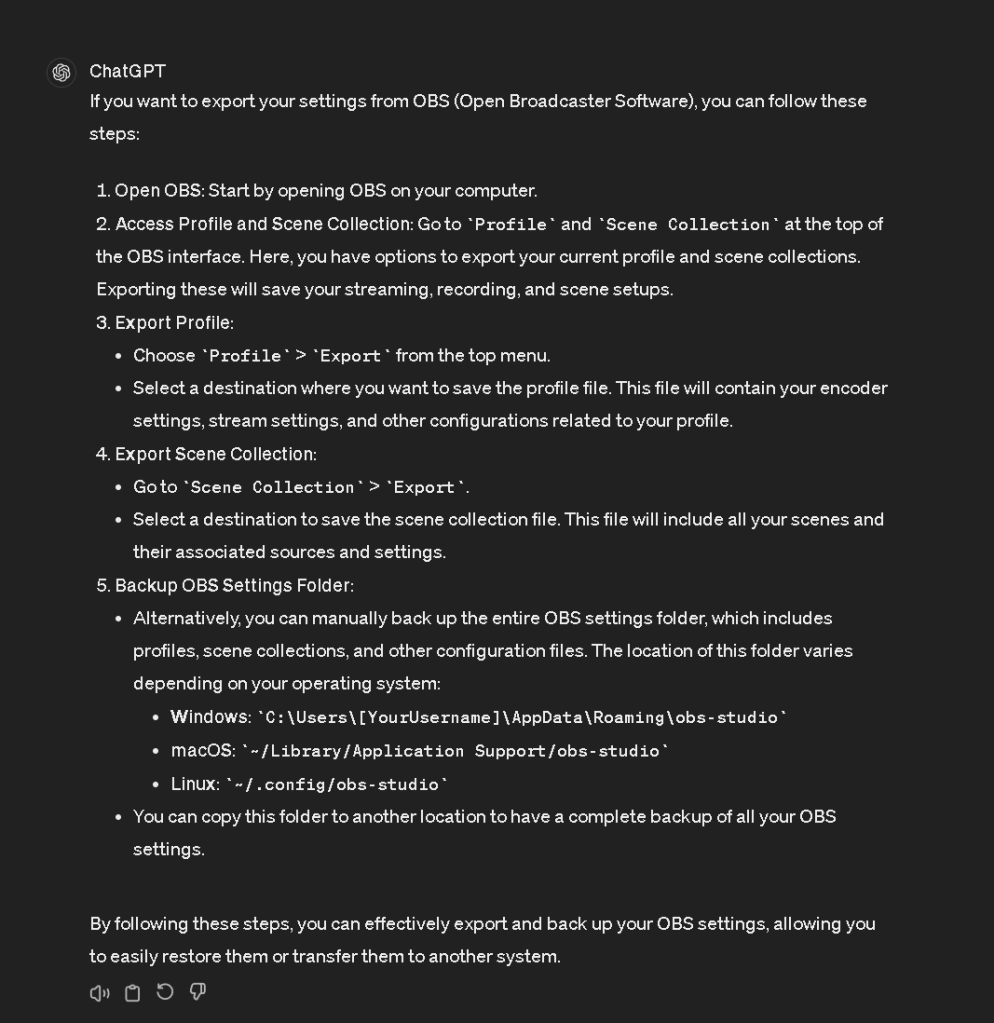
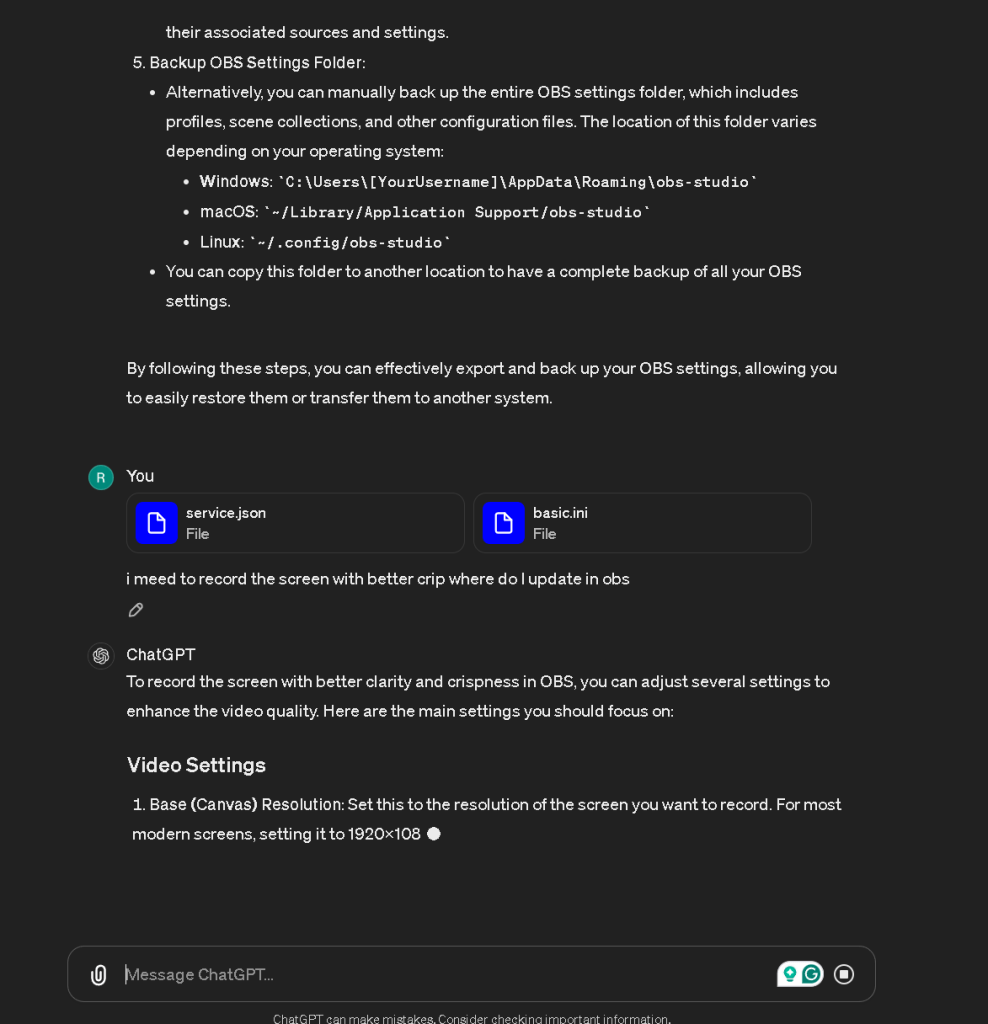
To record the screen with better clarity and crispness in OBS, you can adjust several settings to enhance the video quality. Here are the main settings you should focus on:
Video Settings
-
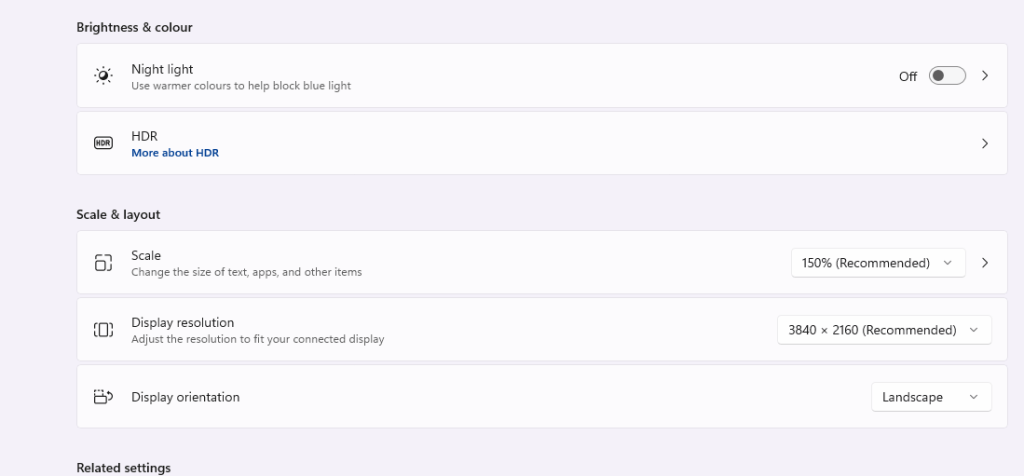
Base (Canvas) Resolution: Set this to the resolution of the screen you want to record. For most modern screens, setting it to 1920x1080 is a good start.
-
Output (Scaled) Resolution: This is the resolution of your recorded video. If you want a crisp output, keep it the same as your base resolution.
-
Downscale Filter: Choose "Lanczos" as your downscale filter if available, as it provides the highest quality.
-
Common FPS Values: Higher frame rates like 60 fps can make your video smoother, which is particularly useful for recording fast-moving content.
Output Settings
-
Output Mode: Switch to 'Advanced' mode to access more detailed settings.
-
Recording Quality: Set this to “High Quality, Medium File Size” or “Indistinguishable Quality, Large File Size” for the best video quality.
-
Recording Format: MP4 or MKV are popular formats due to their compatibility and quality.
-
Encoder: If your CPU can handle it, use x264 for better quality. If you have a compatible GPU, using a hardware encoder like NVENC (Nvidia) or VCE/AMF (AMD) can offload work from your CPU and provide efficient encoding.
Additional Tips
-
Ensure your computer’s hardware can handle the settings you configure. High-resolution and high-frame-rate recording can be demanding on system resources.
-
Regularly check for any software updates for OBS as improvements and optimizations are frequently made.
Steps to Adjust Settings in OBS
-
Open OBS.
-
Click on Settings in the lower-right corner.
-
Go to the Video tab to adjust the Base and Output resolutions, Downscale Filter, and FPS values.
-
Switch to the Output tab, change to Advanced mode if needed, and then set your Recording quality, format, and encoder under the Recording section.
These steps should help you achieve a clearer and crisper screen recording using OBS. If you encounter any specific issues or need guidance on a particular setting, feel free to ask!
set the resolution to 1080p both so it is better

Links
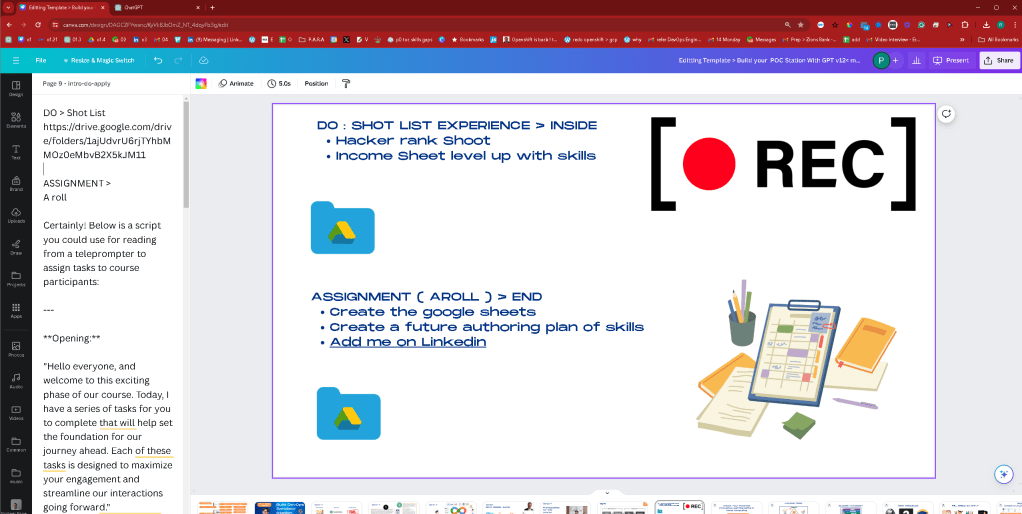
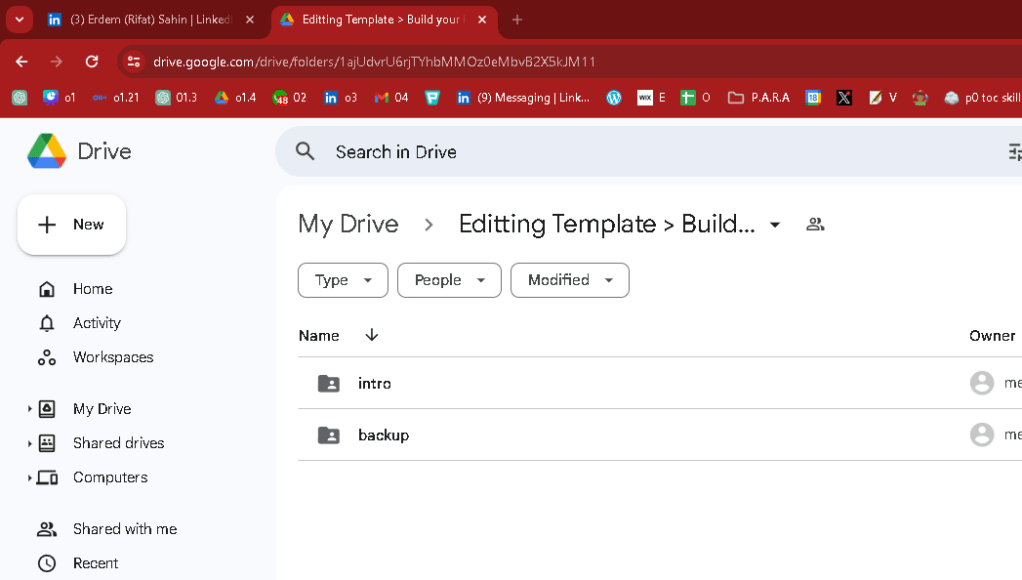
Easy and direct links are coming on
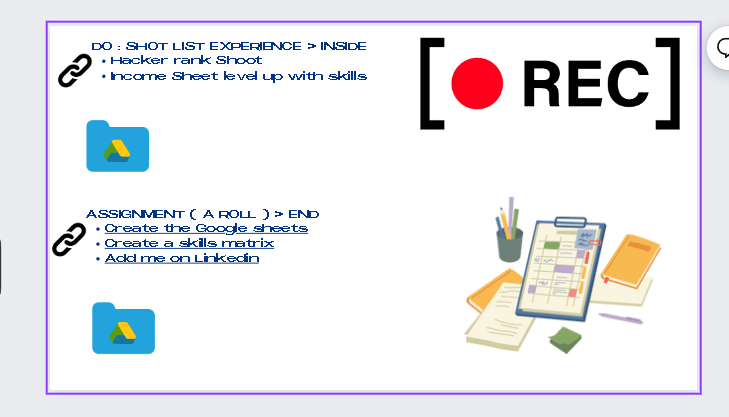
Udemy would have the different video for each section > Editor can edit and add value
Such as normalize voice > add a basic intro if needed. Cut in and out points
aT LEAST THE ENVIROMENT IS WATCH READY
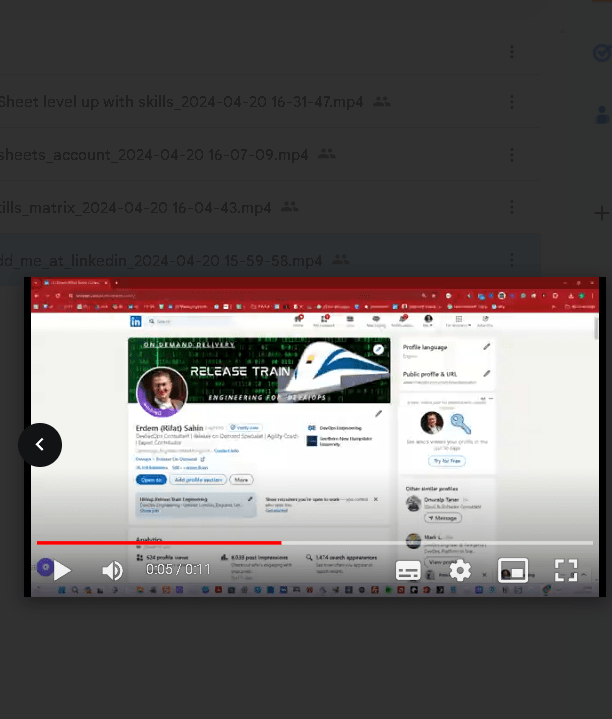
Imported from rifaterdemsahin.com · 2024