To record Microsoft Teams calls using Voicemeeter and a virtual audio cable
To record Microsoft Teams calls using Voicemeeter and a virtual audio cable, follow these steps. Please ensure you have the right to record the call and inform all participants according to your local laws and Microsoft Teams policies.
Pre-Requirements:
-
Download and install Voicemeeter (Banana or Potato version, depending on your needs).
-
Download and install a Virtual Audio Cable (VAC) software. VB-Audio provides a free one that works well with Voicemeeter.
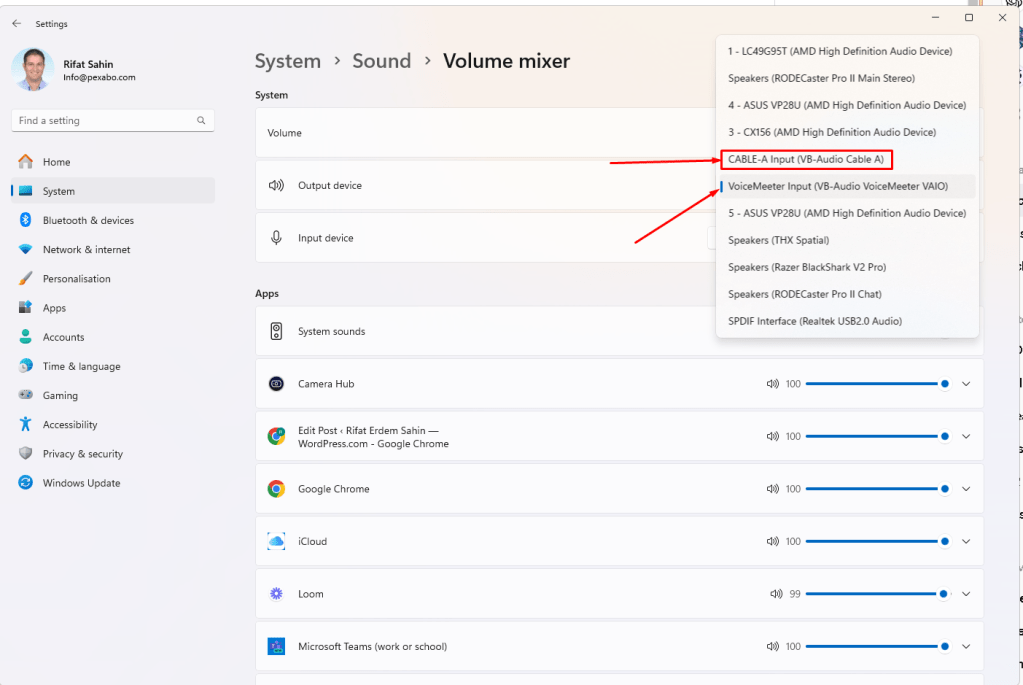
Setup and Configuration:
Step 1: Install Voicemeeter and Virtual Audio Cable
- After downloading, install both Voicemeeter and Virtual Audio Cable by following the installation prompts. Restart your computer if required.
Step 2: Set Up Virtual Audio Cable as Output in Teams
-
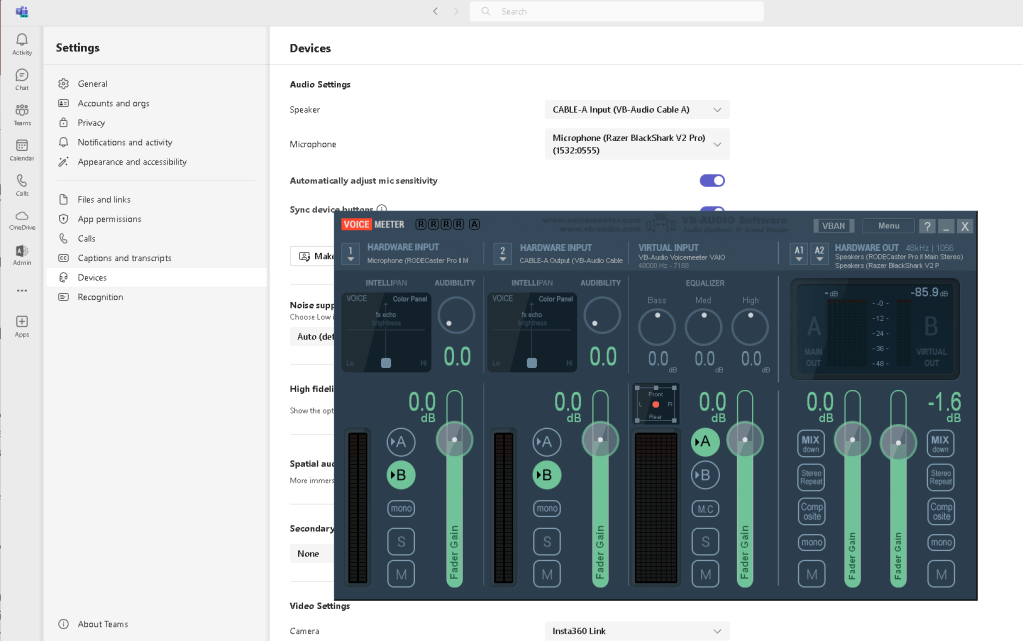
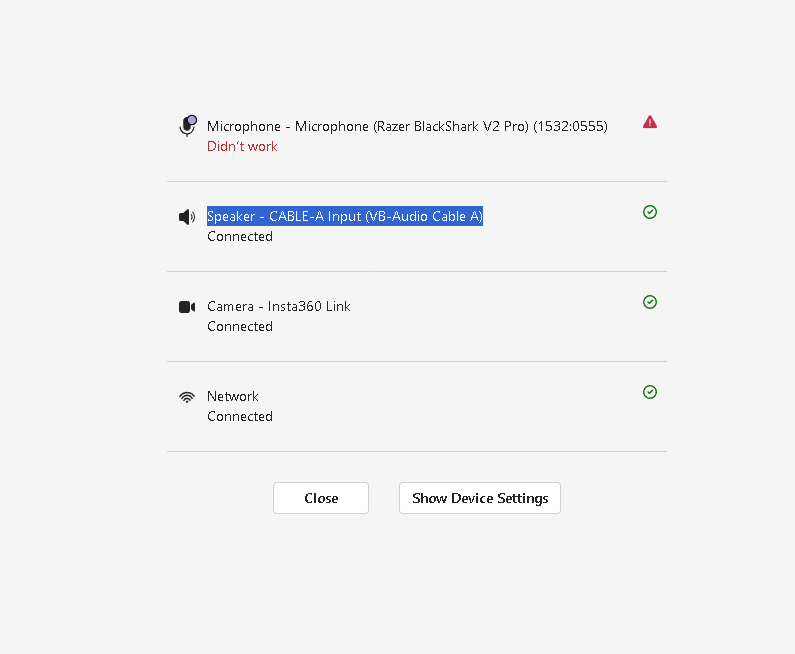
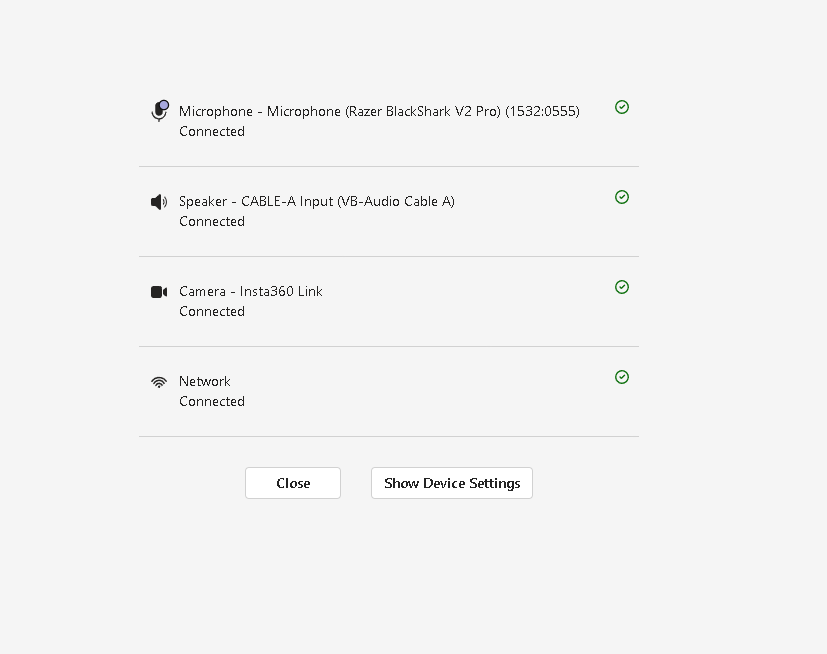
Open Microsoft Teams, go to "Settings" > "Devices."
-
Under "Speaker," select the Virtual Audio Cable as your output device. This will route Teams' audio through the virtual cable.
Step 3: Configure Voicemeeter
-
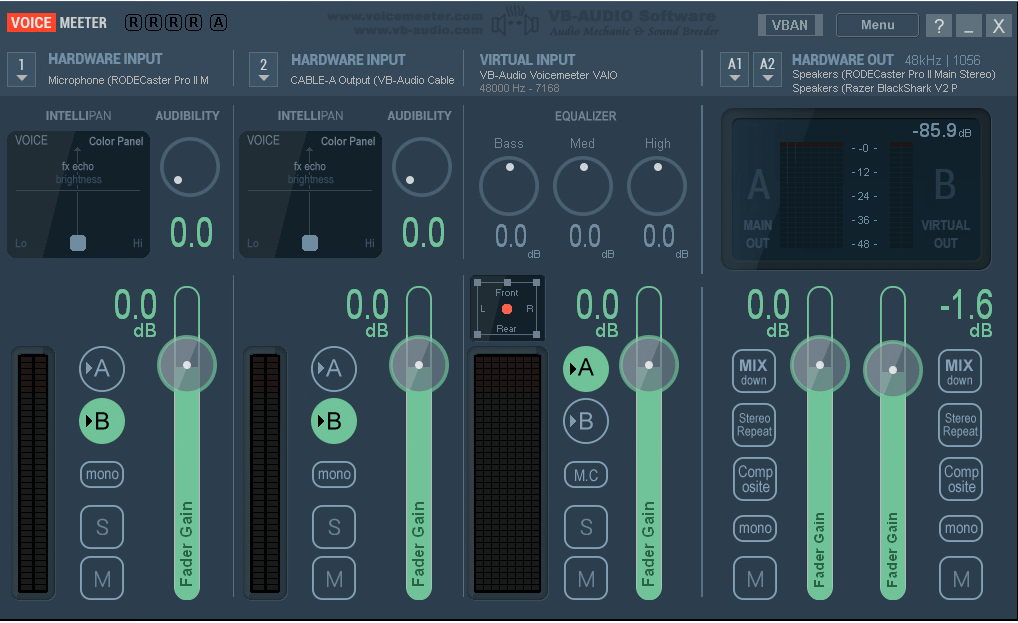
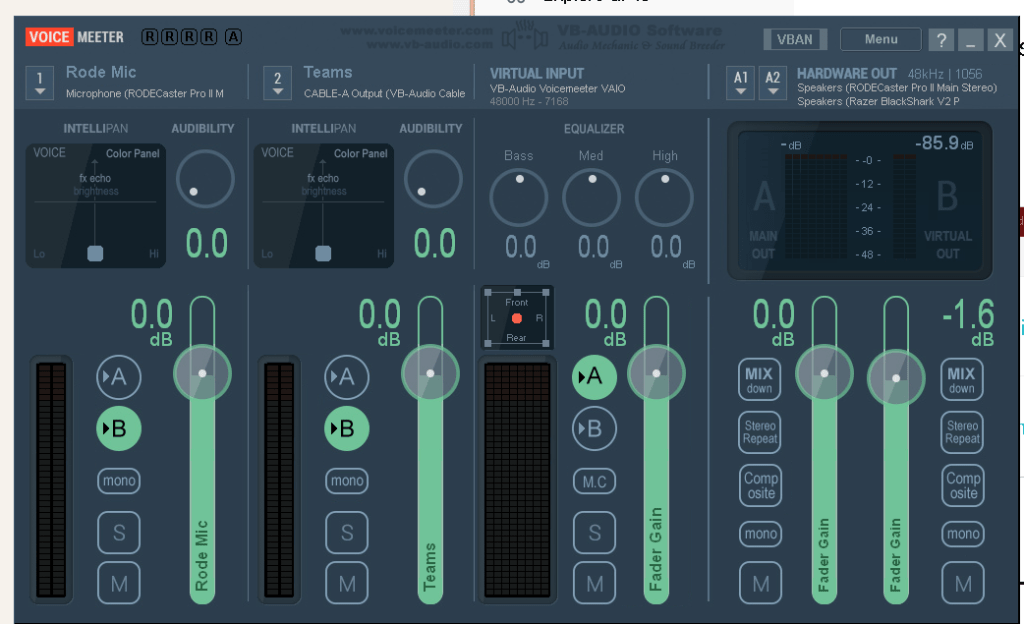
Open Voicemeeter. In the "Hardware Input" section, select the Virtual Audio Cable as one of the inputs. This will capture the audio coming from Teams.
-
In the "Hardware Out" section of Voicemeeter, select your physical speakers or headphones. This allows you to hear the Teams call.
-
To record your own voice, set another "Hardware Input" to your microphone.
Step 4: Configure Recording Options
- Voicemeeter offers a built-in recorder. Select the "Menu" in the top right corner and find the "Recorder" option. Configure it to record the inputs you desire (e.g., your microphone and the Teams call audio).
Step 5: Test Your Setup
- Before starting a Teams call, test your setup. Play any audio on your computer or speak into your microphone to ensure Voicemeeter is capturing the audio correctly. Adjust the levels as needed.
Step 6: Record the Call
-
When ready, start your Teams call. Ensure Voicemeeter is running and set to record the correct inputs.
-
Use the Voicemeeter recorder to start recording. The software will capture both your microphone input and the Teams call audio.
-
Stop the recording when your call ends. Voicemeeter will save the file in the specified location.
Tips:
-
Practice this setup before an important call to ensure everything works smoothly.
-
Regularly check if all participants are aware and agree to be recorded.
-
Adjust the audio levels to avoid clipping or too low volumes.
Remember, the steps might slightly vary depending on your version of Voicemeeter and Virtual Audio Cable, as well as your operating system settings. Always keep your software updated for the best performance and compatibility.
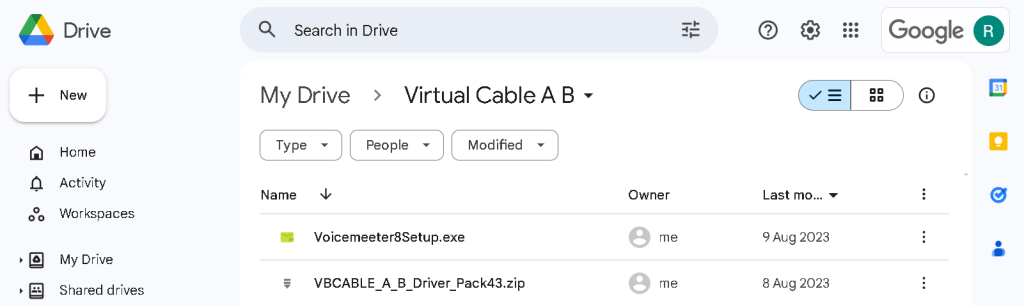
Driver purchased https://drive.google.com/drive/folders/1ylrGAAXEiwqKyl9ZbJVXFtREBfQ6vapj
Imported from rifaterdemsahin.com · 2024