Openshift is back ! trial one
Source > https://rifaterdemsahin.com/2024/03/04/openshift-course-pluralsight/
Why > https://rifaterdemsahin.com/2024/04/09/why-complete-the-openshift-creation/
Remember > Azure Resource Group Creation
GPT as the backup now!
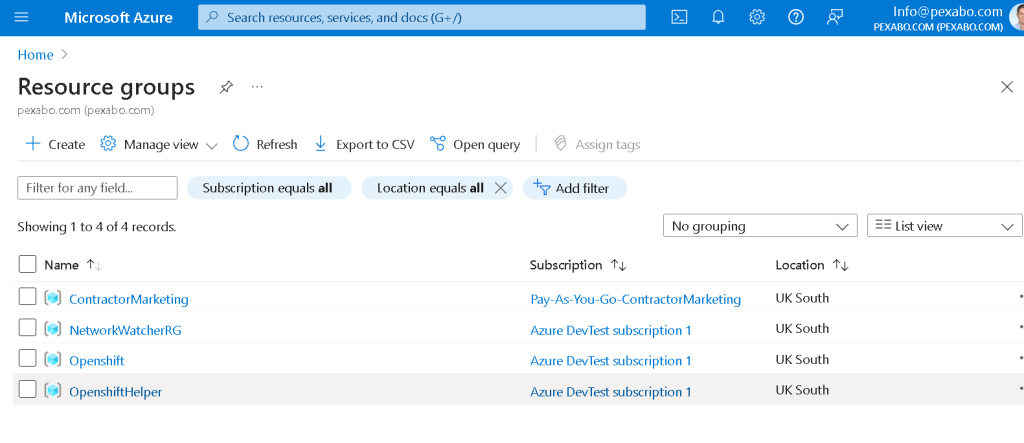
Host Machine
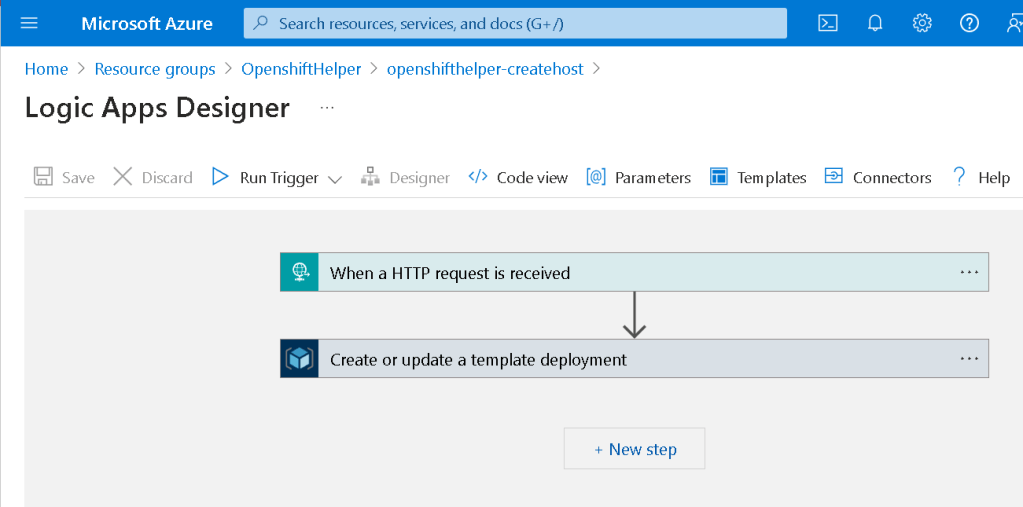
Cleanup
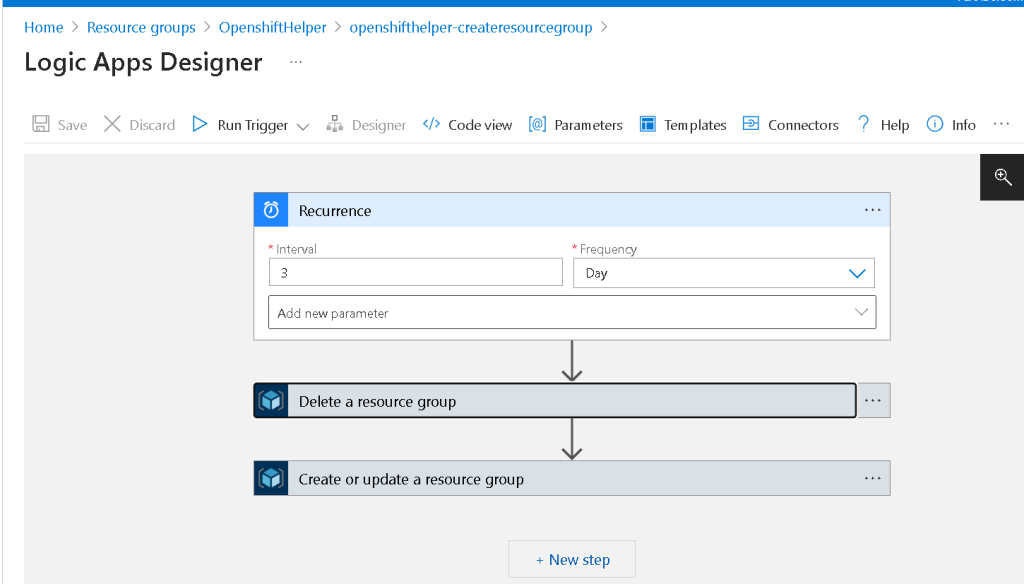
it works runs and creates the infra
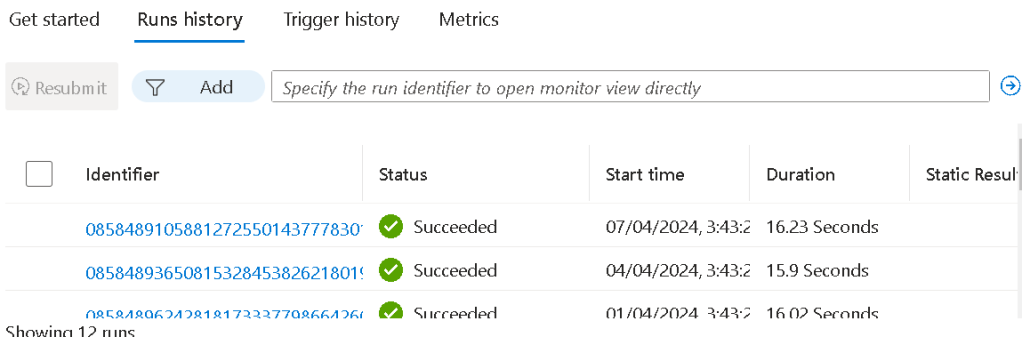
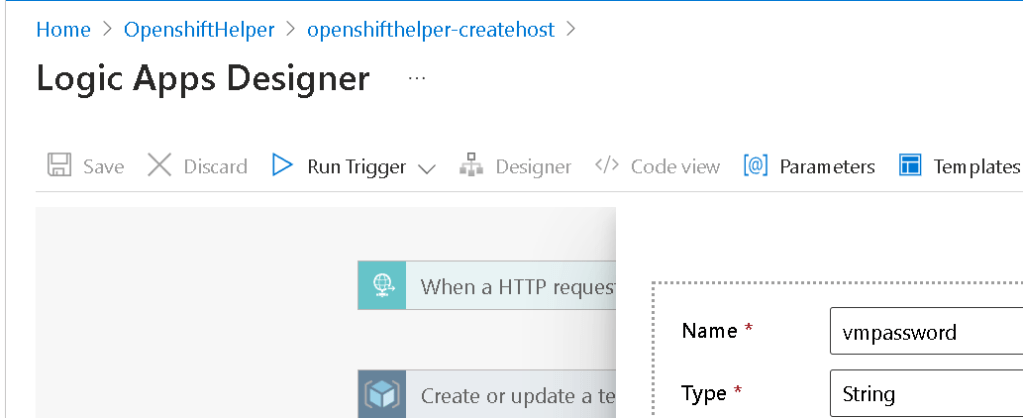
Added the vm password
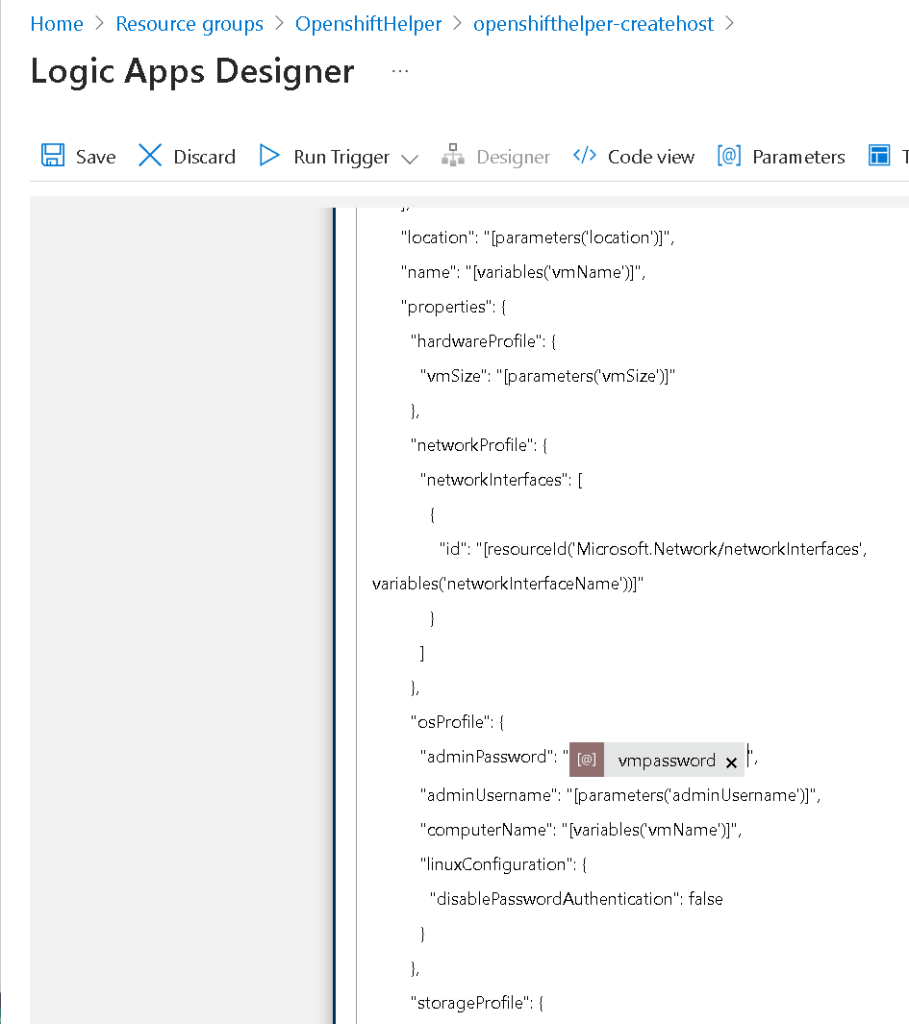
Goal run and create the VM and do the XRDP to the box make an easy ubuntu box that can have XRDP access.
XRDP depends on tools
run and see if it works first
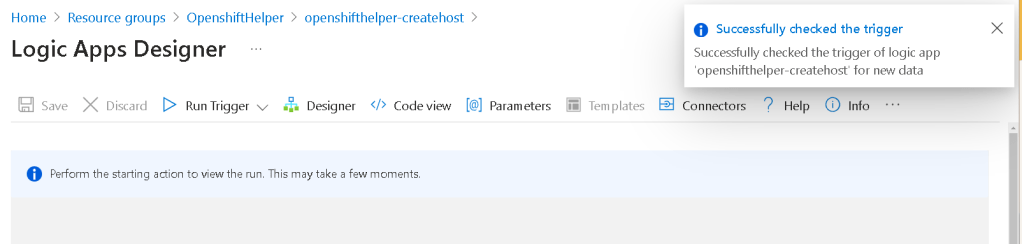
Create a manual script first test it than automate it.
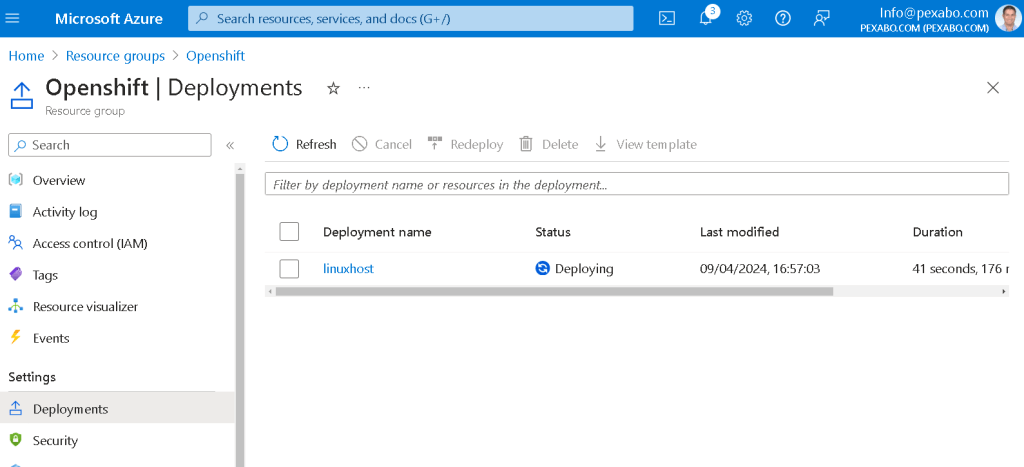
Incoming deployments
Check the operating system fromImage
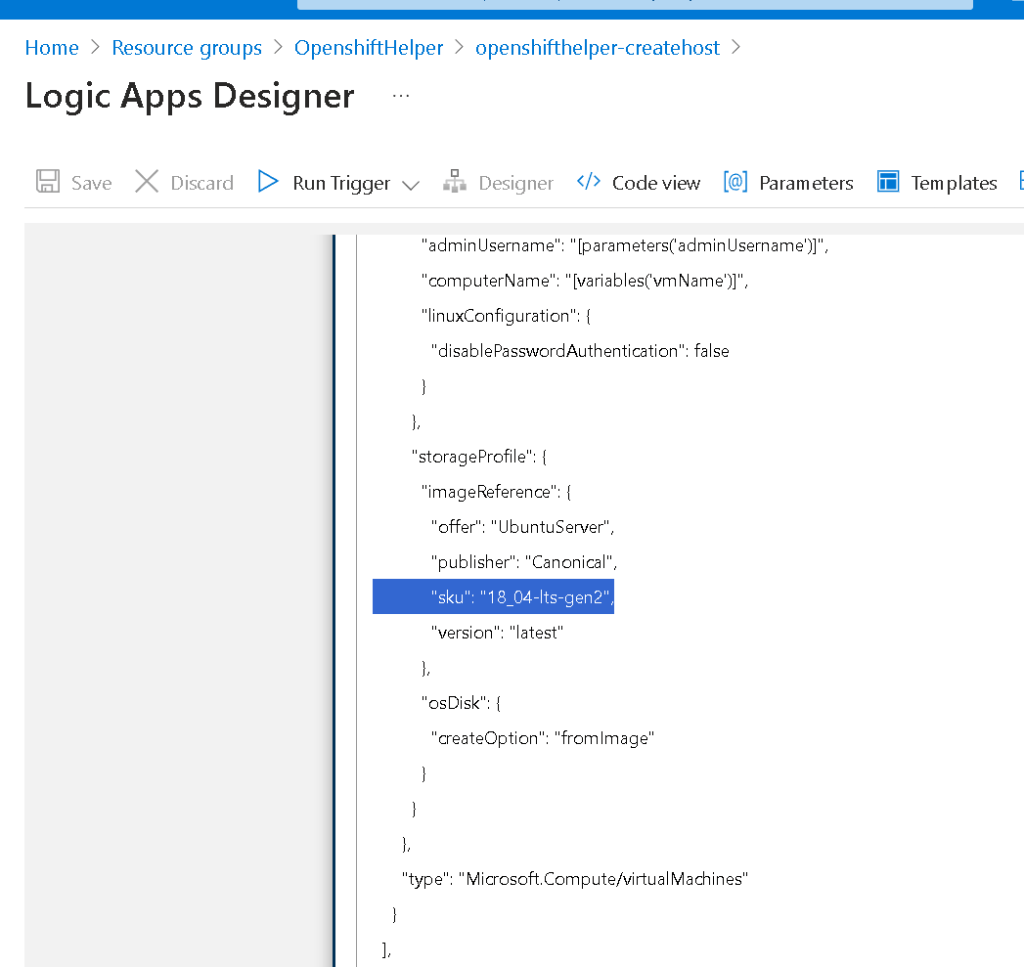
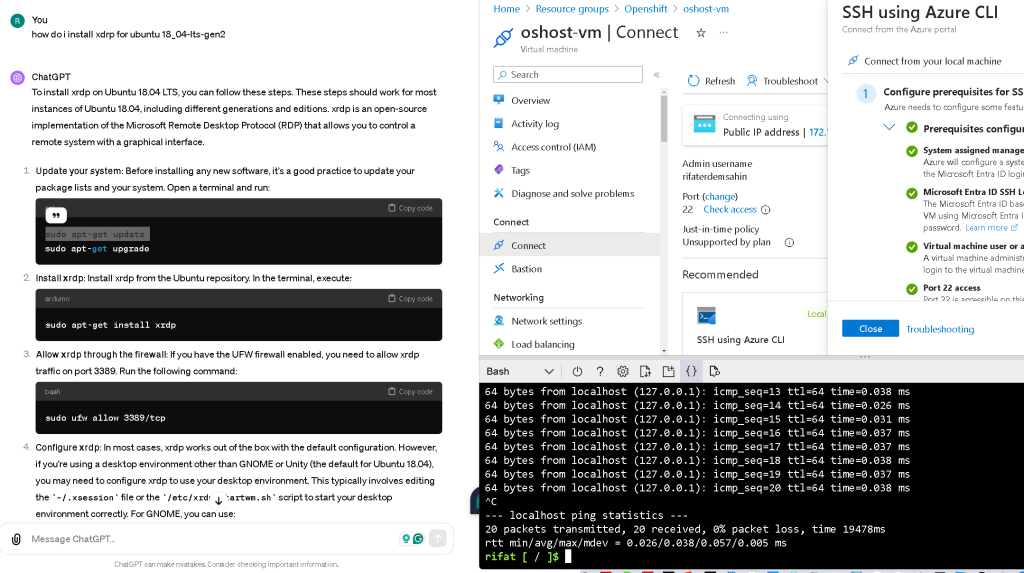
Check GPT output
To install xrdp on Ubuntu 18.04 LTS, you can follow these steps. These steps should work for most instances of Ubuntu 18.04, including different generations and editions. xrdp is an open-source implementation of the Microsoft Remote Desktop Protocol (RDP) that allows you to control a remote system with a graphical interface.
-
Update your system: Before installing any new software, it's a good practice to update your package lists and your system. Open a terminal and run:
sudo apt-get update sudo apt-get upgrade -
Install xrdp: Install xrdp from the Ubuntu repository. In the terminal, execute:
sudo apt-get install xrdp -
Allow xrdp through the firewall: If you have the UFW firewall enabled, you need to allow xrdp traffic on port 3389. Run the following command:
sudo ufw allow 3389/tcp -
Configure xrdp: In most cases, xrdp works out of the box with the default configuration. However, if you're using a desktop environment other than GNOME or Unity (the default for Ubuntu 18.04), you may need to configure xrdp to use your desktop environment. This typically involves editing the
~/.xsessionfile or the/etc/xrdp/startwm.shscript to start your desktop environment correctly. For GNOME, you can use:echo "gnome-session" > ~/.xsession -
Restart xrdp: To apply any configuration changes, restart the xrdp service:
sudo systemctl restart xrdp -
Connect to your Ubuntu system from a remote desktop client: On the computer you want to access Ubuntu from, open a Remote Desktop client and connect to your Ubuntu system by entering its IP address and the credentials of a user on the Ubuntu system.
Remember, if you're using a cloud service or a VM setup, ensure that the network security group or firewall settings allow inbound connections on port 3389. Also, depending on your desktop environment, you might need to adjust step 4 for compatibility.
SSH
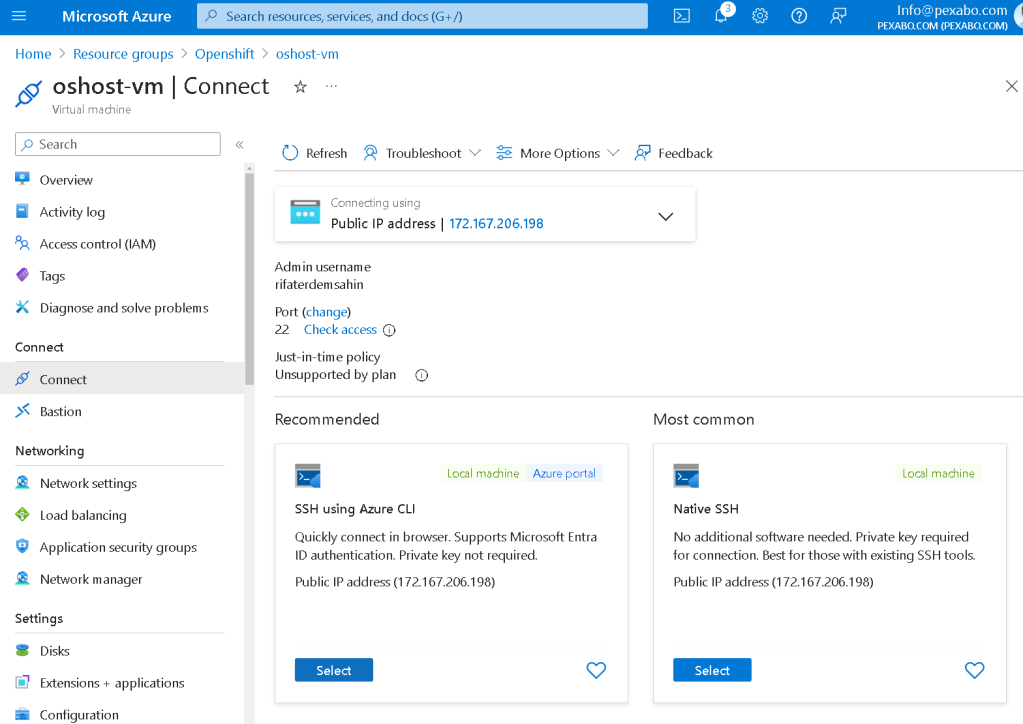
Validate first
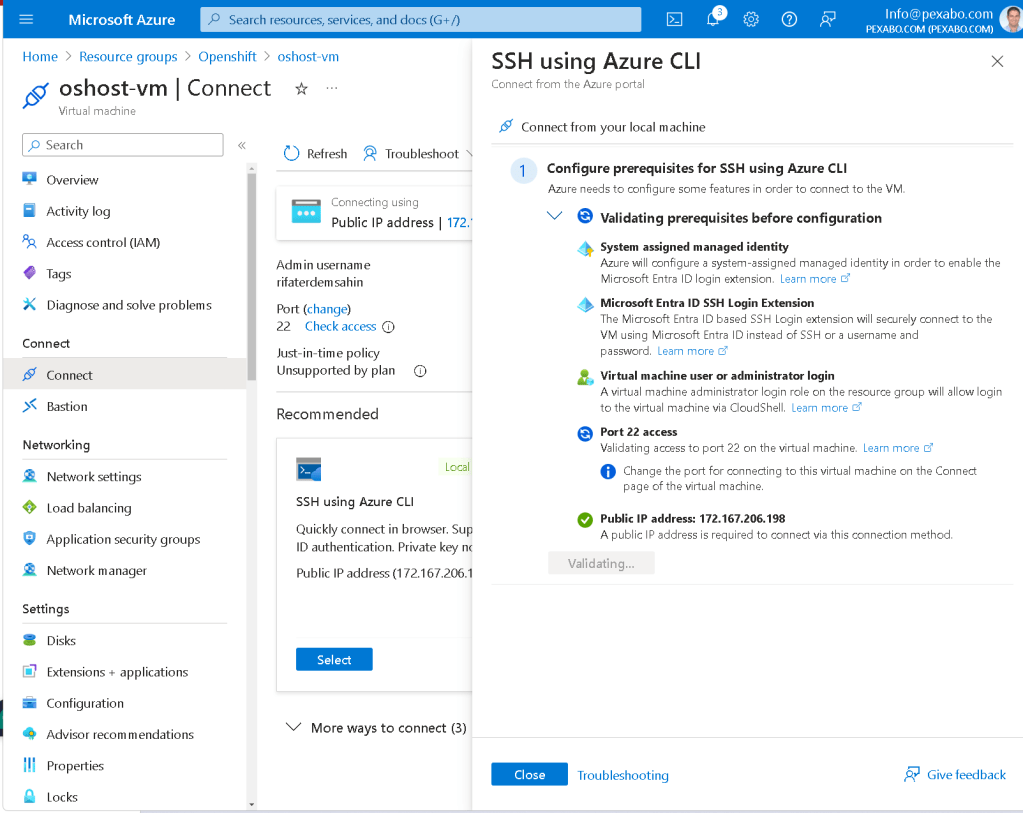
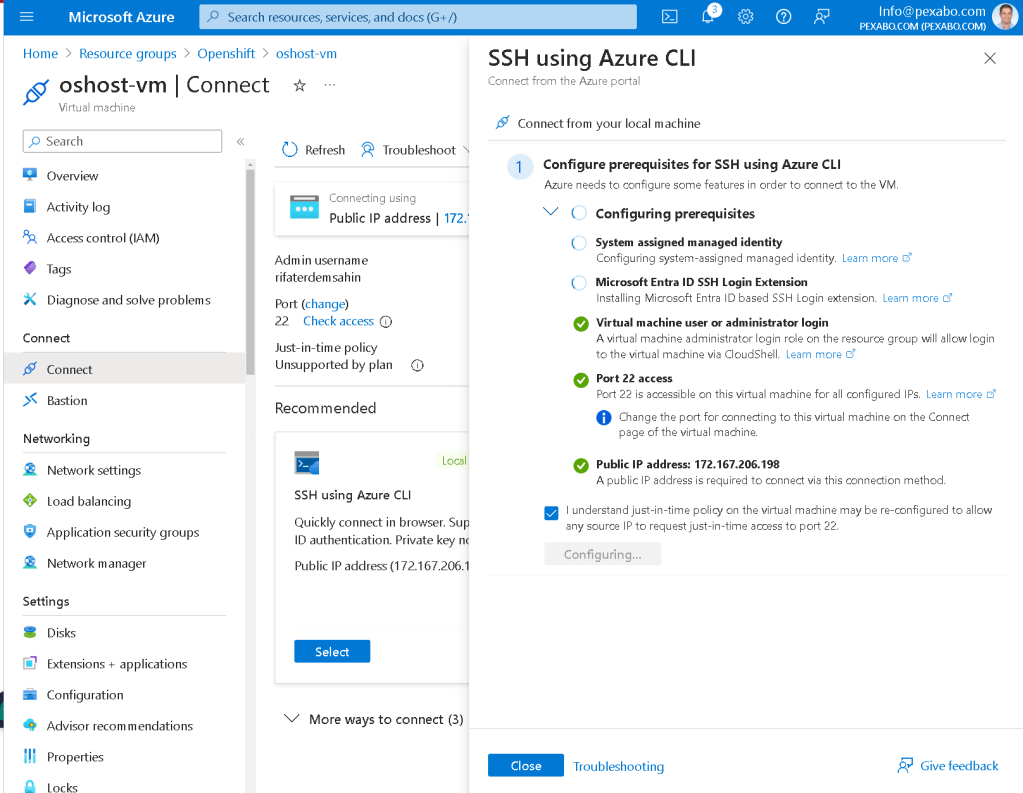
Configure
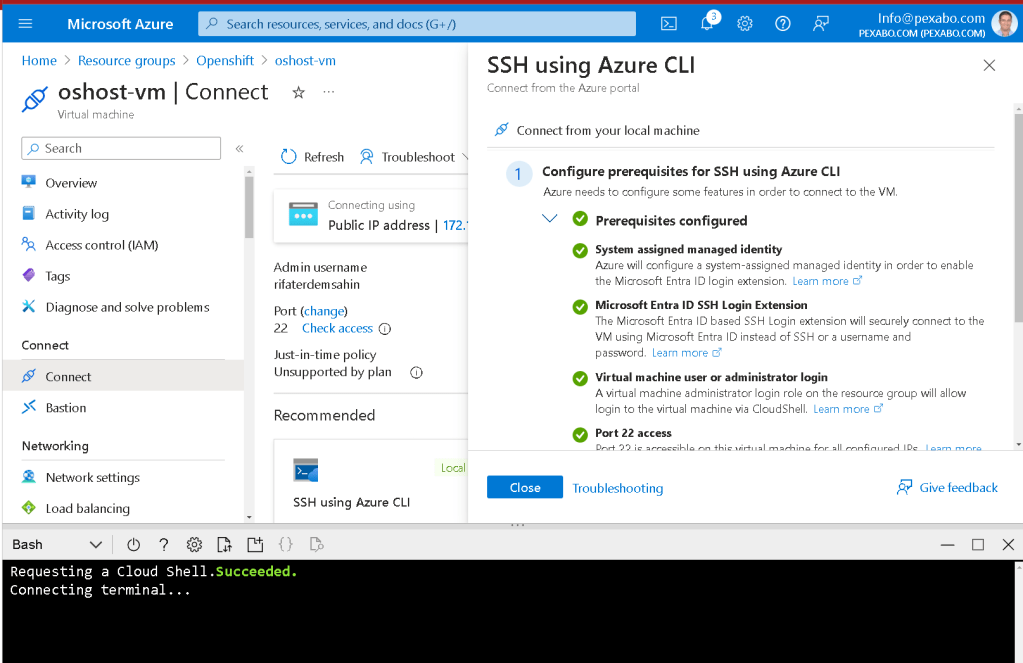
Cloud shell connection in 3 minutes
Share the journey on Linkedin
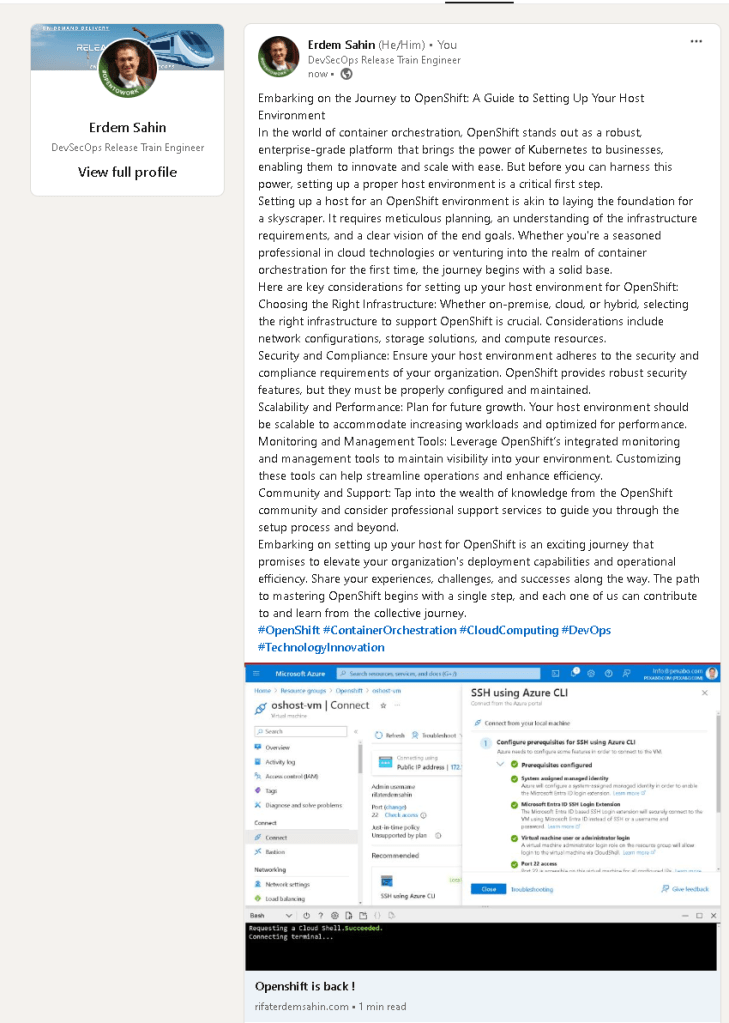
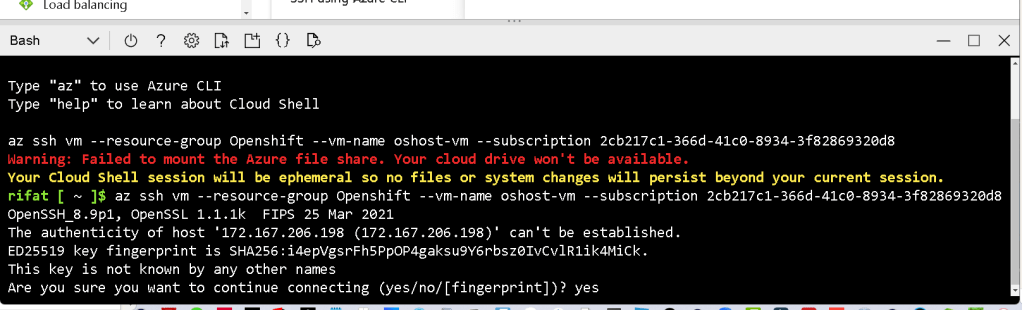
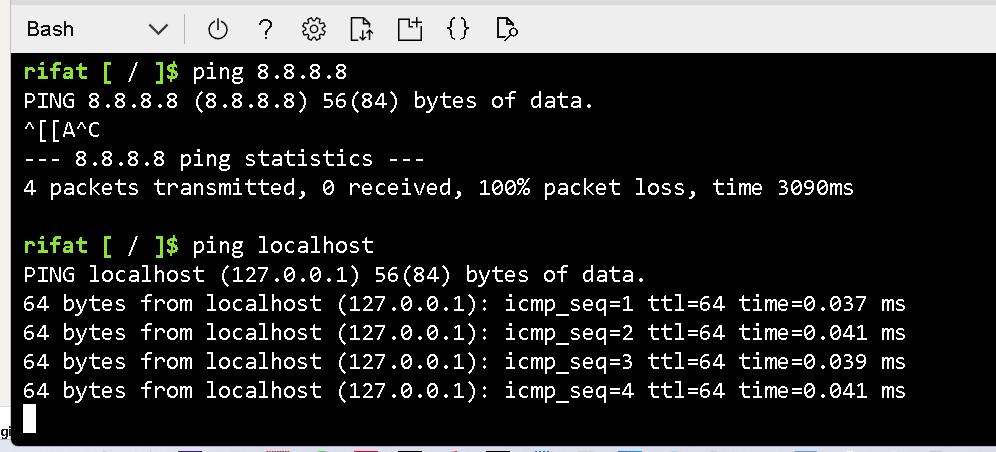
not outside but at least inside it works
Implement the chatgpt
password is there
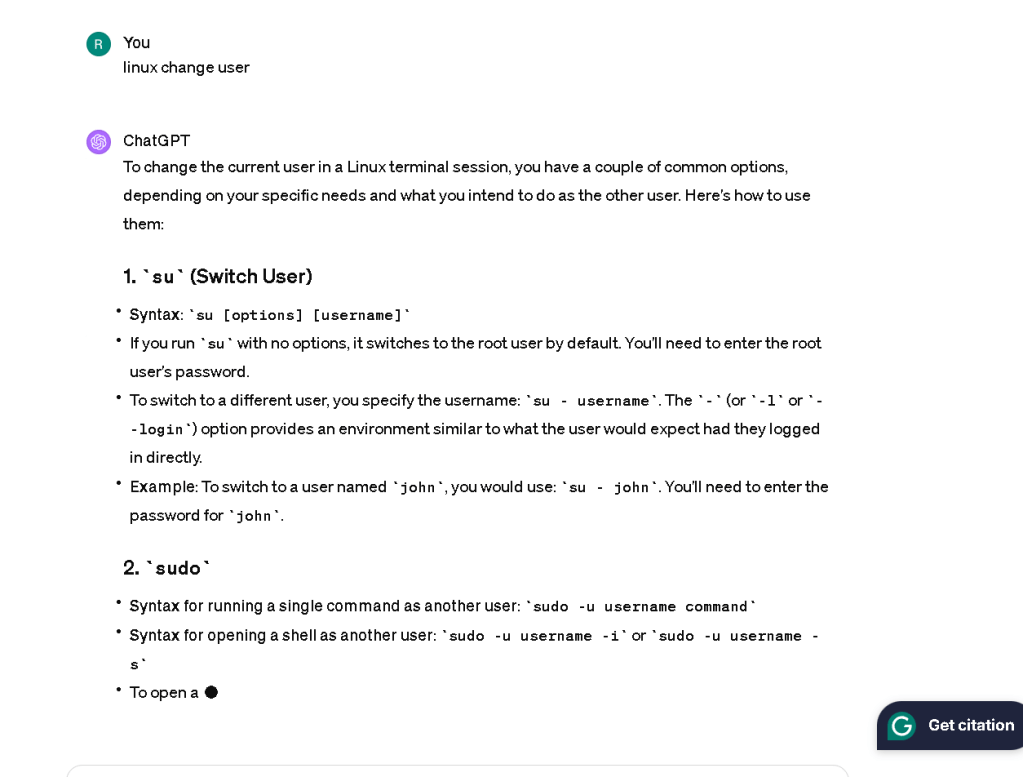
change user
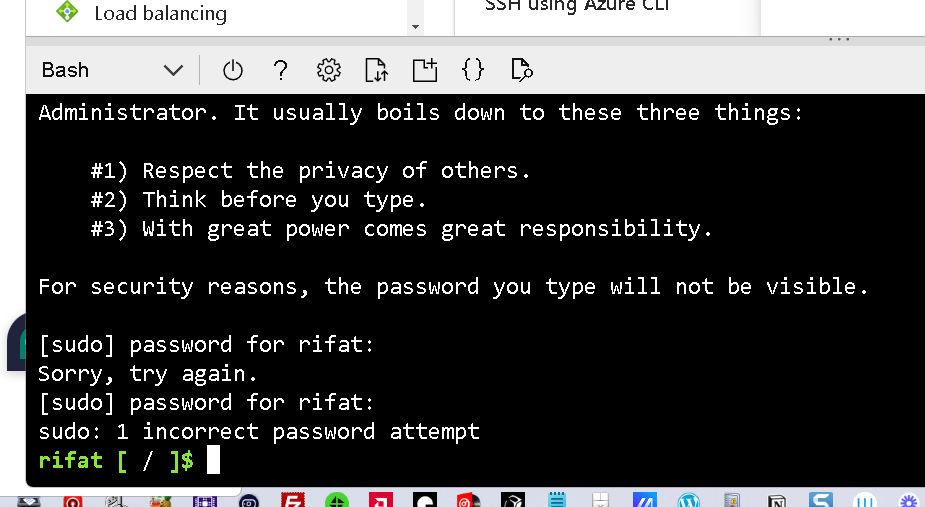
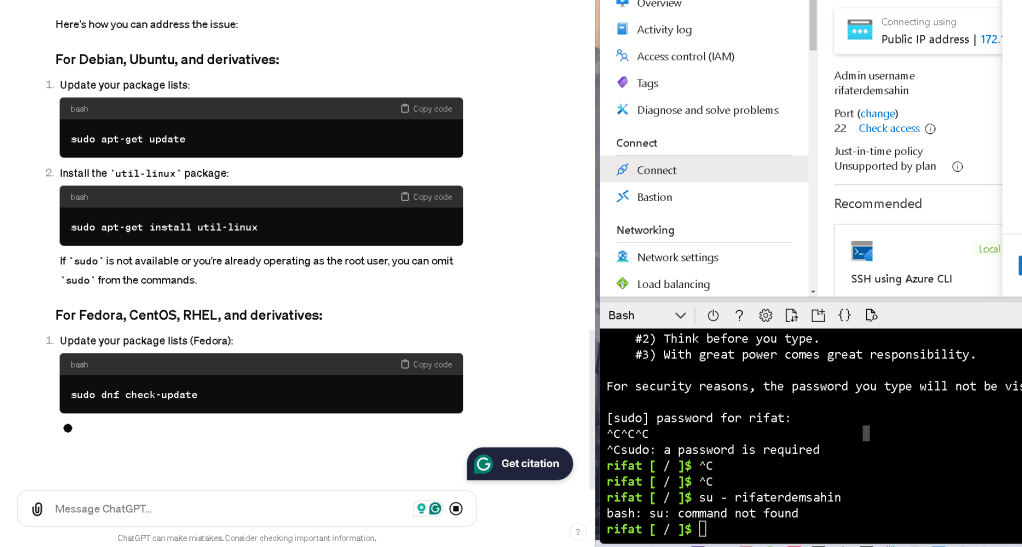
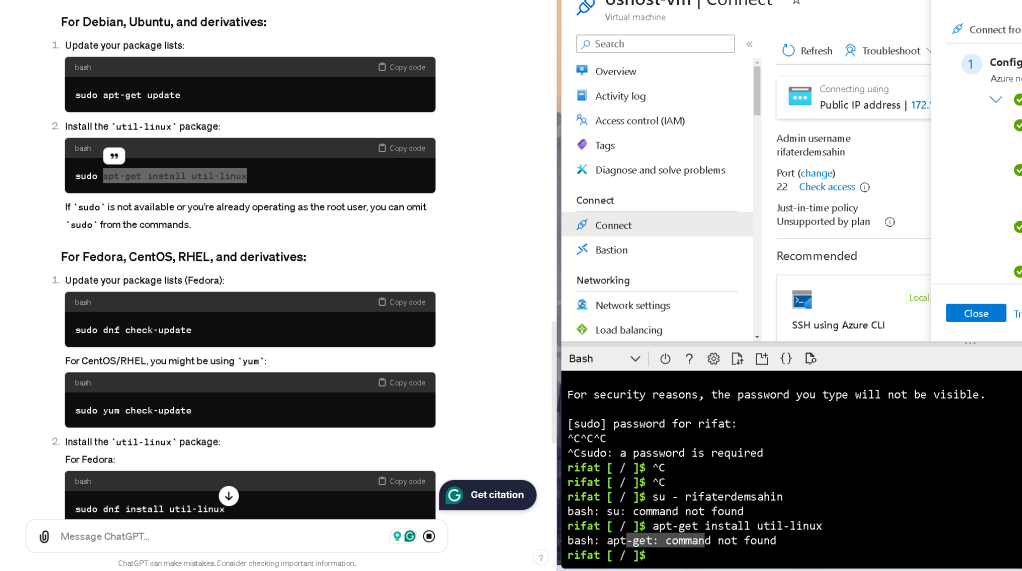
reconnect notting is there
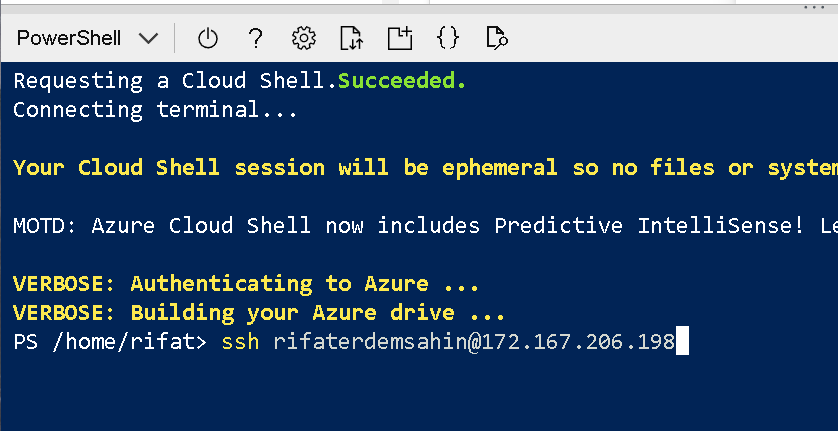
Logged ionto different user
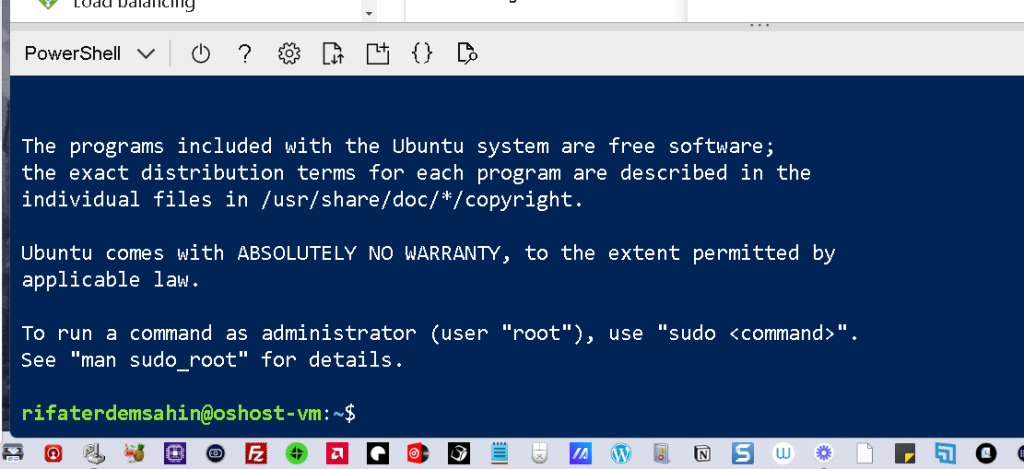
just rifat is the entra id
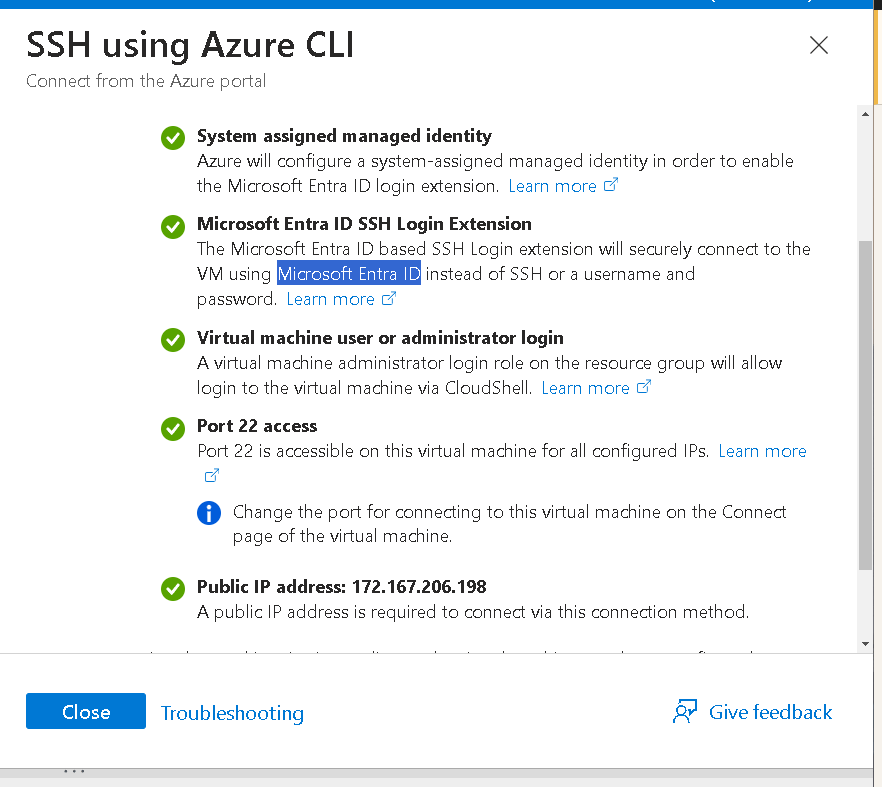
update works
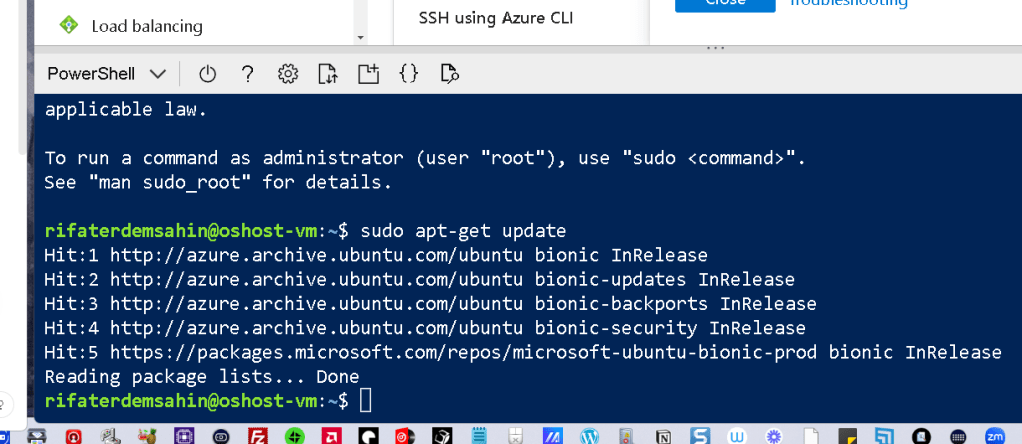
get latest packages
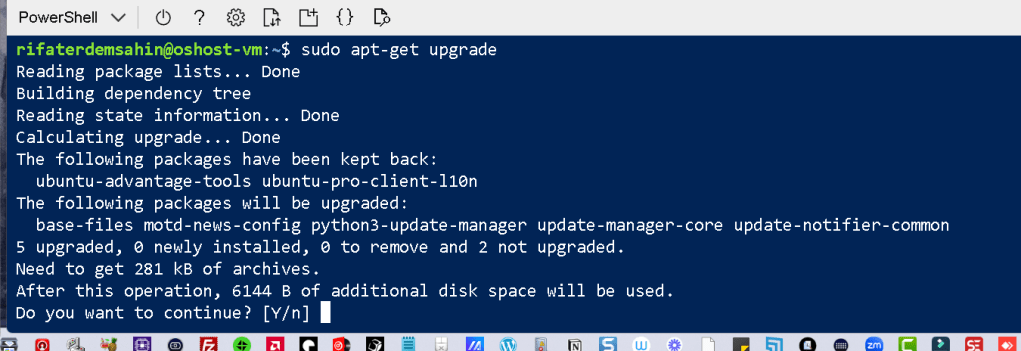
sudo apt-get install xrdp -y
Add minus y >>> to auto approve
so many libraries to be loaded
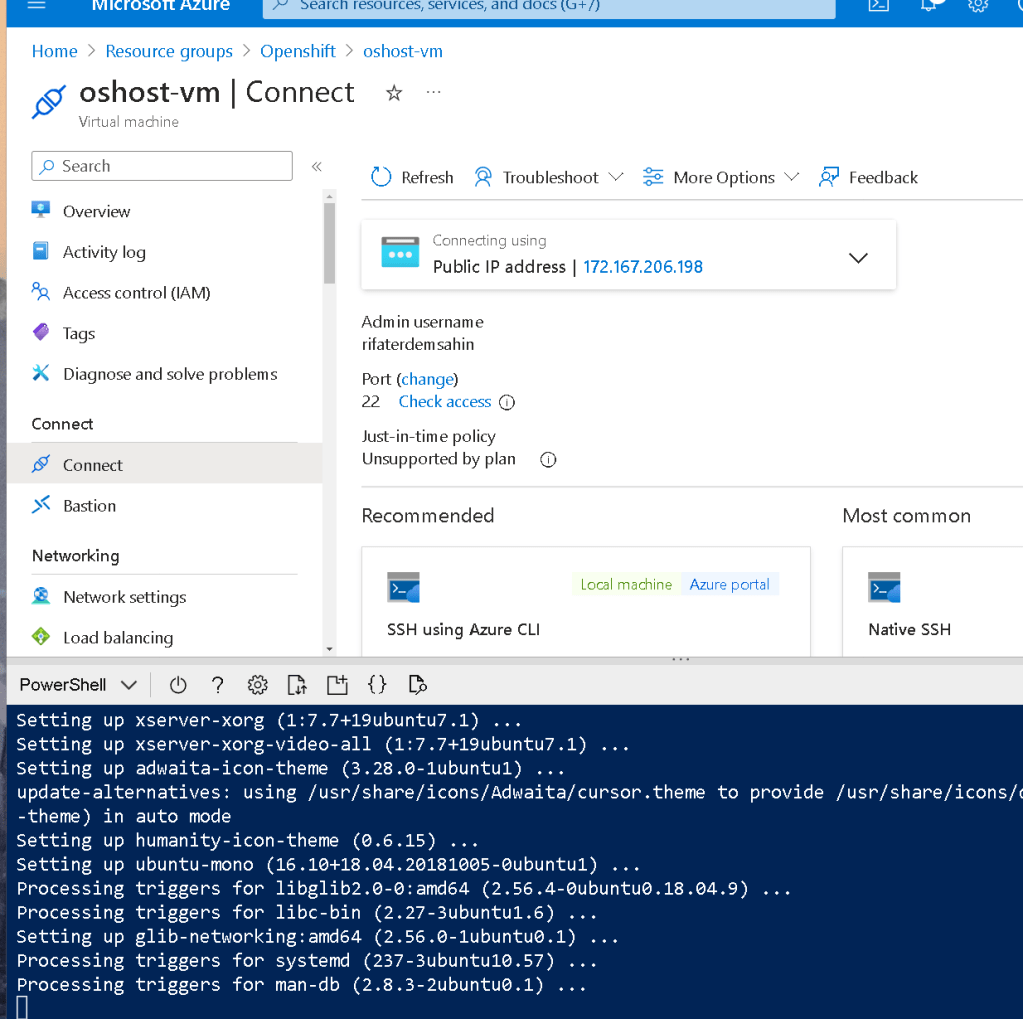
check install
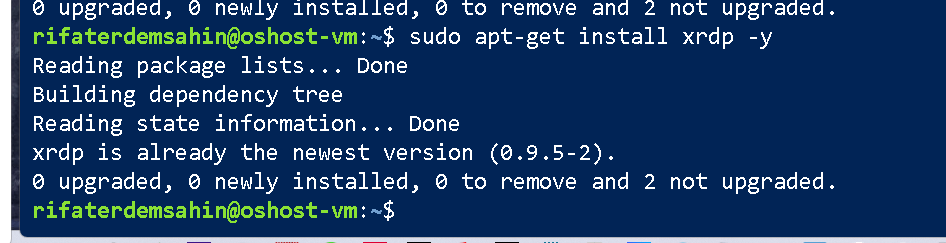

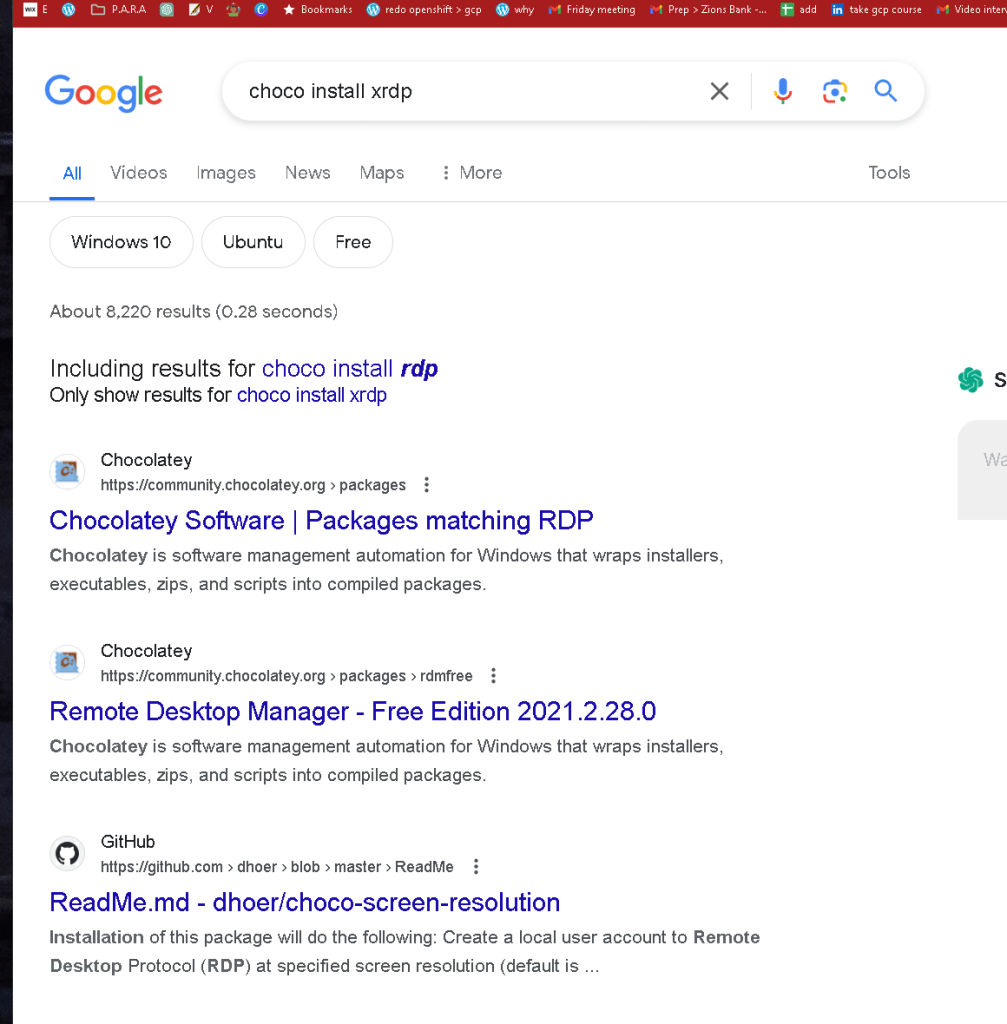
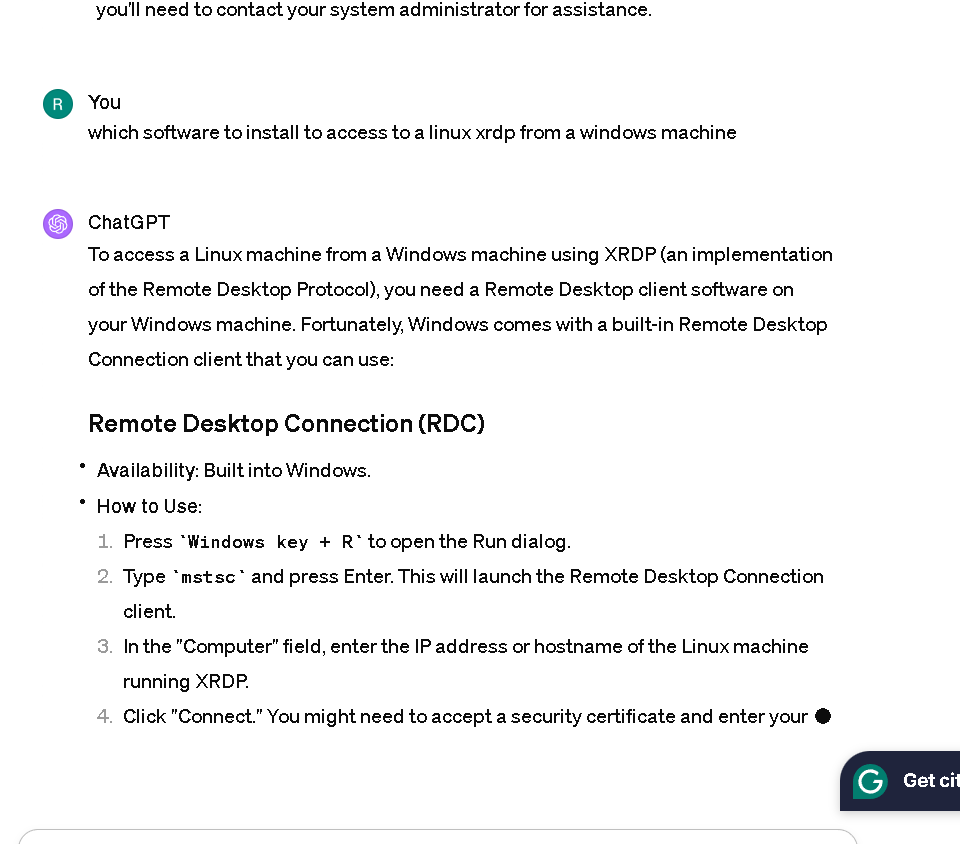
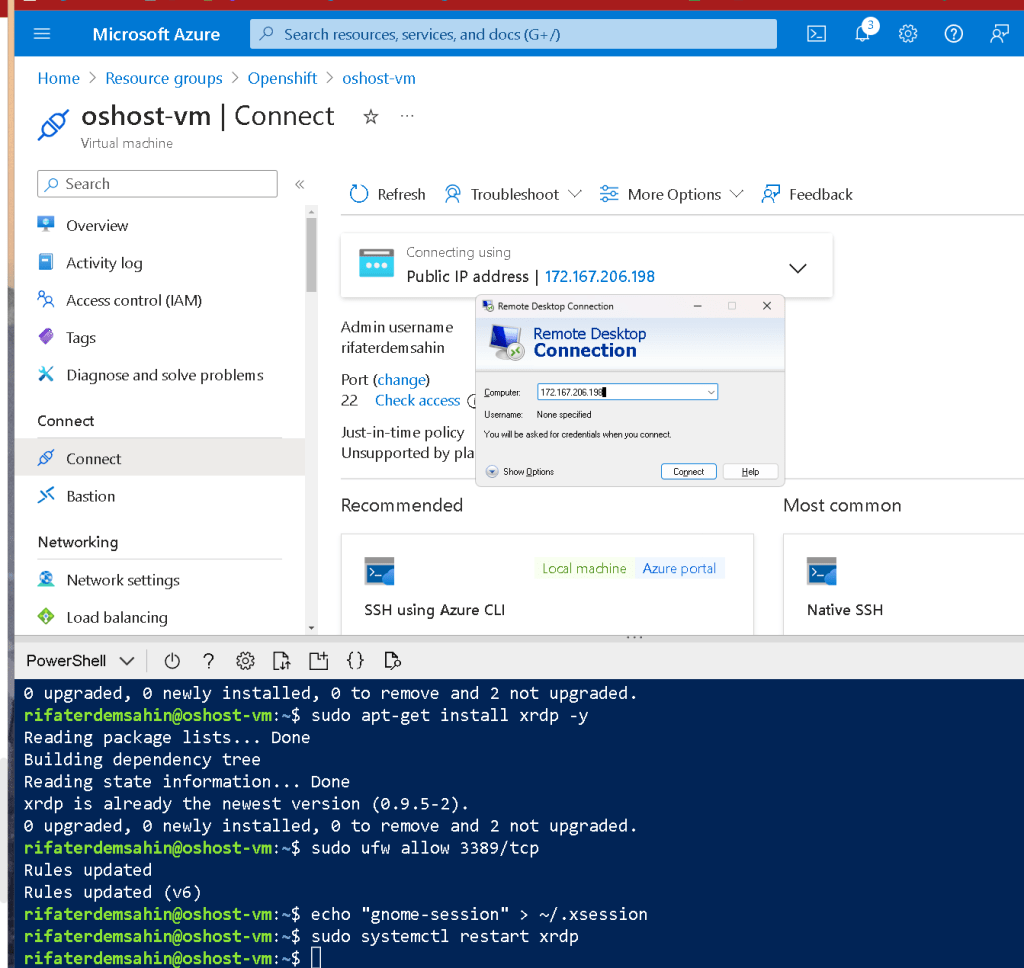
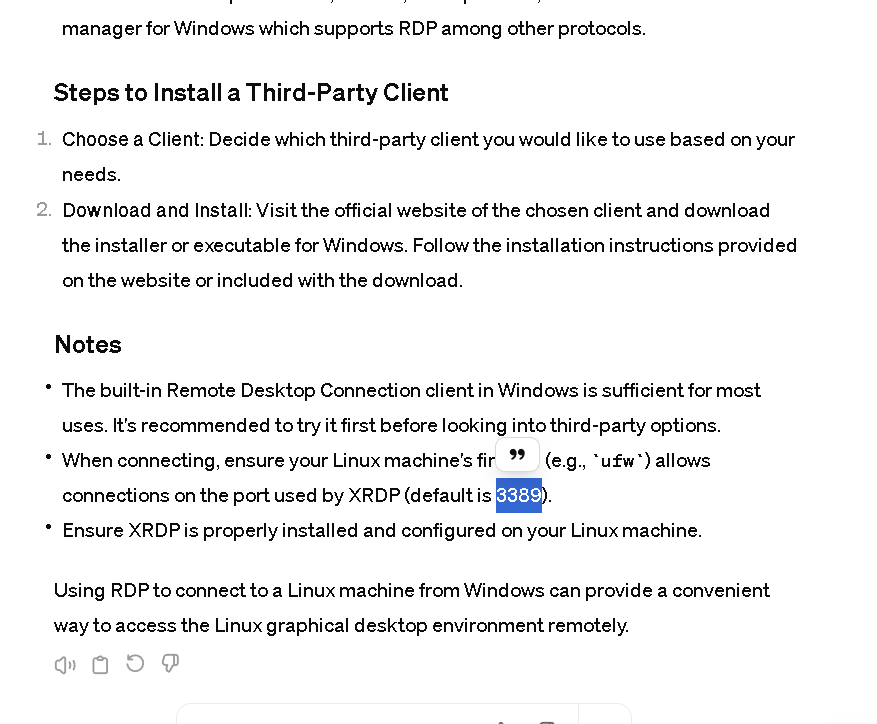
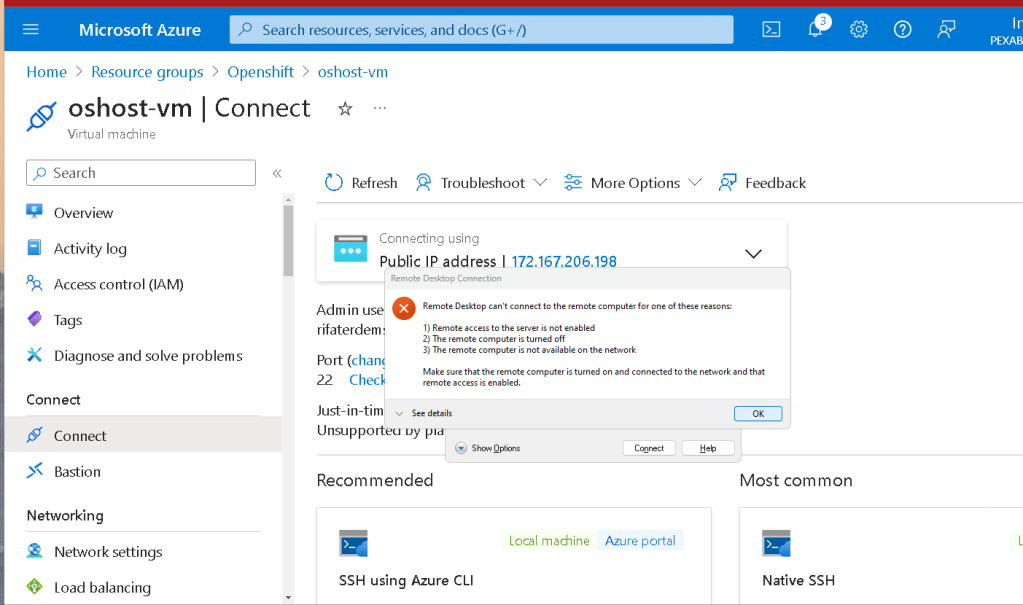
3389
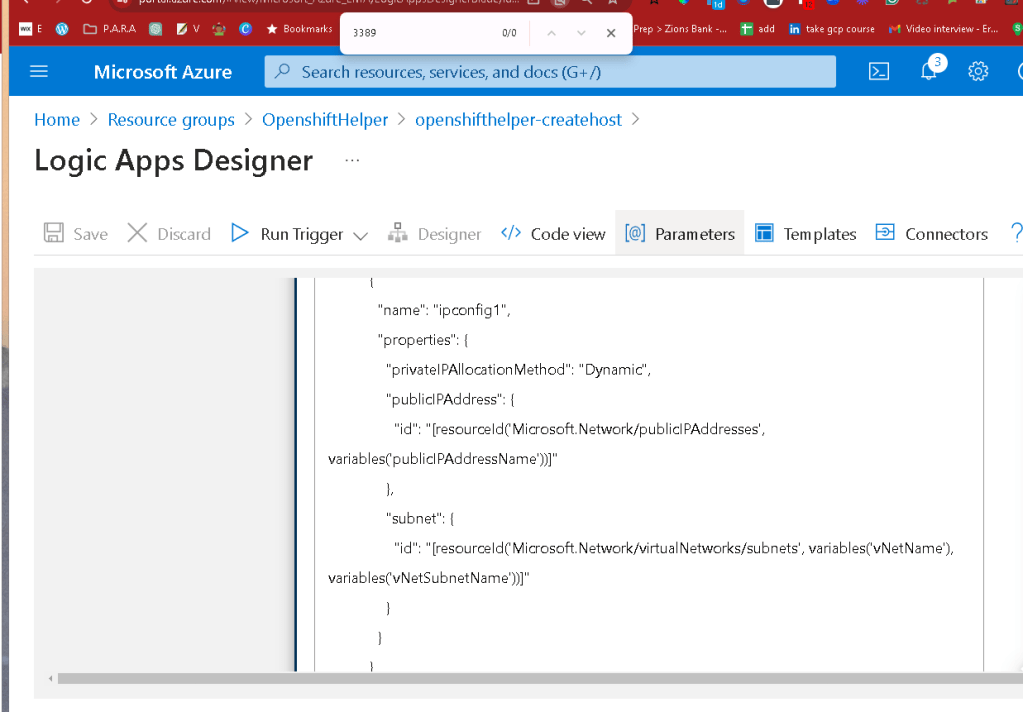
use gpt
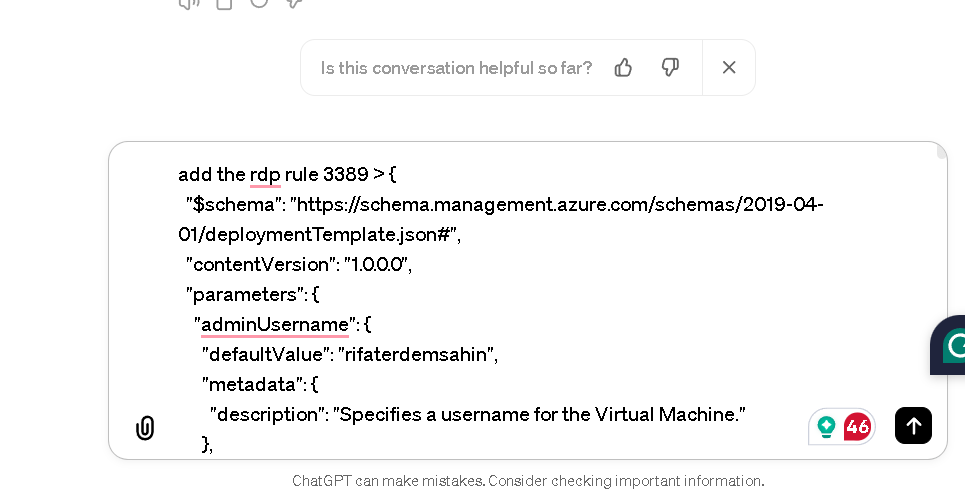
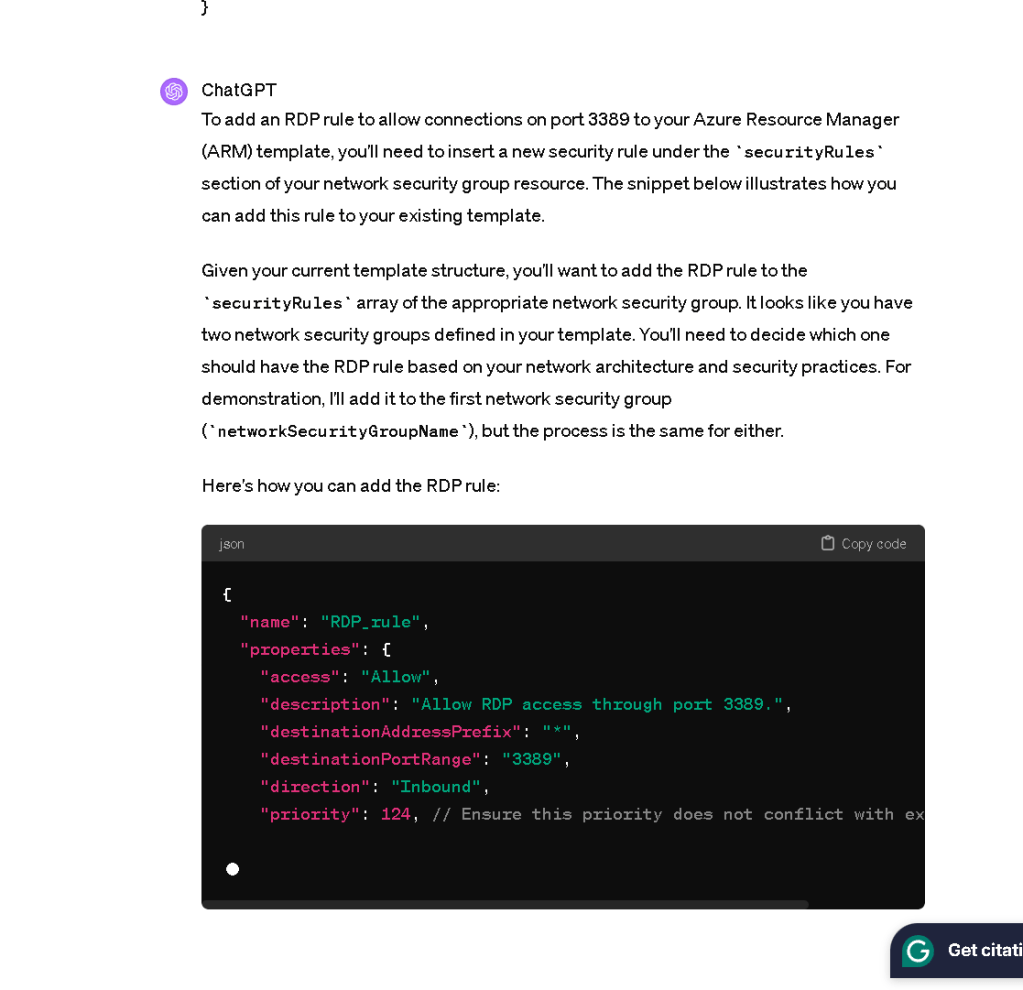
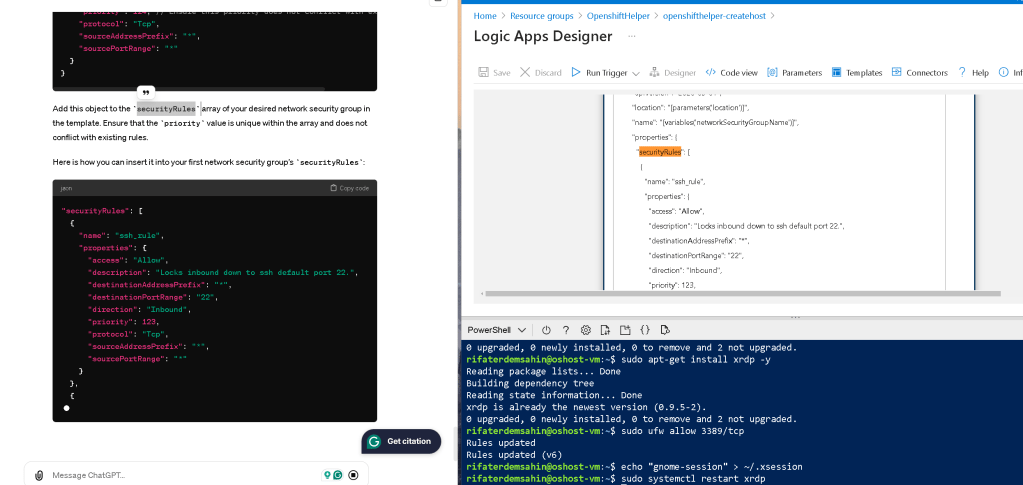
check if you can save it
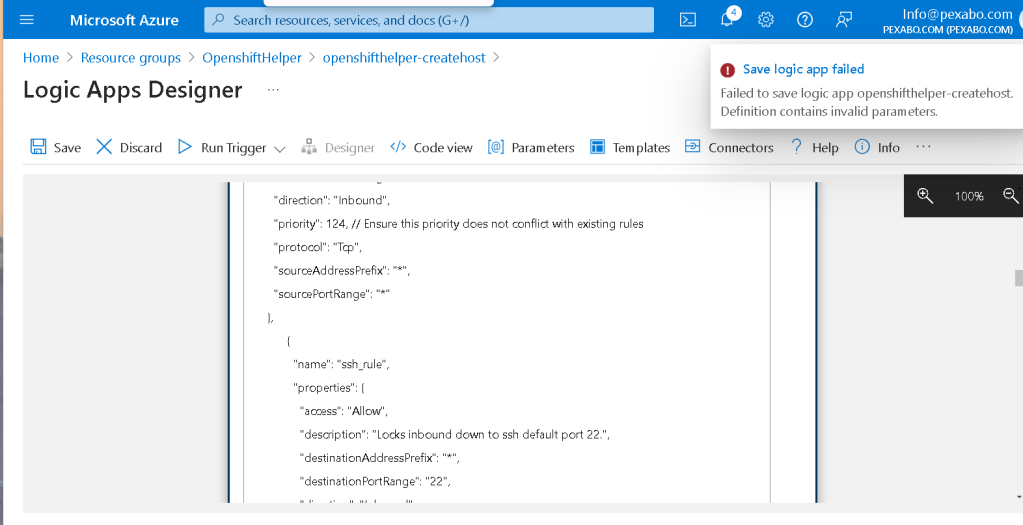
check with json lint on syntax errors
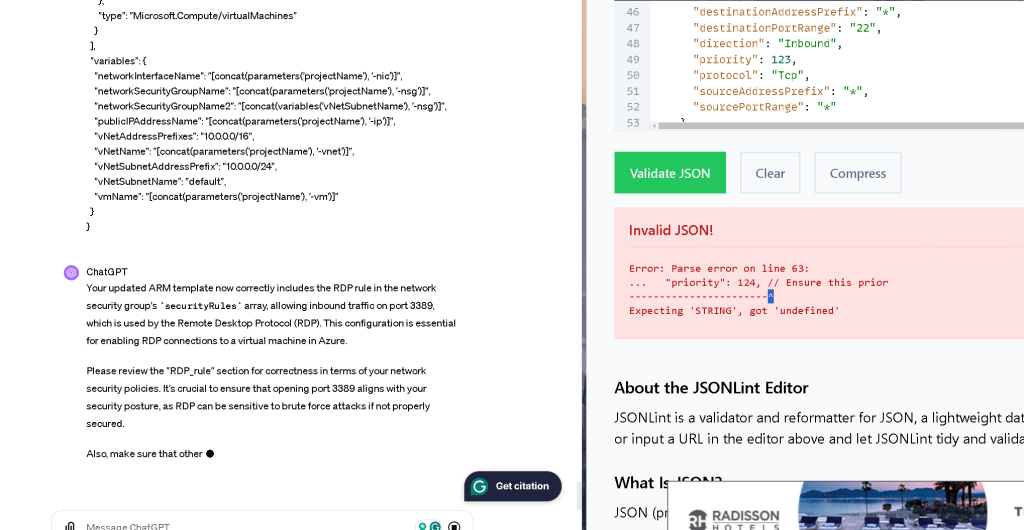
DElete thenewx action
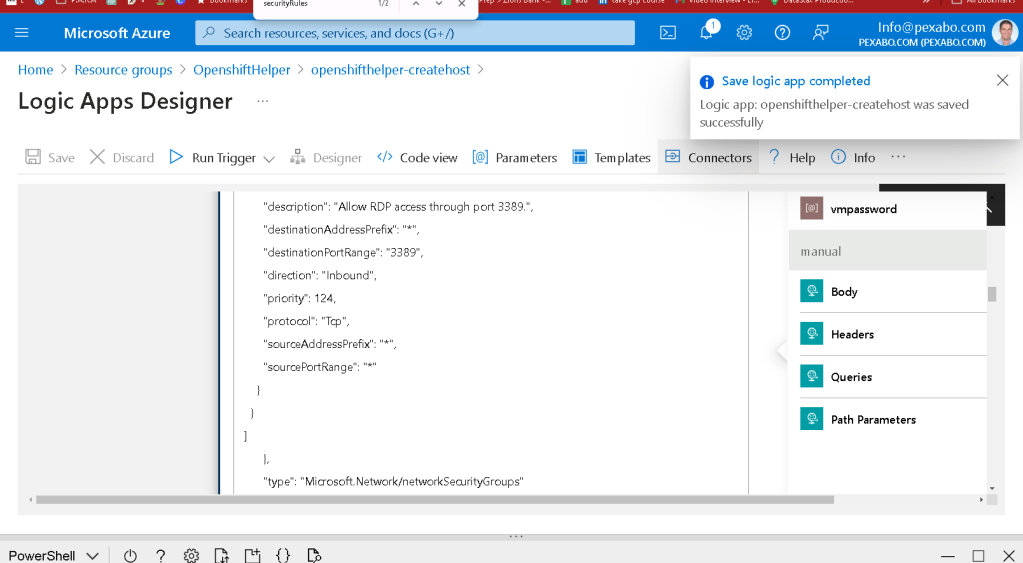
new deployment in
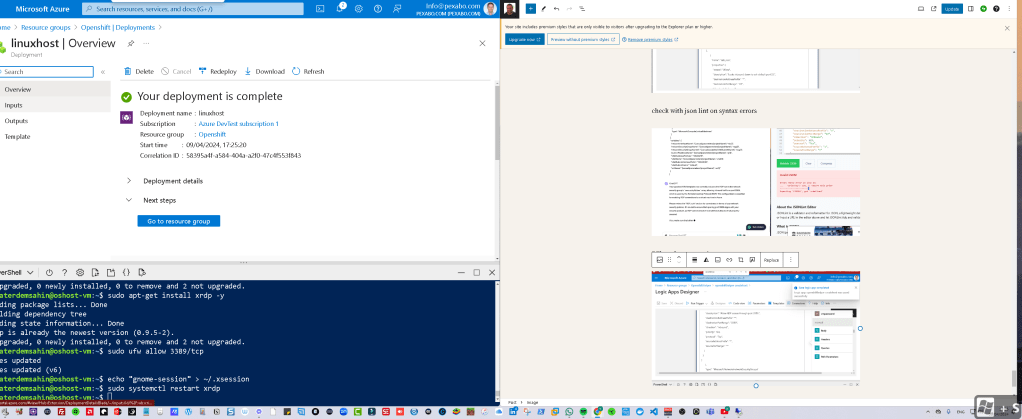
still does not connect !
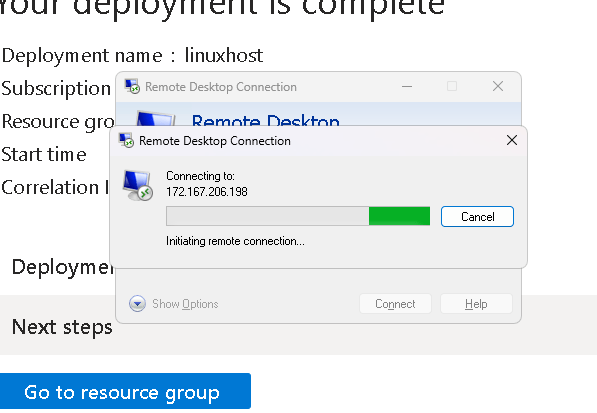
destroy before checking out
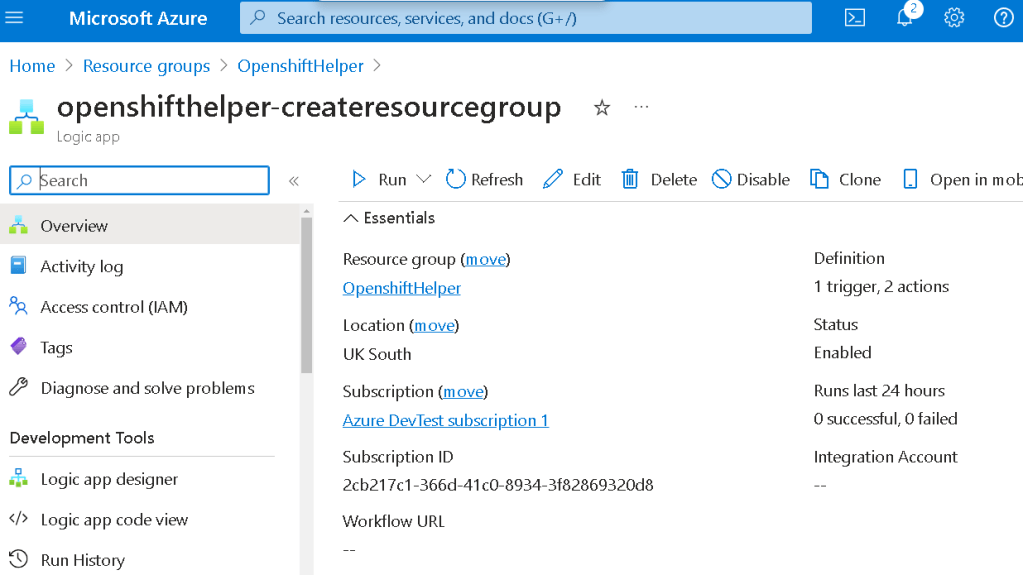
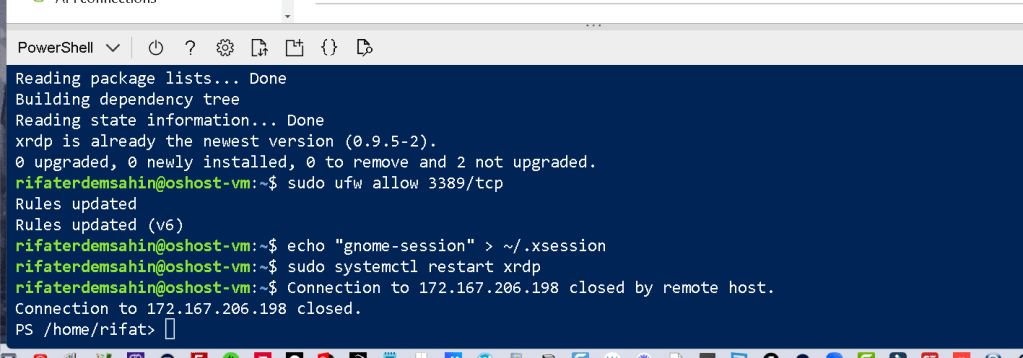
it takes time for the deletion
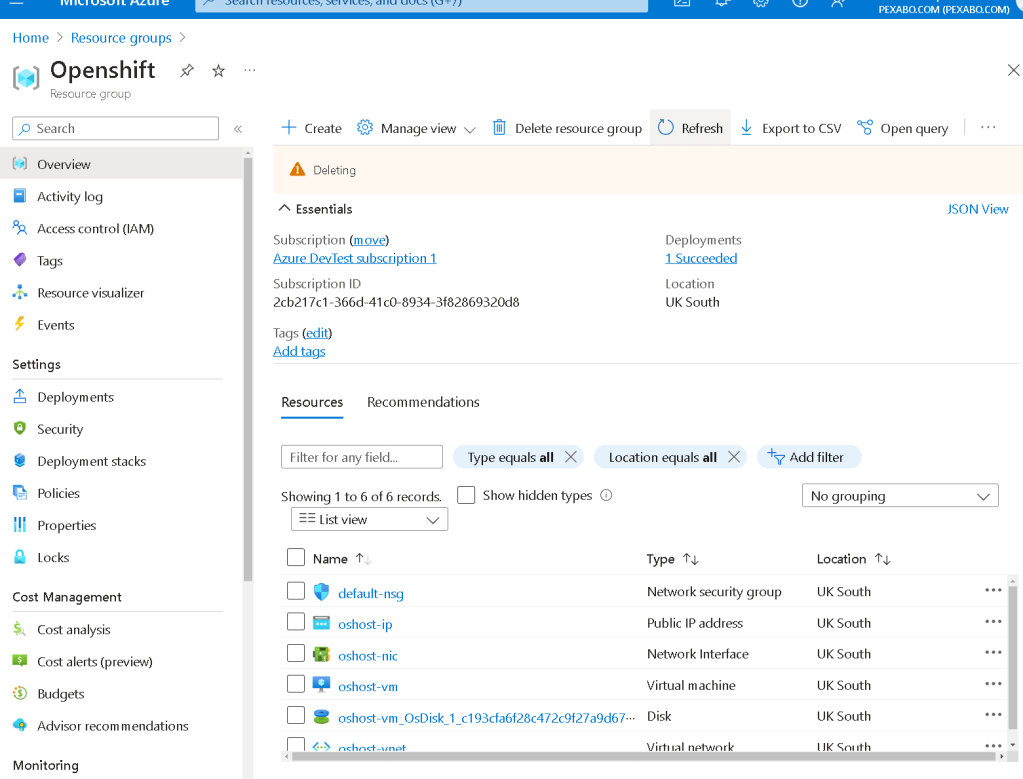
GPT left over point > https://chat.openai.com/c/9d59c7d0-dc50-45df-8c18-7149334d5fdb
Imported from rifaterdemsahin.com · 2024