Streamline Your File Organization: Practical Folder Name Updates with Microsoft PowerToys
In the digital age, efficient file organization is more important than ever. Whether you're a professional managing a multitude of projects or a student keeping track of assignments and resources, the ability to quickly and accurately update folder names can save an invaluable amount of time. This is where Microsoft PowerToys, a suite of utilities for power users, comes into play. With its intuitive tools, PowerToys can transform your folder naming process from a mundane task into a seamless part of your workflow.
Discovering Microsoft PowerToys
Microsoft PowerToys is a set of free utilities designed to help Windows users boost productivity. Initially introduced with Windows 95, PowerToys has been revamped for Windows 10 and beyond, offering a modern collection of system enhancements that are both practical and easy to use.
The Power of Renaming: PowerRename Utility
Among the various tools in PowerToys, PowerRename is a standout feature for batch renaming files and folders. This powerful utility provides a simple yet robust interface for performing search and replace or more complex regular expression operations on large groups of files. Here's how you can put PowerRename to work and bring your folder naming conventions to a whole new level.
Step 1: Install Microsoft PowerToys
To get started, download and install the latest version of PowerToys from the official Microsoft GitHub repository or the Microsoft Store. Once installed, run PowerToys from the Start menu.
Step 2: Enable PowerRename
Open the PowerToys settings and ensure that the PowerRename module is enabled. You can also explore the settings to customize PowerRename's behavior, such as toggling case sensitivity or excluding files from renaming if they're in use.
Step 3: Select Folders and Launch PowerRename
Navigate to the folder containing the subfolders you wish to rename. Select multiple folders by holding down the Shift or Ctrl key and clicking on each one. Right-click on one of the selected folders and choose "PowerRename" from the context menu.
Step 4: Use PowerRename's Features
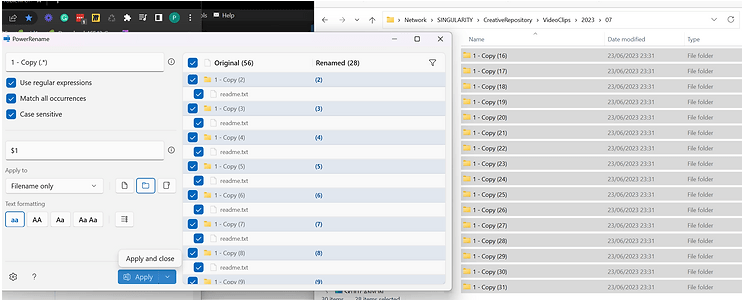
The PowerRename interface allows you to specify search terms for folder names you want to change and what you'd like to replace them with. You can use simple text replacement or dive into regular expressions for more complex renaming patterns. For instance, if you're organizing project folders by date, you can easily reformat date structures or add project codes in bulk.
Step 5: Preview and Apply
As you type your search and replace terms, PowerRename provides a live preview of what the new folder names will look like. This preview feature ensures accuracy and prevents errors before any changes are made. Once you're satisfied with the new names, click "Rename," and PowerRename will update all selected folders in seconds.
Advantages of Using PowerRename
The benefits of using PowerRename for folder name updates are plentiful:
-
Time Efficiency: Rename multiple folders in one go, dramatically cutting down the time you'd spend renaming each folder individually.
-
Consistency: Ensure that all your folders follow the same naming convention, which is crucial for organization and searchability.
-
Undo Feature: If you make a mistake, PowerRename has an "Undo" feature that allows you to revert changes without hassle.
Conclusion
In the quest for maximum productivity, even the smallest tools can make the biggest difference. Microsoft PowerToys' PowerRename is one such tool, offering an efficient solution for managing and updating folder names. Whether you're dealing with hundreds of folders or just looking to maintain a tidy digital workspace, PowerRename can make the process of renaming folders fast, consistent, and error-free. Give it a try, and watch your file management efficiency take off!
Imported from rifaterdemsahin.com · 2024